
Python图形编程探索系列-08-再次认识标签
标签的各种属性
**代码展示:**
```
import tkinter as tk
root = tk.Tk()
root.geometry = '500x300'
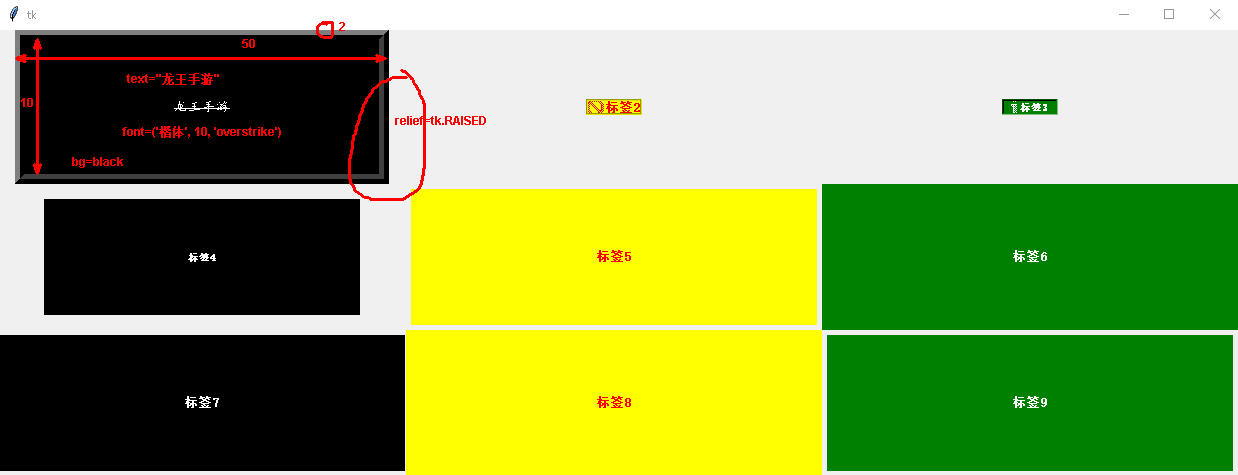
label1 = tk.Label(root, text='龙王手游', width=50, height=10, bd=10)
label1.config(fg='white', bg='black', relief=tk.RAISED, font=('楷体', 10, 'overstrike'))
label2 = tk.Label(root, text='标签2', relief=tk.GROOVE, width=50, height=10, bd=2)
label2.config(fg='red', compound=tk.LEFT, bitmap='error', bg='yellow', font=('隶书', 10, 'bold'))
label3 = tk.Label(root, text='标签3', compound=tk.LEFT, bitmap='info', relief=tk.SUNKEN, width=50, height=10, bd=2)
label3.config(fg='white', bg='green', font=('隶书', -10, 'bold'))
label4 = tk.Label(root, text='标签4', width=50, height=10, bd=2)
label4.config(fg='white', bg='black', font=('楷书', -10, 'bold'))
label5 = tk.Label(root, text='标签5', width=50, height=10)
label5.config(fg='red', bg='yellow', bd=2, font=('隶书', 10, 'bold'))
label6 = tk.Label(root, text='标签6', width=50, height=10, bd=2)
label6.config(fg='white', bg='green', font=('隶书', 10, 'bold'))
label7 = tk.Label(root, text='标签7', width=50, height=10, bd=2)
label7.config(fg='white', bg='black', font=('隶书', 10, 'bold'))
label8 = tk.Label(root, text='标签8', width=50, height=10, bd=2)
label8.config(fg='red', bg='yellow', font=('隶书', 10, 'bold'))
label9 = tk.Label(root, text='标签9', width=50, height=10)
label9.config(fg='white', bg='green', bd=2, font=('隶书', 10, 'bold'))
label1.grid(row=0, column=0, ipadx=1, ipady=1)
label2.grid(row=0, column=1, padx=5, pady=5)
label3.grid(row=0, column=2, padx=1, pady=1)
label4.grid(row=1, column=0, ipadx=5, ipady=5)
label5.grid(row=1, column=1, padx=1, pady=1)
label6.grid(row=1, column=2, ipadx=5, ipady=5)
label7.grid(row=2, column=0, padx=1, pady=1)
label8.grid(row=2, column=1, ipadx=5, ipady=5)
label9.grid(row=2, column=2, padx=1, pady=1)
root.mainloop()
**结果:**
<h1 style="background:cyan;">标签按钮合作案例</h1>
单击按钮是从新设置标签上的显示内容
import tkinter as tk # 导入tkinter库
root = tk.Tk() # 建立程序主窗口
root.title("Button按钮的使用") # 设置主窗口的标题
root.geometry('600x500')
------功能函数
def f1():
var.set("单击按钮1")
def f2():
var.set("单击按钮2")
def f3():
var.set("单击按钮3")
------建立标签
labelx = tk.Label(root)
labelx.config(width=10, height=5)
labelx.config(activebackground='red')
labelx.config(activeforeground='yellow')
labelx.config(relief=tk.SUNKEN)
labelx.config(anchor=tk.CENTER)
定义字符串变量
var = tk.StringVar()
labelx.config(textvariable=var)
------建立第一个按钮
button1 = tk.Button(root, text='按钮1')
button1.config(width=5, height=2)
button1.config(activebackground='red')
button1.config(activeforeground='yellow')
button1.config(anchor=tk.CENTER)
button1.config(bd=2)
button1.config(relief=tk.RAISED)
button1.config(font=('隶书', -20))
button1.config(command=f1)
------建立第二个按钮
button2 = tk.Button(root, text='按钮2')
button2.config(width=5, height=2)
button2.config(activebackground='red')
button2.config(activeforeground='yellow')
button2.config(anchor=tk.CENTER)
button2.config(bd=2)
button2.config(relief=tk.RAISED)
button2.config(font=('隶书', -20))
button2.config(command=f2)
------建立第三个按钮
button3 = tk.Button(root, text='按钮3')
button3.config(width=5, height=2)
button3.config(activebackground='red')
button3.config(activeforeground='yellow')
button3.config(anchor=tk.CENTER)
button3.config(bd=2)
button3.config(relief=tk.RAISED)
button3.config(font=('隶书', -20))
button3.config(command=f3)
各个组件排兵布阵
labelx.grid(row=0, column=1)
button1.grid(row=1, column=0)
button2.grid(row=1, column=1)
button3.grid(row=1, column=2)
root.mainloop()
<h1 style="background:cyan;">标签案例</h1>

在主窗口中定义了三个标签
import tkinter as tk
root = tk.Tk()
label1 = tk.Label(root, text='标签1')
label1.config(fg='white', bg='black')
label2 = tk.Label(root, text='标签2')
label2.config(fg='red', bg='yellow')
label3 = tk.Label(root, text='标签3')
label3.config(fg='white', bg='green')
label1.grid(row=0, column=3)
label2.grid(row=1, column=2)
label3.grid(row=1, column=1)
root.mainloop()
Python图形编程探索系列-08-再次认识标签的更多相关文章
- Python图形编程探索系列-09-tkinter与matplotlib结合案例
案例1 案例来自于:https://bbs.csdn.net/topics/390326088 代码示例: import matplotlib matplotlib.use('TkAgg') from ...
- Python图形编程探索系列-07-程序登录界面设计
设计任务 初步设计程序登录界面,详细分析设计步骤. 程序详细分析 基本框架设计 import tkinter as tk import tkinter.messagebox root = tk.Tk( ...
- Python图形编程探索系列-04-网上图片与标签组件的结合
跳转到自己的博客 任务设定 任务:从网上找到一张图片,然后将其显示在标签上? 网上图片网站:http://pic.58pic.com/58pic/17/56/38/52w58PICtER_1024.j ...
- Python图形编程探索系列-03-标签组件(Label)
跳转到自己的博客 tkinter.Label介绍 什么是标签? 通俗的将就相当于word的功能,能够进行显示不可修改的文字.图片或者图文混排. 直观体会一下 图1 背景图构成:内容区(黑色),填充区( ...
- Python图形编程探索系列-06-按钮批量生产函数
设计任务 初步设计一个批量生产按钮的函数,根据需要的按钮数量,自动生成多少按钮. 函数设计 import tkinter as tk # 导入tkinter库 root = tk.Tk() # 建立程 ...
- Python图形编程探索系列-05-用控制变量构建对话程序
跳转到自己的博客 控制变量 变量 符号 意义 默认值 1 var = tk.BooleanVar() 布尔型 0 2 var = tk.StringVar() 字符串控制变量 空字符串 3 var = ...
- Python图形编程探索系列-02-框架设计
跳转到我的博客 设计任务 在主窗口root中放置三个容器用于容纳组件,容器采用框架设计. 代码初步设计 import tkinter as tk root = tk.Tk() root.geometr ...
- Python图形编程探索系列-01-初级任务
设计任务 设计一个主窗口,在其中添加三个标签和三个按钮,当点击按钮时,对标签的内容和色彩进行修改. 代码初步设计 import tkinter as tk root = tk.Tk() def f1( ...
- linux python 图形编程 qt开发环境搭建
我的系统是 ubuntu14.04 我们使用的是python2.7,建议安装qt4+pyqt4+eric4 eric是pyqt的界面设计器的代码生成软件. 1.安装sip 这个是python和qt之间 ...
随机推荐
- C#实现图片叠加,图片上嵌入文字,文字生成图片的方法
/// <summary> /// 图片叠加 /// </summary> /// <param name="sender"& ...
- Android用户界面开发:Fragment
Android用户界面开发:Fragment 1:注意事项 3.0以前的Android 版本要使用FragmentActivity 来装载Fragment ,使用到support v4包. 3.0 ...
- DOS命令大全(转)
dos命令大全 CMD是command的缩写,是windows环境下的虚拟DOS窗口,提供有DOS命令,功能强大,如果你以前学习过DOS操作,那就小儿科了.是基于Windows的命令行窗口,在开始-- ...
- Linux服务器性能评估
一.影响Linux服务器性能的因素 1. 操作系统级 CPU 内存 磁盘I/O带宽 网络I/O带宽 2. 程序应用级 二.系统性能评估标准 影响性能因素 影响性能因素 评判标准 好 坏 糟糕 CPU ...
- OneNET麒麟座应用开发之二:串口读取PM25传感器数据
作为环境数据监测站首先要获取大气中可吸入颗粒物的数据.为了检测PM25数据,我们采用北京海联信为的HLPM025K3型号传感器,该传感器使用激光法测量PM25和PM10的数据. 该型传感器的检测对象如 ...
- Luogu P3294 【[SCOI2016]背单词】
阅读理解题 ...... $Trie$ 后缀问题不好处理,我们把它转化为前缀问题,用字典树解决问题 贪心 容易想到,一个串的后缀要先于它插入 对于一个串和其若干后缀串,容易想到,我们要先插入后缀串 然 ...
- Guice 依赖绑定
Guice 依赖绑定 连接绑定(Linked Bingdings) 连接绑定是 Guice 最基本的一种绑定方式.这种绑定方式我们需要在自己定义的 Module 的 configure() 中编写绑定 ...
- python 全栈开发,Day55(jQuery的位置信息,JS的事件流的概念(重点),事件对象,jQuery的事件绑定和解绑,事件委托(事件代理))
一.jQuery的位置信息 jQuery的位置信息跟JS的client系列.offset系列.scroll系列封装好的一些简便api. 一.宽度和高度 获取宽度 .width() 描述:为匹配的元素集 ...
- python 全栈开发,Day43(python全栈11期月考题)
python全栈11期月考题 1.常用字符串格式化有哪些?并说明他们的区别 2.请手写一个单例模式(面试题) 3.利用 python 打印前一天的本地时间,格式为‘2018-01-30’(面试题) 4 ...
- Android APN
https://www.cnblogs.com/sishuiliuyun/p/3754516.html android系统把所有的APN都保存在数据库中,数据库绝对路径:/data/data/com. ...