
Python数据可视化之matplotlib
常用模块导入
import numpy as np

import matplotlib

import matplotlib.mlab as mlab

import matplotlib.pyplot as plt

import matplotlib.font_manager as fm

from mpl_toolkits.mplot3d import Axes3D
解决显示异常问题
中文乱码
myfont = fm.FontProperties(fname="字体文件路径")
负号显示为方块
matplotlib.rcParams['axes.unicode_minus']=False
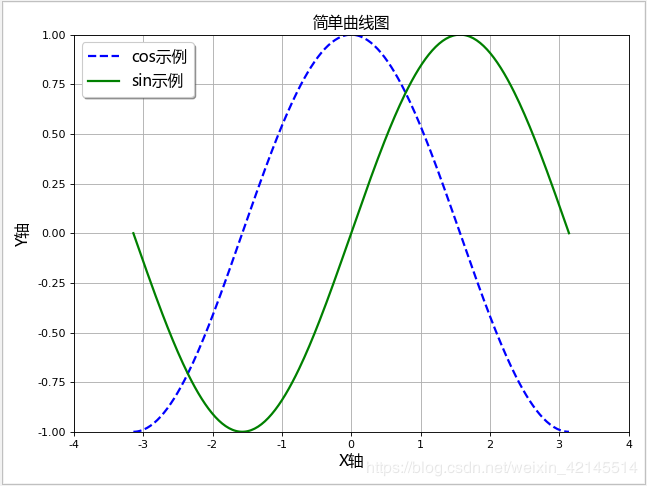
折线图
生成数据
x = np.linspace(-np.pi, np.pi, 256, endpoint=True)  # 从-π到π 等间隔取256个点

y_cos, y_sin = np.cos(x), np.sin(x)  # 对应x的cos与sin值
初始化画布
plt.figure(figsize=(8, 6), dpi=80)  # figsize定义画布大小,dpi定义画布分辨率

plt.title("简单折线图", fontproperties=myfont)  # 设定标题,中文需要指定字体

plt.grid(True)  # 是否显示网格
设置坐标轴
# 设置X轴

plt.xlabel("X轴", fontproperties=myfont)  # 轴标签

plt.xlim(-4.0, 4.0)  # 轴范围

plt.xticks(np.linspace(-4, 4, 9, endpoint=True))  # 轴刻度

# 设置Y轴

plt.ylabel("Y轴", fontproperties=myfont)

plt.ylim(-1.0, 1.0)

plt.yticks(np.linspace(-1, 1, 9, endpoint=True))
绘制数据
线类型有几种:"g+-", "r*-", "b.-", "yo-",第一个字代表颜色,第二个字符代表节点样式,第三个字符代表连线样式
plt.plot(x, y_cos, "b--", linewidth=2.0, label="cos示例") # 前两个参数是坐标值,第三个参数为线类型,linewidth为线宽,label为图例文字

plt.plot(x, y_sin, "g-", linewidth=2.0, label="sin示例")
设置图例
plt.legend(loc="upper left", prop=myfont, shadow=True) # loc可以是upper、lower和left, right, center的组合
图形显示
plt.show()
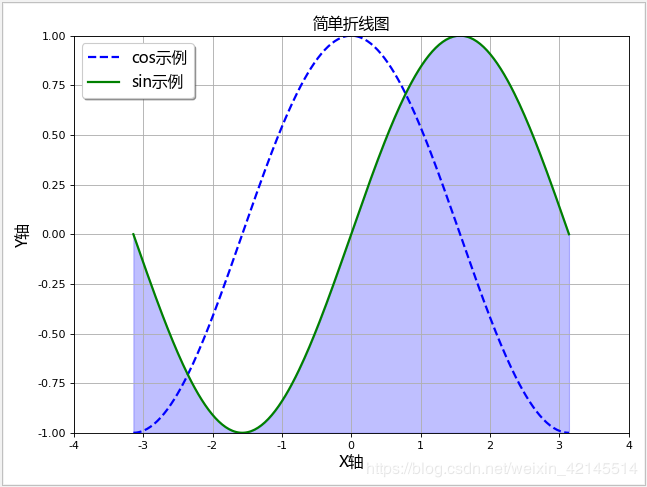
面积图
plt.fill_between(x, -1, y_sin, where=True, color="blue", alpha=0.25)

plt.show()
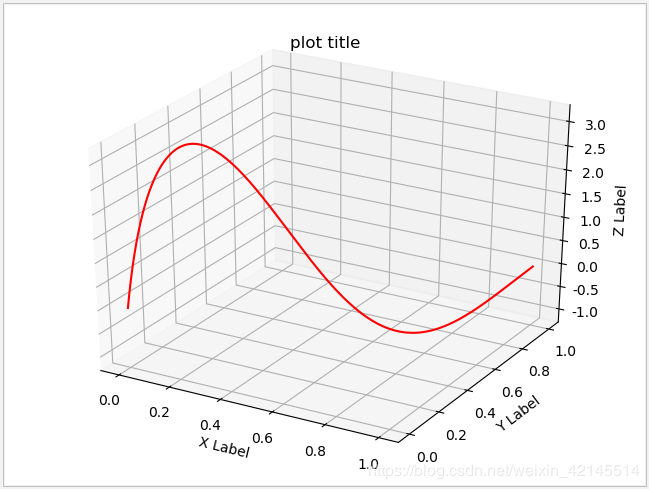
三维折线图
# 生成测试数据

x = np.linspace(0, 1, 1000)

y = np.linspace(0, 1, 1000)

z = np.sin(x * 2 * np.pi) / (y + 0.1)

# 生成画布(两种形式)

fig = plt.figure()

ax = fig.gca(projection="3d", title="plot title")

# ax = fig.add_subplot(111, projection="3d", title="plot title")

# 画三维折线图

ax.plot(x, y, z, color="red", linestyle="-")

# 设置坐标轴图标

ax.set_xlabel("X Label")

ax.set_ylabel("Y Label")

ax.set_zlabel("Z Label")

# 图形显示

plt.show()
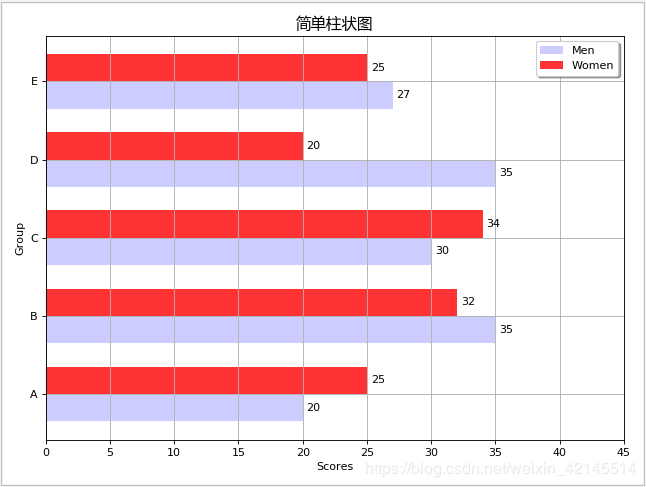
柱状图
生成数据
# 生成测试数据

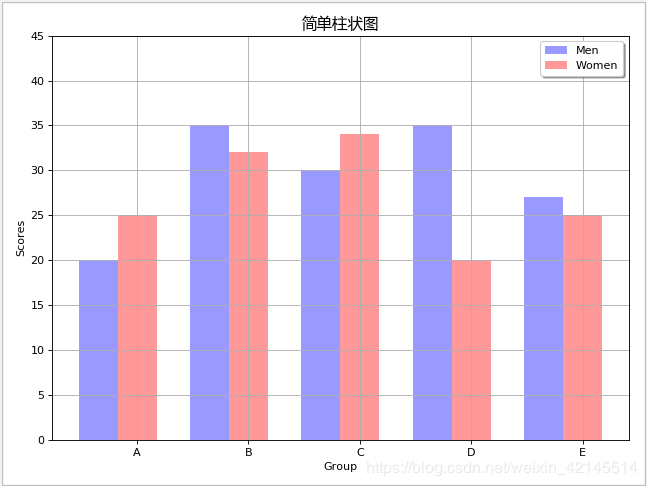
means_men = np.array((20, 35, 30, 35, 27))

means_women = np.array((25, 32, 34, 20, 25))
初始化画布
plt.figure(figsize=(8, 6), dpi=80)  # figsize定义画布大小,dpi定义画布分辨率

plt.title("简单柱状图", fontproperties=myfont)  # 设定标题,中文需要指定字体

plt.grid(True)  # 是否显示网格
设置坐标轴
index = np.arange(len(means_men)) [0,1,2,3,4]

bar_height = 0.35  # 柱宽度

plt.xlim(0, 45)  # 轴范围

plt.xlabel("Scores")  # 轴标签

plt.ylabel("Group")

plt.yticks(index + (bar_height / 2), ("A", "B", "C", "D", "E")) # 轴刻度
绘制数据
# 绘制横向柱状图

plt.barh(index, means_men, height=bar_height, alpha=0.2, color="b", label="Men")

plt.barh(index + bar_height, means_women, height=bar_height, alpha=0.8, color="r", label="Women")
设置图例
plt.legend(loc="upper right", shadow=True)
显示数据值
for i, v in zip(index, means_men):

    plt.text(v + 0.3, i, v, ha="left", va="center")

for i, v in zip(index, means_women):

    plt.text(v + 0.3, i + bar_height, v, ha="left", va="center")
图形显示
plt.show()
竖向柱形图
设置坐标轴,x与y对调
index = np.arange(len(means_men)) [0,1,2,3,4]

bar_height = 0.35  # 柱宽度

plt.ylim(0, 45)

plt.ylabel("Scores")

plt.xlabel("Group")

plt.xticks(index + (bar_height / 2), ("A", "B", "C", "D", "E"))
绘制数据
# 绘制竖向柱状图

plt.bar(index-bar_height/2, means_men, width=bar_height, alpha=0.4, color="b", label="Men")

plt.bar(index+bar_height/2, means_women, width=bar_height, alpha=0.4, color="r", label="Women")
图形显示
plt.show()
堆叠柱状图
# 生成测试数据

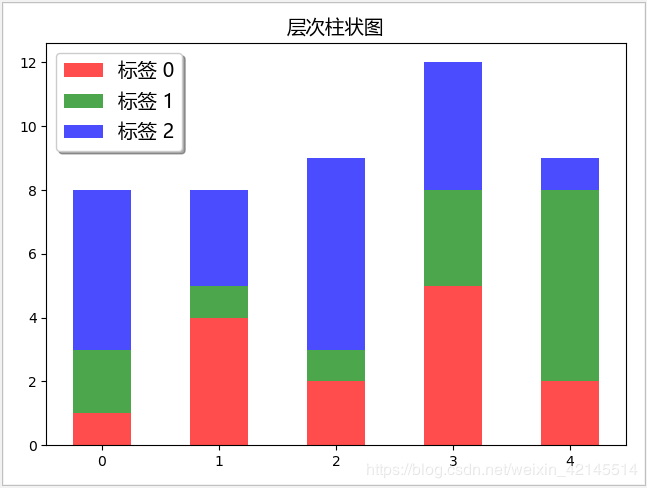
data = np.array([

    [1, 4, 2, 5, 2],

    [2, 1, 1, 3, 6],

    [5, 3, 6, 4, 1]

])

# 设置标题

plt.title("层次柱状图", fontproperties=myfont)

# 设置相关参数

index = np.arange(len(data[0]))

color_index = ["r", "g", "b"]

# 声明底部位置

bottom = np.array([0, 0, 0, 0, 0])

# 依次画图,并更新底部位置

for i in range(len(data)):

    plt.bar(index, data[i], width=0.5, color=color_index[i], bottom=bottom, alpha=0.7, label="标签 %d" % i)

    bottom += data[i]

# 设置图例位置

plt.legend(loc="upper left", prop=myfont, shadow=True)

# 图形显示

plt.show()
直方图
# 生成测试数据

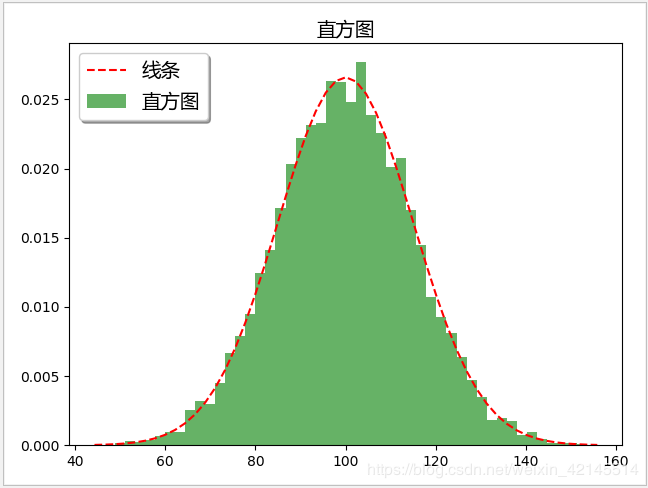
mu, sigma = 100, 15

x = mu + sigma * np.random.randn(10000)

# 设置标题

plt.title("直方图", fontproperties=myfont)

# 画直方图, 并返回相关结果

n, bins, patches = plt.hist(x, bins=50, density=1, cumulative=False, color="green", alpha=0.6, label="直方图")

# # 根据直方图返回的结果, 画折线图

y = mlab.normpdf(bins, mu, sigma)

plt.plot(bins, y, "r--", label="线条")

# 设置图例位置

plt.legend(loc="upper left", prop=myfont, shadow=True)

# 图形显示

plt.show()
三维柱形图
# 生成测试数据(位置数据)

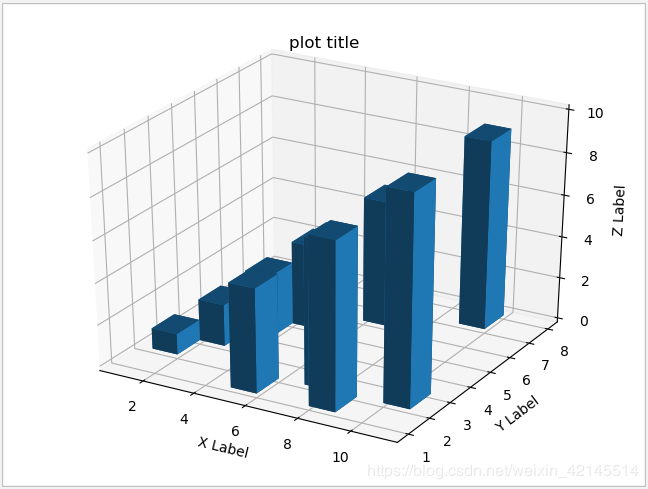
xpos = [1, 2, 3, 4, 5, 6, 7, 8, 9, 10]

ypos = [2, 3, 4, 5, 1, 6, 2, 1, 7, 2]

zpos = [0, 0, 0, 0, 0, 0, 0, 0, 0, 0]

# 生成测试数据(柱形参数)

dx = [1, 1, 1, 1, 1, 1, 1, 1, 1, 1]

dy = [1, 1, 1, 1, 1, 1, 1, 1, 1, 1]

dz = [1, 2, 3, 4, 5, 6, 7, 8, 9, 10]

# 生成画布(两种形式)

fig = plt.figure()

ax = fig.gca(projection="3d", title="plot title")

# 设置坐标轴图标

ax.set_xlabel("X Label")

ax.set_ylabel("Y Label")

ax.set_zlabel("Z Label")

# 画三维柱状图

ax.bar3d(xpos, ypos, zpos, dx, dy, dz, alpha=0.5)

# 图形显示

plt.show()
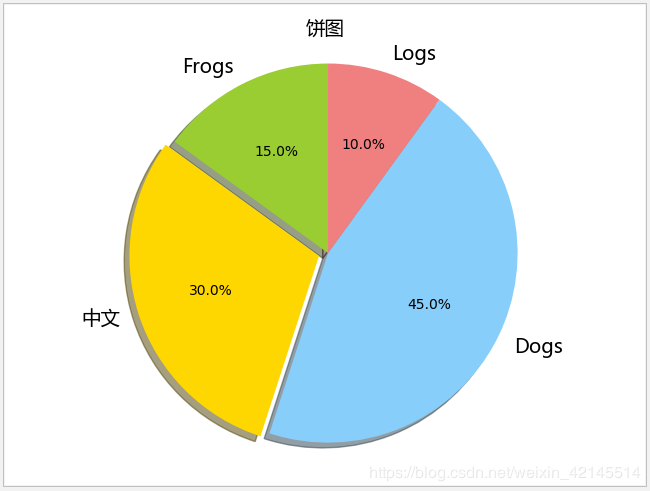
饼状图
生成数据
# 生成测试数据

sizes = [15, 30, 45, 10]  # 数值

labels = ["Frogs", "中文", "Dogs", "Logs"]  # 标签

colors = ["yellowgreen", "gold", "lightskyblue", "lightcoral"]  # 颜色
初始化画布
plt.figure(figsize=(8, 6), dpi=80)  # figsize定义画布大小,dpi定义画布分辨率

plt.title("简单饼状图", fontproperties=myfont)  # 设定标题,中文需要指定字体
设置扇区偏离值
explode = [0, 0.05, 0, 0]
绘制数据
patches, l_text, p_text = plt.pie(sizes, explode=explode, labels=labels, colors=colors, autopct="%1.1f%%", shadow=True, startangle=90)  # autopct设置显示百分比的格式,startangle设置图像转动方向

for text in l_text:

    text.set_fontproperties(myfont)  # 设置字体,避免中文乱码
图形显示
plt.show()
散点图
生成数据
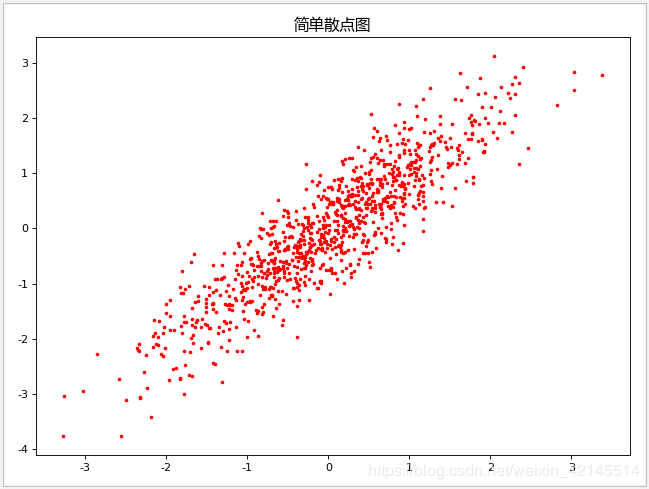
N = 1000

x = np.random.randn(N)

y = x + np.random.randn(N)*0.5
初始化画布
plt.figure(figsize=(8, 6), dpi=80)  # figsize定义画布大小,dpi定义画布分辨率

plt.title("简单散点图", fontproperties=myfont)  # 设定标题,中文需要指定字体
绘制数据
plt.scatter(x, y, s=5, c="red", marker="o") # s表示点的大小,c表示点的颜色,marker表示点的形状
图形显示
plt.show()
三维散点图
# 生成测试数据

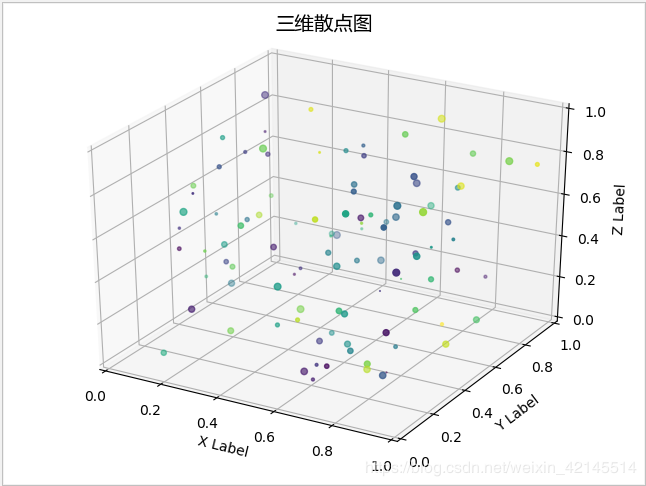
x = np.random.random(100)

y = np.random.random(100)

z = np.random.random(100)

color = np.random.random(100)

scale = np.random.random(100) * 100

# 生成画布(两种形式)

fig = plt.figure()

fig.suptitle("三维散点图", fontproperties=myfont)

ax = fig.add_subplot(111, projection="3d")

# 设置坐标轴图标

ax.set_xlabel("X Label")

ax.set_ylabel("Y Label")

ax.set_zlabel("Z Label")

# 设置坐标轴范围

ax.set_xlim(0, 1)

ax.set_ylim(0, 1)

ax.set_zlim(0, 1)

# 画三维散点图

ax.scatter(x, y, z, s=scale, c=color, marker=".")

# 图形显示

plt.show()
雷达图
生成数据
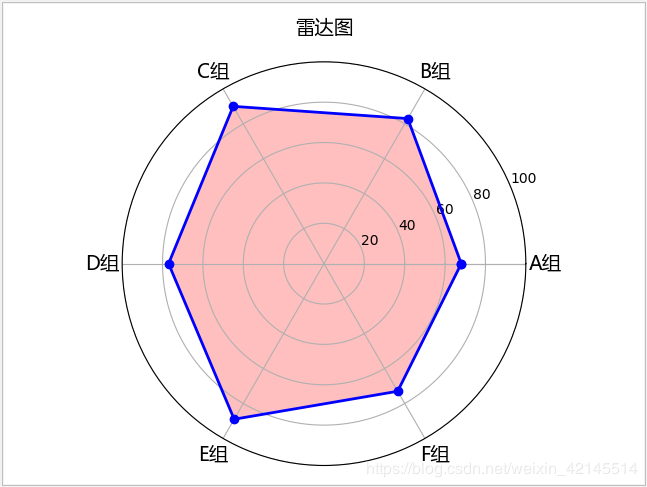
labels = np.array(["A组", "B组", "C组", "D组", "E组", "F组"])

data = np.array([68, 83, 90, 77, 89, 73])

theta = np.linspace(0, 2 * np.pi, len(data), endpoint=False)  # 每个维度的角度值
初始化画布
plt.subplot(111, polar=True)  # 3个数字,前两位表示把画布分为几行几列,后一位表示花在哪个位置上

plt.title("雷达图", fontproperties=myfont)
设置坐标轴
plt.ylim(0, 100) # 轴范围
绘制数据
plt.thetagrids(theta * (180 / np.pi), labels=labels, fontproperties=myfont)
图形显示
plt.show()
想进一步了解编程开发相关知识,与我一同成长进步,请关注我的公众号“松果仓库”,共同分享宅&程序员的各类资源,谢谢!!!
Python数据可视化之matplotlib的更多相关文章
- Python数据可视化——使用Matplotlib创建散点图
Python数据可视化——使用Matplotlib创建散点图 2017-12-27 作者:淡水化合物 Matplotlib简述: Matplotlib是一个用于创建出高质量图表的桌面绘图包(主要是2D ...
- python 数据可视化(matplotlib)
matpotlib 官网 :https://matplotlib.org/index.html matplotlib 可视化示例:https://matplotlib.org/gallery/inde ...
- Python数据可视化库-Matplotlib(一)
今天我们来学习一下python的数据可视化库,Matplotlib,是一个Python的2D绘图库 通过这个库,开发者可以仅需要几行代码,便可以生成绘图,直方图,功率图,条形图,错误图,散点图等等 废 ...
- Python数据可视化之Matplotlib实现各种图表
数据分析就是将数据以各种图表的形式展现给领导,供领导做决策用,因此熟练掌握饼图.柱状图.线图等图表制作是一个数据分析师必备的技能.Python有两个比较出色的图表制作框架,分别是Matplotlib和 ...
- Python数据可视化利器Matplotlib,绘图入门篇,Pyplot介绍
Pyplot matplotlib.pyplot是一个命令型函数集合,它可以让我们像使用MATLAB一样使用matplotlib.pyplot中的每一个函数都会对画布图像作出相应的改变,如创建画布.在 ...
- Python数据可视化库-Matplotlib(二)
我们接着上次的继续讲解,先讲一个概念,叫子图的概念. 我们先看一下这段代码 import matplotlib.pyplot as plt fig = plt.figure() ax1 = fig.a ...
- python数据可视化(matplotlib)
- python数据可视化-matplotlib入门(7)-从网络加载数据及数据可视化的小总结
除了从文件加载数据,另一个数据源是互联网,互联网每天产生各种不同的数据,可以用各种各样的方式从互联网加载数据. 一.了解 Web API Web 应用编程接口(API)自动请求网站的特定信息,再对这些 ...
- Python数据可视化-seaborn库之countplot
在Python数据可视化中,seaborn较好的提供了图形的一些可视化功效. seaborn官方文档见链接:http://seaborn.pydata.org/api.html countplot是s ...
随机推荐
- 面试官,Java8 JVM内存结构变了,永久代到元空间
在文章<JVM之内存结构详解>中我们描述了Java7以前的JVM内存结构,但在Java8和以后版本中JVM的内存结构慢慢发生了变化.作为面试官如果你还不知道,那么面试过程中是不是有些露怯? ...
- 客户端 SOCKET 编程
建立客户端的 Socket: 客户端应用程序首先也是调用 WSAStartup() 函数来初始化 Winsock 的动态连接库,然后同样 调用 socket() 来建立一个 TCP 或 UDP Soc ...
- (未完)经典Web漏洞实战演练靶场笔记
记录下自己写的经典Web漏洞靶场的write up,包括了大部分的经典Web漏洞实战场景,做个笔记. 0x01 任意文件下载漏洞 if(!empty($_GET['filename'])){ $fil ...
- 【Labview入门】将输入度数转换为3位精度弧度值
Labview版本2015 程序如下: 可以右键输出控件选择属性来调整输出的小数位数: 运行结果:
- 微信小程序单选/多选框样式重新
/* 重写 checkbox 样式 */ /* 未选中的 背景样式 */ checkbox .wx-checkbox-input{ border-radius: 50%;/* 圆角 */ width: ...
- httprunner-1-linux下搭建hrun(上)
前言 相信不少小伙伴对开源项目 httprunner 都很感兴趣,我们来看下它的有哪些特点吧: 项目管理:新增项目.列表展示及相关操作,支持用例批量上传(标准化的HttpRunner json和yam ...
- c#菜单动态合并
说明 在程序中经常使用弹出菜单,并且一个窗体中可以存在多个弹出菜单.开发过MDI窗体的读者可能都知道,当MDI子窗体最大化时,子窗体和主窗体的菜单能够自动的合并.这是如何实现的呢?本例实现了将两个弹出 ...
- python3 requests_html 爬取智联招聘数据(简易版)
PS重点:我回来了-----我回来了-----我回来了 1. 基础需要: python3 基础 html5 CS3 基础 2.库的选择: 原始库 urllib2 (这个库早些年的用过,后来淡忘了) ...
- 利用SpringBoot+Logback手写一个简单的链路追踪
目录 一.实现原理 二.代码实战 三.测试 最近线上排查问题时候,发现请求太多导致日志错综复杂,没办法把用户在一次或多次请求的日志关联在一起,所以就利用SpringBoot+Logback手写了一个简 ...
- 使用animate.css
今天有个一前辈来看了一下我的小程序啊,说写的还行就是可以不用只按照ui给的图写界面,自己可以添加一些动态的炫酷效果,不用不知道一用吓一跳啊,用之前觉得好好一个界面为什么要搞那些花里胡哨的东西,单纯一点 ...