
android实现QQ登录界面(大学作业一)
|
实验项目: |
QQ登录界面 |
||
|
实验地点: |
躬行楼718 |
实验时间: |
2018.10.13 |
|
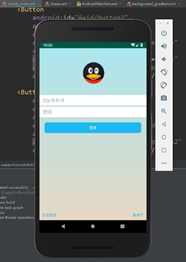
一、实验目的: 1.掌握Android中布局的概念和用法 2.熟练掌握Android中Button、ImageView、EditText以及Toast的基本使用。 3. 熟练掌握偏好设置的用法 二、实验内容与要求 1.完成如下所示的QQ登录界面
2.功能需求: 2.1 界面需要做简单屏幕适配(weight属性) 2.2 用户名明文显示且只能是数字 2.3 密码必须是密文显示,字符数字都可以。 2.4 用户名或密码空,点击登录提示"用户名密码不能为空" 2.5 用户名和密码为指定时,点击按钮提示登录成功。 2.6 登录成功后,将用户名和密码保存在偏好设置中, 2.7 退出QQ再次打开,记住用户名密码并显示出来 三、实验步骤和结果: 用户名是123,密码是password 输入验证成功后即可显示登陆成功提示,然后保存到偏好设置中,以后开启用户名和密码就会显示在文本框内 main_activity.xml: <android.support.constraint.ConstraintLayout xmlns:android="http://schemas.android.com/apk/res/android" xmlns:app="http://schemas.android.com/apk/res-auto" xmlns:tools="http://schemas.android.com/tools" android:layout_width="match_parent" android:layout_height="match_parent" tools:context=".MainActivity"> <LinearLayout xmlns:tools="http://schemas.android.com/tools" android:layout_width="match_parent" android:layout_height="match_parent" android:background="@drawable/background_gradient" android:orientation="vertical"> <ImageView android:id="@+id/imageView1" android:layout_width="160dp" android:layout_height="0dp" android:layout_gravity="center_horizontal" android:layout_marginTop="10dp" android:layout_marginBottom="5dp" android:layout_weight="1" android:src="@drawable/logo" /> <LinearLayout android:layout_width="match_parent" android:layout_height="0dp" android:layout_weight="1" android:orientation="vertical"> <EditText android:id="@+id/username" android:layout_width="match_parent" android:layout_height="40dp" android:layout_below="@id/imageView1" android:layout_marginTop="5dp" android:background="#ffffff" android:hint="QQ/手机号" android:inputType="number" android:paddingLeft="12dp" android:textColor="#000000" /> <EditText android:id="@+id/pwd" android:layout_width="match_parent" android:layout_height="40dp" android:layout_below="@id/username" android:layout_marginTop="5dp" android:background="#ffffff" android:hint="密码" android:inputType="textPassword" android:paddingLeft="12dp" android:textColor="#000000" /> <Button android:id="@+id/login" android:layout_width="match_parent" android:layout_height="40dp" android:layout_below="@id/pwd" android:layout_marginLeft="20dp" android:layout_marginTop="20dp" android:layout_marginRight="20dp" android:background="@drawable/shape" android:gravity="center" android:text="登录" android:textColor="#F9FAFB" /> </LinearLayout> <LinearLayout android:layout_width="match_parent" android:layout_height="0dp" android:layout_weight="1" android:padding="10dp" android:gravity="bottom"> <TextView android:id="@+id/textView2" android:layout_width="wrap_content" android:layout_height="wrap_content" android:gravity="center" android:text="无法登录" android:textColor="#0EB1EF" /> <TextView android:id="@+id/textView3" android:layout_width="match_parent" android:layout_height="wrap_content" android:gravity="right" android:text="新用户" android:textColor="#0EB1EF" /> </LinearLayout> </LinearLayout> </android.support.constraint.ConstraintLayout> MainActivity.java主要代码: package com.lgqchinese.homework; import … public class MainActivity extends AppCompatActivity { private SharedPreferences sp; private SharedPreferences.Editor editor; private EditText userEdit; private EditText passEdit; private Button login; String userNameValue; String passwordValue; @Override protected void onCreate(Bundle savedInstanceState) { super.onCreate(savedInstanceState); setContentView(R.layout.activity_main); viewInfo(); /*//隐藏title if (getSupportActionBar() != null){ getSupportActionBar().hide(); }*/ sp = getSharedPreferences("userInfo", 0); String name = sp.getString("USER_NAME", ""); String pass = sp.getString("PASSWORD", ""); userEdit.setText(name); passEdit.setText(pass); login.setOnClickListener(new View.OnClickListener() { @Override public void onClick(View arg0) { userNameValue = userEdit.getText().toString(); passwordValue = passEdit.getText().toString(); //用户名或密码空,点击登录提示"用户名密码不能为空" if(userNameValue.equals("")||passwordValue.equals("")){ Toast.makeText(MainActivity.this, "用户名或密码不能为空", Toast.LENGTH_SHORT).show(); }else { if (userNameValue.equals("123")&&passwordValue.equals("password")){ //用户名和密码为指定时,点击按钮提示登录成功。 Toast.makeText(MainActivity.this, "登录成功", Toast.LENGTH_SHORT).show(); // 登录成功后,将用户名和密码保存在偏好设置中 SharedPreferences.Editor editor = sp.edit(); //保存用户名和密码 editor.putString("USER_NAME", userNameValue); editor.putString("PASSWORD", passwordValue); editor.commit(); } } } }); } private void viewInfo() { userEdit = (EditText) findViewById(R.id.username); passEdit = (EditText) findViewById(R.id.pwd); login = (Button) findViewById(R.id.login); } }
四、实验总结: 通过实验主要学习sharedpreferences类,逐渐理解其理,掌握使用方法。理解源码,以便更好地掌握。 |
|||



android实现QQ登录界面(大学作业一)的更多相关文章
- Android之QQ登录界面
首先过程中碰到的几个问题: 1.对 EditText 进行自定义背景 2.运行时自动 EditText 自动获得焦点 3.在获得焦点时即清空 hint ,而不是输入后清空 4.清空按钮的出现时机(在得 ...
- Android菜鸟的成长笔记(3)——给QQ登录界面说So Easy
原文:Android菜鸟的成长笔记(3)--给QQ登录界面说So Easy 上一篇:Android菜鸟的成长笔记(2)--第一个Android应用 我们前面已经做了第一个Android应用程序,虽然有 ...
- [转]Android:布局实例之模仿QQ登录界面
Android:布局实例之模仿QQ登录界面 预览图: 准备: 1.找到模仿对象 QQ登陆界面UI下载>>>>> 2.导入工程 3.查看布局结构和使用控件 其对应效果图分布 ...
- QQ登录界面布局
简单的qq登录界面布局 <?xml version="1.0" encoding="utf-8"?> <RelativeLayout xmln ...
- 界面编程模仿篇(QQ登录界面逼真篇)
写了好多天的爬虫,偷空前前后后用了两天的时间(排除吃饭睡觉)写完了这个QQ登录界面,看起来还凑和着吧,如果是的大神的,莫见笑,纯属业余作品,废话先不多说,截图如下,其中第二幅图片中的红色方框部份有待完 ...
- 零基础~仿qq登录界面
html代码: <!DOCTYPE html> <html> <head> <meta charset="utf-8"> <t ...
- WPF开发实例——仿QQ登录界面
原文:WPF开发实例--仿QQ登录界面 版权声明:本文为博主原创文章,如需转载请标明转载地址 http://blog.csdn.net/u013981858 https://blog.csdn.net ...
- JavaSwing仿QQ登录界面,注释完善,适合新手学习
使用说明: 这是一个java做的仿制QQ登录界面,界面仅使用一个类, JDK版本为jdk-11 素材包的名字为:素材(下载)请在项目中新建一个名字为“素材”的文件夹. 素材: https://pan. ...
- swing实现QQ登录界面1.0( 实现了同一张图片只加载一次)、(以及实现简单的布局面板添加背景图片控件的标签控件和添加一个关闭按钮控件)
swing实现QQ登录界面1.0( 实现了同一张图片只加载一次).(以及实现简单的布局面板添加背景图片控件的标签控件和添加一个关闭按钮控件) 代码思路分析: 1.(同一张图片仅仅需要加载一次就够了,下 ...
- 编写Java程序,使用Swing布局管理器和常用控件,实现仿QQ登录界面
返回本章节 返回作业目录 需求说明: 使用Swing布局管理器和常用控件,实现仿QQ登录界面 实现思路: 创建登录界面的类QQLogin,该类继承父类JFrame,在该类中创建无参数的构造方法,在构造 ...
随机推荐
- CM311-1A魔百和刷armbian或openwrt系统包
系统包下载链接:Openwrt:阿里云盘链接:https://www.aliyundrive.com/s/tEemRbs1TYB已失效下载后请解压!!!!!!!!! Armbian:链接:https: ...
- 火焰图(Flame Graph)使用指南
火焰图(Flame Graph) 是一种可视化性能分析工具,可以帮助你快速定位 CPU.内存或 I/O 瓶颈.它看起来像火焰,因此得名. 火焰图能解决什么问题? CPU 占用高:找出哪些函数消耗了最多 ...
- Eclipse 安装 阿里P3C编码规范插件
操作:Help -> Install New Software -> add name: p3c location:https://p3c.alibaba.com/plugin/eclip ...
- vue报错:Property or method "xxx" is not defined on the instance but referenced during render.
vue报错:Property or method "attendanceDetaill" is not defined on the instance but referenced ...
- Weblogic远程代码执行CVE-2023-21839复现及修复
声明:本文分享的安全工具和项目均来源于网络,仅供安全研究与学习之用, 如用于其他用途,由使用者承担全部法律及连带责任,与工具作者和本公众号无关. WebLogic 存在远程代码执行漏洞(CVE ...
- TablesOfContents.Add 方法 (python3处理Word添加目录)
TablesOfContents.Add 方法 (Word) 返回一 个 TableOfContents 对象,该对象代表添加到文档中的目录. 语法 表达式.Add (Range, UseHeadin ...
- 代码随想录第十一天 | Leecode 150. 逆波兰表达式求值、239. 滑动窗口最大值、347. 前k个高频词
Leecode 150. 逆波兰表达式求值 题目链接:https://leetcode.cn/problems/evaluate-reverse-polish-notation/description ...
- 【经验】Word 2021|如何在Word里做出和Markdown中一样漂亮的引用样式(结尾附成品)
文章目录 写在最前 方法以及参数 1 打开样式窗口 2 设置一些基本操作 3 打开格式窗口 4 修改样式 最后一步!保持间隔 成品的介绍(一些自卖自夸)+获取链接(不想看做法的话直接下载) 写在最前 ...
- 鸿蒙 NEXT (一)初识鸿蒙
@charset "UTF-8"; .markdown-body { line-height: 1.75; font-weight: 400; font-size: 15px; o ...
- 【译】.NET Aspire 和 Azure Functions 集成预览版
您是否曾经为 serverless 技术集成到您现有的 .NET 项目中而挣扎过?Visual Studio 的最新更新已经覆盖了该领域.向 .NET Aspire 与 Azure Functions ...