
Vue小案例 之 商品管理------添加商品
进行添加button,以及商品列表的创建
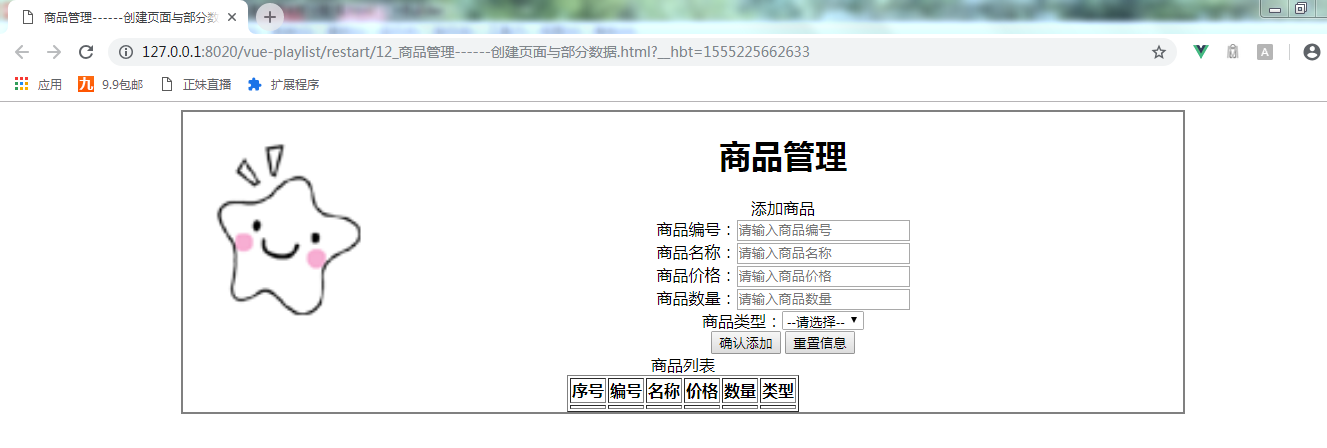
html:
<div class="form-btn">

                <button>确认添加</button>

                <button>重置信息</button>

            </div>

    </div>

    <!--显示表格-->

    <div class="table-warp">

        <div class="title">商品列表</div>

        <table border="" align="center">

            <tr>

                <th>序号</th>

                <th>编号</th>

                <th>名称</th>

                <th>价格</th>

                <th>数量</th>

                <th>类型</th>

            </tr>

            <tr>

                <td></td>

                <td></td>

                <td></td>

                <td></td>

                <td></td>

                <td></td>

            </tr>

        </table>

      </div>
在vue代码中创建方法,以及创建假数据,进行对两个button事件处理:
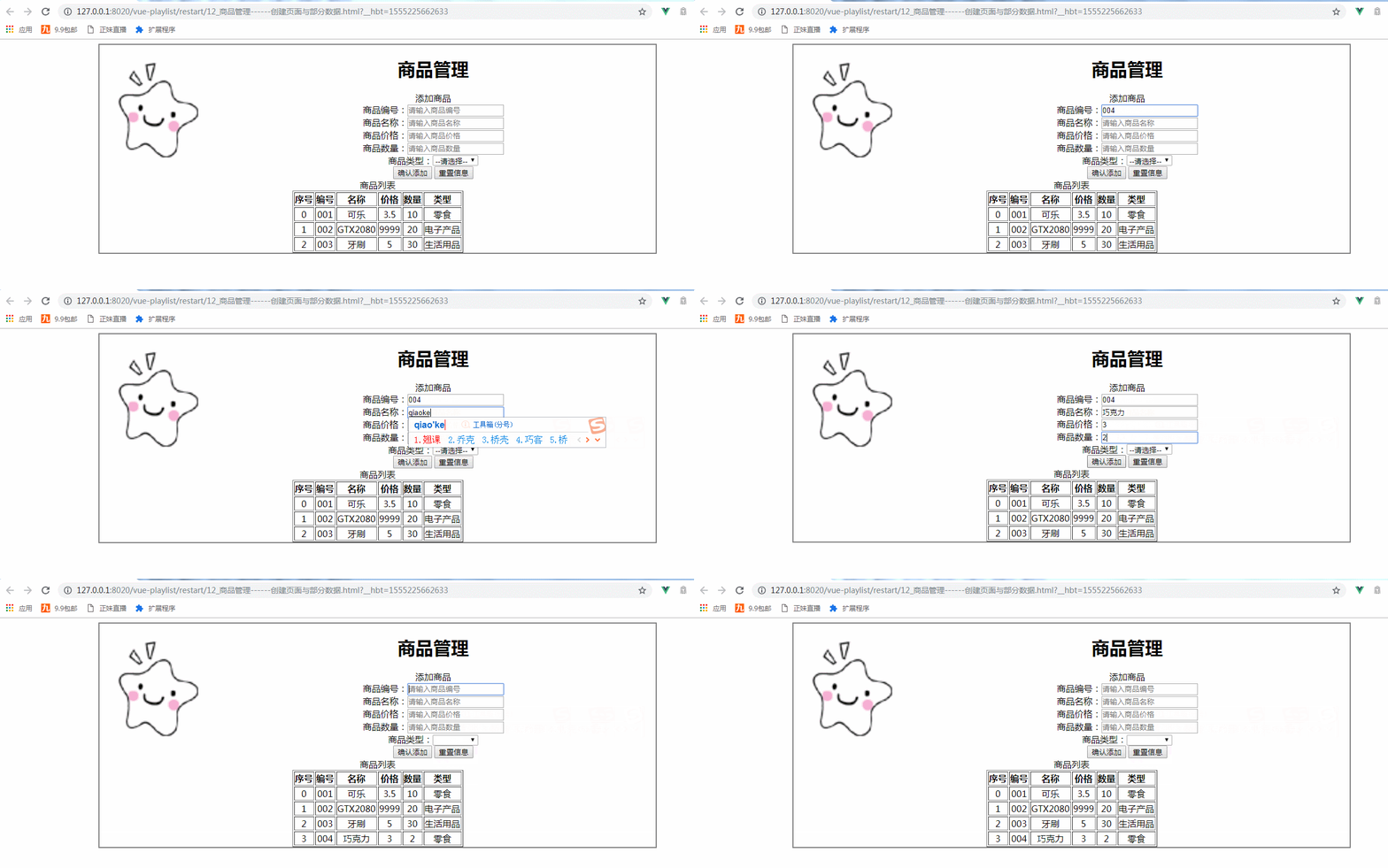
添加的vue代码:
    <script>

            window .onload= () =>{

                new Vue({

                el:"#container",

                data:{

                    imgUrl:'../res/images/',

                    imgName:'lovely.ico',

                    goods:{

                        id:'',

                        name:'',

                        price:'',

                        num:'',

                        type:''

                    },

                    goodsType:['零食','电子产品','生活用品'],

                    goodsArry:[

                    {id:'',name:'可乐',price:3.5,num:,type:'零食'},

                    {id:'',name:'GTX2080',price:,num:,type:'电子产品'},

                    {id:'',name:'牙刷',price:,num:,type:'生活用品'}

                    ]

                },

                methods:{

                    addGoods(){

                        this.goodsArry.push(this.goods);

                        this.goods={};

                    }

                }

            });

            }

        </script>
this.goods={}; 表示点击完确认添加按钮,添加商品中的数据清空
html:
    <div id="container">

            <!--logo title-->

            <div class="header">

                <img :src="imgUrl+imgName" class="logo"  height="200px" width="200px"    style="padding-top: 0px; float: left;"/>

                <h1 class="title">商品管理</h1>

            </div>

            <!--输入部分input-->

            <div  class="form-warp">

                <div class="title">添加商品</div>

                <div class="content">

                    商品编号:<input type="text" placeholder="请输入商品编号"  v-model="goods.id"/><br />

                    商品名称:<input type="text" placeholder="请输入商品名称"  v-model="goods.name"/><br />

                    商品价格:<input type="text" placeholder="请输入商品价格"  v-model="goods.price"/><br />

                    商品数量:<input type="text" placeholder="请输入商品数量" v-model="goods.num"/><br />

                    商品类型:<select v-model="goods.type">

                        <option value="" disabled="disabled">--请选择--</option>

                        <option v-for="type in goodsType">{{type}}</option>

                    </select>

            </div>

            <div class="form-btn">

                <button @click="addGoods">确认添加</button>

                <button @click="goods= { } ">重置信息</button>

            </div>

    </div>

    <!--显示表格-->

    <div class="table-warp">

        <div class="title">商品列表</div>

        <table border="" align="center">

            <tr>

                <th>序号</th>

                <th>编号</th>

                <th>名称</th>

                <th>价格</th>

                <th>数量</th>

                <th>类型</th>

            </tr>

            <tr v-for="(item,index) in goodsArry" :key="item.id">

                <td>{{index}}</td>

                <td>{{item.id}}</td>

                <td>{{item.name}}</td>

                <td>{{item.price}}</td>

                <td>{{item.num}}</td>

                <td>{{item.type}}</td>

            </tr>

        </table>

      </div>

            </div>

    </body>
实现以上商品的添加以及重置信息总的代码:
 <!DOCTYPE html>

 <html>

     <head>

         <meta charset="UTF-8">

         <title>商品管理------创建页面与部分数据</title>

         <script src="../js/vue.js"></script>

         <script>

             window .onload= () =>{

                 new Vue({

                 el:"#container",

                 data:{

                     imgUrl:'../res/images/',

                     imgName:'lovely.ico',

                     goods:{

                         id:'',

                         name:'',

                         price:'',

                         num:'',

                         type:''

                     },

                     goodsType:['零食','电子产品','生活用品'],

                     goodsArry:[

                     {id:'',name:'可乐',price:3.5,num:,type:'零食'},

                     {id:'',name:'GTX2080',price:,num:,type:'电子产品'},

                     {id:'',name:'牙刷',price:,num:,type:'生活用品'}

                     ]

                 },

                 methods:{

                     addGoods(){

                         this.goodsArry.push(this.goods);

                         this.goods={};

                     }

                 }

             });

             }

         </script>

         <style>

             #container{

                 margin:  auto;

                 text-align: center;

                 width: 1000px;

                 border:2px solid gray;

             }

         </style>

     </head>

     <body>

         <div id="container">

             <!--logo title-->

             <div class="header">

                 <img :src="imgUrl+imgName" class="logo"  height="200px" width="200px"    style="padding-top: 0px; float: left;"/>

                 <h1 class="title">商品管理</h1>

             </div>

             <!--输入部分input-->

             <div  class="form-warp">

                 <div class="title">添加商品</div>

                 <div class="content">

                     商品编号:<input type="text" placeholder="请输入商品编号"  v-model="goods.id"/><br />

                     商品名称:<input type="text" placeholder="请输入商品名称"  v-model="goods.name"/><br />

                     商品价格:<input type="text" placeholder="请输入商品价格"  v-model="goods.price"/><br />

                     商品数量:<input type="text" placeholder="请输入商品数量" v-model="goods.num"/><br />

                     商品类型:<select v-model="goods.type">

                         <option value="" disabled="disabled">--请选择--</option>

                         <option v-for="type in goodsType">{{type}}</option>

                     </select>

             </div>

             <div class="form-btn">

                 <button @click="addGoods">确认添加</button>

                 <button @click="goods= { } ">重置信息</button>

             </div>

     </div>

     <!--显示表格-->

     <div class="table-warp">

         <div class="title">商品列表</div>

         <table border="" align="center">

             <tr>

                 <th>序号</th>

                 <th>编号</th>

                 <th>名称</th>

                 <th>价格</th>

                 <th>数量</th>

                 <th>类型</th>

             </tr>

             <tr v-for="(item,index) in goodsArry" :key="item.id">

                 <td>{{index}}</td>

                 <td>{{item.id}}</td>

                 <td>{{item.name}}</td>

                 <td>{{item.price}}</td>

                 <td>{{item.num}}</td>

                 <td>{{item.type}}</td>

             </tr>

         </table>

       </div>

             </div>

     </body>

 </html>
实现商品的添加以及重置信息
Vue小案例 之 商品管理------添加商品的更多相关文章
- Cookie小案例-----记住浏览过的商品记录
Cookie小案例------记住浏览过的商品记录 我们知道,这个功能在电商项目中非经常见.这里处理请求和页面显示都是由servlet实现,主要是为了体现cookie的作用, 实现功能例如以下: 1, ...
- Vue小案例 之 商品管理------学习过滤器 使用过滤器处理日期的格式
代码学习过滤器 过滤器介绍:过滤模型数据,在数据显示前做预处理操作: 内置过滤器:在1.x中,Vue提供了内置过滤器,但是在2.x中已经完全废除: 解决办法: (1)使用第三方库来替代1.x中的内置过 ...
- Vue小案例 之 商品管理------修改商品数量以及增加入库日期属性
实现修改商品的数量: 加入的代码: css: .clear-btn{ text-align: right; padding-right: 10px; } .table-warp a{ text-dec ...
- Vue小案例 之 商品管理------批量删除与商品数量的调整
通过索引进行删除,进行测试,是否获取其索引: 测试效果: 测试代码,在vue中定义一个空的数组,以便后面进行数据的绑定: data:{ imgUrl:'../res/images/', imgName ...
- Vue小案例 之 商品管理------删除商品与提示
实现删除商品功能 根据索引来进行删除商品: 实现删除商品的HTML: <!--显示表格--> <div class="table-warp"> <di ...
- Vue小案例 之 商品管理------为之前的页面修改样式
最终修改的页面效果: 修改的css: <style> #container{ margin: auto; text-align: center; width: 1000px; border ...
- Vue小案例 之 商品管理------创建页面与部分数据
logo的路径: 页面的初始布局: 初始的HTML: <div id="container"> <!--logo title--> <div clas ...
- Vue(小案例_vue+axios仿手机app)_Vuex优化购物车功能
一.前言 1.用vuex实现加入购物车操作 2.购物车详情页面 3.点击删除按钮,删除购物详情页面里的对应商品 二.主要内容 1.用vuex加入购物车 (1)在src ...
- Vue(小案例_vue+axios仿手机app)_购物车(二模拟淘宝购物车页面,点击加减做出相应变化)
一.前言 在上篇购物车中,如果用户刷新了当前的页面,底部导航中的数据又会恢复为原来的: 1.解决刷新,购物车上数值不变 ...
随机推荐
- Linux和windows 查看程序、进程的依赖库的方法
Linux: 1. 利用ldd查看可执行程序的依赖库 [root@~]# ldd /usr/local/php/bin/php linux-vdso.so.1 => (0x00007ff ...
- 「美团外卖APP签约快捷支付」流程体验
§1 添加银行卡 新用户在美团外卖APP订餐支付时,首先要绑定银行卡.如下是“添加银行卡”页,输入卡号后,系统自动调用卡bin库校验卡号的有效性,如果有效会显示发卡行和卡类型(借记卡/贷记卡). 这 ...
- TP5数据库操作方法
一.TP5数据库操作方法 1.name()方法作用 : 指定默认的数据表名(不含前缀)示例 : Db::name(‘weiba_post’);返回 : Db对象 2.setTable()方法作用 : ...
- c#之枚举,结构体
1.枚举 2.结构体 例子1: using System; using System.Collections.Generic; using System.Linq; using System.Text ...
- jQuery-使用hover(fn,fn)函数监听mouseover和mouseout两个事件
<!DOCTYPE html> <html> <head lang="en"> <meta charset="UTF-8&quo ...
- Cassandra创建第一个用户
Cassandra配置文件cassandra.yaml 的配置项, 默认是 authenticator: AllowAllAuthenticator 现在想创建Cassandra的用户,但是如果保持以 ...
- 在linux中配置mysql的过程
以华为企业云中的CentOS 7 为例. 1. 首先要安装相应的包,这个使用各种linux发行版的包管理工具就行,不再赘述.有一点需要注意,现在许多linux发行版将mariadb作为MySQL的默认 ...
- caffe训练模型中断的解决办法(利用solverstate)
caffe训练过程中会生成.caffemodel和.solverstate文件,其中caffemodel为模型训练文件,可用于参数解析,solverstate为中间状态文件 当训练过程由于断电等因素中 ...
- 【Hadoop学习之九】MapReduce案例分析一-天气
环境 虚拟机:VMware 10 Linux版本:CentOS-6.5-x86_64 客户端:Xshell4 FTP:Xftp4 jdk8 hadoop-3.1.1 找出每个月气温最高的2天 1949 ...
- 20165215 2017-2018-2 《Java程序设计》第八周学习总结
20165215 2017-2018-2 <Java程序设计>第八周学习总结 教材学习内容总结 进程与线程 进程是程序的一次动态执行过程,它对应了从代码加载.执行至执行完毕的一个完整过程. ...