
使用 oh-my-posh 美化 windows terminal,让其接近oh-my-zsh
本文旨在快速让你进行美化,少踩一些坑,原文出自我的博客:prettier-windows-terminal-with-oh-my-posh
为了同 iterm2 下的 oh-my-zsh 保持基本一致,博主用的是 aliens 主题+一些自定义配置调整,最终效果如下,你也可以根据自己需要进行细调
- 如果你闲麻烦,或者想跟我用一样的,文末会给出主题配置,直接拿去用即可。
- 效果图:

版本说明:
- 本文撰写时:
- oh-my-posh 版本为
v7.87.0 - powershell 的版本为
7.2.3,(最新为 7.2.4) - OS:win10,21H1,19043.1706
- oh-my-posh 版本为
注意事项:
1. 安装时请关闭杀毒软件、各类管家,否则写入注册表时会报错。
2. 有条件的请挂代理,因为源文件在 git 上。
3. 全程在 powershell ,管理员模式 下进行。
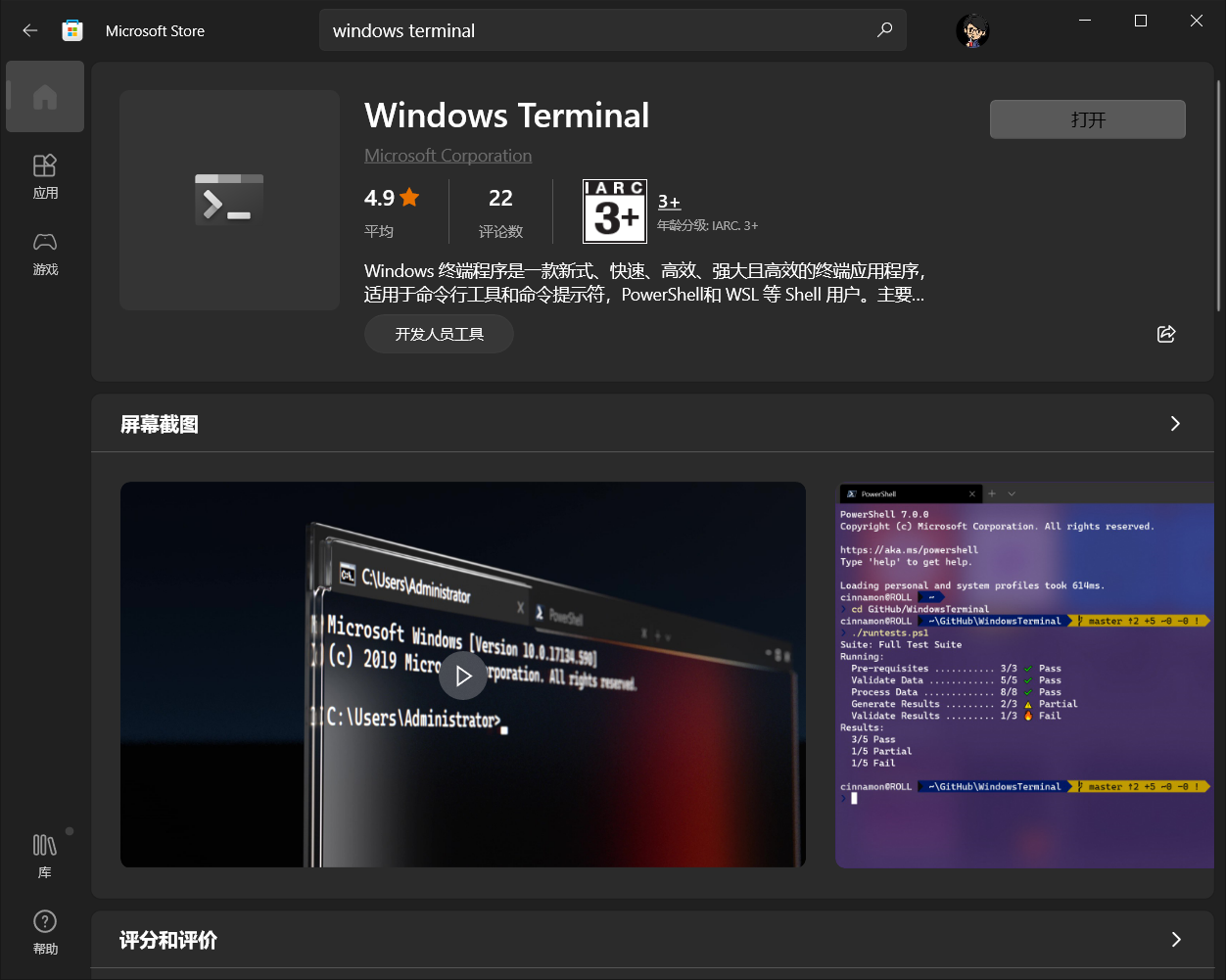
安装 windows terminal:
可直接在 microsoft store 中搜索安装。这里不赘述。
安装 powershell@latest
- 你的系统中,powershell 可能不是新版,一样弄,强烈建议使用最新版本的 powershell。
- 因为新版会增加不少工具包,如 Test-Path 等,可以省去不少自己去各类安装包的麻烦。也可以减少、避免不必要的安装错误。
安装 gsudo
如其名,为了在 windows 下使用 sudo 命令,需要安装该包。
git 地址:https://gerardog.github.io/gsudo/docs/install
可以直接在 powershell 中执行以下命令进行安装:
winget install gerardog.gsudo
- 会自动注册到 path,所以你可以直接在命令行中全局使用:
# 示例:以管理员身份启动 powershell

gsudo powershell.exe
如果你觉得 gsudo 不够直观,希望用 sudo,可以通过以下方式重命名:
Set-Alias 'sudo' 'gsudo'
安装 oh-my-posh
官方:https://ohmyposh.dev/
git 地址:https://github.com/jandedobbeleer/oh-my-posh
winget install oh-my-posh
- 以上命令会安装 oh-my-posh.exe 以及最新的主题。
安装 Nerd Fonts
oh-my-posh 的不少主题都是依赖于该字体,否则部分 icon 会乱码,建议安装。
- Nerd Fonts 官网
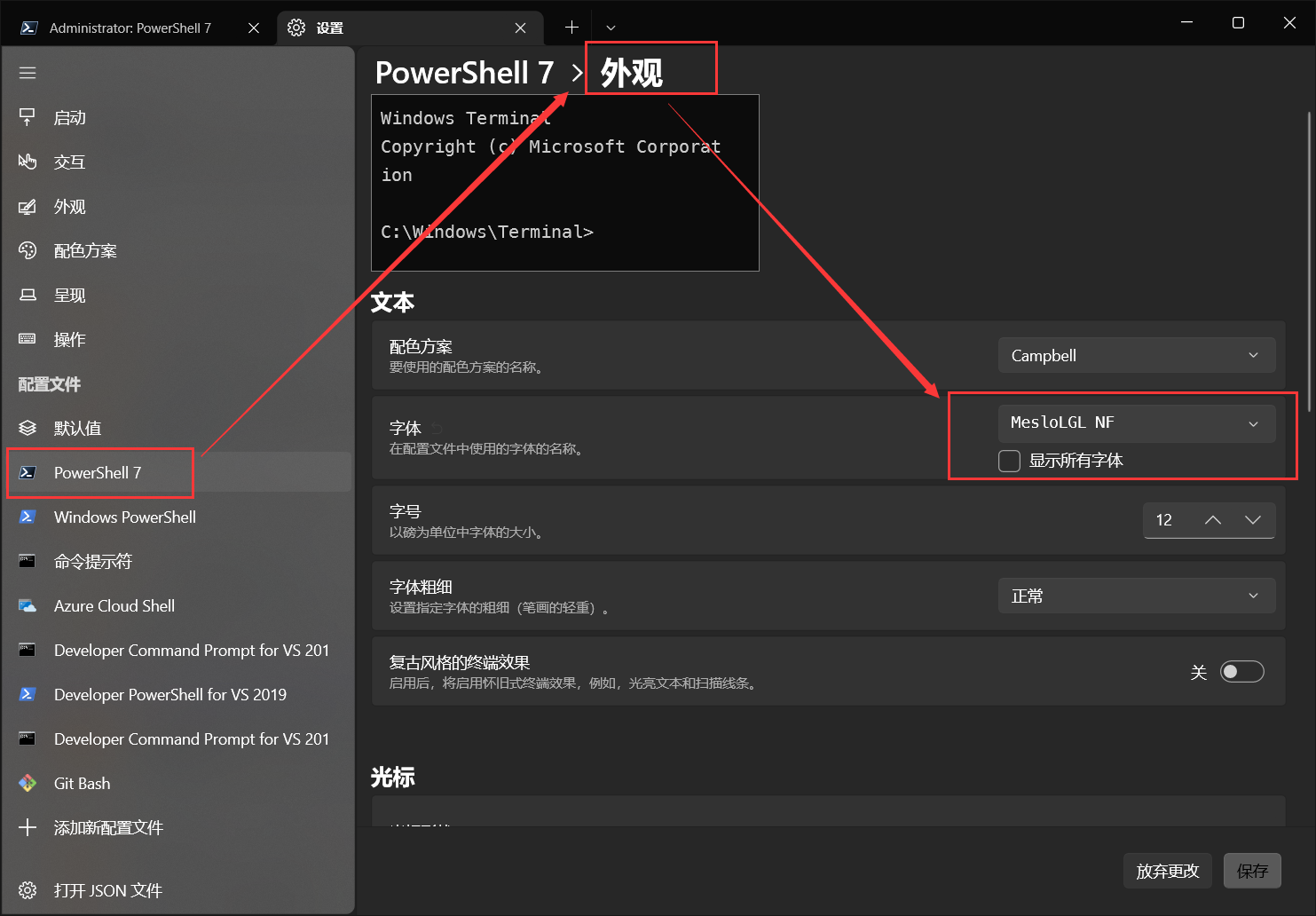
- 博主安装的是这套字体,也是官方推荐的字体:Meslo LGM NF。
windows terminal 配置
启动 shell 设置为 powershell 7
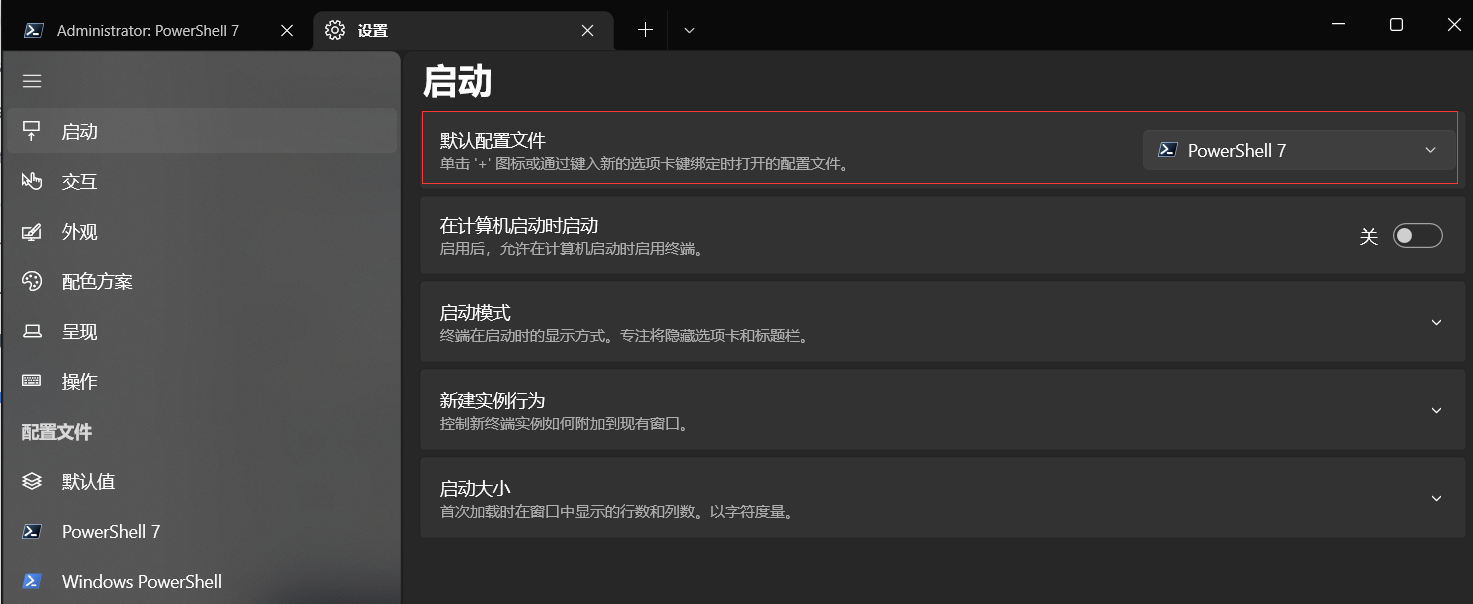
以管理员权限启动 shell
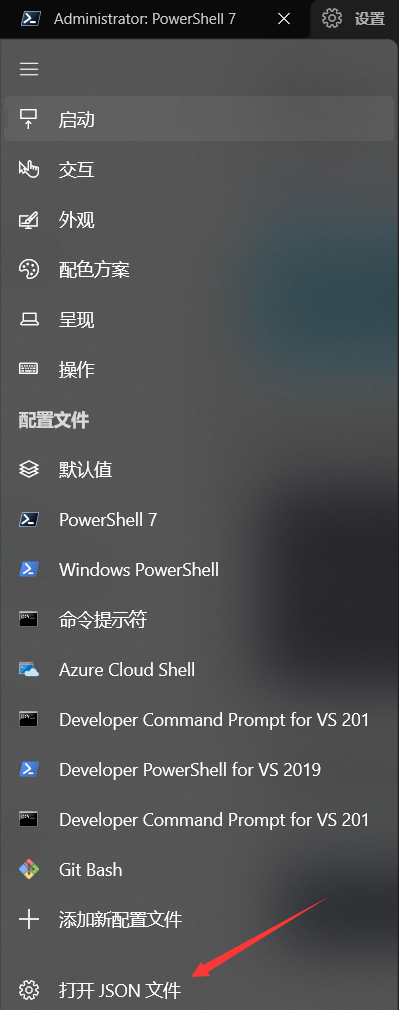
在 windows terminal 的设置中,打开JSON文件:
编辑配置:
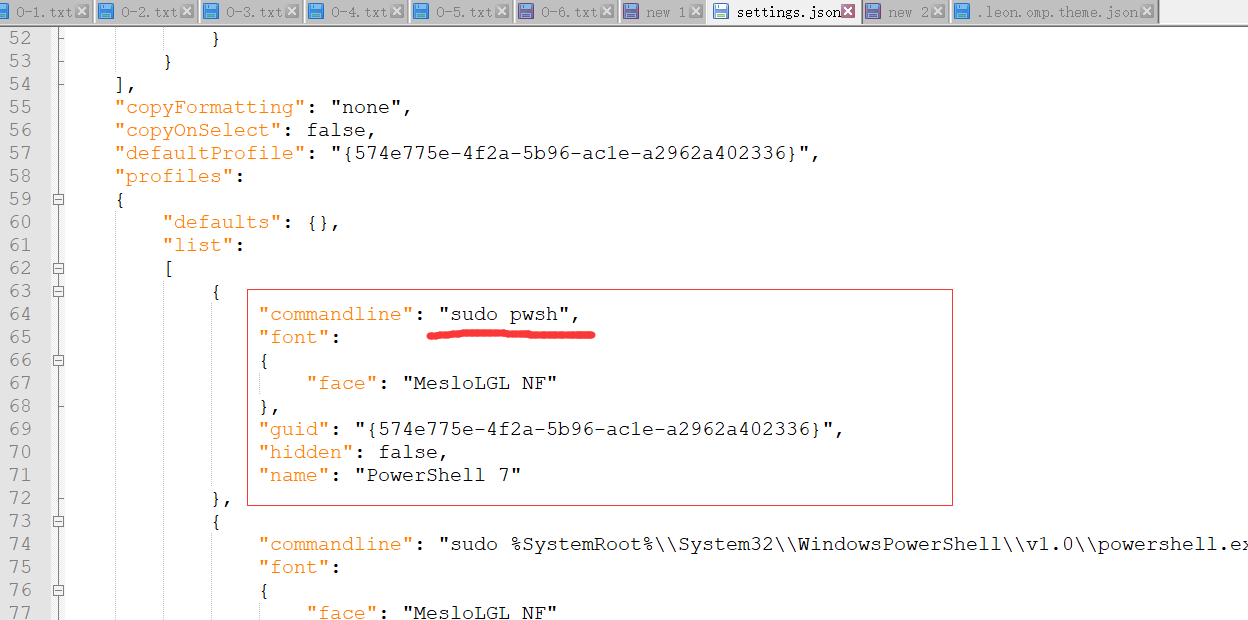
- 只要安装了 powershell 7,默认情况下 pwsh 就会指向 powershell 7。
- 如果你没有给 gsudo 添加
sudo别名的话,这里用gsudo。
设置 powershell 7 字体为 Nerd fonts
配置启动时加载 oh-my-posh
创建 powershell 配置文件:
if (!(Test-Path -Path $PROFILE )) { New-Item -Type File -Path $PROFILE -Force }
用记事本打开配置文件
notepad $PROFILE
在记事本中录入以下指令
oh-my-posh init pwsh --config ~/.leon.omp.theme.json | Invoke-Expression
- 每次启动 shell 时 ,会先执行以上命令以加载主题等配置。
- 其中 "--config ~/.leon.omp.theme.json" 是你的文件和所在路径,文末我会放出我的配置。
- 你可以在 这里 找到不同的主题。
快捷键设置:
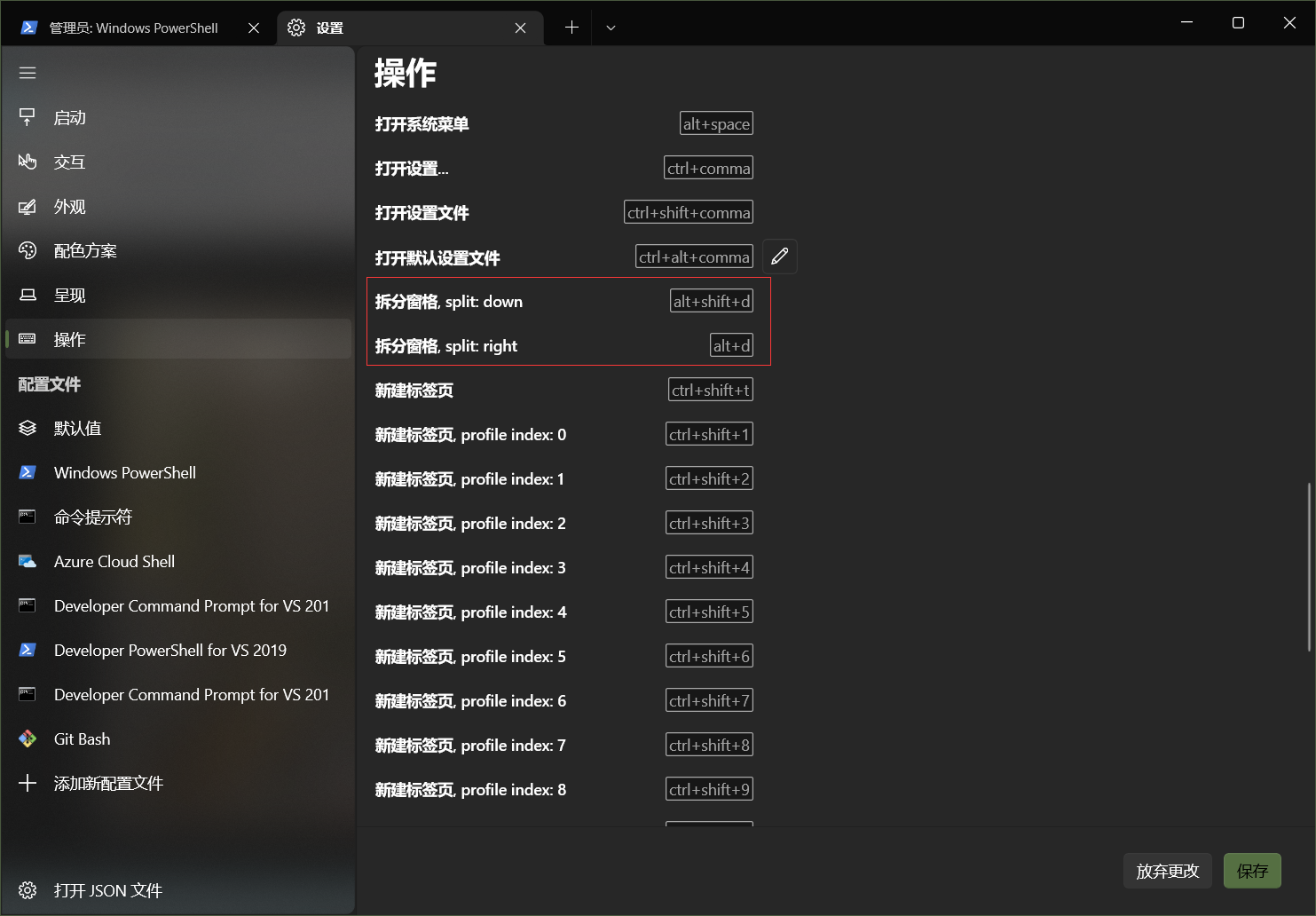
习惯了 iterm2 中 CMD+D,SHIFT+CMD+D 来拆分窗口,很庆幸 windows terminal 已经提供了快捷键修改,且针对的就是拆分窗口,直接设置即可,如下:
.leon.omp.theme.json
{

  "$schema": "https://raw.githubusercontent.com/JanDeDobbeleer/oh-my-posh/main/themes/schema.json",

  "blocks": [

    {

      "alignment": "left",

      "segments": [

        {

          "background": "#61AFEF",

          "foreground": "#ffffff",

          "leading_diamond": "\ue0b6",

          "style": "diamond",

          "template": "{{ .HostName }} ",

          "trailing_diamond": "\ue0b0",

          "type": "session"

        },

        {

          "background": "#C678DD",

          "foreground": "#ffffff",

          "powerline_symbol": "\ue0b0",

          "properties": {

            "style": "full"

          },

          "style": "powerline",

          "template": " {{ .Path }} ",

          "type": "path"

        },

        {

          "background": "#95ffa4",

          "foreground": "#193549",

          "powerline_symbol": "\ue0b0",

          "style": "powerline",

          "template": " {{ .HEAD }} ",

          "type": "git"

        },

        {

          "background": "#FF6471",

          "foreground": "#ffffff",

          "leading_diamond": "<transparent,background>\ue0b0</>",

          "style": "diamond",

          "template": " {{ if .Error }}{{ .Error }}{{ else }}{{ if .Venv }}{{ .Venv }} {{ end }}{{ .Full }}{{ end }} ",

          "trailing_diamond": "\ue0b4",

          "type": "python"

        }

      ],

      "type": "prompt"

    }

  ],

  "final_space": true,

  "version": 2

}
- 属性说明你可以从 这里 了解。
使用 oh-my-posh 美化 windows terminal,让其接近oh-my-zsh的更多相关文章
- 黑科技抢先尝(续) - Windows terminal中WSL Linux 终端的极简美化指南
目录 修改默认源,为apt-get安装提速 安装python 和 python pip 安装 zsh 安装powerline-font中的特定字体 安装powerline-shell 修改~目录下的配 ...
- Windows Terminal安装并美化
介绍 Windows Teminal是一款新式.快速.高效.强大的终端应用程序,适用于命令行工具.命令提示符.PowerShell.WSL(Linux子系统)等等的Shell用户,主要功能包括多选项卡 ...
- 黑科技抢先尝(续2) - Windows terminal中Powershell Tab的极简美化指南
目录 安装python 安装git 安装powerline字体 主题定制 安装oh-my-posh 查看策略组的执行权限 使用choco 安装终端模拟器 - ConEmu 优化 PowerShell ...
- Windows Terminal 安装及美化
windows terminal 是今年微软Build大会上推出的一款的全新终端,用来代替cmder之类的第三方终端.具有亚克力透明.多标签.Unicode支持(中文,Emoji).自带等宽字体等这些 ...
- 深入浅出,遇见Windows Terminal(Windows终端器),体验及美化新一代终端神器
Windows Terminal 简介 Windows Terminal is a new, modern, feature-rich, productive terminal application ...
- Windows Terminal 美化教程
Windows Terminal 美化教程 1.安装Windows Terminal 在微软商店搜索Windows Terminal下载即可 2.安装相应的插件 使用管理员权限打开Windows Te ...
- 是时候扔掉cmder, 换上Windows Terminal
作为一个Windows的长期用户,一直没有给款好用的终端,知道遇到了 cmder,它拯救一个习惯用Windows敲shell命令的人. 不用跟我安利macOS真香!公司上班一直用macOS,一方面确实 ...
- Windows10上安装Linux子系统(WSL2,Ubuntu),配合Windows Terminal使用
Linux 的 Windows 子系统可让开发人员按原样运行 GNU/Linux 环境 - 包括大多数命令行工具.实用工具和应用程序 - 且不会产生传统虚拟机或双启动设置开销. WSL 说白了安装Li ...
- 终于等到你!微软正式上线 Windows Terminal 预览版
前一段时间,一直在知乎.技术社区收到技术小伙伴们的终极拷问:微软Build 大会上提到的**6月中旬**要上Windows store 的 Windows Terminal 到底啥时候可以用到呀? 有 ...
随机推荐
- c、c++中-int型以float或者float型以int输出问题
1.将浮点型以整形的类型输出问题 用VC6.0,会把以整形输出形式的浮点数输出为0: 1 #include"stdio.h" 2 int main() 3 { 4 float x= ...
- PCB布线总的原则
转自张飞实战电子公众号 PCB布线总的原则 最短路径和减少干扰 PCB布线的总的流程大致如下: 1了解制造厂商的制造规范-线宽,线间距,过孔要求及层数要求: 2确定层数并定义各层的功能: 3设计布线规 ...
- html5 canvas基础10点
本文主要讲解下一些canvas的基础 1.<canvas id="canvas">若此浏览器不支持canvas会显示该文字</canvas> //创建个ht ...
- 没有高度的div中的子元素高度自动撑开
直接上代码: 很多时候 <!DOCTYPE html> <html lang="en"> <head> <meta charset=&q ...
- Python入门-程序结构扩展
deque双端队列 #双端队列,就是生产消费者模式,依赖collections模块 from collections import deque def main(): info = deque((&q ...
- Go语言 映射(map)
Go语言 映射(map) 1. 什么是 map2. 创建 map3. 访问 map4. nil map和空map5. map中元素的返回值6. len()和delete()7. 测试map中元素是否 ...
- SpringBoot注解自动扫描-底层实现
分析上文Spring Boot快速入门 @SpringBootApplication public class HelloWorldApplication { public static void m ...
- Spring配置文件-Bean生命周期配置(init-method方法,destory-method方法)
1.UserDaoImpl类 public class UserDaoImpl implements UserDao { public UserDaoImpl(){ System.out.printl ...
- float,short类型赋值运算问题
float f = 3.4; 有错吗? 有错,因为浮点类型默认是double类型,double类型赋值给float类型是大类型赋值给小类型需要进行强转,可在3.4前加(float)进行强转,或者在声明 ...
- java使用poi生成excel
使用poi生成excel通常包含一下几个步骤 创建一个工作簿 创建一个sheet 创建一个Row对象 创建一个cell对象(1个row+1个cell构成一个单元格) 设置单元格内容 设置单元格样式. ...