
How to install the NVIDIA drivers on Fedora 32
https://linuxconfig.org/how-to-install-the-nvidia-drivers-on-fedora-32
The NVIDIA Driver is a program needed for your NVIDIA Graphics GPU to function with better performance. It communicates between your Linux operating system, in this case Fedora 32, and your hardware, the NVIDIA Graphics GPU.
The NVIDIA drivers can be installed by using the bash command after stopping the GUI and disabling the nouveau driver by modifying the GRUB boot menu.
To install Nvidia driver on other Linux distributions, follow our Nvidia Linux Driver guide.
In this NVIDIA Drivers installation guide you will learn:
- How to install NVIDIA graphic driver automatically using RPM Fusion
and Manually using the official NVIDIA driver from nvidia.com. - How to identify your NVIDIA graphic card model on your operating system.
- Where to download the NVIDIA driver package for Fedora 32.
- How to install prerequisites for a successful Nvidia Driver compilation and installation on Fedora 32.
- How to disable the
nouveaudriver. - How to successfully install NVIDIA Drivers on your Fedora 32 Linux operating system.
Software Requirements and Conventions Used
| Criteria | Requirements |
|---|---|
| Operating System | Fedora 32 |
| Software | Existing Desktop installation such as GNOME. |
| Other | Privileged access to your Linux system as root or via the sudo command. |
| Conventions |
# - requires given linux commands to be executed with root privileges either directly as a root user or by use of sudo command$ - requires given linux commands to be executed as a regular non-privileged user |
How to install the NVIDIA drivers on Fedora 32 Workstation step by step instructions
Install Nvidia Driver using RPMFusion
Installing the Nvidia driver on Fedora Linux using RPM Fusion is the
easiest and recommended way since you do not have to deal with driver
re-compiling every-time there is a new kernel update.
- Open up the terminal and identify your Nvidia graphic card model by executing:
$ lspci -vnn | grep VGA

01:00.0 VGA compatible controller [0300]: NVIDIA Corporation GP106 [GeForce GTX 1060 6GB] [10de:1c03] (rev a1) (prog-if 00 [VGA controller]) - Fully update your system.
$ sudo dnf update
ATTENTION
Failing to fully update your system may result in a kernel version mismatch producing the "NVIDIA kernel module missing. Falling back to nouveau." error message after the nvidia driver installation and system reboot. - Enable RPM fusion:
$ sudo dnf install https://download1.rpmfusion.org/free/fedora/rpmfusion-free-release-$(rpm -E %fedora).noarch.rpm

$ sudo dnf install https://download1.rpmfusion.org/nonfree/fedora/rpmfusion-nonfree-release-$(rpm -E %fedora).noarch.rpm - Lastly install a relevant Nvidia driver package by selecting one of the following options:
For recent GeForce/Quadro/Tesla execute:

$ sudo dnf install akmod-nvidia

For Legacy GeForce 400/500 execute:

$ sudo dnf install xorg-x11-drv-nvidia-390xx akmod-nvidia-390xx

For Legacy GeForce 8/9/200/300 execute:

$ sudo dnf install xorg-x11-drv-nvidia-340xx akmod-nvidia-340xx - All done. Reboot your system:
$ sudo reboot

Subscribe to Linux Career NEWSLETTER and receive latest Linux news, jobs, career advice and tutorials.
Install Nvidia Driver manually
- In case from some reason the installation of Nvidia Driver using RPM
fusion fails or you simply wish to have the latest Nvidia driver version
which may not be available via RPM fusion channel you might attempt the
Nvidia driver manual install.
- Open up the terminal and identify your Nvidia graphic card model by executing:
$ lspci -vnn | grep VGA

01:00.0 VGA compatible controller [0300]: NVIDIA Corporation GP106 [GeForce GTX 1060 6GB] [10de:1c03] (rev a1) (prog-if 00 [VGA controller]) - Download the Nvidia driver package from nvidia.com using search criteria based on your Nvidia card model and the Linux operating system.
 Download an appropriate Nvidia driver for your VGA card.Linux Long Lived Branch (LLB) vs Linux Short Lived Branch (SLB)
Long-Lived Branch
drivers provide ISV certification and optimal stability and performance
for Unix customers. This driver is most commonly deployed at
enterprises, providing support for the sustained bug fix and security
updates commonly required.
Short-Lived Branch drivers
provide early adopters and bleeding edge developers access to the
latest driver features before they are integrated into the Long-Lived
Branches.
REF: nvidia.comAlternatively, if you know what you are doing you can download the driver directly from the Nvidia Linux driver list. Once ready you should end up with a file similar to the one shown below:
$ ls NVIDIA-Linux-x86_64-*

NVIDIA-Linux-x86_64-430.50.run - Next, install package prerequisites for a successful Nvidia driver compilation and installation.
$ sudo dnf groupinstall "Development Tools"

$ sudo dnf install libglvnd-devel - Permanently disable the
nouveaudriver by modifying the GRUB boot menu:$ sudo grub2-editenv - set "$(sudo grub2-editenv - list | grep kernelopts) nouveau.modeset=0"
- Reboot your Fedora 32 Desktop:
WARNING
Depending on your Nvidia VGA model your system
might misbehave. At this stage be ready to get your hands dirty. After
the reboot you may end up without GUI at all. Be sure that you have the SSH Server enabled on your system to be able login remotely or useCTRL+ALT+F2to switch TTY console and continue with the installation.$ sudo reboot
- The Nvidia drivers must be installed while the Xorg server is stopped. Switch to the text mode by:
$ sudo systemctl isolate multi-user.target
- Install the Nvidia driver by executing the following command via TTY console or remote SSH login:
$ sudo bash NVIDIA-Linux-x86_64-*
When prompted answer
YESto installation of NVIDIA's 32-bit compatibility libraries and automatic update of your X configuration file.NOTEERROR: Unable to find the kernel source tree for the currently running kernel
In case you receive the above error message during the execution of the below command, follow the kernel source instructions on how to install kernel source on CentOS / RHEL Linux system. - Reboot your system one more time.
$ sudo reboot
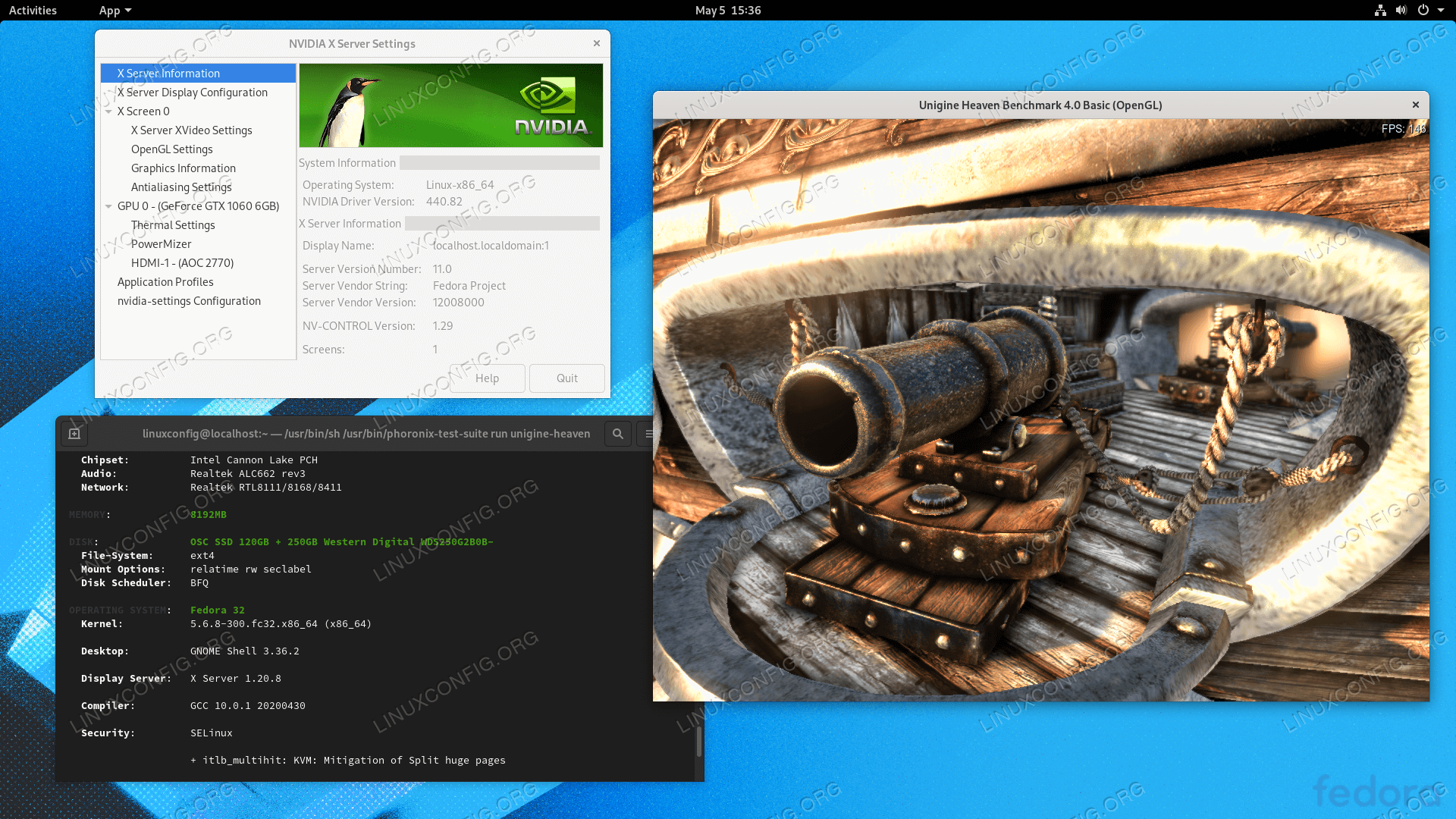
All done. The Nvidia driver should now be installed on your Fedora 31 Desktop. Reboot your system now, login and run
nvidia-settingsto further configure your Nvidia graphic card settings.
Troubleshooting
GDM on Xorg server does not start after user login and user ends up with black screen. The Xorg log contains the following or similar error messages:
[  3515.464] (II) systemd-logind: got pause for 13:68

[  3515.738] (II) systemd-logind: got resume for 13:64

[  3515.757] (II) NVIDIA(0): Setting mode "DFP-1:nvidia-auto-select"

[  3515.793] (II) NVIDIA(0): ACPI: failed to connect to the ACPI event daemon; the daemon

[  3515.793] (II) NVIDIA(0):     may not be running or the "AcpidSocketPath" X

[  3515.793] (II) NVIDIA(0):     configuration option may not be set correctly.  When the

[  3515.793] (II) NVIDIA(0):     ACPI event daemon is available, the NVIDIA X driver will

[  3515.793] (II) NVIDIA(0):     try to use it to receive ACPI event notifications.  For

[  3515.793] (II) NVIDIA(0):     details, please see the "ConnectToAcpid" and

[  3515.793] (II) NVIDIA(0):     "AcpidSocketPath" X configuration options in Appendix B: X

[  3515.793] (II) NVIDIA(0):     Config Options in the README.

[  3515.793] [dix] couldn't enable device 8

[  3515.793] (II) systemd-logind: got resume for 13:66

[  3515.793] [dix] couldn't enable device 6

[  3515.794] (II) systemd-logind: got resume for 13:65

[  3515.794] [dix] couldn't enable device 7

[  3515.794] (II) systemd-logind: got resume for 13:72

[  3515.794] [dix] couldn't enable device 14

[  3515.794] [dix] couldn't enable device 17

[  3515.794] (II) systemd-logind: got resume for 13:71

[  3515.794] [dix] couldn't enable device 13

[  3515.794] (II) systemd-logind: got resume for 13:67

[  3515.794] [dix] couldn't enable device 9

[  3515.794] (II) systemd-logind: got resume for 13:73

[  3515.794] [dix] couldn't enable device 15

[  3515.794] (II) systemd-logind: got resume for 13:69

[  3515.794] [dix] couldn't enable device 11

[  3515.794] [dix] couldn't enable device 16

[  3515.794] (II) systemd-logind: got resume for 13:70

[  3515.794] [dix] couldn't enable device 12

[  3515.794] (II) systemd-logind: got resume for 13:68

[  3515.794] [dix] couldn't enable device 10
Try restart the systemd's systemd-logind service:
$ sudo systemctl restart systemd-logind
How to install the NVIDIA drivers on Fedora 32的更多相关文章
- How to install the NVIDIA drivers on Ubuntu 18.04 Bionic Beaver Linux
Objective The objective is to install the NVIDIA drivers on Ubuntu 18.04 Bionic Beaver Linux. This a ...
- Fedora 25/24/23 nVidia Drivers Install Guide
https://www.if-not-true-then-false.com/2015/fedora-nvidia-guide/ search Most Popular Featured Linux ...
- Fix Elementary Boot Screen (plymouth) After Installing Nvidia Drivers
Q:I just installed propietary nvidia drivers, after that the glowing “e” plymouth theme was gone, on ...
- Install SVN (Subversion) Server on Fedora 20/19, CentOS/Red Hat (RHEL) 6.5/5.10
Install SVN (Subversion) Server on Fedora 20/19, CentOS/Red Hat (RHEL) 6.5/5.10 Updated by JR on Mar ...
- Install MySQL 5.7 on Fedora 25/24, CentOS/RHEL 7.3/6.8/5.11
MySQL is a relational database management system (RDBMS) that runs as a server providing multi-user ...
- Fedora 32大变化:将删除Python 2及其软件包
导读 虽然Fedora 30还没有上市,Fedora 32直到大约一年后才上市,但我们已经知道一个很大的变化:删除Python 2和包依赖它.随着Fedora 32将于2020年上半年推出,超过了Py ...
- Installation of NVIDIA Drivers in RHEL/CentOS and Fedora
1.首先安装所需的软件: # yum groupinstall "Development Tools" # yum install kernel-devel kernel-head ...
- How To Install Java on CentOS and Fedora
PostedDecember 4, 2014 453.8kviews JAVA CENTOS FEDORA Introduction This tutorial will show you how ...
- Install Mono and MonoDevelop on Fedora
http://www.mono-project.com/docs/getting-started/install/linux/ http://www.monodevelop.com/download/ ...
随机推荐
- ASP导出数据到excel遇到的一些问题
一直用动易平台的ASP做新闻发布网站,直到现在才接触导出数据到Excel的问题,目的在于公司要统计各部门的投稿量,要做这么个东西,实现起来是挺简单的,但是第一次做,还是费了一些功夫的,特此记录一下 主 ...
- 跟着尚硅谷系统学习Docker-【day05】
day05-20200717 p21.docker容器数据卷容器 就是活动硬盘上面挂载硬盘进行数据的传递. [docker run -it --name dc01 fyr/centos ...
- TG
telegram windous版 安装包 代理 安装好了,却没有网(ssr+PAC) 解决办法 汉化 在telegram 搜索 " zh_cn"
- Java格式化字符串Format
java的jdk1.5开始引用了对字符串的格式化处理,类似于C语言的printf("%d,%d",a,b);,对数据的处理非常方便,之所以有这样的方式输出,很多人说是为了抢夺C语言 ...
- 如何入门Pytorch之四:搭建神经网络训练MNIST
上一节我们学习了Pytorch优化网络的基本方法,本节我们将以MNIST数据集为例,通过搭建一个完整的神经网络,来加深对Pytorch的理解. 一.数据集 MNIST是一个非常经典的数据集,下载链接: ...
- python中多进程multiprocessing、多线程threading、线程池threadpool
浅显点理解:进程就是一个程序,里面的线程就是用来干活的,,,进程大,线程小 一.多线程threading 简单的单线程和多线程运行:一个参数时,后面要加逗号 步骤:for循环,相当于多个线程——t=t ...
- C#类库推荐 拼多多.Net SDK,开源免费!
背景介绍 近两年拼多多的发展非常迅速,即便口碑一般,也没有网页端,奈何我们已经全面小康,6亿月收入1000以下,9亿月收入2000以下,所以因为价格原因使用拼多多的用户也越来越多了.同样的,拼多多也开 ...
- DVWA sql注入low级别
DVWA sql注入low级别 sql注入分类 数字型注入 SELECT first_name, last_name FROM users WHERE user_id = $id 字符型注入 SELE ...
- Linux实战(7):centos7安装xrdp
系统环境:最小化安装,无安装桌面化 操作 yum更新 yum -y update 安装依赖. tigervnc-server.xrdp .GNOME Desktop yum -y install ep ...
- Java基础语法(10)-面向对象之三大特征
title: Java基础语法(9)-面向对象之类的成员 blog: CSDN data: Java学习路线及视频 1.面向对象特征--封装 为什么需要封装?封装的作用和含义? 我要用洗衣机,只需要按 ...