
幻灯片放映模式切换windows terminal背景图片
幻灯片放映模式切换windows terminal背景图片
脚本功能
以幻灯片模式自动切换windows terminal的背景图片,可自定义包含图片的目录、切换频率等。
使用命令python change_tty_image.py --help查看使用帮助。
代码一共就162行,核心功能代码事实上可能只有不到50行,其他都是一些检查、日志等语句。感兴趣的可以download脚本,自行定制一些功能。
开发需求
近期在折腾windows terminal,于我而言这款终端软件也基本完全替代xshell,特别是win 10内置了ssh, scp等命令,用起来非常舒服和流畅。再和wsl结合起来一起玩,简直爽到飞起。
windows terminal可以自定义主题样式,自定义背景图片。作为一个伪二次元爱好者,当然要把背景换成adroable的小姐姐!
然而,每次终端只能设置一张图片,根本无法滿足敲命令的时候看不一样的二次元小姐姐的需求。联想到windows可以设定图片目录,并选择幻灯片模式动态切换桌面背景,于是去google一番,发现windows terminal的settings.json好像没有这个选项。查阅[官方文档](Windows Terminal Appearance Profile Settings | Microsoft Docs)如下:
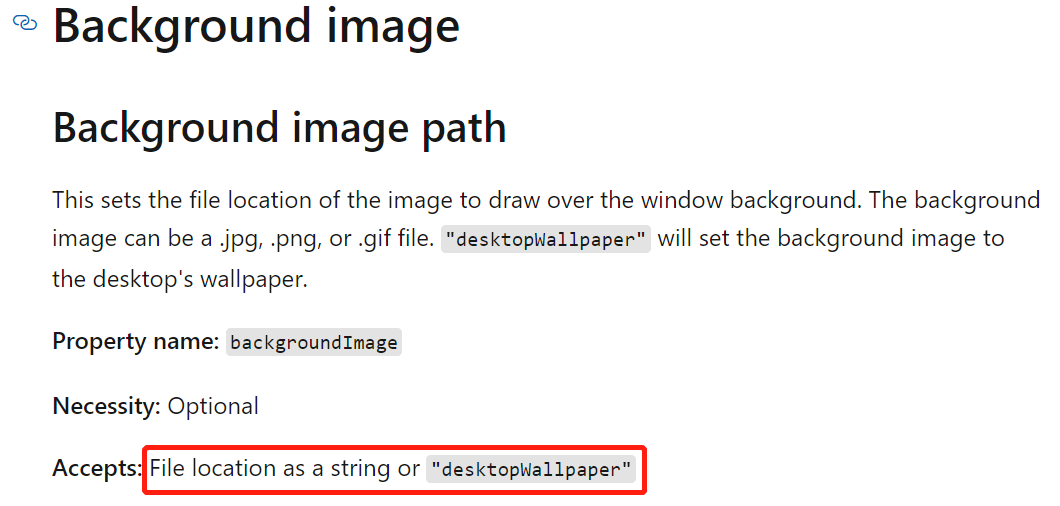
要么给一个路径,要么就和桌面壁纸设置为一样。
所以,如果想要自动切换windows terminal的背景图片,有一个折中方案:把backgroundImage设置为desktopWallpaper,然后桌面背景搞成幻灯片模式,也就是下面这样子:
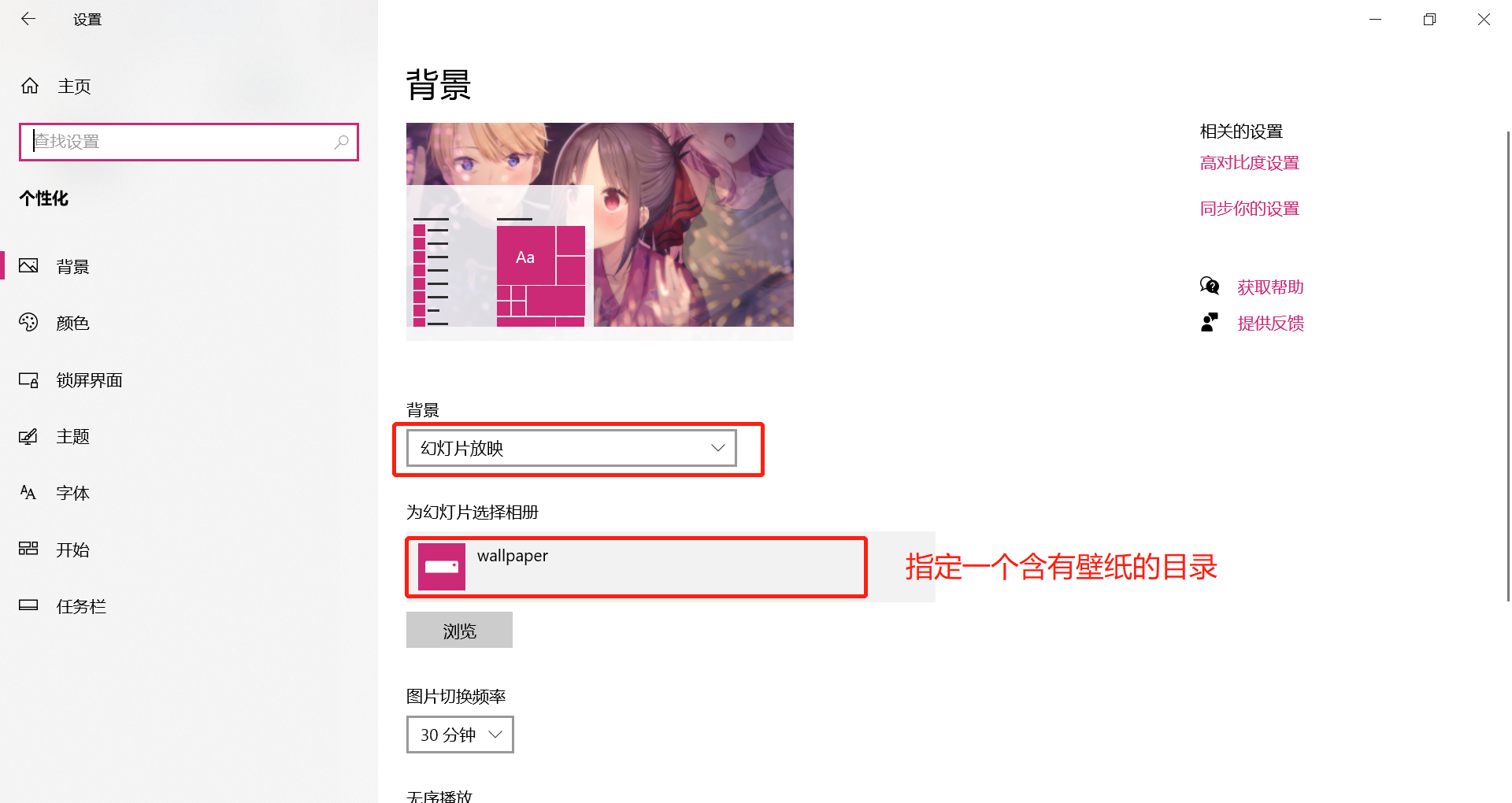
这样就能自动切换。
但是像我这样壁纸比较多的收藏家,正愁壁纸多得无处安放,怎么能把desktop和windows terminal设置成一样的背景呢?这多不合适!
于是,我花了1个小时,用python写了一个简单的脚本,支持设置壁纸目录、更新频率、随机更新功能,每个固定时间就为windows terminal切换一张背景图片。
使用技术
要实现这个功能其实很简单,不需要高大上的技术。整个开发需求主要包含两点:
- 定时任务
- 修改
windows terminal的settings.json中的backgroundImage项,切换为指定目录下的图片路径,并进行轮循设置。
针对两点需求,实现手段分别为:
- 使用
time.sleep()设置定时任务。这应该是简单的方式了,适合简单的定时任务触发。 - 使用
IO操作,先读取指定目录的所有image路径,然后取一个路径出来,替换掉backgroundImage的值即可。
实现起来很简单,也顺便帮我复习了一下python操作文件和目录的一些接口。
time模块获取时间,方便记录日志random模块获取随机数,得到随机图片,显然,此处无需使用安全随机数生成器os.walk()遍历所有目录下所有的图片路径- 设置临时文件,读配置的时候,边读边写,然后可以使用
re模块,正则匹配含有backgroundImage的行,替换掉路径 - 线程休眠实现定时任务
操作说明
python change_tty_image.py -h查看帮助- 确保
settings.json中已经预定义了一个路径 - 每次开始任务之前会备份一份配置文件,不用担心原有配置丢失
- 更新频率至少为
10 min,太快了不就走马观花 - 建议使用
pythonw后台运行脚本
使用示例
查看帮助
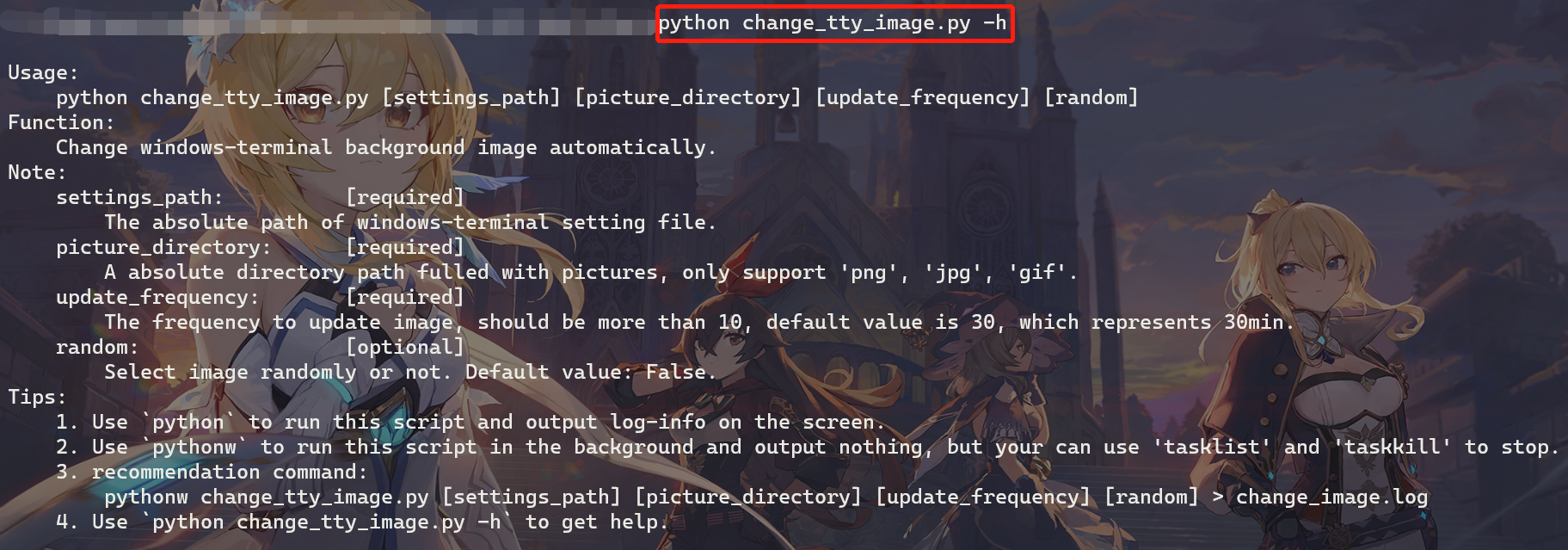
输入参数使用
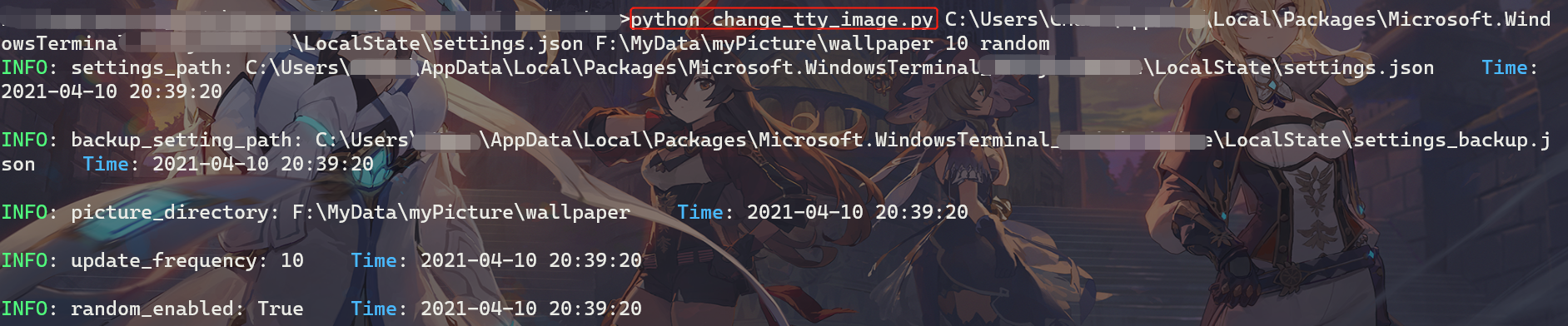
关键操作都会记录日志,或在屏幕输出!
脚本详情
# -*- encoding: utf-8 -*-

'''

@File    : change_tty_image.py

@Time    : 2021/04/08 21:00:20

@Author  : Roderick Chan

@Email   : ch22166@163.com

@Desc    : Change windows-terminal background image automatically

'''

import os

import sys

import functools

import random

import re

import time

# key word to set image

key_word = "\"backgroundImage\""

# help message

help_msg = """

Usage:

    python change_tty_image.py [settings_path] [picture_directory] [update_frequency] [random]

Function:

    Change windows-terminal background image automatically.

Note:

    settings_path:          [required]

        The absolute path of windows-terminal setting file.

    picture_directory:      [required]

        A absolute directory path fulled with pictures, only support 'png', 'jpg', 'gif'.

    update_frequency:       [required]

        The frequency to update image, should be more than 10, default value is 30, which represents 30min.

    random:                 [optional]

        Select image randomly or not. Default value: False.

Tips:

    1. Use `python` to run this script and output log-info on the screen.

    2. Use `pythonw` to run this script in the background and output nothing, but your can use 'tasklist' and 'taskkill' to stop.

    3. recommendation command:

        pythonw change_tty_image.py [settings_path] [picture_directory] [update_frequency] [random] > change_image.log

    4. Use `python change_tty_image.py -h` to get help.

"""

def get_time():

    return time.strftime("%Y-%m-%d %H:%M:%S", time.localtime())

def log(msg):

    print("\033[1;32mINFO\033[0m: {}    \033[1;34mTime\033[0m: {}\n".format(msg, get_time()))

# parse args

# check args

args = sys.argv

arg_len = len(args)

# show help

if len(args) > 1 and (args[1] == "-h" or args[1] == "--help"):

    print(help_msg)

    sys.exit(0)

if arg_len < 4 or arg_len > 5:

    print("\033[1;31m[-] Args Error!\033[0m\n")

    print(help_msg)

    sys.exit(-1)

# validate args

settings_path = args[1]

picture_directory = args[2]

update_frequency = args[3]

random_enabled = False

if arg_len == 5:

    random_enabled = bool(args[4])

assert os.path.exists(settings_path), "settings_path doesn't exist."

assert os.path.isfile(settings_path), "settings_path is not a file path."

assert os.path.exists(picture_directory), "picture_directory doesn't exist."

assert os.path.isdir(picture_directory), "picture_directory is not a dir path."

# process settings_path

settings_dir, settings_full_name = os.path.split(settings_path)

settings_name, setting_suffix = os.path.splitext(settings_full_name)

backup_setting_path = os.path.join(settings_dir, settings_name + "_backup" + setting_suffix)

tmp_setting_path = os.path.join(settings_dir, settings_name + "_tmpfile" + setting_suffix)

# process update_frequency

if update_frequency.isdecimal():

    update_frequency = int(update_frequency)

    if update_frequency < 10:

        update_frequency = 30

else:

    update_frequency = 30

log('settings_path: {}'.format(settings_path))

log('backup_setting_path: {}'.format(backup_setting_path))

log('picture_directory: {}'.format(picture_directory))

log('update_frequency: {}'.format(update_frequency))

log('random_enabled: {}'.format(random_enabled))

# get all picture path

all_picture_path = []

support_suffix = ('.jpg', '.png', '.gif')

for r, dl, fl in os.walk(picture_directory,):

    for f in fl:

        is_ok = functools.reduce(lambda a, b : a or b, map(lambda x: f.endswith(x), support_suffix))

        if not is_ok:

            continue

        # check size

        if len(all_picture_path) > 0x1000:

            continue;

        all_picture_path.append(os.path.join(r, f))

assert len(all_picture_path) > 0, 'no pictures appended, check your picture_directory.'

# validate settings_path

flag = False

with open(file=settings_path, mode='r+', encoding='utf-8') as fd:

    for line in fd:

        if line.strip().startswith(key_word):

            flag = True

            break

assert flag, "please initial your windows-terminal settings file first, add {} value at least.".format(key_word)

log('all_picture_path : {}'.format(all_picture_path))

# back up

if not os.path.exists(backup_setting_path):

    cmd = "copy {} {}".format(settings_path, backup_setting_path)

    os.popen(cmd)

    log("execute \"{}\"".format(cmd))

idx = -1

while True:

    if random_enabled:

        idx = random.randint(0, len(all_picture_path) - 1)

    else:

        idx += 1

        idx %= len(all_picture_path)

    # replace '\' with '/'

    cur_picture_path = all_picture_path[idx].replace("\\", "/")

    log('cur_picture_path: {}'.format(cur_picture_path))

    with open(file=settings_path, mode='r', encoding='utf-8') as fd_src:

        with open(file=tmp_setting_path, mode='w+', encoding='utf-8') as fd_bck:

            for line in fd_src:

                if not line.strip().startswith(key_word):

                    fd_bck.write(line)

                    continue

                res = re.sub(r"({}\s?:\s?)\".+\",".format(key_word), r'\1"{}",'.format(cur_picture_path), line)

                fd_bck.write(res)

    cmd = "copy {} {}".format(tmp_setting_path, settings_path)

    os.popen(cmd)

    log("execute \"{}\"".format(cmd))

    cmd = "del {}".format(tmp_setting_path)

    os.popen(cmd)

    log("execute \"{}\"".format(cmd))

    # sleep

    log("sleep start...")

    time.sleep(update_frequency * 60)

    log("sleep end...")
引用参考
windows terminal profile setting:<Windows Terminal Appearance Profile Settings | Microsoft Docs>
幻灯片放映模式切换windows terminal背景图片的更多相关文章
- C# 复制幻灯片(包括格式、背景、图片等)到同/另一个PPT文档
C# 复制幻灯片(包括格式.背景.图片等)到同/另一个PPT文档 复制幻灯片是使用PowerPoint过程中的一个比较常见的操作,在复制一张幻灯片时一般有以下两种情况: 在同一个PPT文档内复制 从一 ...
- Python爬虫之提取Bing搜索的背景图片并设置为Windows的电脑桌面
鉴于现阶段国内的搜索引擎还用不上Google, 笔者会寻求Bing搜索来代替.在使用Bing的过程中,笔者发现Bing的背景图片真乃良心之作,十分赏心悦目,因此,笔者的脑海中萌生了一个念头:能否自 ...
- 安卓工作室android studio 美化 ,设置背景图片。
作者:韩梦飞沙 Author:han_meng_fei_sha 邮箱:313134555@qq.com E-mail: 313134555 @qq.com sexy Editor 点击file-> ...
- Windows Terminal入门
目录 0.引言 1.简易安装 2.初识WT 3.初识Settings 3.1全局配置 3.2每一个终端配置 3.3配色方案 3.4键位绑定 4.连接云服务器 5.连接WSL 6.玩转Emoji 0.引 ...
- 是时候扔掉cmder, 换上Windows Terminal
作为一个Windows的长期用户,一直没有给款好用的终端,知道遇到了 cmder,它拯救一个习惯用Windows敲shell命令的人. 不用跟我安利macOS真香!公司上班一直用macOS,一方面确实 ...
- Windows Terminal 新手入门
翻译自 Kayla Cinnamon 2020年12月17日的文章<Getting Started with Windows Terminal> [1] 安装 Windows Termin ...
- 深入浅出,遇见Windows Terminal(Windows终端器),体验及美化新一代终端神器
Windows Terminal 简介 Windows Terminal is a new, modern, feature-rich, productive terminal application ...
- Windows Terminal 美化教程
Windows Terminal 美化教程 1.安装Windows Terminal 在微软商店搜索Windows Terminal下载即可 2.安装相应的插件 使用管理员权限打开Windows Te ...
- C#(winform)为button添加背景图片
1.既然是添加背景图片 所以这里应该使用 Button.BackgroudImage = "" ;来设置图片 而不应该使用 Button.Image = "" ...
随机推荐
- React & Strict Mode
React & Strict Mode https://reactjs.org/docs/strict-mode.html#detecting-unexpected-side-effects ...
- CSS 阴影效果
<!DOCTYPE html> <html lang="en"> <head> <meta charset="UTF-8&quo ...
- 如何在一台开发机中同时配置github、gitlab等多个账户
本文参考博文. 如果公司的代码同步环境在gitlab上,而自己有很多项目托管在github.我们需要做一些额外的配置实现两者的无缝切换. 步骤 我的开发机是macbook,如果属于不同系统,找到该系统 ...
- 关于PCA主成分分析的一点理解
PCA 即主成分分析技术,旨在利用降维的思想,把多指标转化为少数几个综合指标. 假设目前我们的数据特征为3,即数据维度为三,现在我们想将数据降维为二维,一维: 我们之前的数据其实就是三维空间中的一个个 ...
- 鸿蒙开源第三方组件——进度轮ProgressWheel
目录:1.前言2.背景3.组件功能展示4.Sample解析5.Library解析6.作者系列文章合集 前言 基于安卓平台的进度轮组件ProgressWheel(https://github.com/A ...
- 死磕Spring之IoC篇 - 解析自定义标签(XML 文件)
该系列文章是本人在学习 Spring 的过程中总结下来的,里面涉及到相关源码,可能对读者不太友好,请结合我的源码注释 Spring 源码分析 GitHub 地址 进行阅读 Spring 版本:5.1. ...
- POJ-1015(背包变形+输出路径)
Jury Compromise POJ-1015 推荐几个较好的介绍和理解:https://blog.csdn.net/lyy289065406/article/details/6671105 htt ...
- 初窥MyBatis-普通的CRUD操作
编写接口 编写对应的Mapper.xml中的sql语句 测试(增删改需要提交事务) <mapper namespace="com.perwrj.dao.UserMapper" ...
- python带颜色打印字符串
python带颜色打印字符串 之前调试pwn题的时候,有时候需要将某些特别的,重要的信息用不一样的颜色打印出来.查阅一些资料,了解了print函数的特性后,自己写了一个脚本,可以用来获取带颜色信息的字 ...
- 理解函数式编程中的函数组合--Monoids(二)
使用函数式语言来建立领域模型--类型组合 理解函数式编程语言中的组合--前言(一) 理解函数式编程中的函数组合--Monoids(二) 继上篇文章引出<范畴论>之后,我准备通过几篇文章,来 ...