
Allow windows service to "Interact with desktop"
Typically, services are designed to run unattended without any UI with any need to interact with desktop or any GUI application. However, in some cases, it is desired to let the service show and communicate with graphical applications. A reason might be to track an already developed application and start this app if closed. Or you might want some input from the user or want to alert him immediately about something serious that has happened. Whatever the reason be, there is always a need to find a way to enable your service to display the GUI application in an interactive windows satiation.
Solution is one click away and we only need to mark the "Allow Service to interact with desktop" as checked. But the question is can we do this programmatically? If yes then how? 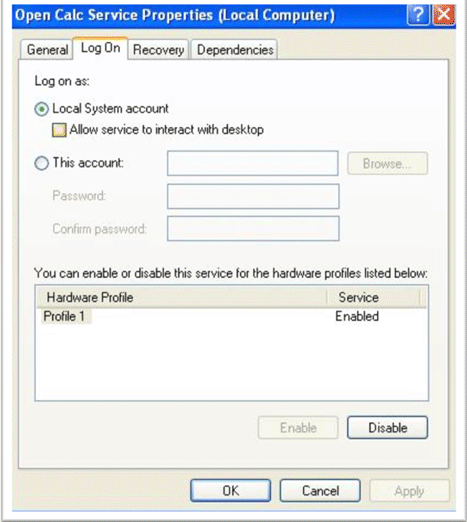
There are four ways to change the windows service options and we will discuss them one by one. But before that you need to know that to make a service interact with the desktop, the service
- Account type must be Local System.
- Service type must be Own Process or Shared Process.
1. Through Windows Registry
A service installed on the system has its options saved in the system registry under "System\CurrentControlSet\Services"in LocalMachine key with your service name. The name/value pair we are interested in is "type". Its type is integer and it is equivalent to ServiceType in its value. Here is how we can do this.
var ServiceKeys = Microsoft.Win32.Registry
.LocalMachine.OpenSubKey(String.Format( @"System\CurrentControlSet\Services\{0}", ServiceName), true);
try
{
var ServiceType = (ServiceType)(int)(ServiceKeys.GetValue("type"));
//Service must be of type Own Process or Share Process
if (((ServiceType & ServiceType.Win32OwnProcess) != ServiceType.Win32OwnProcess)
&& ((ServiceType & ServiceType.Win32ShareProcess) != ServiceType.Win32ShareProcess))
{
throw new Exception("ServiceType must be either Own Process or Shared Process to enable interact with desktop");
}
var AccountType = ServiceKeys.GetValue("ObjectName");
//Account Type must be Local System
if (String.Equals(AccountType, "LocalSystem") == false)
throw new Exception("Service account must be local system to enable interact with desktop");
//ORing the InteractiveProcess with the existing service type
ServiceType newType = ServiceType | ServiceType.InteractiveProcess;
ServiceKeys.SetValue("type", (int)newType);
}
finally
{
ServiceKeys.Close();
}
This requires the system startup since registry change is not notified to Service Control Manager (SCM), change is visible in service property window though. It is because property window always load recent settings from the registry.
2. Through WMI
If you do not want to play with the registry or restart seems not a good option in your case then there is another solution for you which is WMI. WMI class WIN32_Service let you play with the windows service. This class provides a method called "Change" which allows you to modify the service. You can read more about WIN32_Service here. Here is how to do the job.
//Create a Management object for your service.
var service = new System.Management.ManagementObject(
String.Format("WIN32_Service.Name='{0}'", ServiceName));
try
{
var paramList = new object[11];
paramList[5] = true;//We only need to set DesktopInteract parameter
var output = (int)service.InvokeMethod("Change", paramList);
//if zero is returned then it means change is done.
if (output != 0)
throw new Exception(string.Format("FAILED with code {0}", output));
}
finally
{
service.Dispose();
}
Good thing in this technique is it does not require any system reboot. Only a service restart is required.
3. Through Command
SC is a command-line utility for managing services. SC is available for scripting and script can be run through .net. It means we can use sc command to configure the windows service. You can see a complete list here to unleash the power of this command. For now our purpose is to enable the "Interact with desktop" option and config command is there to do this job. What we need to do is run the command through code and if output is "[SC] ChangeServiceConfig SUCCESSS" then it means our job is done. Here is how to do this
string command = String.Format("sc config {0} type= own type= interact", ServiceName);
var processInfo = new System.Diagnostics.ProcessStartInfo()
{
//Shell Command
FileName = "cmd"
,
//pass command as argument./c means carries
//out the task and then terminate the shell command
Arguments = "/c" + command
,
//To redirect The Shell command output to process stanadrd output
RedirectStandardOutput = true
,
// Now Need to create command window.
//Also we want to mimic this call as normal .net call
UseShellExecute = false
,
// Do not show command window
CreateNoWindow = true
};
var process = System.Diagnostics.Process.Start(processInfo);
var output = process.StandardOutput.ReadToEnd();
if (output.Trim().EndsWith("SUCCESS") == false)
throw new Exception(output);
4. Through interop
Question is, do we need this when we have three nice options using managed code. For me it is useless and that's why I am leaving it
Let me end this article with words of caution.
The "Interact with Desktop" option is not supported by Microsoft in Windows Vista and newer. So use it wisely and redesign your app if there is a solid chance that your service can be installed on Vista or Server 2008.
Link:http://www.c-sharpcorner.com/uploadfile/Yousafi/allow-windows-service-to-interact-with-desktop/
Allow windows service to "Interact with desktop"的更多相关文章
- Installing Jenkins as a Windows service
Install Jenkins as a Windows service NOTE: if you installed Jenkins using the windows installer, you ...
- C#创建、安装、卸载、调试Windows Service(Windows 服务)的简单教程
前言:Microsoft Windows 服务能够创建在它们自己的 Windows 会话中可长时间运行的可执行应用程序.这些服务可以在计算机启动时自动启动,可以暂停和重新启动而且不显示任何用户界面.这 ...
- C# Windows service 开发笔录
本文将详细图解,开发Windows service的过程. 功能:数据库查询数据后,经过处理,每天定时发送邮件. 一.WinForm调试 1.新建Windows service项目 2.新建WinFo ...
- [转]Win7、Windows Server 2008下无法在Windows Service中打开一个已经存在的Excel 2007文件问题的解决方案
昨天,组里一个小朋友告诉我,他写的报表生成服务中无法打开一个已经存在的Excel 2007文件,他的开发环境是Win7.Visual Studio .Net 2008(Windows Server 2 ...
- Windows Service的官方描述,抄下来(不写obj就是LocalSystem)
How to create a Windows service by using Sc.exe Email Print Support for Windows XP has ended Micro ...
- Windows Service 学习系列(二):C# windows服务:安装、卸载、启动和停止Windows Service几种方式
一.通过InstallUtil.exe安装.卸载.启动.停止Windows Service 方法一 1.以管理员身份运行cmd 2.安装windows服务 切换cd C:\Windows\Micros ...
- SyncThingWin -- Run syncthing as a windows service
SyncThingWin Auto restart and minor bug fixes bloones released this on 23 Dec 2014 There is now an a ...
- How to Run Syncthing 24/7 as a Windows Service with AlwaysUp
http://www.coretechnologies.com/products/AlwaysUp/Apps/RunSyncthingAsAWindowsService.html Automatica ...
- Windows Service的转换与部署
开发Windows Service,可能会碰到以下两种情况. 1. 直接开发一个Windows Service 网上有很多教程,可以参考这个: http://www.cnblogs.com/sorex ...
随机推荐
- Hexo+github 搭建个人博客(一)
一.软件环境准备 1.安装git windows下载exe安装:linux 执行 apt-get install git-core 安装 2.安装Node.js windows使用 msi 文件进行安 ...
- 获取iframe外边数据
http://biancheng.dnbcw.info/javascript/178184.html
- SCCM日志存放路径
sccm有一些比较重要的日志大家可能经常需要查看.下面是一些比较常用的日志文件的存放位置. 客户端日志文件: 日志位于服务器端 SMS_CCM\Logs 文件夹中 日志位于客户端 %Windir%\S ...
- java 多线程8(守护线程)
比如:后台偷偷运行的那些,qq下载更新包 如果一个进程中只剩下了守护线程,那么守护线程也会死亡.. 一个线程默认都不是守护线程. 判断是否是守护线程:例:d.isDaemon(); 当一个线程随着你的 ...
- 浅析KMP算法
浅析KMP算法 KMP算法是一种线性字符串的匹配算法,将主串S与模式串T匹配. 首先朴素算法大家都会,就是直接从S的每一个位置开始,枚举比较,时间效率为O(nm),现在要想到一种化简的方式,使得时间复 ...
- java的System.getProperty()方法可以获取的值
java.version Java 运行时环境版本 java.vendor Java 运行时环境供应商 java.vendor.url Java 供应商的 URL java.home Java 安装目 ...
- Hibernate-细细道来-01
Dao代码,如何编写? 使用Jdbc技术,原始的jdbc操作, Connection/Statement/ResultSet DbUtils组件, 轻量级的dao的组件: Hibernate技术 [ ...
- (03)odoo模型/记录集/公用操作
-----------------更新时间11:17 2016-09-18 星期日11:00 2016-03-13 星期日09:10 2016-03-03 星期四11:46 2016-02-25 星期 ...
- android:configChanges属性
对android:configChanges属性,一般认为有以下几点: 1.不设置Activity的android:configChanges时,切屏会重新调用各个生命周期,切横屏时会执行一次,切竖屏 ...
- JAVA 正则 Pattern 和 Matcher
java.util.regex是一个用正则表达式所订制的模式来对字符串进行匹配工作的类库包. 1.简介: java.util.regex是一个用正则表达式所订制的模式来对字符串进行匹配工作的类库包. ...