
PC端的鼠标拖拽滑动
1、滑块拖拽
html:
<div id="div1">
js:
<script>

var oDiv=null;

var disX=;

var disY=;

window.onload=function ()

{

    oDiv=document.getElementById('div1');

    oDiv.onmousedown=fnDown;

};

function fnDown(ev)

{

    var oEvent=ev||event;

    disX=oEvent.clientX-oDiv.offsetLeft;

    disY=oEvent.clientY-oDiv.offsetTop;

    document.onmousemove=fnMove;

    document.onmouseup=fnUp;

}

function fnMove(ev)

{

    var oEvent=ev||event;

    oDiv.style.left=oEvent.clientX-disX+'px';

    oDiv.style.top=oEvent.clientY-disY+'px';

}

function fnUp()

{

    document.onmousemove=null;

    document.onmouseup=null;

}

</script>
2、鼠标滑动滑块
html
<div class="box">

    <ul class="drag">

        <li></li>

        <li></li>

        <li></li>

        <li></li>

        <li></li>

        <li></li>

        <li></li>

        <li></li>

        <li></li>

        <li></li>

        <li></li>

        <li></li>

    </ul>

</div>
css
    *{

        padding:;

        margin: ;

    }

    .box {

        position: absolute;

        top:100px;

        width:%;

         height:100px;

        overflow: hidden;

        left: ;

        font-size: ;

    }

.drag {

  position:absolute;

  top:;

  left:;

  padding:;

  height:100px;

  -webkit-user-select: none;

  user-select: none;

  -moz-user-select: none;

  -ms-user-select: none;

}

.drag li{

    display: inline-block;

    width: 300px;

    height: 100px;

    background: blue;

    border: 1px solid #ccc;

    box-sizing: border-box;

}
js
$(document).ready(function(){

  var move=false;

  var _x,_y;

  var item =$(".drag li");

  var len=;

  for(var i=;i<item.length;i++){

      len+=$(".drag li").eq(i).outerWidth(true);

  }

  $(".drag").css({"width":len});

  $(".drag").mousedown(function(e){

    move=true;

    _x=e.pageX-parseInt($(".drag").css("left"));

    // _y=e.pageY-parseInt($(".drag").css("top"));

  });

  $(document).mousemove(function(e){

    if(move){

      var x=e.pageX-_x;//控件左上角到屏幕左上角的相对位置

      var y=e.pageY-_y;

      var distansR=-($('.drag').width()-$(window).width());

      console.log($(window).width(),distansR)

    //   $(".drag").css({"top":y,"left":x});

        if(x>){

            $(".drag").css({"left":});

            return false;

        }

        console.log(x,distansR);

        if(x<distansR){

            $(".drag").css({"left":distansR});

            console.log("不能在右滑啦")

            return false;

        }

        $(".drag").css({"left":x});

    }

  }).mouseup(function(){

    move=false;

  });

})
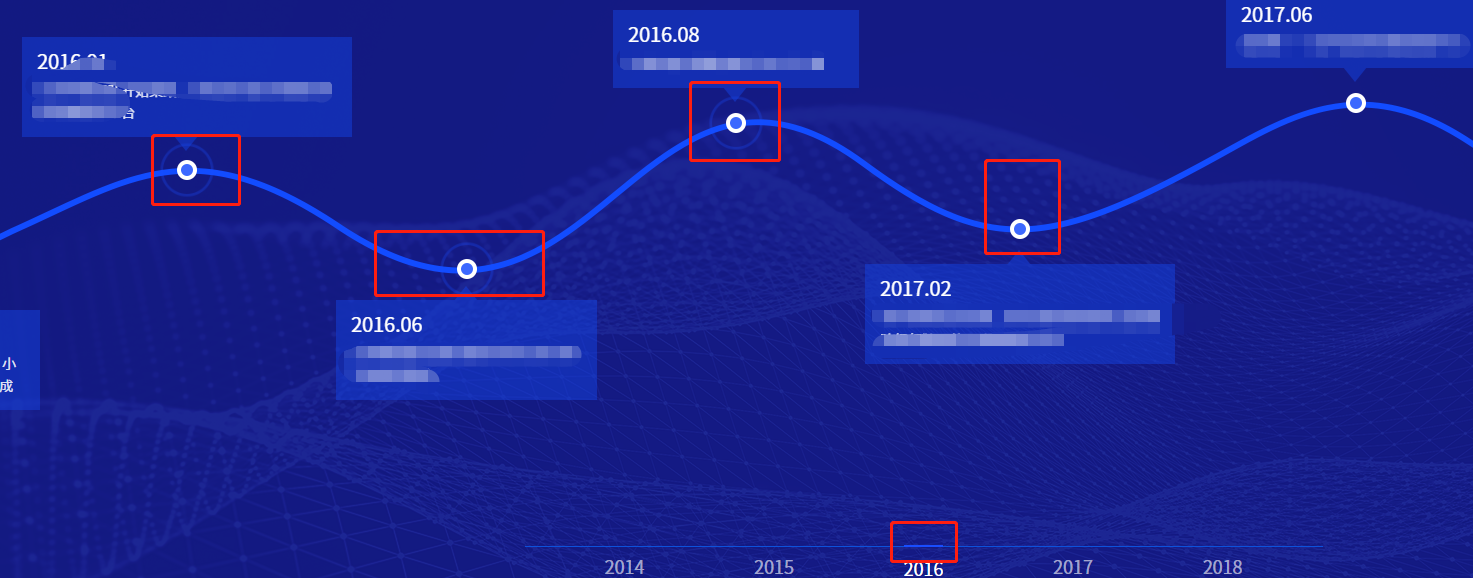
应用场景实现进度区域的滑动,下面时间轴跟着显示相应的时间点,点击时间轴,进度条跟着展示相应的区域!!
3、滑动滑块,切换页面
css:
*{

                margin:;

                padding: ;

            }

              .lineDiv {

                position: relative;

                height: 5px;

                background: red;

                width: 500px;

                margin: 50px auto;

            }

            .lineDiv .minDiv {

                position: absolute;

                top: -5px;

                left: ;

                width: 15px;

                height: 15px;

                background: green;

                cursor: pointer

            }

            .lineDiv .minDiv .vals {

                position: absolute;

                font-size: 20px;

                top: -45px;

                left: -10px;

                width: 35px;

                height: 35px;

                line-height: 35px;

                text-align: center;

                background: blue;

            }

            .lineDiv .minDiv .vals:after {

                content: "";

                width: 0px;

                height: 0px;

                border-top: 6px solid blue;

                border-left: 6px solid transparent;

                border-right: 6px solid transparent;

                border-bottom: 6px solid transparent;

                display: block;

                margin-left: 11px;

            }

            .scroll-box{

                position: absolute;

                top: 291px;

                left: ;

                height: 280px;

                width: %;

                overflow: hidden;

            }

            .scroll-box ul {

                position: absolute;

                left:;

                width: 5000px;

                user-select: none;

                font-size: ;

            }

            .scroll-box li {

                display: inline-block;

                width: 500px;

                background-color: red;

                height: 200px;

                border:1px solid #ccc;

                    box-sizing: border-box;

            }
html:
<div class="scroll-box" id="scroll-box">

            <ul id="contain" class="drag">

                <li></li>

                <li></li>

                <li></li>

                <li></li>

                <li></li>

                <li></li>

                <li></li>

                <li></li>

                <li></li>

                <li></li>

            </ul>

        </div>

        <center>

        <h3>用鼠标拖动小方块<span id="msg"></span>%</h3>

        </center>

        <div id="lineDiv" class="lineDiv">

            <div id="minDiv" class="minDiv">

                <div id="vals" class="vals"></div>

            </div>

        </div>
js:
        <script>

            window.onload = function() {

                var contain = document.getElementById('contain');

                var lineDiv = document.getElementById('lineDiv'); //长线条

                var minDiv = document.getElementById('minDiv'); //小方块

                var msg = document.getElementById("msg");

                var vals = document.getElementById("vals");

                var ifBool = false; //判断鼠标是否按下

                //事件

                var start = function(e) {

                    e.stopPropagation();

                    ifBool = true;

                    console.log("鼠标按下")

                }

                var move = function(e) {

                    console.log("鼠标拖动")

                    if(ifBool) {

                        if(!e.touches) {    //兼容移动端

                            var x = e.clientX;

                        } else {     //兼容PC端

                            var x = e.touches[].pageX;

                        }

                        //var x = e.touches[0].pageX || e.clientX; //鼠标横坐标var x

                        var lineDiv_left = getPosition(lineDiv).left; //长线条的横坐标

                        var minDiv_left = x - lineDiv_left; //小方块相对于父元素(长线条)的left值

                        if(minDiv_left >= lineDiv.offsetWidth - ) {

                            minDiv_left = lineDiv.offsetWidth - ;

                        }

                        if(minDiv_left < ) {

                            minDiv_left = ;

                        }

                        //设置拖动后小方块的left值

                        minDiv.style.left = minDiv_left + "px";

                        msg.innerText = parseInt((minDiv_left / (lineDiv.offsetWidth - )) * );

                        vals.innerText = parseInt((minDiv_left / (lineDiv.offsetWidth - )) * );

                        abc((minDiv_left / (lineDiv.offsetWidth - )));

                    }

                }

                var end = function(e) {

                        console.log("鼠标弹起")

                        ifBool = false;

                    }

                    //鼠标按下方块

//              minDiv.addEventListener("touchstart", start);

                minDiv.addEventListener("mousedown", start);

                //拖动

//              window.addEventListener("touchmove", move);

                window.addEventListener("mousemove", move);

                //鼠标松开

//              window.addEventListener("touchend", end);

                window.addEventListener("mouseup", end);

                //获取元素的绝对位置

                function getPosition(node) {

                    var left = node.offsetLeft; //获取元素相对于其父元素的left值var left

                    var top = node.offsetTop;

                    current = node.offsetParent; // 取得元素的offsetParent

                      // 一直循环直到根元素


                    while(current != null) {

                        left += current.offsetLeft;

                        top += current.offsetTop;

                        current = current.offsetParent;

                    }

                    return {

                        "left": left,

                        "top": top

                    };

                }

            }

            function abc(percent){

                var distansR=($('.drag').width()-$(window).width()); //可以右滑的极限

                console.log(-parseInt(percent*distansR + "px"));

                var oLeft = (-parseInt(percent*distansR))+ "px";

                $("#contain").css("left",oLeft);

                $("#contain").addClass("ggg");

            }

        </script>
PC端的鼠标拖拽滑动的更多相关文章
- 一款基于jQuery的支持鼠标拖拽滑动焦点图
记得之前我们分享过一款jQuery全屏广告图片焦点图,图片切换效果还不错.今天我们要分享另外一款jQuery焦点图插件,它的特点是支持鼠标拖拽滑动,所以在移动设备上使用更加方便,你只要用手指滑动屏幕即 ...
- 适合pc端的移动拖拽,分享一下。
h5新加的特性拖拽事件,但是只适合PC端哦.不多说了上代码 <!DOCTYPE html> <html> <head> <title></titl ...
- 支持鼠标拖拽滑动的jQuery焦点图
在线演示 本地下载
- CSharpGL(20)用unProject和Project实现鼠标拖拽图元
CSharpGL(20)用unProject和Project实现鼠标拖拽图元 效果图 例如,你可以把Big Dipper这个模型拽成下面这个样子. 配合旋转,还可以继续拖拽成这样. 当然,能拖拽的不只 ...
- JavaScript鼠标拖拽特效及相关问题总结
#div1{width:200px;height:200px;background:red;position:absolute;} #div2{width:200px;height:200px;bac ...
- 【狼】unity 鼠标拖拽物体实现任意角度自旋转
主要涉及函数 Input.GetAxis(“Mouse x”) 可取得鼠标横向(x轴)移动增量 Input.GetAxis(“Mouse y”) 可取得鼠标竖向(y轴)移动增量 通过勾股定理获取拖拽长 ...
- NGUI对象跟随鼠标拖拽移动
public Camera WNGUICamera; Vector3 _WoldPosition;//指针的初始位置 // Vector3 _WoldAng; Vector3 WscreenSpace ...
- 鼠标拖拽定位和DOM各种尺寸详解
<!DOCTYPE html> <html> <head> <meta charset="UTF-8"> <title> ...
- Arcgis for qml - 鼠标拖拽移动
以实现鼠标拖拽文本图层为例 GitHub:ArcGIS拖拽文本 作者:狐狸家的鱼 目的是利用鼠标进行拖拽. 实现两种模式,一种是屏幕上的拖拽,第二种是地图上图层的挪动. 屏幕上的拖拽其实跟ArcGIS ...
随机推荐
- Elastic Stack之Logstash进阶
Elastic Stack之Logstash进阶 作者:尹正杰 版权声明:原创作品,谢绝转载!否则将追究法律责任. 一.使用GeoLite2和logstash 过滤插件的geoip案例 1>. ...
- Java Web之上传文件
本篇文章你会学到 1. Apache FileUpload组件 2.上传文件保存的路径和名称问题 3.缓存大小和临时目录 4.控制文件上传的格式 先讲一个简单的例子,一个注册页面,有账号,邮箱,和头像 ...
- python dom操作
1.DOM介绍 (1)什么是DOM DOM:文档对象模型.DOM 为文档提供了结构化表示,并定义了如何通过脚本来访问文档结构.目的其实就是为了能让js操作html元素而制定的一个规范. DOM就是由节 ...
- Shuttle 学习
见 http://blog.csdn.net/liu765023051/article/details/38521039
- JQuery和ASP.NET分别实现级联下拉框效果
在学习JQuery之前知道下拉框的级联效果可以通过asp.net控件实现,现在学习了JQuery,知道了JQuery和select也能实现.我分别举两个小例子说明这两种方法如何实现. 1.用JQuer ...
- vee-validate表单验证组件
vee-validate是VUE的基于模板的验证框架,允许您验证输入并显示错误 安装 npm i vee-validate --save 引入 import Vue from 'vue'; impor ...
- 细说log4j之log4j 1.x
官网:http://logging.apache.org/log4j/1.2/manual.html 三大组件:loggers,appenders,layouts. LoggersLogger是一个层 ...
- Java根类Object的方法说明
Java中的Object类是所有类的父类,它提供了以下11个方法: public final native Class<?> getClass() public native int ha ...
- Java爬网页数据,并存储到本地数据库中
由于开发一个人工智能项目,需要强大的后台数据库加持,所以,没有办法,又是需要医疗数据,只能自己爬某医疗网站数据,进行分析,但是由于不同网站的结构不一样,所以这个程序只能爬该网站的,第一次爬网页数据,自 ...
- oracle rman备份
rman 登录到cmd 打开cmd 输入 rman connect target jhpt/1@orcl C:\Documents and Settings\Administrator>rman ...