
Jenkins+Gitlab+Ansible自动化部署(一)
首先准备实验环境
| 虚拟机 | 主机名 | IP地址 | 服务 | 系统版本 | 内核版本 |
| Vmware Workstation 14 | gitlab.example.com | 192.168.244.130 | gitlab | CentOS Linux release 7.5.1804 (Core) | 3.10.0-862.el7.x86_64 |
| jenkins.example.com | 192.168.244.131 | jenkis | |||
| ansible.example.com | 192.168.244.132 | asible |
除此之外,还要在宿主机win10系统下的C:\Windows\System32\drivers\etc\hosts文件中添加如下内容
192.168.244.130 gitlab.example.com

192.168.244.131 jenkins.example.com

192.168.244.132 ansible.example.com
关闭防火墙和selinux
[root@gitlab ~]# sed -i "s/enforcing/disabled/" /etc/selinux/config

[root@gitlab ~]# systemctl stop firewalld && systemmctl disable firewalld

[root@gitlab ~]# reboot

[root@gitlab ~]# getenforce

Permissive

[root@server01 ~]# systemctl status firewalld

● firewalld.service - firewalld - dynamic firewall daemon

   Loaded: loaded (/usr/lib/systemd/system/firewalld.service; disabled; vendor preset: enabled)

   Active: inactive (dead)

     Docs: man:firewalld()
安装postfix并启动
[root@gitlab ~]# yum install postfix

[root@gitlab ~]# systemctl start postfix && systemctl enable postfix
安装Gitlab组件及gitlab-ce
[root@gitlab ~]# yum install curl policycoreutils openssh-server openssh-clients

[root@gitlab ~]# curl -sS https://packages.gitlab.com/install/repositories/gitlab/gitlab-ce/script.rpm.sh | sudo bash

[root@gitlab ~]# yum install -y gitlab-ce
也可以去https://packages.gitlab.com/gitlab/gitlab-ce/packages/el/7/gitlab-ce-10.0.0-ce.0.el7.x86_64.rpm安装方法。
证书创建与配置加载
[root@gitlab ~]# mkdir -p /etc/gitlab/ssl

创建私有密钥

[root@gitlab ~]# openssl genrsa -out "/etc/gitlab/ssl/gitlab.example.com.key"

Generating RSA private key,  bit long modulus

...............+++

...............................................................................+++

e is  (0x10001)

创建私有证书

[root@gitlab ~]# openssl req -new -key "/etc/gitlab/ssl/gitlab.example.com.key"  -out "/etc/gitlab/ssl/gitlab.example.com.csr"

You are about to be asked to enter information that will be incorporated

into your certificate request.

What you are about to enter is what is called a Distinguished Name or a DN.

There are quite a few fields but you can leave some blank

For some fields there will be a default value,

If you enter '.', the field will be left blank.

-----

Country Name ( letter code) [XX]:cn

State or Province Name (full name) []:sh

Locality Name (eg, city) [Default City]:sh

Organization Name (eg, company) [Default Company Ltd]:  #输入空格,然后回车

Organizational Unit Name (eg, section) []:  #输入空格,然后回车

Common Name (eg, your name or your server's hostname) []:gitlab.example.com

Email Address []:admin@example.com

Please enter the following 'extra' attributes

to be sent with your certificate request

A challenge password []:

An optional company name []:  #直接回车

查看

[root@gitlab ~]# ll /etc/gitlab/ssl/

total

-rw-r--r--  root root  Jan   : gitlab.example.com.csr

-rw-r--r--  root root  Jan   : gitlab.example.com.key

接下来利用私有密钥和私有证书创建CRT签署证书

[root@gitlab ~]# openssl x509 -req -days  -in "/etc/gitlab/ssl/gitlab.example.com.csr" -signkey "/etc/gitlab/ssl/gitlab.example.com.key" -out "/etc/gitlab/ssl/gitlab.example.com.crt"

Signature ok

subject=/C=cn/ST=sh/L=sh/O= /OU= /CN=gitlab.example.com/emailAddress=admin@example.com

Getting Private key

查看

[root@gitlab ~]# ll /etc/gitlab/ssl/

total

-rw-r--r--  root root  Jan   : gitlab.example.com.crt

-rw-r--r--  root root  Jan   : gitlab.example.com.csr

-rw-r--r--  root root  Jan   : gitlab.example.com.key

利用openssl命令输出pem证书

[root@gitlab ~]# openssl dhparam -out /etc/gitlab/ssl/dhparam.pem

Generating DH parameters,  bit long safe prime, generator

This is going to take a long time

........................................................+................................................................................+.....................................+..................................................................................+..............................................+..................................................................................................................................+..+........................................................................................................................................+..............................................................................................................................................................................+......+..............+.....................................................+.................+.......................................................................................+..+.................................................................................................................................................+..........................................................+.............+.........+...........................................................+........................................................................................................................................................................................................................................+...................................................................................................................................................................................................................................................................................................................++*++*

#  这个过程有点久

# 查看生成的证书

[root@gitlab ~]# ll /etc/gitlab/ssl/

total

-rw-r--r--  root root   Jan   : dhparam.pem

-rw-r--r--  root root  Jan   : gitlab.example.com.crt

-rw-r--r--  root root  Jan   : gitlab.example.com.csr

-rw-r--r--  root root  Jan   : gitlab.example.com.key

更改文件权限

[root@gitlab ~]# chmod  /etc/gitlab/ssl/*

[root@gitlab ~]# ll /etc/gitlab/ssl/

total

-rw-------  root root   Jan   : dhparam.pem

-rw-------  root root  Jan   : gitlab.example.com.crt

-rw-------  root root  Jan   : gitlab.example.com.csr

-rw-------  root root  Jan   : gitlab.example.com.key
配置gitlab
[root@gitlab ~]# cp /etc/gitlab/gitlab.rb{,.bak}

[root@gitlab ~]# vim /etc/gitlab/gitlab.rb

## 更改如下

  external_url 'https://gitlab.example.com'  13行左右

 nginx['redirect_http_to_https'] = true

 nginx['ssl_certificate'] = "/etc/gitlab/ssl/gitlab.example.com.crt"

 nginx['ssl_certificate_key'] = "/etc/gitlab/ssl/gitlab.example.com.key"

 # nginx['ssl_dhparam'] = /etc/gitlab/ssl/dhparam.pem # Path to dhparams.pem,      eg. /etc/gitlab/ssl/dhparams.pem
初始化gitlab相关服务配置
[root@gitlab ~]# gitlab-ctl reconfigure

Starting Chef Client, version 13.6.

resolving cookbooks for run list: ["gitlab"]

Synchronizing Cookbooks:

  - gitlab (0.0.)

  - package (0.1.)

  - postgresql (0.1.)

  - redis (0.1.)

  - mattermost (0.1.)

  - registry (0.1.)

  - gitaly (0.1.)

  - consul (0.0.)

  - nginx (0.1.)

  - runit (0.14.)

  - letsencrypt (0.1.)

  - acme (3.1.)

  - crond (0.1.)

  - compat_resource (12.19.)

Installing Cookbook Gems:

Compiling Cookbooks...

Recipe: gitlab::default

  * directory[/etc/gitlab] action create

    - change mode from '' to ''

  Converging  resources

  * directory[/etc/gitlab] action create (up to date)

  * directory[Create /var/opt/gitlab] action create

    - create new directory /var/opt/gitlab

    - change mode from '' to ''

    - change owner from '' to 'root'

    - change group from '' to 'root'

  * directory[/opt/gitlab/embedded/etc] action create

    - create new directory /opt/gitlab/embedded/etc

    - change mode from '' to ''

    - change owner from '' to 'root'

    - change group from '' to 'root'

  * template[/opt/gitlab/embedded/etc/gitconfig] action create

    - create new file /opt/gitlab/embedded/etc/gitconfig

    - update content in file /opt/gitlab/embedded/etc/gitconfig from none to 987af3

。。。。过程有点长,需要等一会(看个人服务器配置了)

Running handlers:

Running handlers complete

Chef Client finished, / resources updated in  minutes  seconds

gitlab Reconfigured!

# 出现这个表示配置没有问题!
对nginx配置
[root@gitlab ~]# cp /var/opt/gitlab/nginx/conf/gitlab-http.conf{,.bak}

[root@gitlab ~]# vim /var/opt/gitlab/nginx/conf/gitlab-http.conf

    server_name gitlab.example.com; #在此行下面添加38行的内容

    rewrite ^(.*)$ https://$host$1 permanent;
重启gitlab
[root@gitlab ~]# gitlab-ctl restart

ok: run: alertmanager: (pid ) 1s

ok: run: gitaly: (pid ) 0s

ok: run: gitlab-monitor: (pid ) 0s

ok: run: gitlab-workhorse: (pid ) 1s

ok: run: logrotate: (pid ) 0s

ok: run: nginx: (pid ) 1s

ok: run: node-exporter: (pid ) 0s

ok: run: postgres-exporter: (pid ) 1s

ok: run: postgresql: (pid ) 0s

ok: run: prometheus: (pid ) 0s

ok: run: redis: (pid ) 0s

ok: run: redis-exporter: (pid ) 0s

ok: run: sidekiq: (pid ) 0s

ok: run: unicorn: (pid ) 0s

#  可以看出gitlab的所有服务重启完成
使用宿主机win10下的chrome浏览器访问gitlab.example.com:80
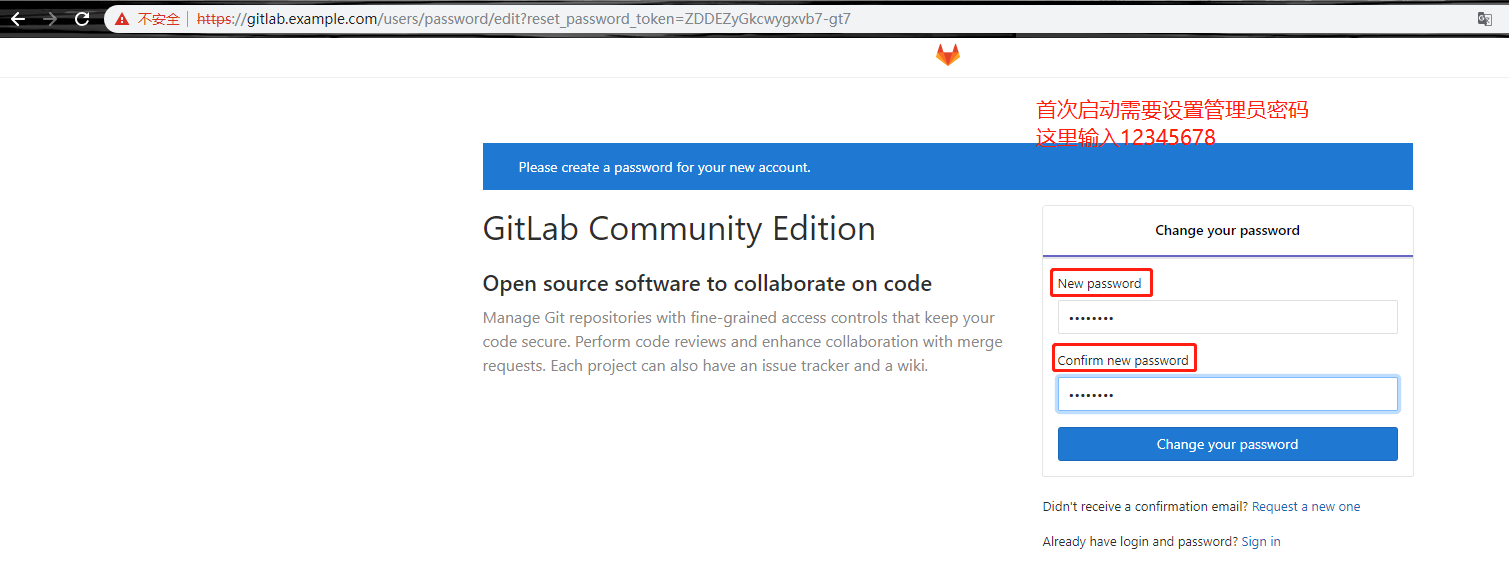
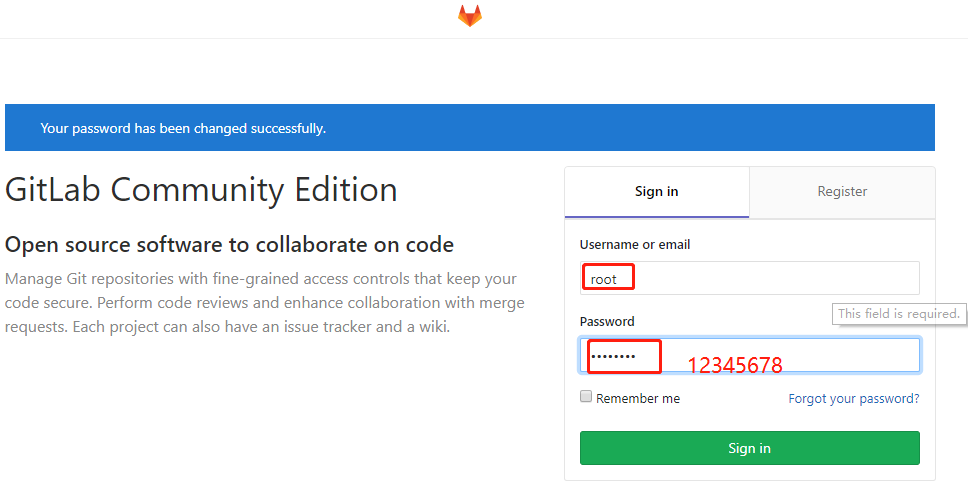
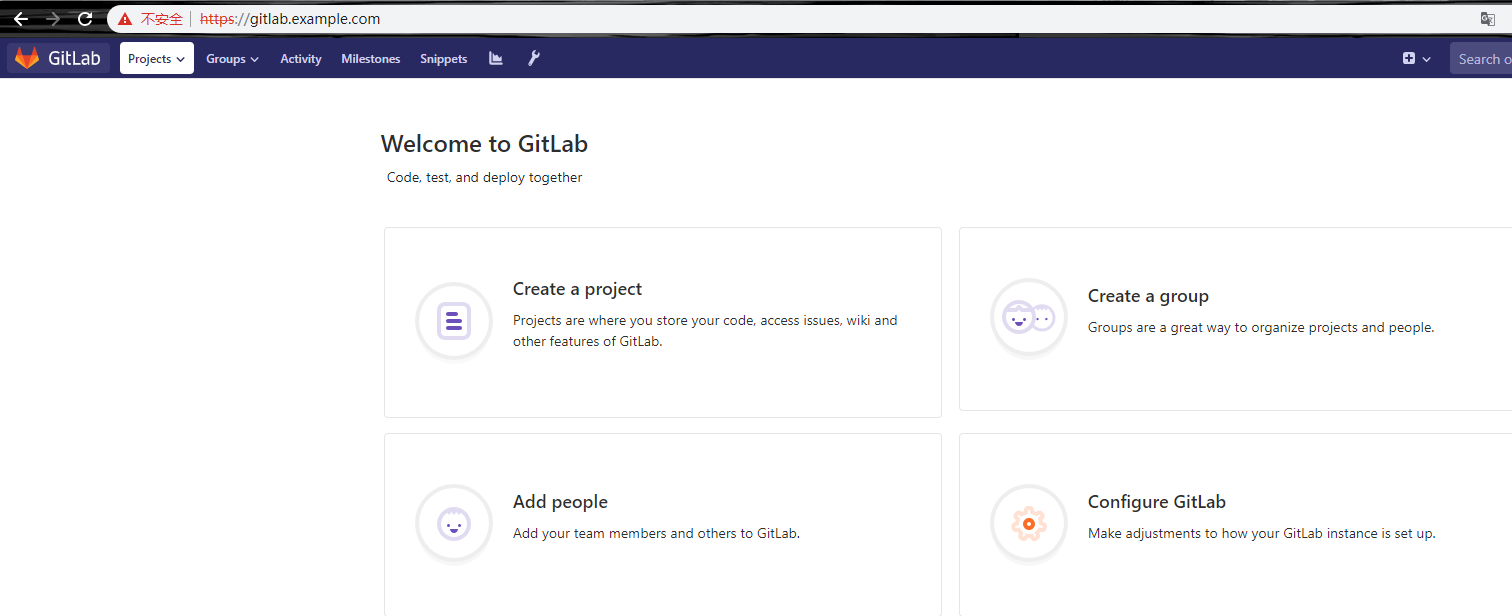
开始使用gitlab
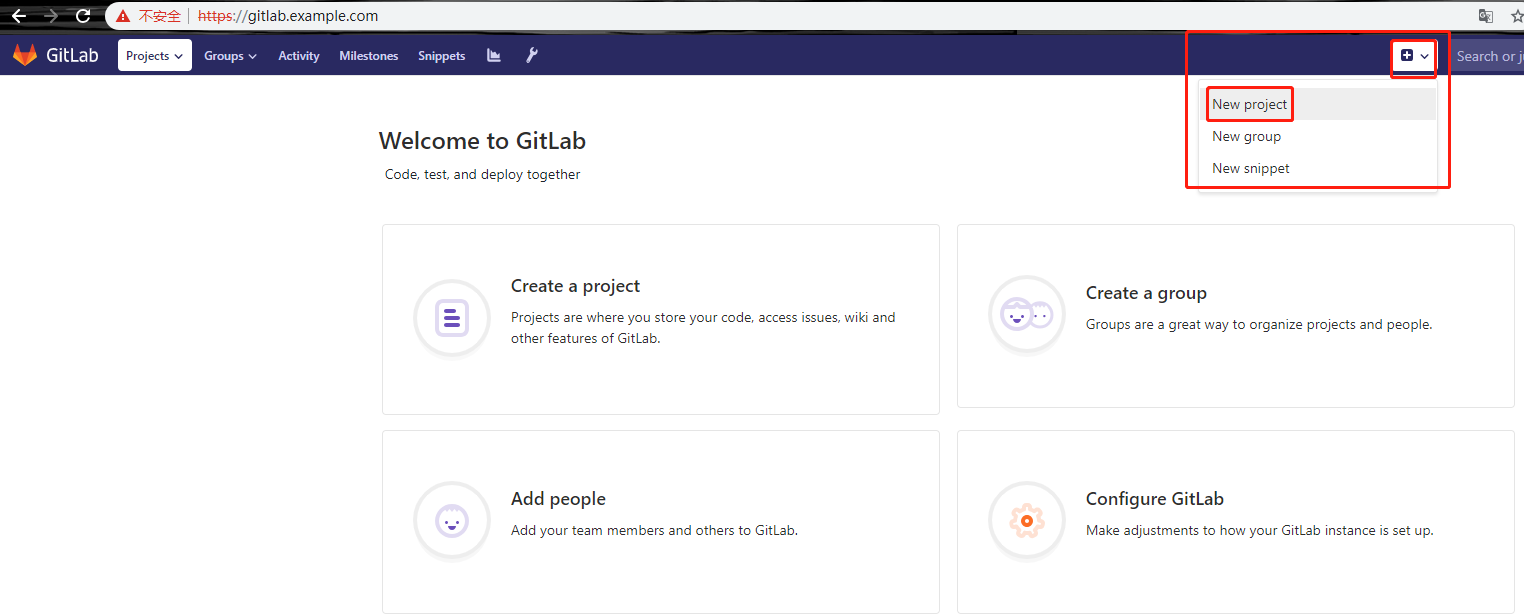
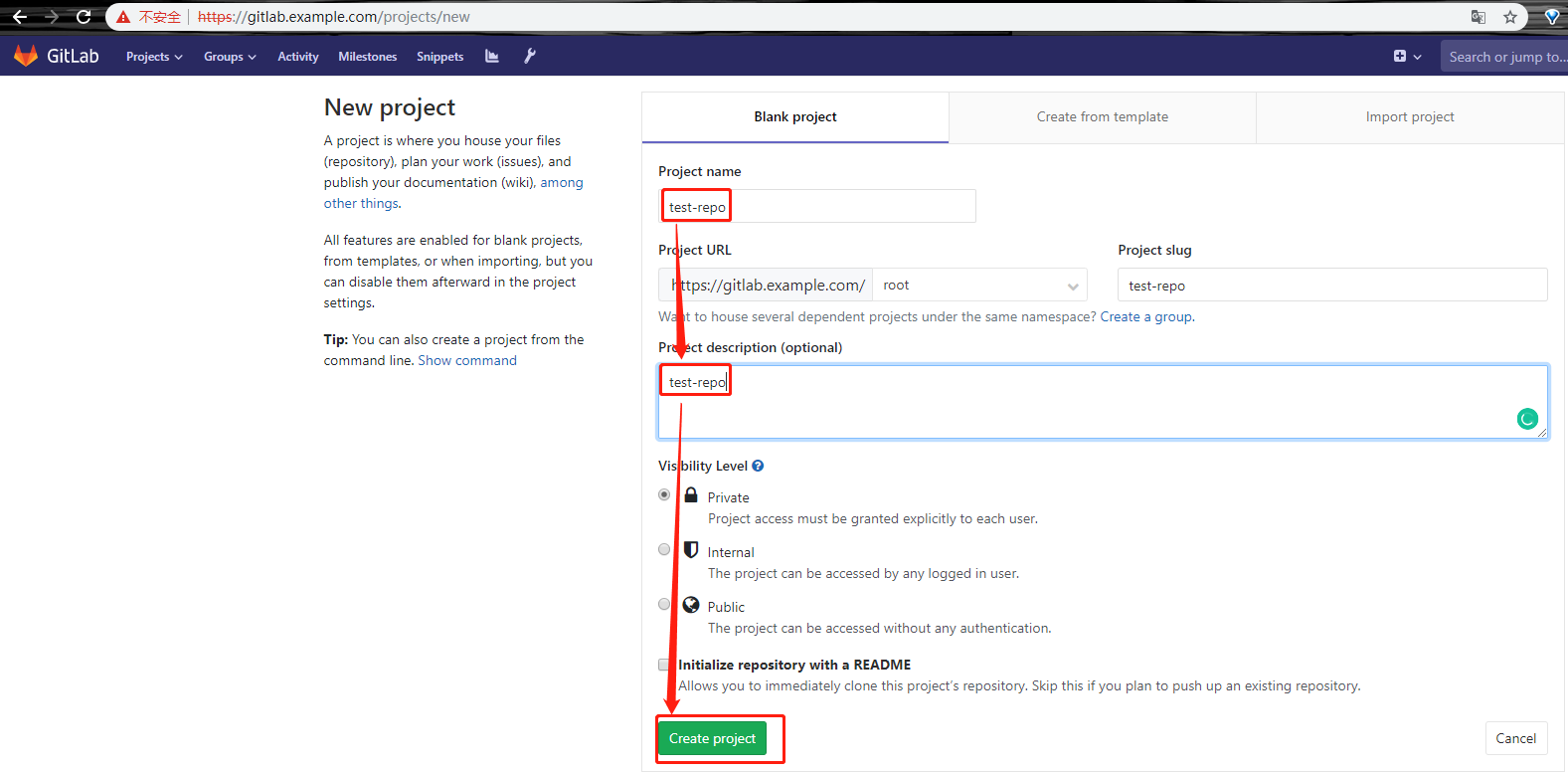
创建一个测试工程
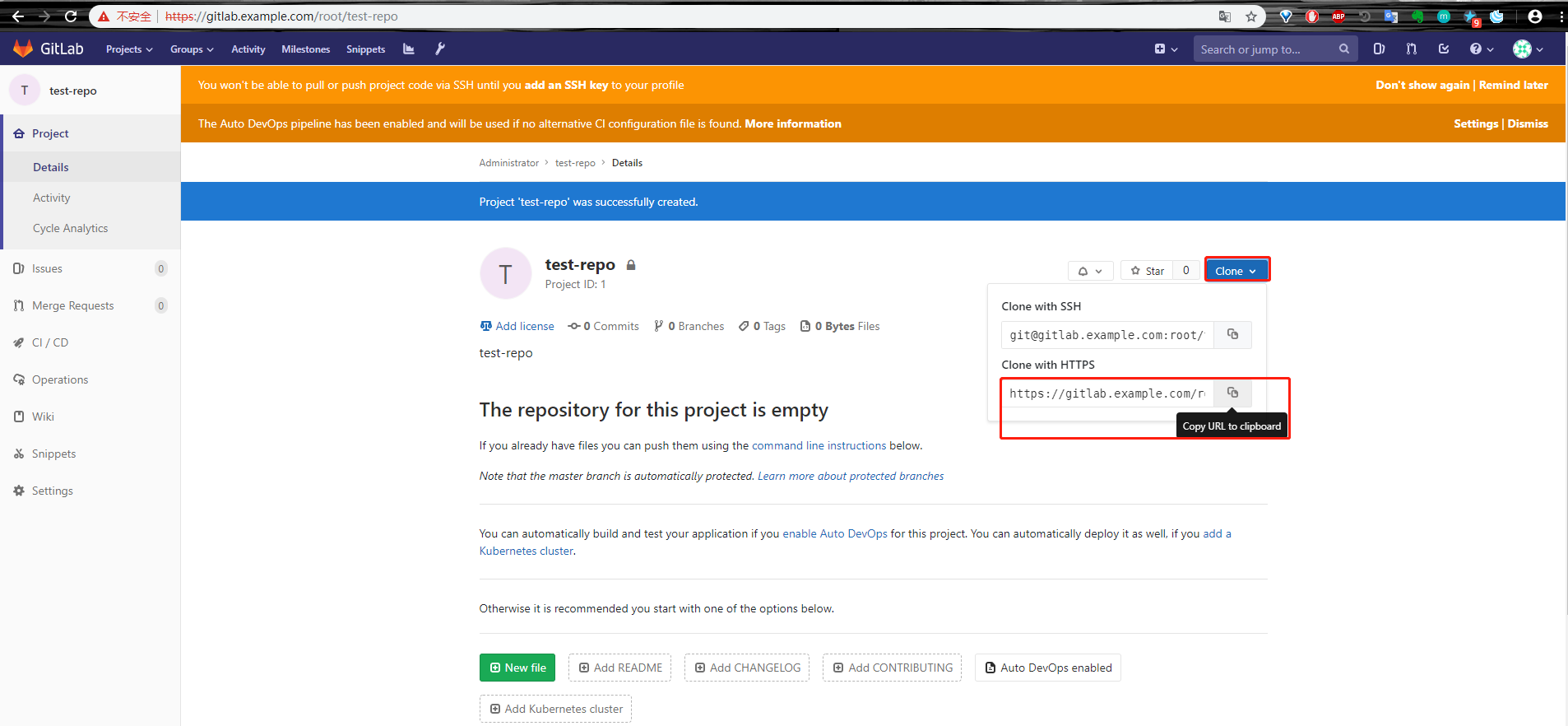
复制仓库地址
回到win10宿主机,重新打开一个git命令行窗口如下所示操作
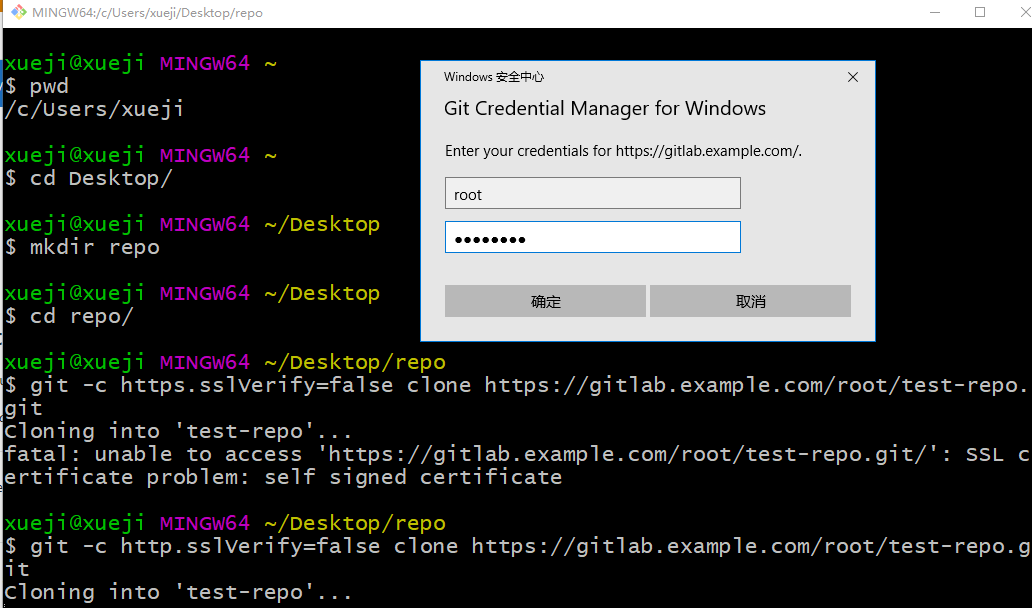
# 粘贴仓库地址回车后会弹出输入账户和密码的窗口
之后就会将空的测试仓库克隆到本地宿主机的桌面上的repo目录下
xueji@xueji MINGW64 ~/Desktop/repo

$ git -c http.sslVerify=false clone https://gitlab.example.com/root/test-repo.git

Cloning into 'test-repo'...

warning: You appear to have cloned an empty repository.

xueji@xueji MINGW64 ~/Desktop/repo

$ pwd

/c/Users/xueji/Desktop/repo

xueji@xueji MINGW64 ~/Desktop/repo

$ ls

test-repo/

xueji@xueji MINGW64 ~/Desktop/repo

$ ls test-repo/
在win10宿主机下的test-repo目录下新建一个test.py文件,并上传至gitlab
xueji@xueji MINGW64 ~/Desktop/repo

$ cd test-repo/

xueji@xueji MINGW64 ~/Desktop/repo/test-repo (master)

$ vi test.py

xueji@xueji MINGW64 ~/Desktop/repo/test-repo (master)

$ git add .

warning: LF will be replaced by CRLF in test.py.

The file will have its original line endings in your working directory

xueji@xueji MINGW64 ~/Desktop/repo/test-repo (master)

$ git commit -m"First Commit"

[master (root-commit) 93bd740] First Commit

 Committer: unknown <xueji@pin.com>

Your name and email address were configured automatically based

on your username and hostname. Please check that they are accurate.

You can suppress this message by setting them explicitly. Run the

following command and follow the instructions in your editor to edit

your configuration file:

    git config --global --edit

After doing this, you may fix the identity used for this commit with:

    git commit --amend --reset-author

  file changed,  insertion(+)

 create mode  test.py

xueji@xueji MINGW64 ~/Desktop/repo/test-repo (master)

$ git config  --global user.email "admin@example.com"

xueji@xueji MINGW64 ~/Desktop/repo/test-repo (master)

$ git config --global user.name "admin"

xueji@xueji MINGW64 ~/Desktop/repo/test-repo (master)

$ git commit -m"First Commit"

On branch master

Your branch is based on 'origin/master', but the upstream is gone.

  (use "git branch --unset-upstream" to fixup)

nothing to commit, working tree clean

xueji@xueji MINGW64 ~/Desktop/repo/test-repo (master)

$ git -c http.sslVerify=false push master

fatal: 'master' does not appear to be a git repository

fatal: Could not read from remote repository.

Please make sure you have the correct access rights

and the repository exists.

xueji@xueji MINGW64 ~/Desktop/repo/test-repo (master)
报错,跟据提示信息我们进行如下操作
xueji@xueji MINGW64 ~/Desktop/repo/test-repo (master)

$ git branch --unset-upstream

xueji@xueji MINGW64 ~/Desktop/repo/test-repo (master)

$ git add .

xueji@xueji MINGW64 ~/Desktop/repo/test-repo (master)

$ git config --global user.email "admin@example.com"

xueji@xueji MINGW64 ~/Desktop/repo/test-repo (master)

$ git config --global user.name "admin"

xueji@xueji MINGW64 ~/Desktop/repo/test-repo (master)

$ git commit -m"First Commit"

On branch master

nothing to commit, working tree clean

xueji@xueji MINGW64 ~/Desktop/repo/test-repo (master)

$ git commit -m"Second Commit"

On branch master

nothing to commit, working tree clean

xueji@xueji MINGW64 ~/Desktop/repo/test-repo (master)

$ git -c http.sslVerify=false push origin master

Enumerating objects: , done.

Counting objects: % (/), done.

Writing objects: % (/),  bytes | 242.00 KiB/s, done.

Total  (delta ), reused  (delta )

To https://gitlab.example.com/root/test-repo.git

 * [new branch]      master -> master
回到gitlab的浏览器页面,刷新查看
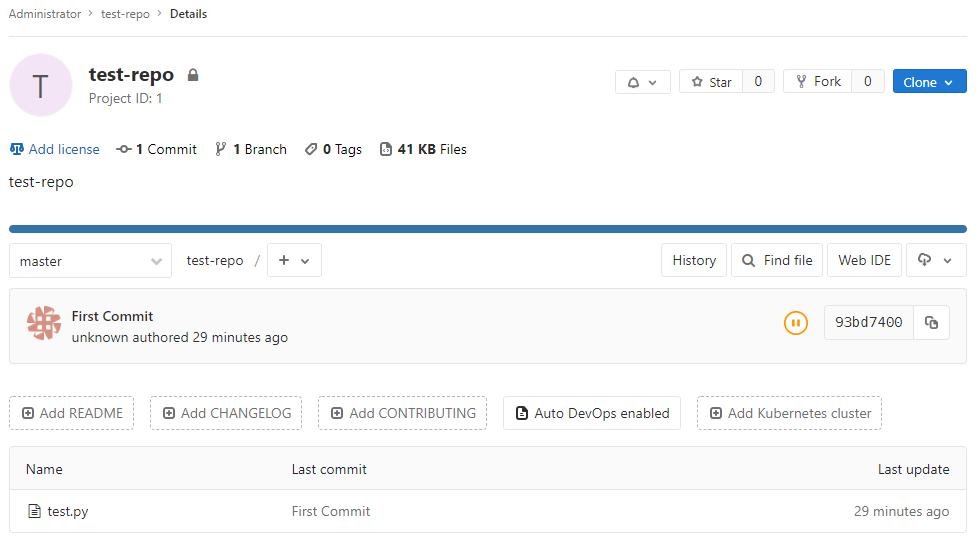
已经成功上传到test-repo工程当中。
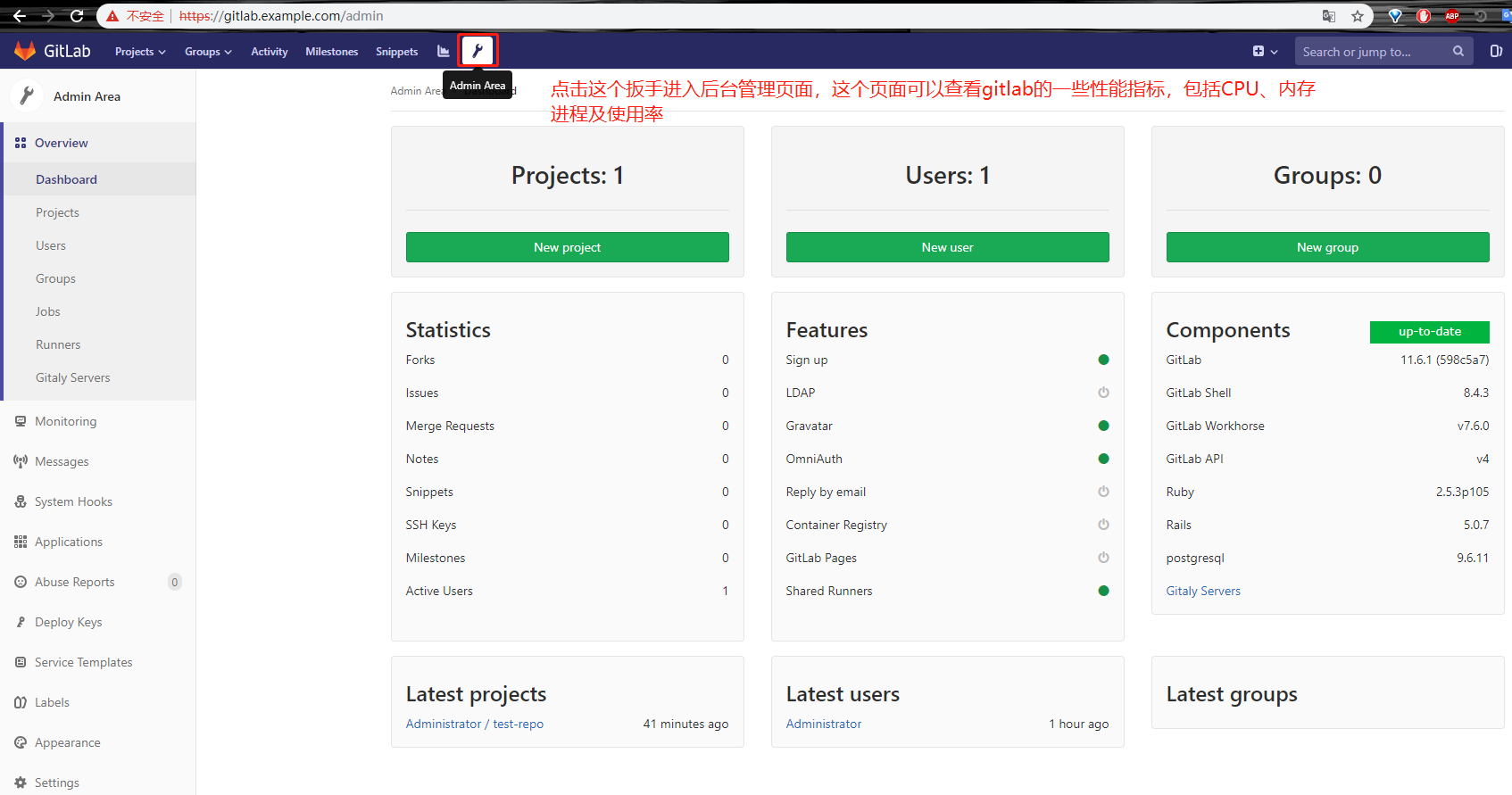
Gitlab应用
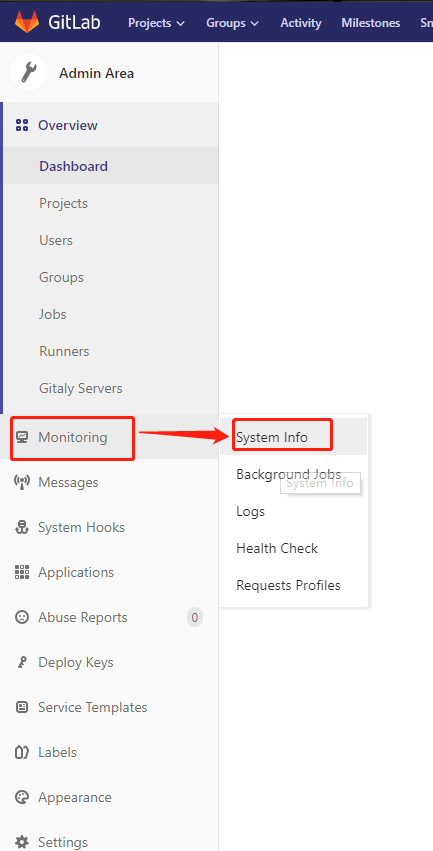
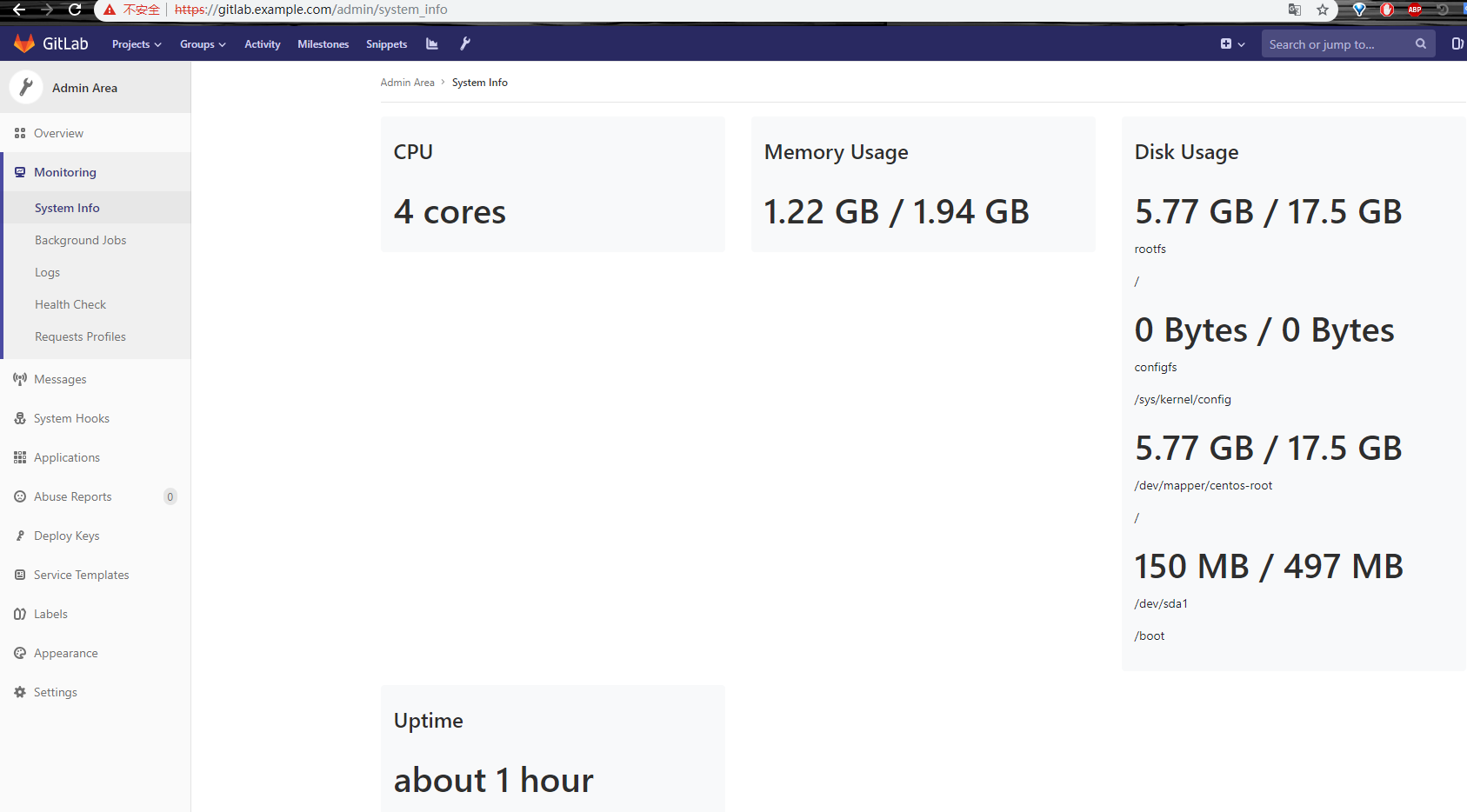
比如说Systeminfo
比如说日志
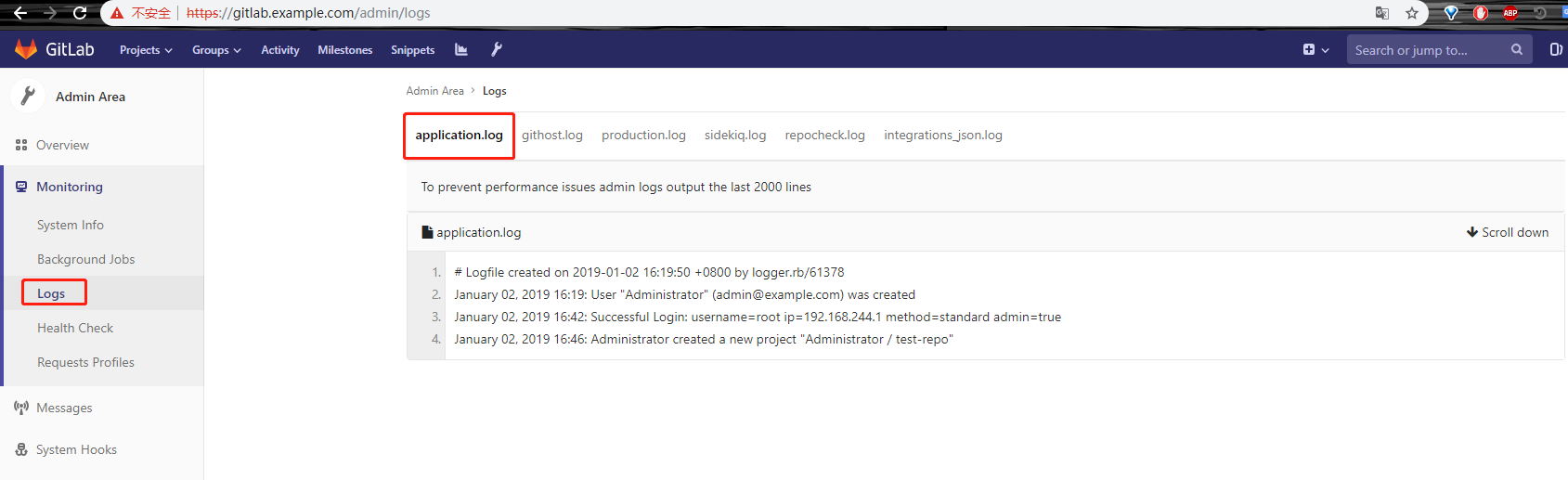
需要我们关注的是application.log和production.log两项
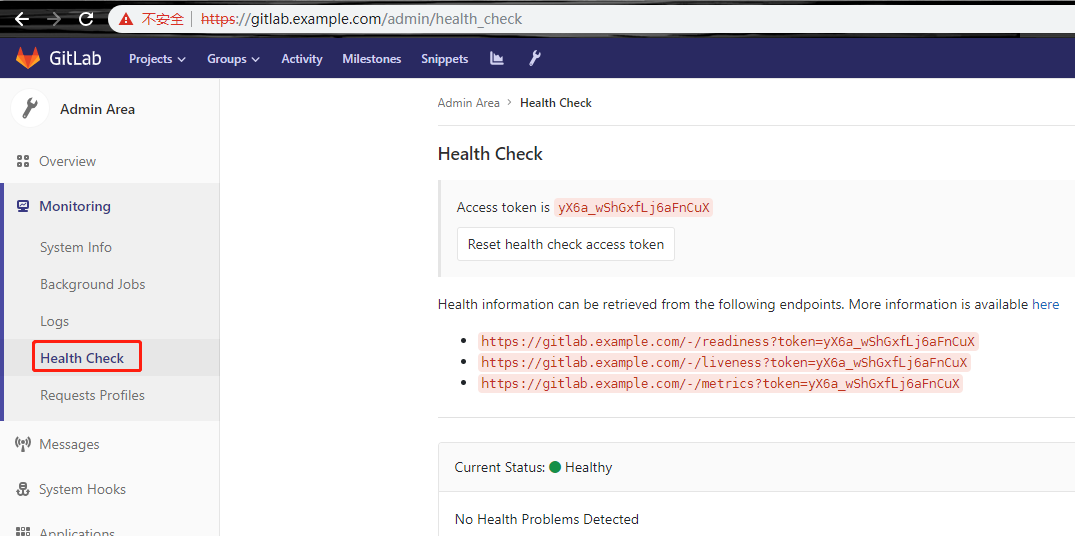
比如说健康状况
创建开发人员及leader的账号
开发人员账号


其他选项不要动,点击创建即可。
创建leader的账号

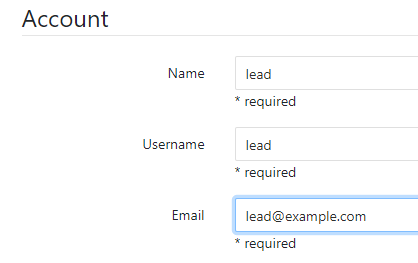
其他也不要动。
建好后的账户

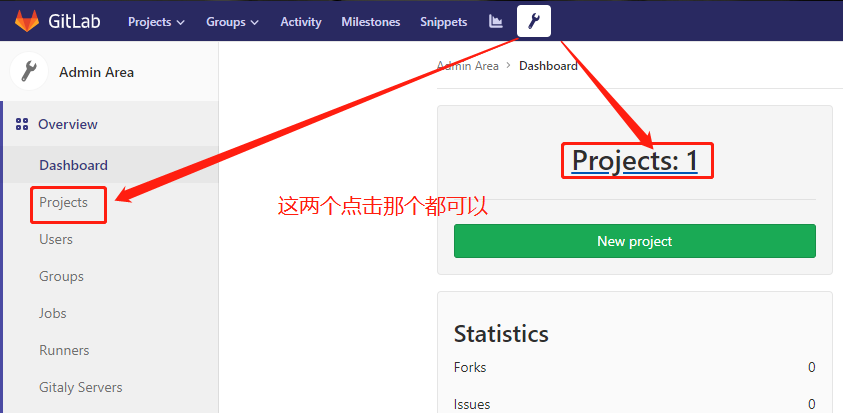
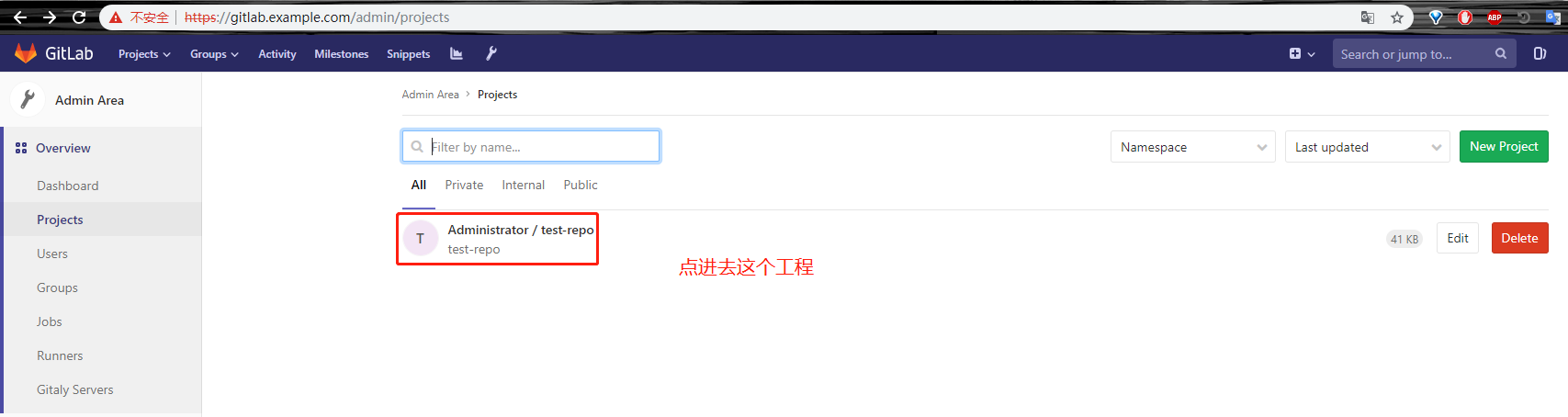
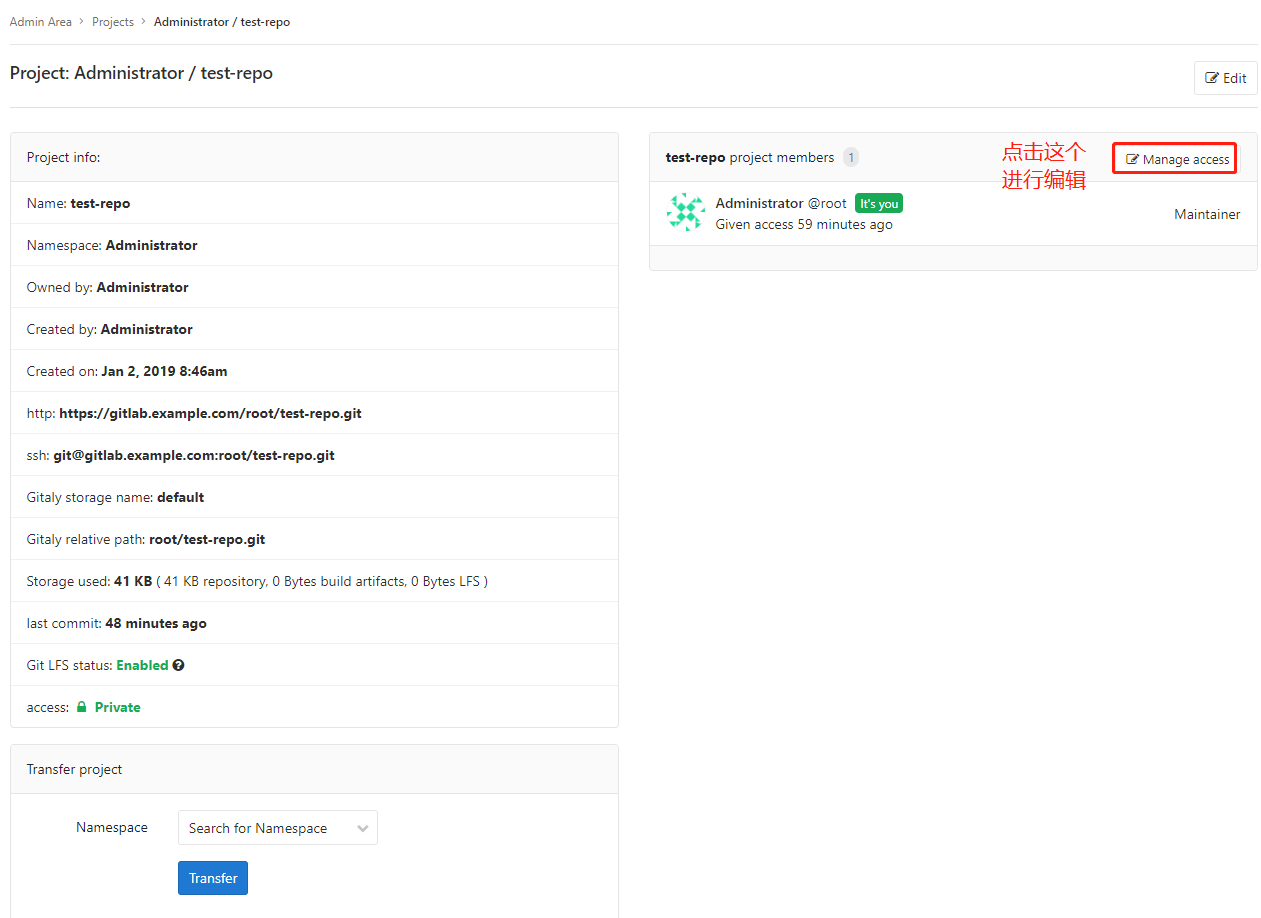
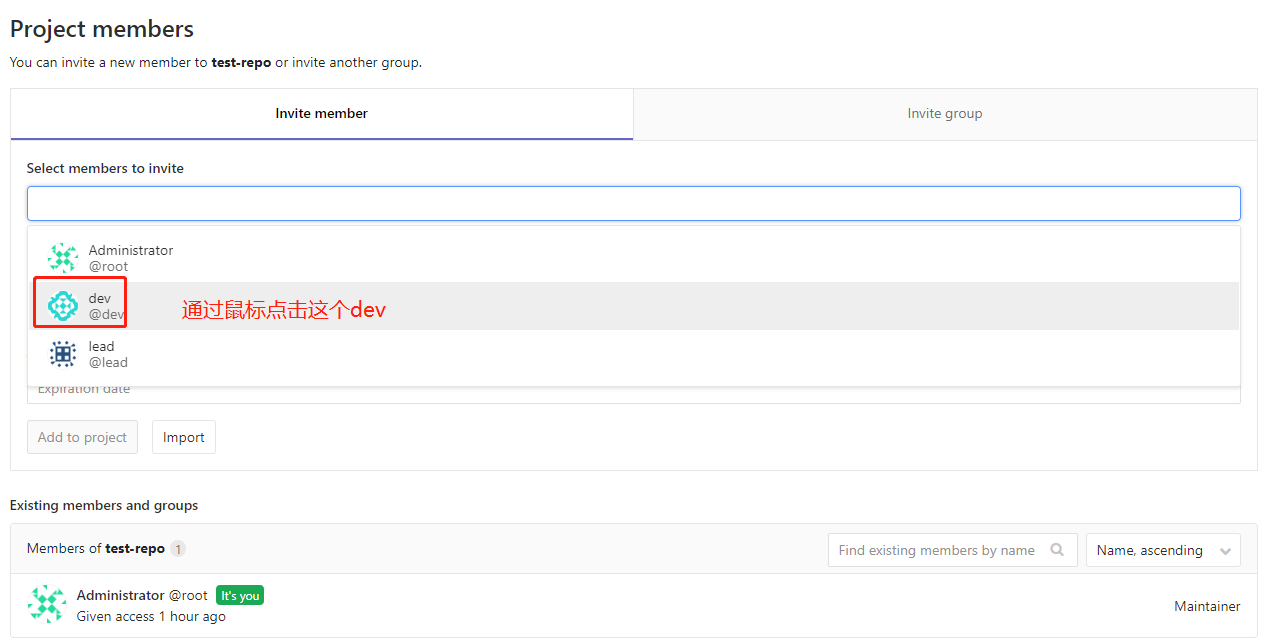
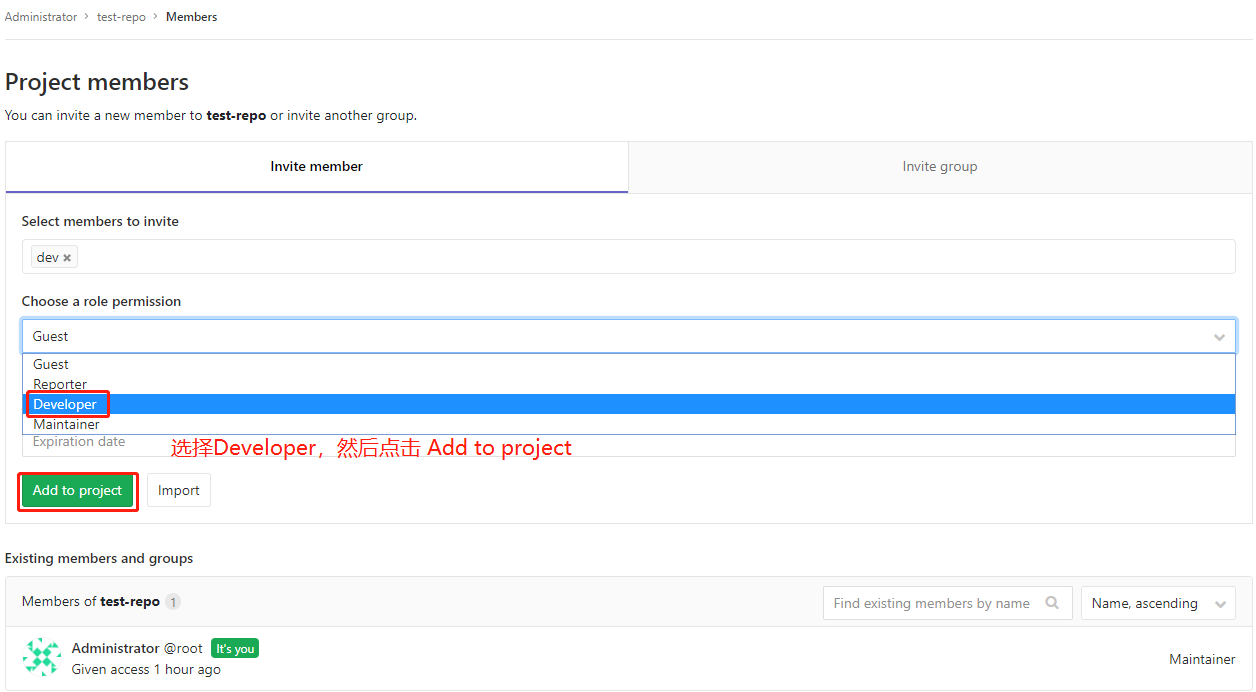
同理添加lead账户
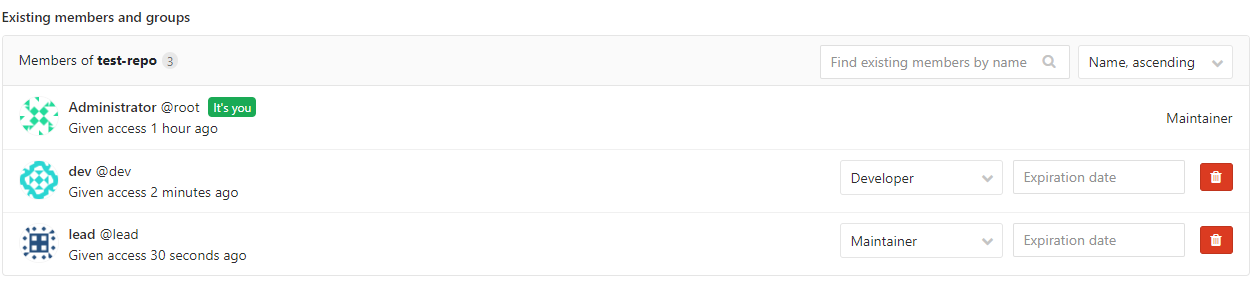
更改两个账户的密码
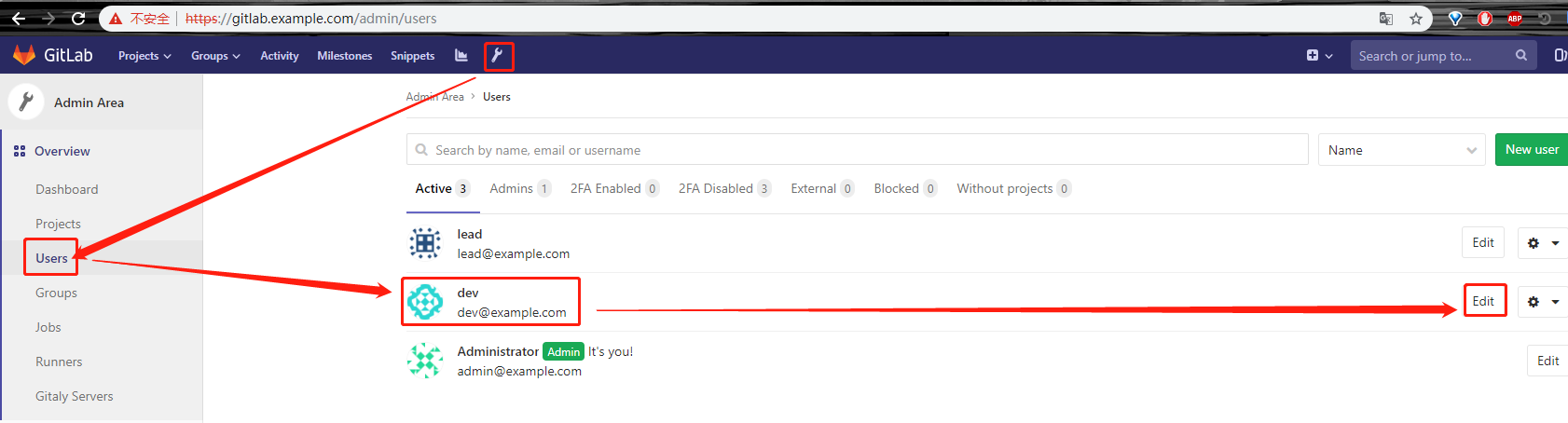
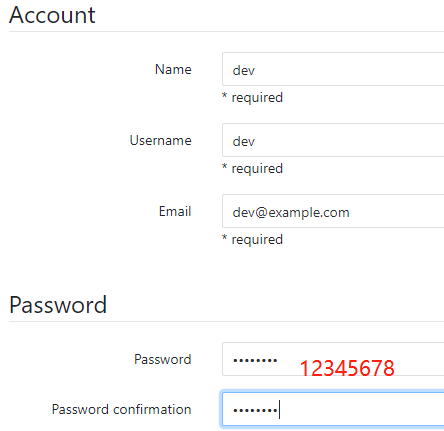
其他选项保持不变,然后点击页面最下面的save changes,同理更改lead的密码
使用dev账户进行git命令行的提交操作
## 以下步骤也是在win10宿主机上进行的

xueji@xueji MINGW64 ~/Desktop/repo/test-repo (master)

$ pwd

/c/Users/xueji/Desktop/repo/test-repo

xueji@xueji MINGW64 ~/Desktop/repo/test-repo (master)

$ cd ..

xueji@xueji MINGW64 ~/Desktop/repo

$ rm -rf test-repo/

$ git -c http.sslVerify=false clone https://gitlab.example.com/root/test-repo.git

Cloning into 'test-repo'...

remote: Enumerating objects: , done.

remote: Counting objects: % (/), done.

remote: Total  (delta ), reused  (delta )

Unpacking objects: % (/), done.

#  这一步就很尴尬了,本来是想要验证dev账户的,谁知道什么都不需要输入就直接可以clone下来。

xueji@xueji MINGW64 ~/Desktop/repo

$ ls

test-repo/

xueji@xueji MINGW64 ~/Desktop/repo

$ ls test-repo/

test.py

xueji@xueji MINGW64 ~/Desktop/repo

$ cd test-repo/

xueji@xueji MINGW64 ~/Desktop/repo/test-repo (master)

$ git checkout -b release-1.0   #创建开发人员版本

Switched to a new branch 'release-1.0'

xueji@xueji MINGW64 ~/Desktop/repo/test-repo (release-1.0)

$ ls

test.py

xueji@xueji MINGW64 ~/Desktop/repo/test-repo (release-1.0)

$ vim test.py

xueji@xueji MINGW64 ~/Desktop/repo/test-repo (release-1.0)

$ cat test.py

print("This is a test python file for release-1.0!")

xueji@xueji MINGW64 ~/Desktop/repo/test-repo (release-1.0)

$ git -c http.sslVerify=false push origin release-1.0

Enumerating objects: , done.

Counting objects: % (/), done.

Delta compression using up to  threads

Compressing objects: % (/), done.

Writing objects: % (/),  bytes | 287.00 KiB/s, done.

Total  (delta ), reused  (delta )

remote:

remote: To create a merge request for release-1.0, visit:

remote:   https://gitlab.example.com/root/test-repo/merge_requests/new?merge_request%5Bsource_branch%5D=release-1.0

remote:

To https://gitlab.example.com/root/test-repo.git

 * [new branch]      release-1.0 -> release-1.0

#  我靠,估计版本不一样,这一步不需要输入账户名和密码
返回gitlab的浏览器页面


使用开发账户登录
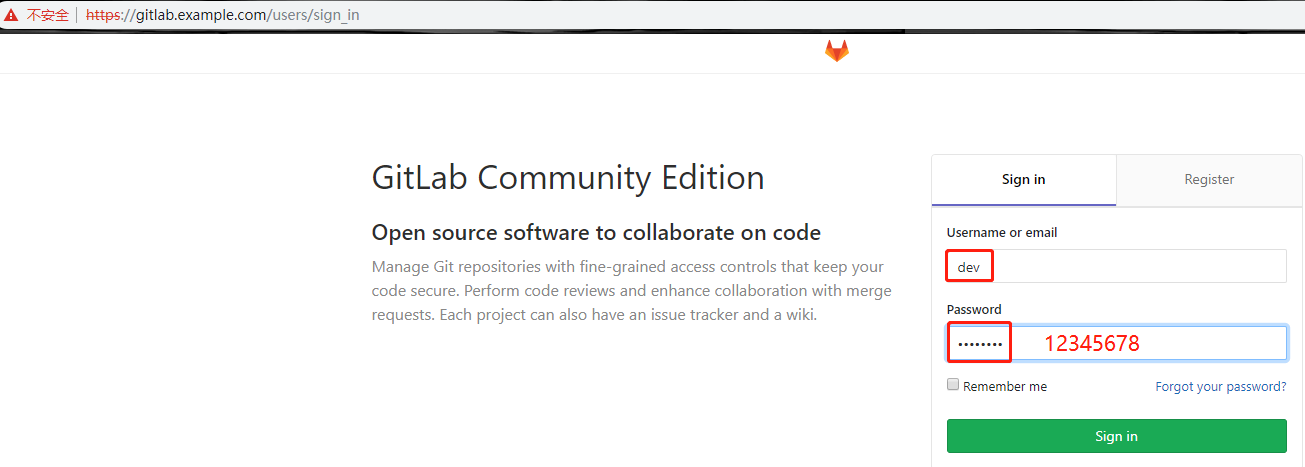
设置新密码
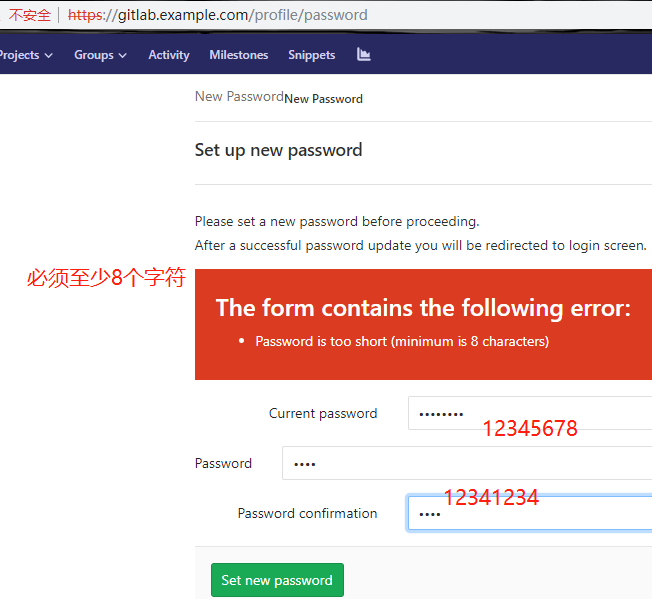
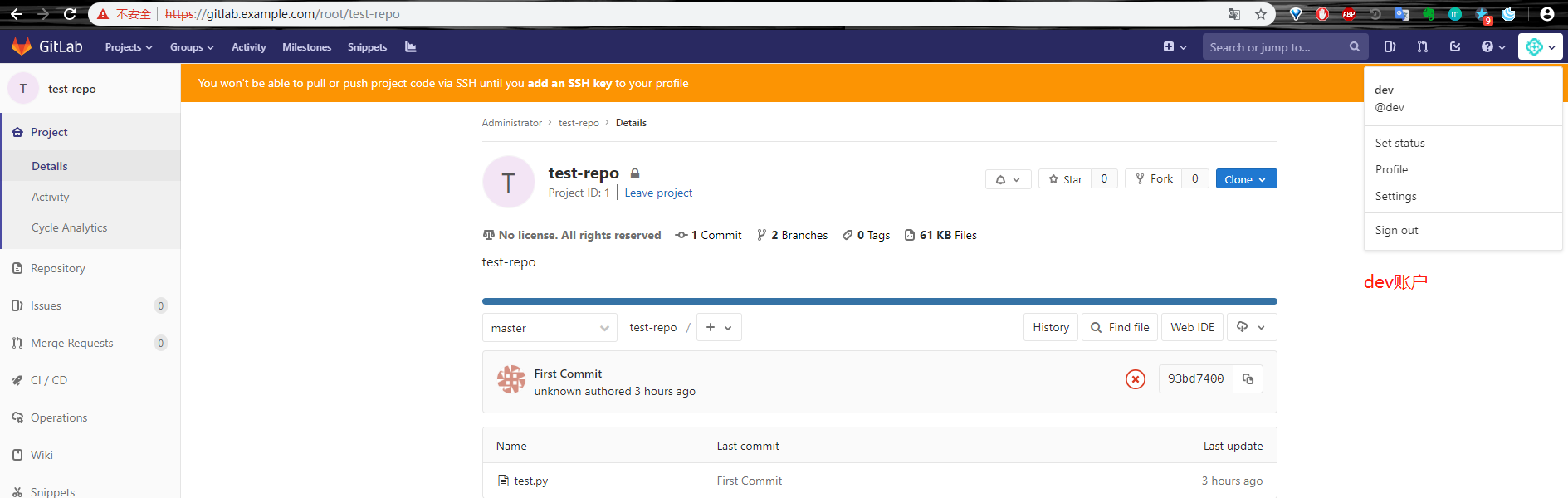
至此,gitlab安装配置完成,接下来演示gitlab应用:
开发人员创建一个分支,然后发申请到主管请求合并到主分支,
回到gitbash命令行,首先删除之前的test-repo目录:

然后使用dev账号登陆gitlab,并复制gitlab仓库地址:
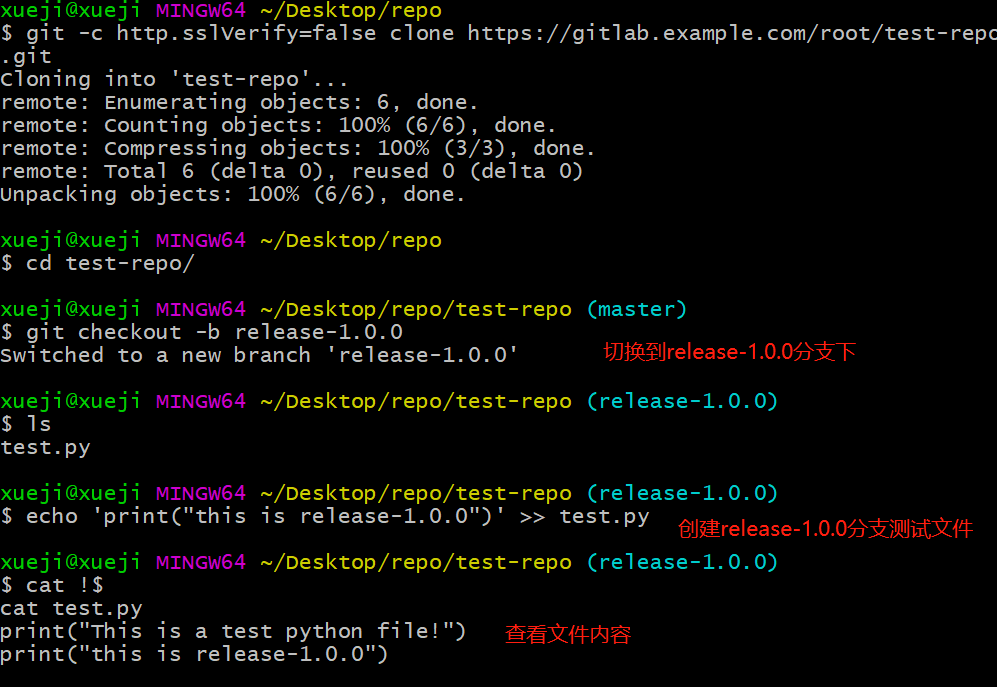
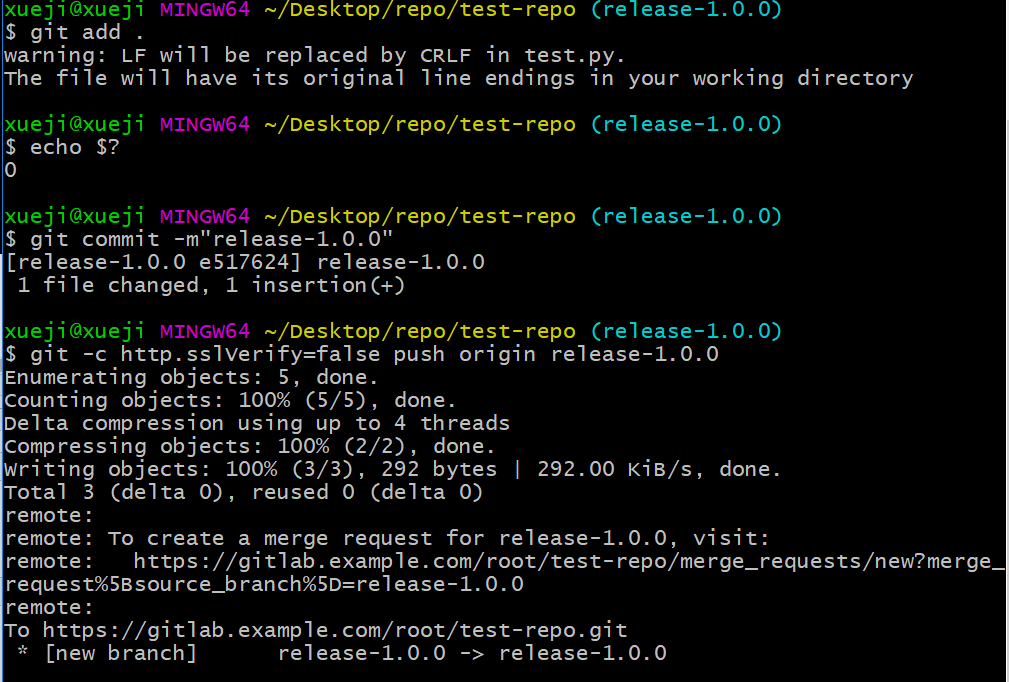
本地提交并推送到gitlab远端:
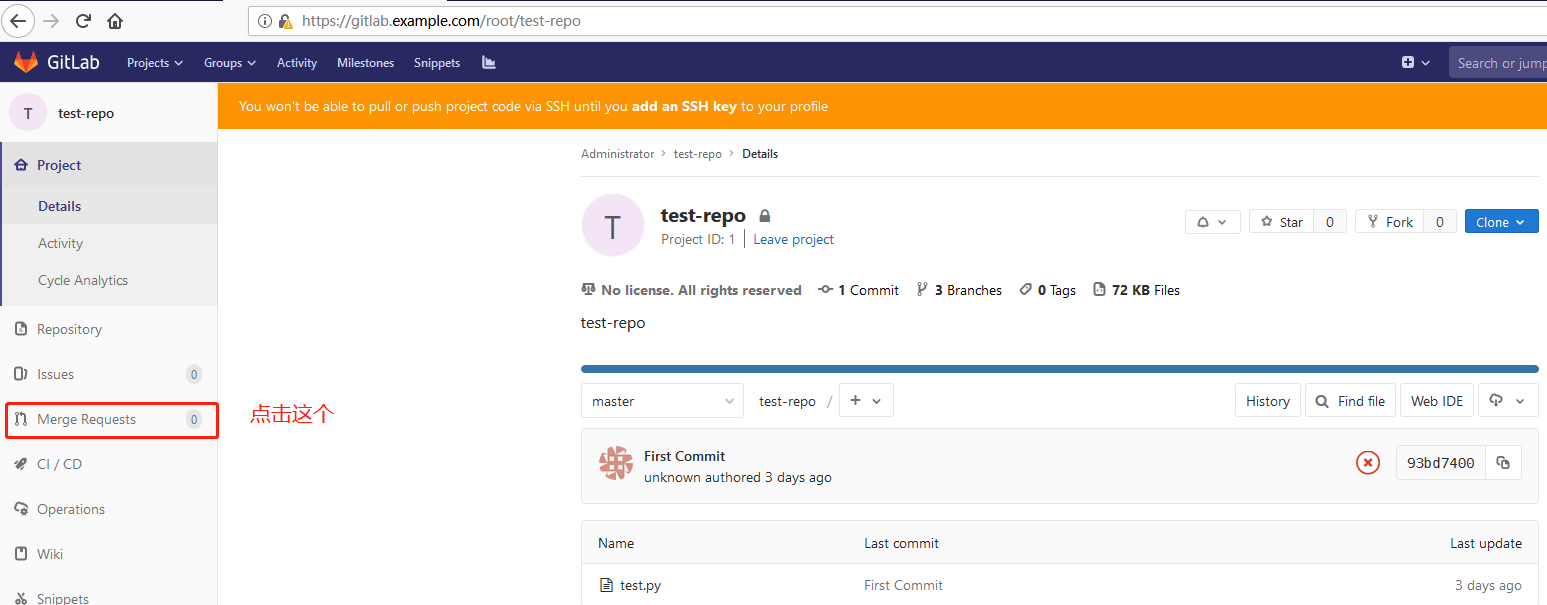
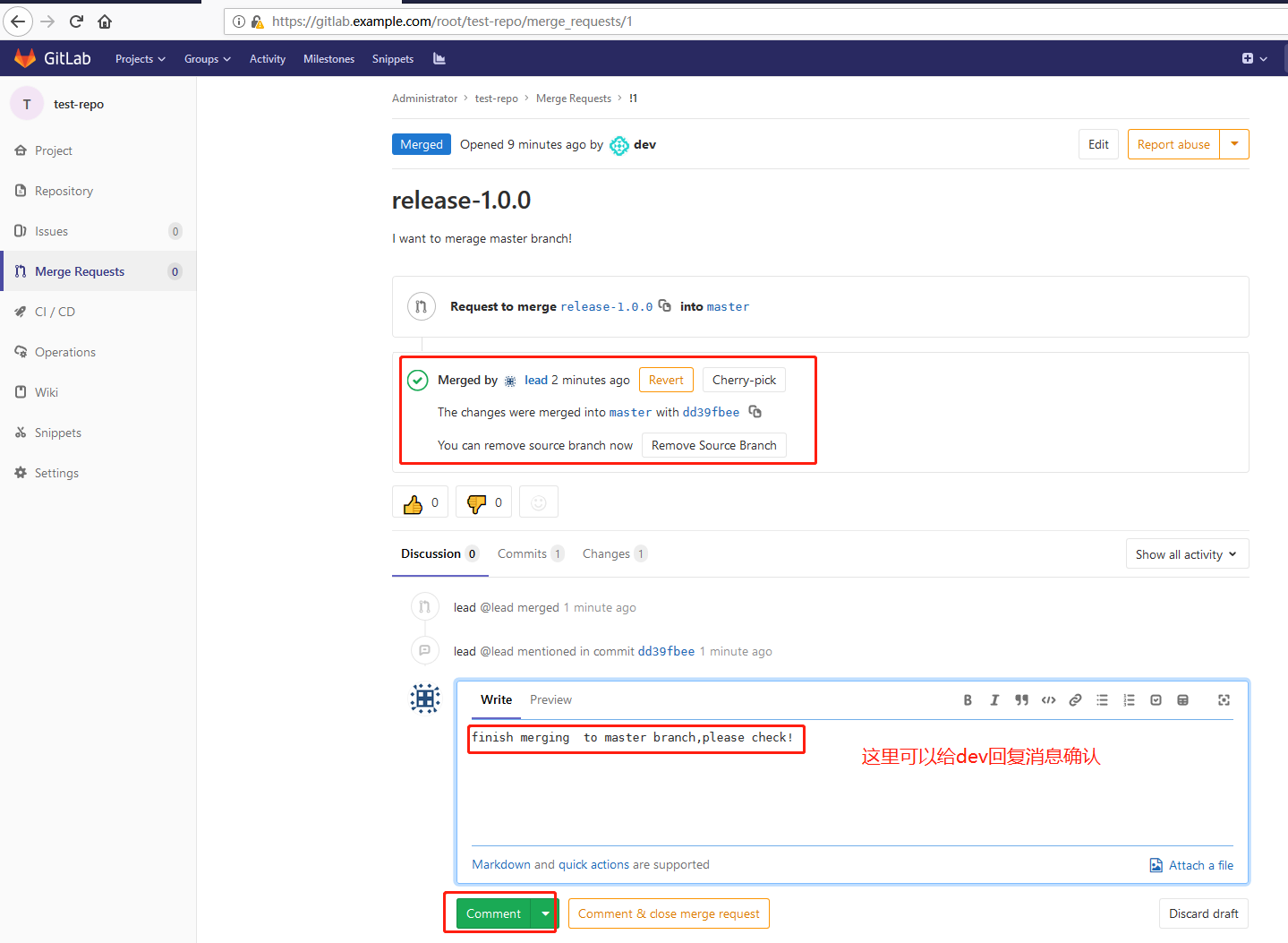
开始提交合并到主分支的申请
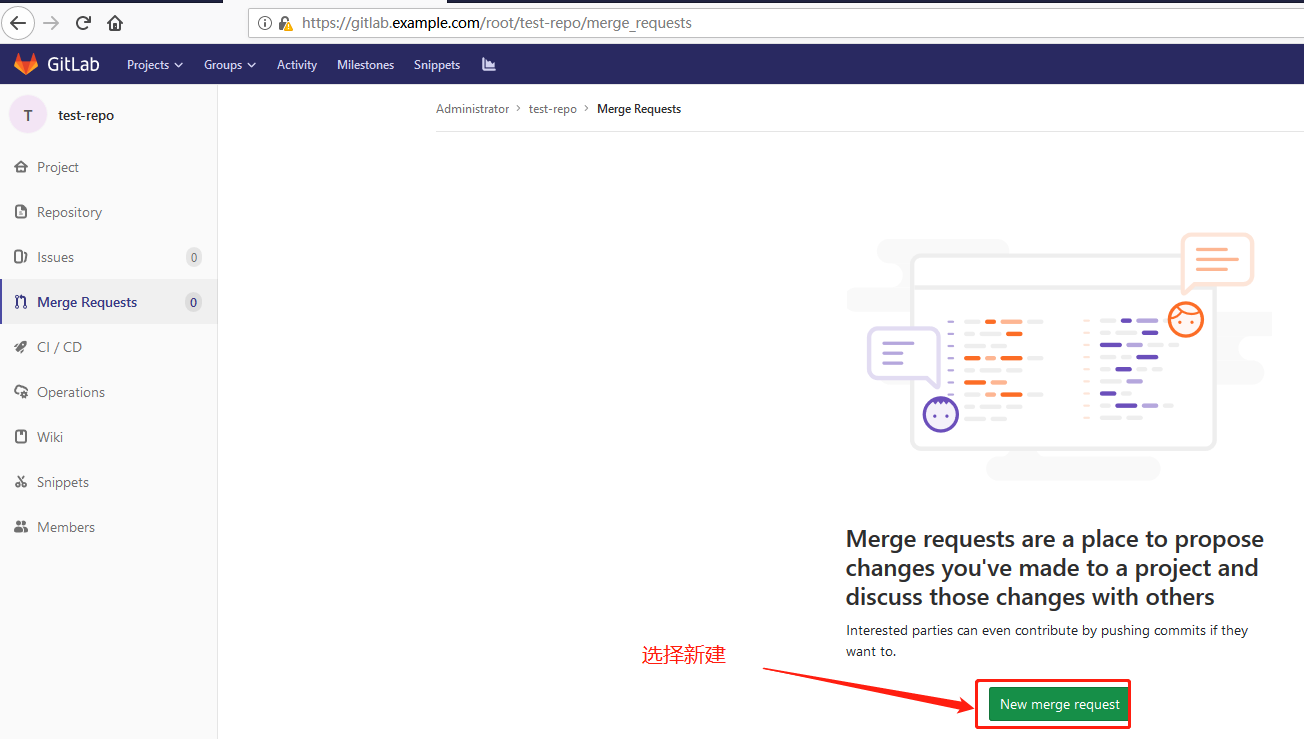
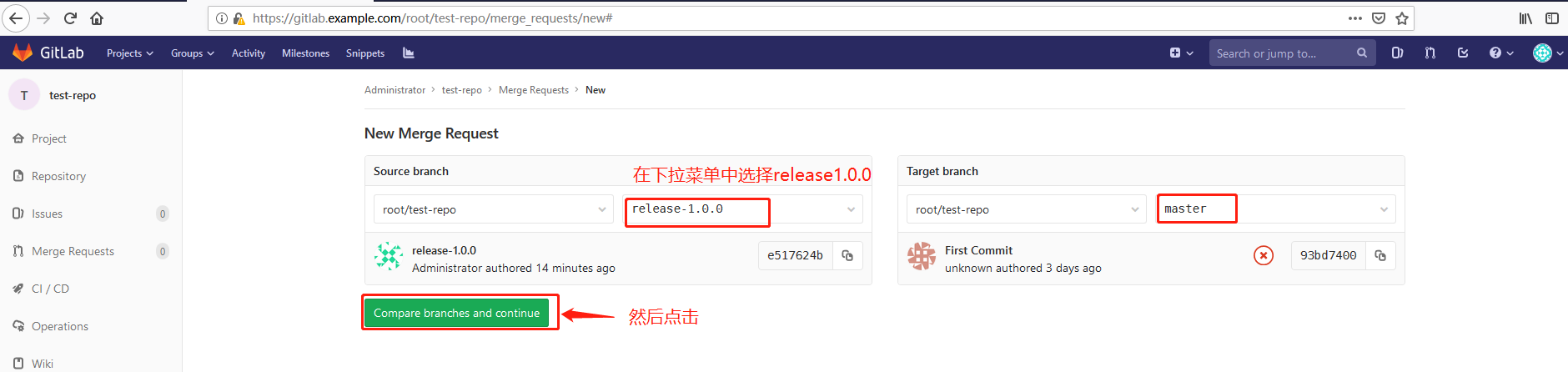


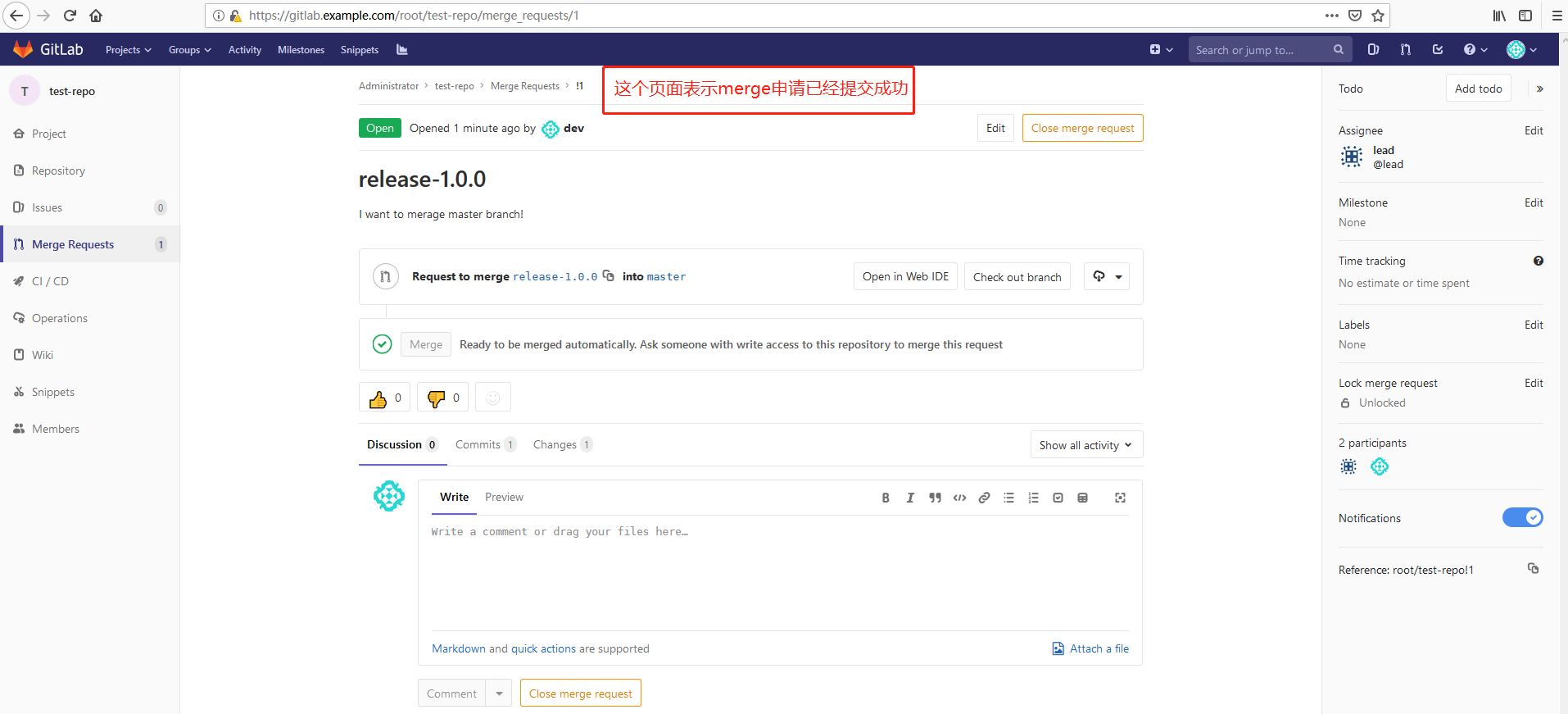
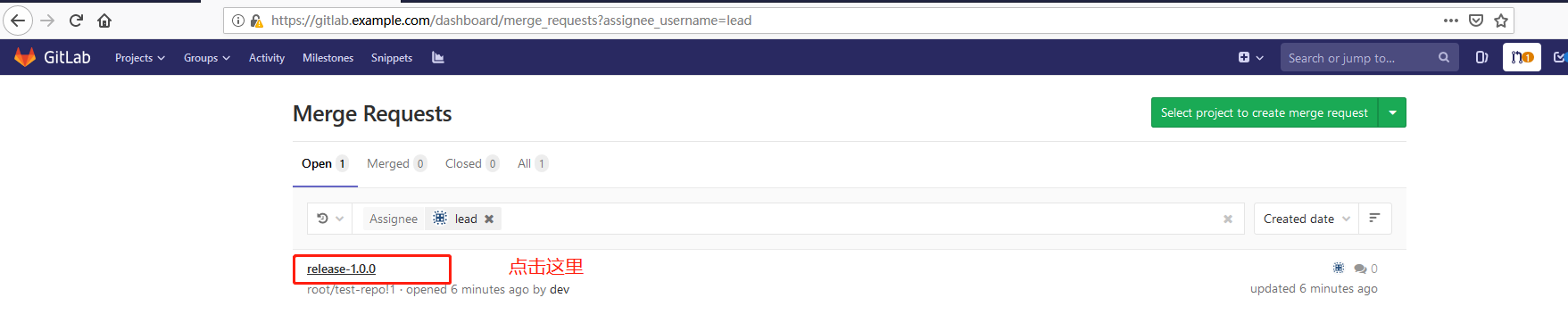
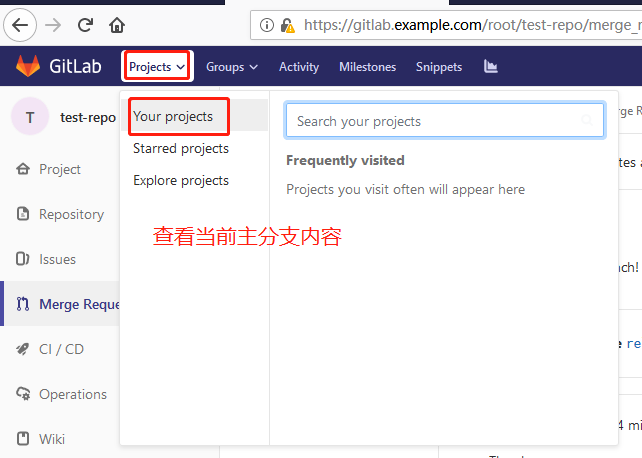
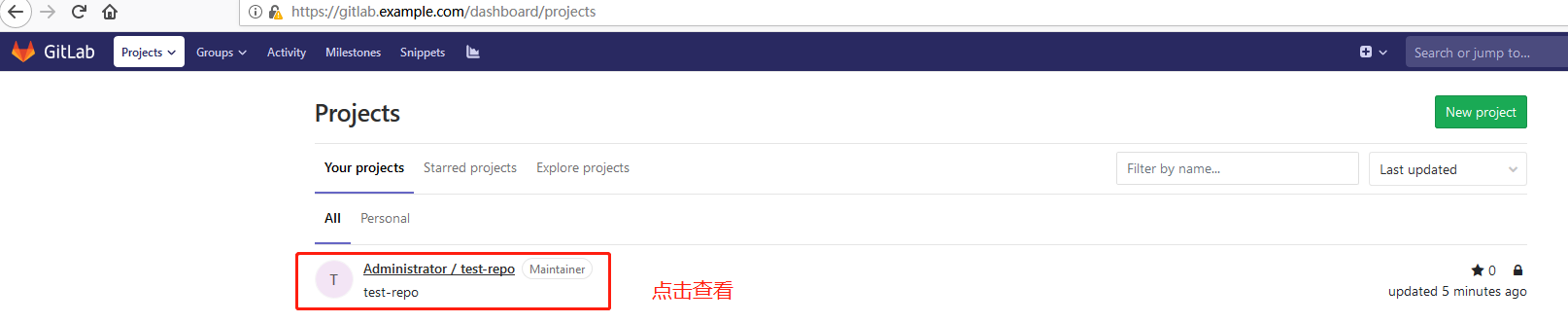
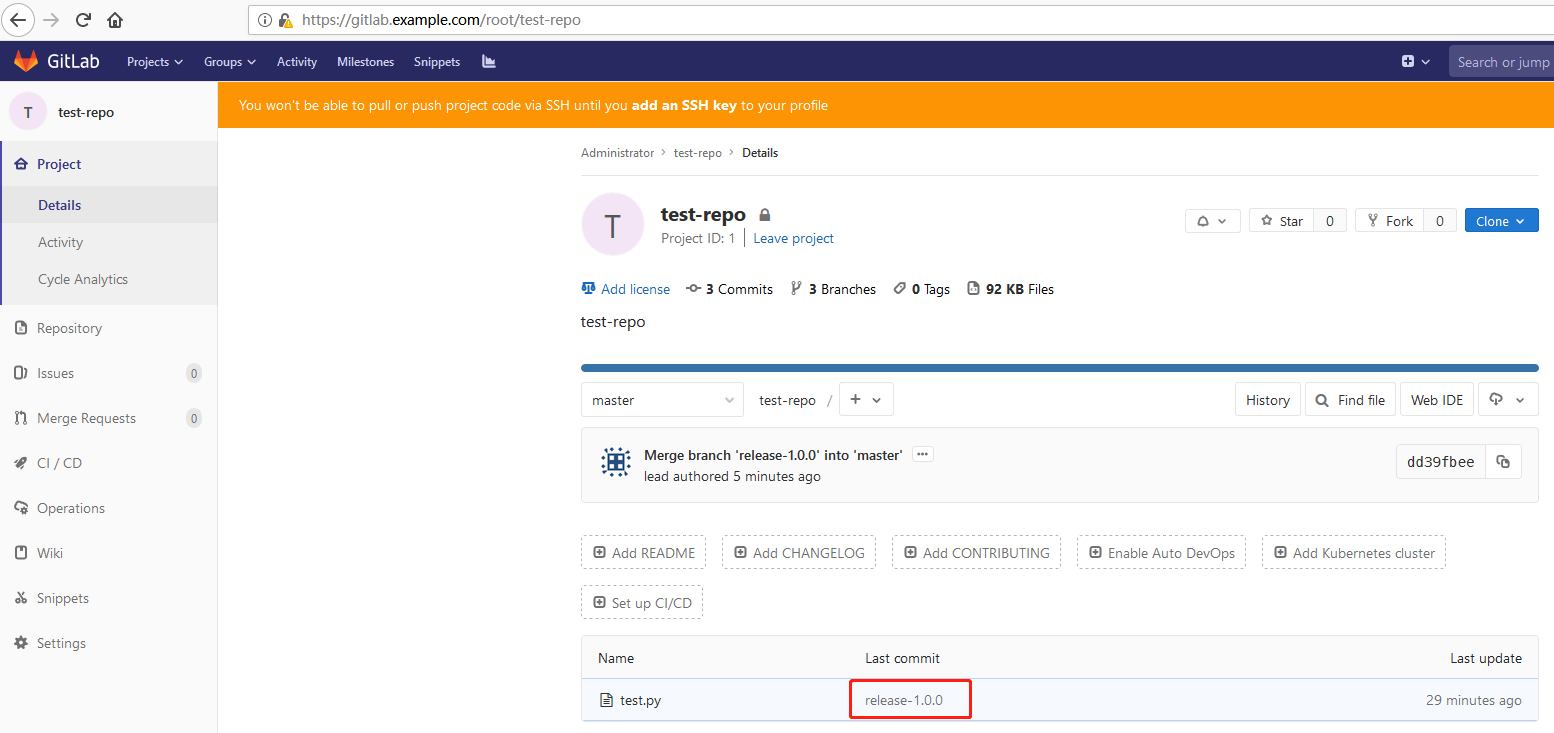
接着退出当前的dev账号,使用lead账号登录,同样lead账号首次登录需要更改密码,步骤同dev一样:


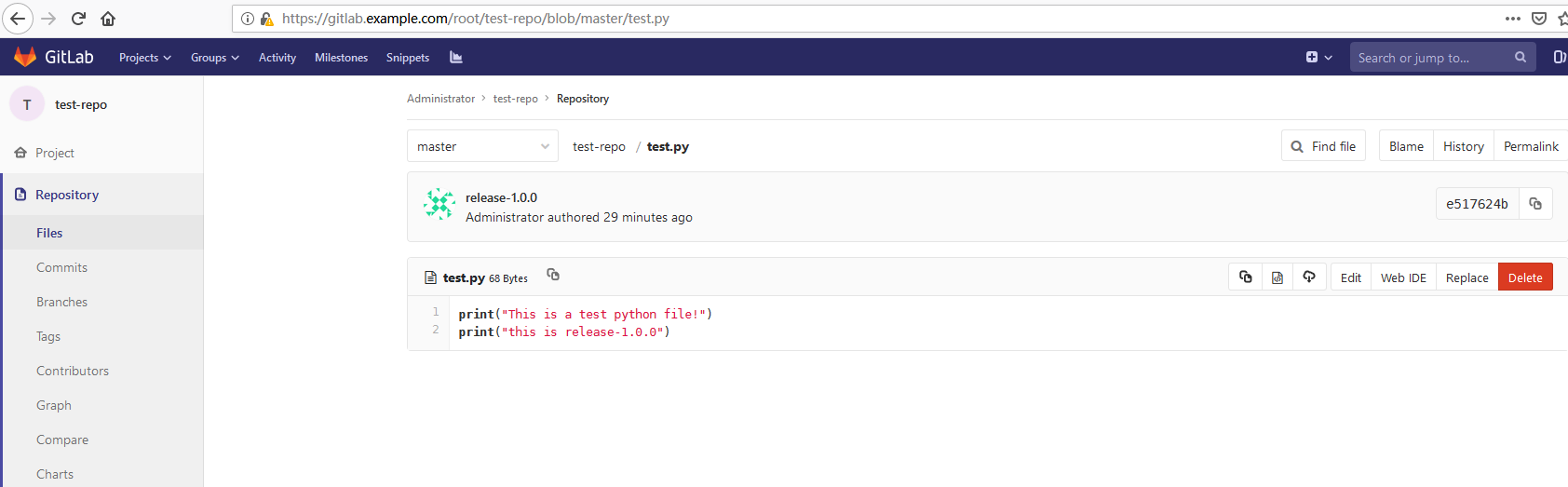
jenkins的配置与使用见Jenkins+Gitlab+Ansible自动化部署(二)。
Jenkins+Gitlab+Ansible自动化部署(一)的更多相关文章
- Jenkins+Gitlab+Ansible自动化部署(五)
Freestyle Job实现静态网站部署交付(接Jenkins+Gitlab+Ansible自动化部署(四)https://www.cnblogs.com/zd520pyx1314/p/102445 ...
- Jenkins+Gitlab+Ansible自动化部署(六)
Pipeline Job实现Nginix+MySQL+PHP+Wordpress实现自动化部署交付(Jenkins+Gitlab+Ansible自动化部署(五)https://www.cnblogs. ...
- Jenkins+Gitlab+Ansible自动化部署(三)
接Jenkins+Gitlab+Ansible自动化部署(一)https://www.cnblogs.com/zd520pyx1314/p/10210727.html 和(二)https://www. ...
- Jenkins+Gitlab+Ansible自动化部署(四)
接Jenkins+Gitlab+Ansible自动化部署(三)https://www.cnblogs.com/zd520pyx1314/p/10235394.html Jenkins应用 Jenkin ...
- Jenkins+Gitlab+Ansible自动化部署(二)
接Jenkins+Gitlab+Ansbile自动化部署(一):https://www.cnblogs.com/zd520pyx1314/p/10210727.html Ansible的配置与部署 工 ...
- 【开发工具】Jenkins+Gitlab实现自动化部署
我在尝试在容器中安装Jenkins时,初衷是希望使用docker in docker 的模式来实现Jenkins slave容器按需创建.在实现的时候需要在Jenkins 中安装Kubernetes插 ...
- 基于Jenkins+Gitlab的自动化部署实战
故事背景 一个中小型企业,是典型的互联网公司,当初期的时候可能运维只能标配到2~3人,此时随着公司的发展,项目会逐渐增多.前期部署项目可能都是手动的, 俗称“人肉部署”,这简直是无比的痛苦,不能忍受的 ...
- jenkins +gitlab +docker 自动化部署tomcat 项目
实验环境 实验设备 三台服务器 centos 7.X 以上 内存 2-3G左右 192.168.1.195 (jenkins最新+ git 2.8+maven 3.5 +tomcat 8+java1. ...
- Linux-GitLab+Jenkins持续集成+自动化部署
GitLab+Jenkins持续集成+自动化部署 什么是持续集成? (1)Continuous integration (CI) 持续集成是一种软件开发实践,即团队开发成员经常集成他们的工作,通常每个 ...
随机推荐
- listen 57
Secondhand Smoke Exposure Doubled Asthmatic Kids' Hospital Readmissions If your child has asthma哮喘, ...
- (转)HLS协议,html5视频直播一站式扫盲
本文来自于腾讯bugly开发者社区,原文地址:http://bugly.qq.com/bbs/forum.php?mod=viewthread&tid=1277 视频直播这么火,再不学就 ou ...
- linux中python easy_install命令
centos 下安装 python easy_installcurl -O http://peak.telecommunity.com/dist/ez_setup.pypython ez_setup. ...
- bootstrap框架日期时间之年月选择及汉化
==>上次介绍了bootstrap框架日期时间 开始日期和结束日期选择 http://www.cnblogs.com/wjqblogs/p/4043198.html 今天又做了个只选择年月的日期 ...
- python2.7 爬虫初体验爬取新浪国内新闻_20161130
python2.7 爬虫初学习 模块:BeautifulSoup requests 1.获取新浪国内新闻标题 2.获取新闻url 3.还没想好,想法是把第2步的url 获取到下载网页源代码 再去分析源 ...
- Getting Started with OpenMP
Getting Started with OpenMP* Abstract As you probably know by now, to get the maximum performance be ...
- Jmeter查看结果树Unicode编码转中文方法
本文为转载微信公众号文章,如作者发现后不愿意,请联系我进行删除 在jmeter工具的使用中,不管是测试接口还是调试性能时,查看结果树必不可少,然而在查看响应数据时,其中的中文经常以Unicode的编码 ...
- bzoj4453
单调栈+set+后缀数组 一道奇妙的题 这道题如果对于每个询问$r$是固定的,那么就很简单了,可惜并不是 由于r会变化,那么对于两个子串$[i...r],[j...r]$,他们的大小关系随着r的变化也 ...
- 错误: 实例 "ahwater-linux-core" 执行所请求操作失败,实例处于错误状态。: 请稍后再试 [错误: Exceeded maximum number of retries. Exceeded max scheduling attempts 3 for instance 7c1609c9-9d0f-4836-85b3-cefd45f942a7. Last exception: [u
错误: 实例 "ahwater-linux-core" 执行所请求操作失败,实例处于错误状态.: 请稍后再试 [错误: Exceeded maximum number of ret ...
- java反射机制(转)
一.什么是反射机制 简单的来说,反射机制指的是程序在运行时能够获取自身的信息.在java中,只要给定类的名字, 那么就可以通过反射机制来获得类的所有信息. 二.哪里用到反射机制 ...