
如何在pyqt中实现亚克力磨砂效果的QLabel
前言
Windows10 在 UWP 应用中支持亚克力画刷,可以在部件的底部绘制亚克力效果的背景图。下面我们使用 QLabel 来模拟这个磨砂过程。
实现方法
MSDN 文档中介绍了亚克力材料的配方,包括:高斯模糊、亮度混合、色调混合和噪声纹理。
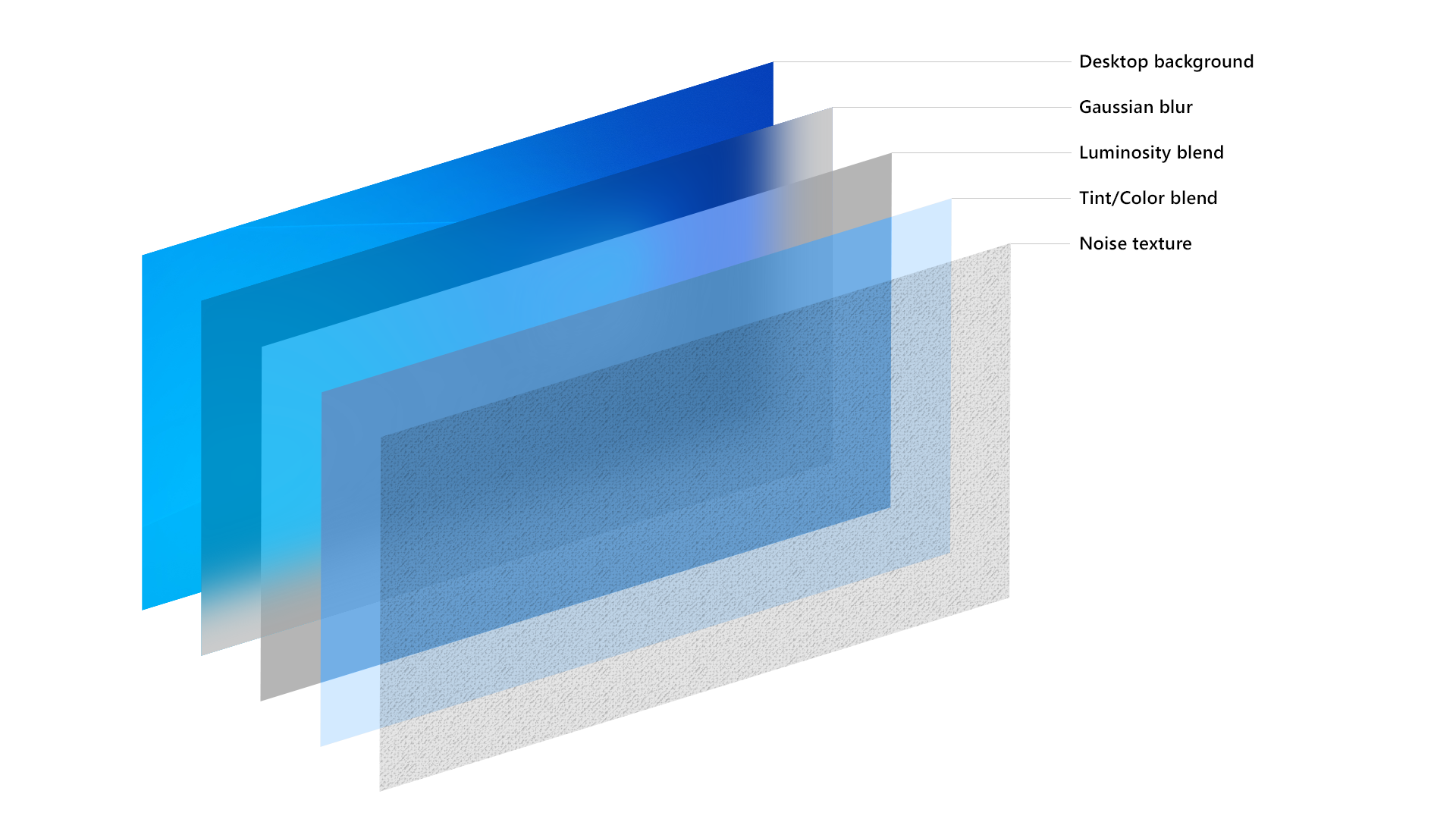
高斯模糊
我们先来实现高斯模糊的效果,使用 scipy 可以很轻松的实现这个过程:
# coding:utf-8

import numpy as np

from PIL import Image

from PyQt5.QtGui import QPixmap

from scipy.ndimage.filters import gaussian_filter

def gaussianBlur(imagePath: str, blurRadius=18, brightFactor=1, blurPicSize: tuple = None) -> np.ndarray:

    """ 对图片进行高斯模糊处理

    Parameters

    ----------

    imagePath: str

        图片路径

    blurRadius: int

        模糊半径

    brightFactor:float

        亮度缩放因子

    blurPicSize: tuple

        高斯模糊前将图片缩放到指定大小,可以加快模糊速度

    Returns

    -------

    image: `~np.ndarray` of shape `(w, h, c)`

        高斯模糊后的图像

    """

    if not imagePath.startswith(':'):

        image = Image.open(imagePath)

    else:

        image = Image.fromqpixmap(QPixmap(imagePath))

    if blurPicSize:

        # 调整图片尺寸,减小计算量,还能增加额外的模糊

        w, h = image.size

        ratio = min(blurPicSize[0] / w, blurPicSize[1] / h)

        w_, h_ = w * ratio, h * ratio

        if w_ < w:

            image = image.resize((int(w_), int(h_)), Image.ANTIALIAS)

    image = np.array(image)

    # 处理图像是灰度图的情况

    if len(image.shape) == 2:

        image = np.stack([image, image, image], axis=-1)

    # 对每一个颜色通道分别磨砂

    for i in range(3):

        image[:, :, i] = gaussian_filter(

            image[:, :, i], blurRadius) * brightFactor

    return image
亚克力纹理
接下来在 QLabel 上面绘制出亮度混合、色调混合和噪声纹理,一般色调混合使用的颜色是图像的主题色,可以用 colorthief 库提取,这里就不赘述了:
class AcrylicTextureLabel(QLabel):

    """ 亚克力纹理标签 """

    def __init__(self, tintColor: QColor, luminosityColor: QColor, noiseOpacity=0.03, parent=None):

        """

        Parameters

        ----------

        tintColor: QColor

            RGB 主色调

        luminosityColor: QColor

            亮度层颜色

        noiseOpacity: float

            噪声层透明度

        parent:

            父级窗口

        """

        super().__init__(parent=parent)

        self.tintColor = QColor(tintColor)

        self.luminosityColor = QColor(luminosityColor)

        self.noiseOpacity = noiseOpacity

        self.noiseImage = QImage('resource/noise.png')

        self.setAttribute(Qt.WA_TranslucentBackground)

    def setTintColor(self, color: QColor):

        """ 设置主色调 """

        self.tintColor = color

        self.update()

    def paintEvent(self, e):

        """ 绘制亚克力纹理 """

        acrylicTexture = QImage(64, 64, QImage.Format_ARGB32_Premultiplied)

        # 绘制亮度层

        acrylicTexture.fill(self.luminosityColor)

        # 绘制主色调

        painter = QPainter(acrylicTexture)

        painter.fillRect(acrylicTexture.rect(), self.tintColor)

        # 绘制噪声

        painter.setOpacity(self.noiseOpacity)

        painter.drawImage(acrylicTexture.rect(), self.noiseImage)

        acrylicBrush = QBrush(acrylicTexture)

        painter = QPainter(self)

        painter.fillRect(self.rect(), acrylicBrush)
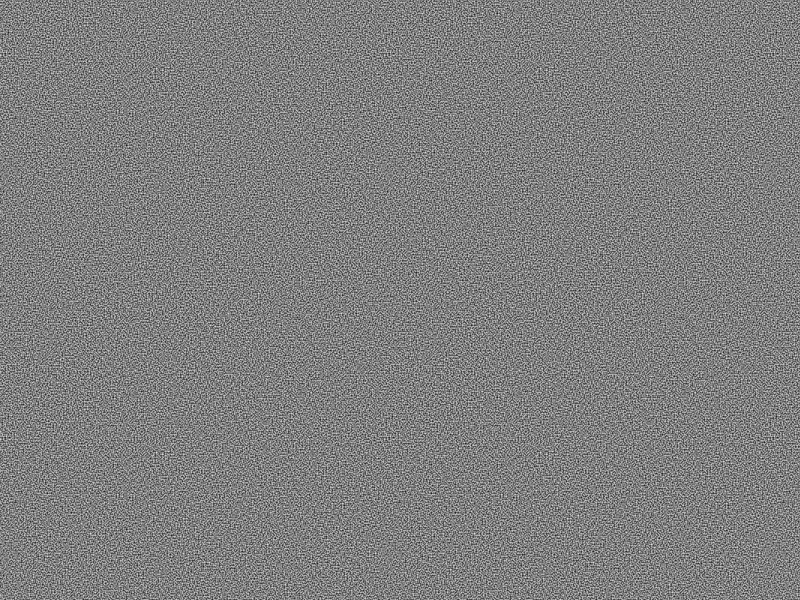
用到的噪声图像如下图所示:
亚克力标签
最后在 QLabel 上叠加磨砂图像和亚克力纹理,可以通过 Image.toqpixmap() 将 Image 转换为 QPixmap:
class AcrylicLabel(QLabel):

    """ 亚克力标签 """

    def __init__(self, blurRadius: int, tintColor: QColor, luminosityColor=QColor(255, 255, 255, 0),

                 maxBlurSize: tuple = None, parent=None):

        """

        Parameters

        ----------

        blurRadius: int

            磨砂半径

        tintColor: QColor

            主色调

        luminosityColor: QColor

            亮度层颜色

        maxBlurSize: tuple

            最大磨砂尺寸,越小磨砂速度越快

        parent:

            父级窗口

        """

        super().__init__(parent=parent)

        self.imagePath = ''

        self.blurPixmap = QPixmap()

        self.blurRadius = blurRadius

        self.maxBlurSize = maxBlurSize

        self.acrylicTextureLabel = AcrylicTextureLabel(

            tintColor, luminosityColor, parent=self)

    def setImage(self, imagePath: str):

        """ 设置图片 """

        if imagePath == self.imagePath:

            return

        self.imagePath = imagePath

        image = Image.fromarray(gaussianBlur(

            imagePath, self.blurRadius, 0.85, self.maxBlurSize))

        self.blurPixmap = image.toqpixmap()  # type:QPixmap

        self.setPixmap(self.blurPixmap)

        self.adjustSize()

    def setTintColor(self, color: QColor):

        """ 设置主色调 """

        self.acrylicTextureLabel.setTintColor(color)

    def resizeEvent(self, e):

        super().resizeEvent(e)

        self.acrylicTextureLabel.resize(self.size())

        self.setPixmap(self.blurPixmap.scaled(

            self.size(), Qt.KeepAspectRatioByExpanding, Qt.SmoothTransformation))
测试
下面是测试用的埃罗芒阿老师:

代码如下:
# coding:utf-8

import sys

from PyQt5.QtGui import QColor

from PyQt5.QtWidgets import QApplication

from acrylic import AcrylicLabel

app = QApplication(sys.argv)

w = AcrylicLabel(20, QColor(105, 114, 168, 102))

w.setImage('resource/ClariS_ヒトリゴト (アニメ盤).jpg')

w.show()

app.exec_()
结果如下:

如何在pyqt中实现亚克力磨砂效果的QLabel的更多相关文章
- 如何在pyqt中实现窗口磨砂效果
磨砂效果的实现思路 这两周一直在思考怎么在pyqt上实现窗口磨砂效果,网上搜了一圈,全都是 C++ 的实现方法.正好今天查python的官方文档的时候看到了 ctypes 里面的 HWND,想想倒不如 ...
- 如何在pyqt中实现win10亚克力效果
亚克力效果的实现思路 上一篇博客<如何在pyqt中实现窗口磨砂效果> 中实现了win7中的Aero效果,但是和win10的亚克力效果相比,Aero还是差了点内味.所以今天早上又在网上搜了一 ...
- 如何在pyqt中通过调用 SetWindowCompositionAttribute 实现Win10亚克力效果
亚克力效果 在<如何在pyqt中实现窗口磨砂效果>和<如何在pyqt中实现win10亚克力效果>中,我们调用C++ dll来实现窗口效果,这种方法要求电脑上必须装有MSVC.V ...
- 如何在pyqt中自定义无边框窗口
前言 之前写过很多关于无边框窗口并给窗口添加特效的博客,按照时间线罗列如下: 如何在pyqt中实现窗口磨砂效果 如何在pyqt中实现win10亚克力效果 如何在pyqt中通过调用SetWindowCo ...
- 如何在pyqt中实现带动画的动态QMenu
弹出菜单的视觉效果 QLineEdit 原生的菜单弹出效果十分生硬,而且样式很丑.所以照着Groove中单行输入框弹出菜单的样式和动画效果写了一个可以实现动态变化Item的弹出菜单,根据剪贴板的内容是 ...
- 如何在pyqt中在实现无边框窗口的同时保留Windows窗口动画效果(一)
无边框窗体的实现思路 在pyqt中只要 self.setWindowFlags(Qt.FramelessWindowHint) 就可以实现边框的去除,但是没了标题栏也意味着窗口大小无法改变.窗口无法拖 ...
- 如何在pyqt中给无边框窗口添加DWM环绕阴影
前言 在之前的博客<如何在pyqt中通过调用SetWindowCompositionAttribute实现Win10亚克力效果>中,我们实现了窗口的亚克力效果,同时也用SetWindowC ...
- 如何在 pyqt 中捕获并处理 Alt+F4 快捷键
前言 如果在 Windows 系统的任意一个窗口中按下 Alt+F4,默认行为是关闭窗口(或者最小化到托盘).对于使用了亚克力效果的窗口,使用 Alt+F4 最小化到托盘,再次弹出窗口的时候可能出现亚 ...
- 如何在pyqt中使用 QGraphicsView 实现图片查看器
前言 在 PyQt 中可以使用很多方式实现照片查看器,最朴素的做法就是重写 QWidget 的 paintEvent().mouseMoveEvent 等事件,但是如果要在图像上多添加一些形状,那么在 ...
随机推荐
- Array and Operations
A. Array and Operations Time Limit: 1000ms Memory Limit: 262144KB 64-bit integer IO format: %I64d ...
- Myeclipse查看jdk源代码
过程如下: 1.点 "window"-> "Preferences" -> "Java" -> "Install ...
- HDU 5965:扫雷(DP,递推)
扫雷 Time Limit: 2000/1000 MS (Java/Others) Memory Limit: 65536/65536 K (Java/Others)Total Submissi ...
- 在linux(deepin)系统下查看当前ip地址与用户名
在linux(deepin)系统下查看当前ip地址与用户名 查看当前ip地址 方式一: hostname -I 方式二: ifconfig -a 如下图所示: 其中192.168.11.66即为当前系 ...
- CS5265替代LT8711设计TYPEC转HDMI 4K高清投屏方案|LT8711龙迅替代方案
龙迅LT8711是一款Type-C/DP1.2 to HDMI2.0方案芯片.LT8711HE是一款高性能Type-C/DP1.2至HDMI2.0转换器,设计用于将USB typec或DP1.2源连接 ...
- vue为什么要设计成异步队列渲染
异步队列渲染 上一篇文章是在vue2.0 中通过Object.defineProperty去拦截并监听数据变化的响应式原理,这篇文章将会沿着图谱继续深入探索,在依赖被通知变化了之后,会触发vue当中的 ...
- Eclipse 常用快捷键大全
15 个 Eclipse 常用开发快捷键使用技巧 1.alt+? 或 alt+/:自动补全代码或者提示代码 2.ctrl+o:快速outline视图 3.ctrl+shift+r:打开资源列表 4.c ...
- kubernetes运行应用1之Deployment
run 或create deployment 部署一个应用 kubernetes 部署 nginx ,使用 kubectl get deployment 时出现 No resources found ...
- .net core的配置介绍(二):自定义配置(Zookeeper,数据库,Redis)
上一篇介绍了.net core的配置原理已经系统提供的一些常用的配置,但有时我们的配置是存放在Zookeeper,DB,Redis中的,这就需要我们自己去实现集成了. 这里再介绍几个我们用的多的配置集 ...
- 简单通俗讲解 android 内存泄漏
在柠檬班社区看到老师一篇android 内存泄漏写的通俗易懂,绝对是小白能看懂的! 原文:http://www.lemfix.com/topics/2 平常会听到程序员说"内存泄漏" ...