
Upload Files In ASP.NET Core 1.0 (Form POST And JQuery Ajax)
Uploading files is a common requirement in web applications. In ASP.NET Core 1.0 uploading files and saving them on the server is quite easy. To that end this article shows how to do just that.
Begin by creating a new ASP.NET Core project. Then add HomeController to the controllers folder. Then add UploadFiles view to Views > Home folder of the application.
HTML form for uploading files
Open the UploadFiles view and add the following HTML markup in it:
<form asp-action="UploadFiles"

      asp-controller="Home"

      method="post"

      enctype="multipart/form-data">

    <input type="file" name="files" multiple />

    <input type="submit" value="Upload Selected Files" />

</form>
The above markup uses form tag helper of ASP.NET Core MVC. The asp-action attribute indicates that the form will be processed by the UploadFiles action upon submission. The asp-controller attribute specifies the name of the controller containing the action method. The form is submitted using POST method. The enctype attribute of the form is set to multipart/form-data indicating that it will be used for file upload operation.
The form contains an input field of type file. The name attribute of the file input field is set to files and the presence of multiple attribute indicates that multiple files can be uploaded at once. The submit button submits the form to the server.
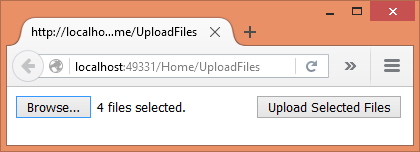
If you run the application at this stage, the UploadFiles view should look like this:
Constructor and UploadFiles() GET action
Now, open the HomeController and add a constructor to it as shown below:
public class HomeController : Controller

{

    private IHostingEnvironment hostingEnv;

    public HomeController(IHostingEnvironment env)

    {

        this.hostingEnv = env;

    }

}
The constructor has a parameter of type IHostingEnvironment (Microsoft.AspNet.Hosting namespace). This parameter will be injected by MVC framework into the constructor. You need this parameter to construct the full path for saving the uploaded files. The IHostingEnvironment object is saved into a local variable for later use.
Then add UploadFiles() action for GET requests as shown below:
public IActionResult UploadFiles()

{

    return View();

}
UploadFiles() POST action
Finally, add UploadFiles() action for handling the POST requests.
[HttpPost]

public IActionResult UploadFiles(IList<IFormFile> files)

{

    long size = 0;

    foreach(var file in files)

    {

        var filename = ContentDispositionHeaderValue

                        .Parse(file.ContentDisposition)

                        .FileName

                        .Trim('"');

        filename = hostingEnv.WebRootPath + $@"\{fileName}";

        size += file.Length;

        using (FileStream fs = System.IO.File.Create(filename))

        {

           file.CopyTo(fs);

           fs.Flush();

        }

    }

    ViewBag.Message = $"{files.Count} file(s) /

                      {size} bytes uploaded successfully!";

    return View();

}
The UploadFiles() action has a parameter - IList<IFormFile> - to receive the uploaded files. The IFormFile object represents a single uploaded file. Inside, a size variable keeps track of how much data is being uploaded. Then a foreach loop iterates through the files collection.
The client side file name of an uploaded file is extracted using the ContentDispositionHeaderValue class (Microsoft.Net.Http.Headers namespace) and the ContentDisposition property of the IFormFile object. Let's assume that you wish to save the uploaded files into the wwwroot folder. So, to arrive at the full path you use the WebRootPath property of IHostingEnvironment and append the filename to it.
Finally, the file is saved by the code inside the using block. That code basically creates a new FileStream and copies the uploaded file into it. This is done using the Create() and the CopyTo() methods. A message is stored in ViewBag to be displayed to the end user.
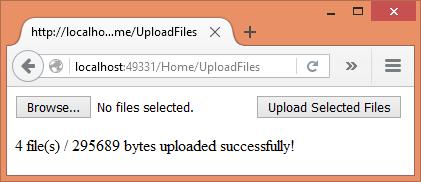
The following figure shows a sample successful run of the application:
Using jQuery Ajax to upload the files
In the preceding example you used form POST to submit the files to the server. What if you wish to send files through Ajax? You can accomplish the task with a little bit of change to the <form> and the action.
Modify the <form> to have a plain push button instead of submit button as shown below:
<form method="post" enctype="multipart/form-data">

    <input type="file" id="files"

           name="files" multiple />

    <input type="button"

           id="upload"

           value="Upload Selected Files" />

</form>
Then add a <script> reference to the jQuery library and write the following code to handle the click event of the upload button:
$(document).ready(function () {

    $("#upload").click(function (evt) {

        var fileUpload = $("#files").get(0);

        var files = fileUpload.files;

        var data = new FormData();

        for (var i = 0; i < files.length ; i++) {

            data.append(files[i].name, files[i]);

        }

        $.ajax({

            type: "POST",

            url: "/home/UploadFilesAjax",

            contentType: false,

            processData: false,

            data: data,

            success: function (message) {

                alert(message);

            },

            error: function () {

                alert("There was error uploading files!");

            }

        });

    });

});
The above code grabs each file from the file field and adds it to a FormData object (HTML5 feature). Then $.ajax() method POSTs the FormData object to the UploadFilesAjax() action of the HomeController. Notice that the contentType and processData properties are set to false since the FormData contains multipart/form-data content. The data property holds the FormData object.
Finally, add UploadFilesAjax() action as follows:
[HttpPost]

public IActionResult UploadFilesAjax()

{

    long size = 0;

    var files = Request.Form.Files;

    foreach (var file in files)

    {

        var filename = ContentDispositionHeaderValue

                        .Parse(file.ContentDisposition)

                        .FileName

                        .Trim('"');

        filename = hostingEnv.WebRootPath + $@"\{filename}";

        size += file.Length;

        using (FileStream fs = System.IO.File.Create(filename))

        {

           file.CopyTo(fs);

           fs.Flush();

        }

    }

    string message = $"{files.Count} file(s) /

                       {size} bytes uploaded successfully!";

    return Json(message);

}
The code inside UploadFilesAjax() is quite similar to UploadFiles() you wrote earlier. The main difference is how the files are received. The UploadFilesAjax() doesn't have IList<IFormFile> parameter. Instead it receives the files through the Request.Form.Files property. Secondly, the UploadFilesAjax() action returns a JSON string message to the caller for the sake of displaying in the browser.
That's it for now! Keep coding!!
Upload Files In ASP.NET Core 1.0 (Form POST And JQuery Ajax)的更多相关文章
- ASP.NET Core 1.0中实现文件上传的两种方式(提交表单和采用AJAX)
Bipin Joshi (http://www.binaryintellect.net/articles/f1cee257-378a-42c1-9f2f-075a3aed1d98.aspx) Uplo ...
- 用VSCode开发一个asp.net core2.0+angular5项目(5): Angular5+asp.net core 2.0 web api文件上传
第一部分: http://www.cnblogs.com/cgzl/p/8478993.html 第二部分: http://www.cnblogs.com/cgzl/p/8481825.html 第三 ...
- [Asp.net core 2.0]Ueditor 图片上传
摘要 在项目中要用到富文本编辑器,包含上传图片,插入视频等功能.但ueditor只有.net版本,没有支持core.那么上传等接口就需要自己实现了. 一个例子 首先去百度ueditor官网下载简化版的 ...
- ASP.NET Core 1.0 入门——了解一个空项目
var appInsights=window.appInsights||function(config){ function r(config){t[config]=function(){var i= ...
- #ASP.NET Core 1.0 Key Features
Cross platform support and flexible runtime engine(跨平台支持和灵活的运行时引擎) ASP.NET Core 1.0 offers support f ...
- 【原生态跨平台:ASP.NET Core 1.0(非Mono)在 Ubuntu 14.04 服务器上一对一的配置实现-篇幅1】
鸡冻人心的2016,微软高产年. build 2016后 各种干货层出不穷. 1 Win10 集成了bash ,实现了纳德拉的成诺,Microsoft Love Linux!!! 2 跨平台 ,收 ...
- Amazing ASP.NET Core 2.0
前言 ASP.NET Core 的变化和发展速度是飞快的,当你发现你还没有掌握 ASP.NET Core 1.0 的时候, 2.0 已经快要发布了,目前 2.0 处于 Preview 1 版本,意味着 ...
- 从头编写 asp.net core 2.0 web api 基础框架 (1)
工具: 1.Visual Studio 2017 V15.3.5+ 2.Postman (Chrome的App) 3.Chrome (最好是) 关于.net core或者.net core 2.0的相 ...
- 【转载】从头编写 asp.net core 2.0 web api 基础框架 (1)
工具: 1.Visual Studio 2017 V15.3.5+ 2.Postman (Chrome的App) 3.Chrome (最好是) 关于.net core或者.net core 2.0的相 ...
随机推荐
- DataX
#!/bin/bash[ ! -d /opop ] && mkdir /opopcd /opopwget http://192.168.1.129/package/DataX/{jdk ...
- Nginx(二)------nginx.conf 配置文件
上一篇博客我们将 nginx 安装在 /usr/local/nginx 目录下,其默认的配置文件都放在这个目录的 conf 目录下,而主配置文件 nginx.conf 也在其中,后续对 nginx 的 ...
- Signalr实现消息推送
一.前言 大多数系统里面好像都有获取消息的功能,但这些消息来源都不是实时的,比如你开两个浏览器,用两个不同的账号登录,用一个账号给另外一个账号发送消息,然而并不会实时收到消息,必须要自己手动F5刷新一 ...
- COMCMS_CORE 起步篇,如何运行和部署
前言:关于最近开源后,不少朋友问,怎么我下载下来,运行不了.或者怎么没有左边菜单.货不对板?还是我吃了数据? 感言:开源不容易,更不容易的是,明明毫无保留,还这么大误会,真是泪奔..... 好了.步入 ...
- 《React Native 精解与实战》书籍连载「React Native 网络请求与列表绑定」
此文是我的出版书籍<React Native 精解与实战>连载分享,此书由机械工业出版社出版,书中详解了 React Native 框架底层原理.React Native 组件布局.组件与 ...
- centos 7 network.service control process exited
一.service network restart 出错 问题描述: vmware 12 下centos 7 网络模式,NAT 昨晚作者打算更新自己虚拟机python,发现没网络ping www.ba ...
- win64位安装python-mysqldb1.2.3
在其他版本的mysqldb里面时间查询有问题最后确定还是在 1.2.5 版本下来解决,需要解决的问题就是这个:“Cannot open include file: 'config-win.h': No ...
- 多线程系列之八:Thread-Per-Message模式
一,Thread-Per-Message模式 翻译过来就是 每个消息一个线程.message可以理解为命令,请求.为每一个请求新分配一个线程,由这个线程来执行处理.Thread-Per-Message ...
- 学习yii2.0——事件
参考:https://www.yiichina.com/doc/guide/2.0/concept-events 事件 yii框架中的事件定义和JavaScript中的事件定义差不多:为某个事件绑定一 ...
- MySQL中关于数据类型指定宽度之后的情况
概述 MySQL有很多种数据类型,最常用的就是int,char,varchar,这些类型在创建表的时候都可以指定该字段的宽度,方法是在类型后面加一个括号,括号中写宽度就可以了. 但是,在指定宽度之后, ...