
WPF实现截图(仿微信截图)
WPF开发者QQ群: 340500857 | 微信群 -> 进入公众号主页 加入组织
每日一笑
肚子疼,去厕所排便,结果什么都没拉出来。看着自己坐在马桶上痛苦又努力却一无所获的样子,仿佛看到了自己平凡的一生。
前言
有小伙伴需要在软件反馈窗体增加截图功能需求,所以今天来实现一个仿微信的截图。
欢迎转发、分享、点赞,谢谢大家~。
效果预览(更多效果请下载源码体验)
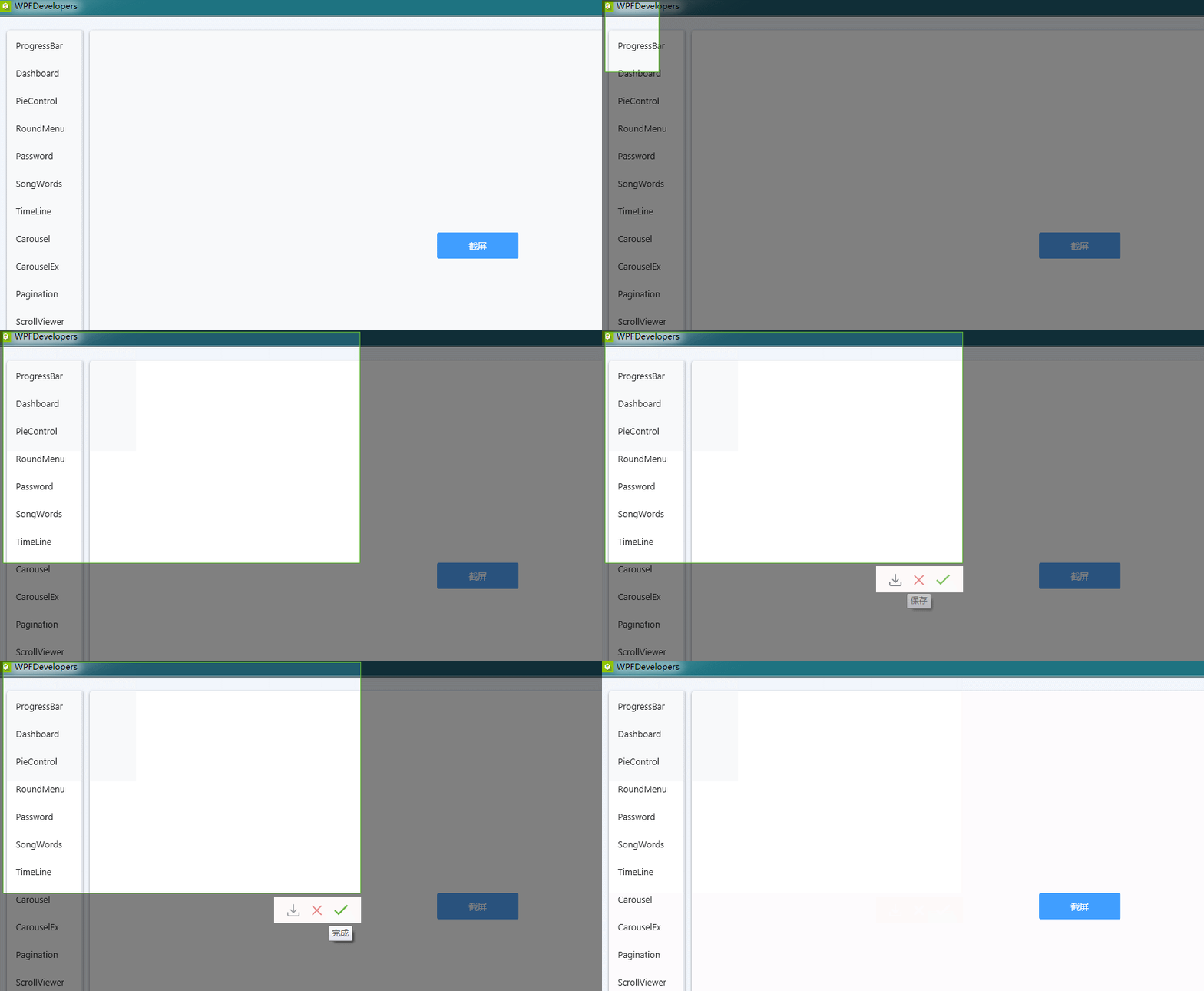
一、ScreenCut.cs 代码如下
using Microsoft.Win32;

using System;

using System.Collections.Generic;

using System.Drawing.Drawing2D;

using System.Drawing.Text;

using System.Linq;

using System.Text;

using System.Windows;

using System.Windows.Controls;

using System.Windows.Input;

using System.Windows.Media;

using System.Windows.Media.Imaging;

using System.Windows.Shapes;

namespace WPFDevelopers.Controls

{

    [TemplatePart(Name = CanvasTemplateName, Type = typeof(Canvas))]

    [TemplatePart(Name = RectangleLeftTemplateName, Type = typeof(Rectangle))]

    [TemplatePart(Name = RectangleTopTemplateName, Type = typeof(Rectangle))]

    [TemplatePart(Name = RectangleRightTemplateName, Type = typeof(Rectangle))]

    [TemplatePart(Name = RectangleBottomTemplateName, Type = typeof(Rectangle))]

    [TemplatePart(Name = BorderTemplateName, Type = typeof(Border))]

    [TemplatePart(Name = WrapPanelTemplateName, Type = typeof(WrapPanel))]

    [TemplatePart(Name = ButtonSaveTemplateName, Type = typeof(Button))]

    [TemplatePart(Name = ButtonCancelTemplateName, Type = typeof(Button))]

    [TemplatePart(Name = ButtonCompleteTemplateName, Type = typeof(Button))]

    public class ScreenCut : Window

    {

        private const string CanvasTemplateName = "PART_Canvas";

        private const string RectangleLeftTemplateName = "PART_RectangleLeft";

        private const string RectangleTopTemplateName = "PART_RectangleTop";

        private const string RectangleRightTemplateName = "PART_RectangleRight";

        private const string RectangleBottomTemplateName = "PART_RectangleBottom";

        private const string BorderTemplateName = "PART_Border";

        private const string WrapPanelTemplateName = "PART_WrapPanel";

        private const string ButtonSaveTemplateName = "PART_ButtonSave";

        private const string ButtonCancelTemplateName = "PART_ButtonCancel";

        private const string ButtonCompleteTemplateName = "PART_ButtonComplete";

        private Canvas _canvas;

        private Rectangle _rectangleLeft, _rectangleTop, _rectangleRight, _rectangleBottom;

        private Border _border;

        private WrapPanel _wrapPanel;

        private Button _buttonSave,_buttonCancel, _buttonComplete;

        private Rect rect;

        private Point pointStart, pointEnd;

        private bool isMouseUp = false;

        static ScreenCut()

        {

            DefaultStyleKeyProperty.OverrideMetadata(typeof(ScreenCut), new FrameworkPropertyMetadata(typeof(ScreenCut)));

        }

        public override void OnApplyTemplate()

        {

            base.OnApplyTemplate();

            _canvas = GetTemplateChild(CanvasTemplateName) as Canvas;

            _rectangleLeft = GetTemplateChild(RectangleLeftTemplateName) as Rectangle;

            _rectangleTop = GetTemplateChild(RectangleTopTemplateName) as Rectangle;

            _rectangleRight = GetTemplateChild(RectangleRightTemplateName) as Rectangle;

            _rectangleBottom = GetTemplateChild(RectangleBottomTemplateName) as Rectangle;

            _border = GetTemplateChild(BorderTemplateName) as Border;

            _wrapPanel = GetTemplateChild(WrapPanelTemplateName) as WrapPanel;

            _buttonSave = GetTemplateChild(ButtonSaveTemplateName) as Button;

            if (_buttonSave != null)

                _buttonSave.Click += _buttonSave_Click;

            _buttonCancel = GetTemplateChild(ButtonCancelTemplateName) as Button;

            if (_buttonCancel != null)

                _buttonCancel.Click += _buttonCancel_Click;

            _buttonComplete = GetTemplateChild(ButtonCompleteTemplateName) as Button;

            if (_buttonComplete != null)

                _buttonComplete.Click += _buttonComplete_Click;

            this._canvas.Background = new ImageBrush(ChangeBitmapToImageSource(CaptureScreen()));

            _rectangleLeft.Width = _canvas.Width;

            _rectangleLeft.Height = _canvas.Height;

        }

        private void _buttonSave_Click(object sender, RoutedEventArgs e)

        {

            SaveFileDialog dlg = new SaveFileDialog();

            dlg.FileName = $"WPFDevelopers{DateTime.Now.ToString("yyyyMMddHHmmss")}.jpg";

            dlg.DefaultExt = ".jpg";

            dlg.Filter = "image file|*.jpg";

            if (dlg.ShowDialog() == true)

            {

                BitmapEncoder pngEncoder = new PngBitmapEncoder();

                pngEncoder.Frames.Add(BitmapFrame.Create(CutBitmap()));

                using (var fs = System.IO.File.OpenWrite(dlg.FileName))

                {

                    pngEncoder.Save(fs);

                    fs.Dispose();

                    fs.Close();

                }

            }

            Close();

        }

        private void _buttonComplete_Click(object sender, RoutedEventArgs e)

        {

            Clipboard.SetImage(CutBitmap());

            Close();

        }

        CroppedBitmap CutBitmap()

        {

            var renderTargetBitmap = new RenderTargetBitmap((int)_canvas.Width,

  (int)_canvas.Height, 96d, 96d, System.Windows.Media.PixelFormats.Default);

            renderTargetBitmap.Render(_canvas);

            return  new CroppedBitmap(renderTargetBitmap, new Int32Rect((int)rect.X, (int)rect.Y, (int)rect.Width, (int)rect.Height));

        }

        private void _buttonCancel_Click(object sender, RoutedEventArgs e)

        {

            Close();

        }

        protected override void OnPreviewKeyDown(KeyEventArgs e)

        {

            if (e.Key == Key.Escape)

                Close();

        }

        protected override void OnPreviewMouseLeftButtonDown(MouseButtonEventArgs e)

        {

            if (!isMouseUp)

            {

                _wrapPanel.Visibility = Visibility.Hidden;

                pointStart = e.GetPosition(_canvas);

                pointEnd = pointStart;

                rect = new Rect(pointStart, pointEnd);

            }

        }

        protected override void OnPreviewMouseMove(MouseEventArgs e)

        {

            if (e.LeftButton == MouseButtonState.Pressed && !isMouseUp)

            {

                var current = e.GetPosition(_canvas);

                MoveAllRectangle(current);

            }

        }

        protected override void OnPreviewMouseLeftButtonUp(MouseButtonEventArgs e)

        {

            if (!isMouseUp)

            {

                _wrapPanel.Visibility = Visibility.Visible;

                Canvas.SetLeft(this._wrapPanel, rect.X + rect.Width - this._wrapPanel.ActualWidth);

                Canvas.SetTop(this._wrapPanel, rect.Y + rect.Height + 4);

                isMouseUp = true;

            }

        }

        void MoveAllRectangle(Point current)

        {

            pointEnd = current;

            rect = new Rect(pointStart, pointEnd);

            this._rectangleLeft.Width = rect.X;

            this._rectangleLeft.Height = _canvas.Height;

            Canvas.SetLeft(this._rectangleTop, this._rectangleLeft.Width);

            this._rectangleTop.Width = rect.Width;

            double h = 0.0;

            if (current.Y < pointStart.Y)

                h = current.Y;

            else

                h = current.Y - rect.Height;

            this._rectangleTop.Height = h;

            Canvas.SetLeft(this._rectangleRight, this._rectangleLeft.Width + rect.Width);

            this._rectangleRight.Width = _canvas.Width - (rect.Width + this._rectangleLeft.Width);

            this._rectangleRight.Height = _canvas.Height;

            Canvas.SetLeft(this._rectangleBottom, this._rectangleLeft.Width);

            Canvas.SetTop(this._rectangleBottom, rect.Height + this._rectangleTop.Height);

            this._rectangleBottom.Width = rect.Width;

            this._rectangleBottom.Height = _canvas.Height - (rect.Height + this._rectangleTop.Height);

            this._border.Height = rect.Height;

            this._border.Width = rect.Width;

            Canvas.SetLeft(this._border, rect.X);

            Canvas.SetTop(this._border, rect.Y);

        }

        System.Drawing.Bitmap CaptureScreen()

        {

            var bmpCaptured = new System.Drawing.Bitmap((int)SystemParameters.PrimaryScreenWidth, (int)SystemParameters.PrimaryScreenHeight, System.Drawing.Imaging.PixelFormat.Format24bppRgb);

            using (System.Drawing.Graphics g = System.Drawing.Graphics.FromImage(bmpCaptured))

            {

                g.SmoothingMode = SmoothingMode.AntiAlias;

                g.CompositingQuality = CompositingQuality.HighQuality;

                g.InterpolationMode = InterpolationMode.HighQualityBicubic;

                g.TextRenderingHint = TextRenderingHint.ClearTypeGridFit;

                g.PixelOffsetMode = PixelOffsetMode.HighQuality;

                g.CopyFromScreen(0, 0, 0, 0, bmpCaptured.Size, System.Drawing.CopyPixelOperation.SourceCopy);

            }

            return bmpCaptured;

        }

        [System.Runtime.InteropServices.DllImport("gdi32.dll")]

        public static extern bool DeleteObject(IntPtr hObject);

        ImageSource ChangeBitmapToImageSource(System.Drawing.Bitmap bitmap)

        {

            IntPtr hBitmap = bitmap.GetHbitmap();

            ImageSource wpfBitmap = System.Windows.Interop.Imaging.CreateBitmapSourceFromHBitmap(

                hBitmap,

                IntPtr.Zero,

                Int32Rect.Empty,

                BitmapSizeOptions.FromEmptyOptions());

            if (!DeleteObject(hBitmap))

            {

                throw new System.ComponentModel.Win32Exception();

            }

            return wpfBitmap;

        }

    }

}
二、ScreenCut.xaml 代码如下
<ResourceDictionary xmlns="http://schemas.microsoft.com/winfx/2006/xaml/presentation"

                    xmlns:x="http://schemas.microsoft.com/winfx/2006/xaml"

                    xmlns:controls="clr-namespace:WPFDevelopers.Controls">

    <ResourceDictionary.MergedDictionaries>

        <ResourceDictionary Source="Basic/ControlBasic.xaml"/>

        <ResourceDictionary Source="../Styles/Styles.Buttons.xaml"/>

    </ResourceDictionary.MergedDictionaries>

    <Style x:Key="RectangleStyle" TargetType="{x:Type Rectangle}">

        <Setter Property="Fill" Value="{StaticResource BlackSolidColorBrush}"/>

        <Setter Property="Opacity" Value=".5"/>

</Style>

    <Style TargetType="{x:Type controls:ScreenCut}" BasedOn="{StaticResource ControlBasicStyle}">

        <Setter Property="WindowState" Value="Maximized"/>

        <Setter Property="WindowStyle" Value="None"/>

        <Setter Property="Template">

            <Setter.Value>

                <ControlTemplate TargetType="{x:Type controls:ScreenCut}">

                    <Canvas x:Name="PART_Canvas"

            Width="{Binding Source={x:Static SystemParameters.PrimaryScreenWidth}}"

            Height="{Binding Source={x:Static SystemParameters.PrimaryScreenHeight}}">

                        <Rectangle x:Name="PART_RectangleLeft" Style="{StaticResource RectangleStyle}"/>

                        <Rectangle x:Name="PART_RectangleTop" Style="{StaticResource RectangleStyle}"/>

                        <Rectangle x:Name="PART_RectangleRight" Style="{StaticResource RectangleStyle}"/>

                        <Rectangle x:Name="PART_RectangleBottom" Style="{StaticResource RectangleStyle}"/>

                        <Border x:Name="PART_Border" BorderBrush="{StaticResource SuccessPressedSolidColorBrush}"

                                BorderThickness="1"/>

                        <WrapPanel x:Name="PART_WrapPanel"

                                   Visibility="Hidden" Panel.ZIndex="99"

                                   Height="38" Background="{StaticResource WhiteSolidColorBrush}"

                                   VerticalAlignment="Center">

                            <Button x:Name="PART_ButtonSave" Style="{StaticResource PathButton}"

                                    ToolTip="保存" Margin="10,0,0,0">

                                <Button.Content>

                                    <Path Fill="{StaticResource InfoPressedSolidColorBrush}"

                                          Width="18" Height="18" Stretch="Fill"

                                          Data="{StaticResource PathSave}"/>

                                </Button.Content>

                            </Button>

                            <Button x:Name="PART_ButtonCancel" Style="{StaticResource PathButton}"

                                    ToolTip="取消">

                                <Button.Content>

                                    <Path Fill="{StaticResource DangerPressedSolidColorBrush}"

                                          Width="14" Height="14" Stretch="Fill"

                                          Data="{StaticResource PathCancel}"/>

                                </Button.Content>

                            </Button>

                            <Button x:Name="PART_ButtonComplete"  Style="{StaticResource PathButton}"

                                    ToolTip="完成" Margin="0,0,10,0">

                                <Button.Content>

                                    <Path Fill="{StaticResource SuccessPressedSolidColorBrush}"

                                          Width="20" Height="15" Stretch="Fill"

                                          Data="{StaticResource PathComplete}"/>

                                </Button.Content>

                            </Button>

                        </WrapPanel>

                    </Canvas>

                </ControlTemplate>

            </Setter.Value>

        </Setter>

</Style>

</ResourceDictionary>
三、ScreenCutExample.xaml 代码如下
 var screenCut = new ScreenCut();

   screenCut.ShowDialog();
更多教程欢迎关注微信公众号:

WPF开发者QQ群: 340500857
blogs: https://www.cnblogs.com/yanjinhua/p/14345136.html
源码Github:https://github.com/yanjinhuagood/WPFDevelopers.git
gitee:https://gitee.com/yanjinhua/WPFDevelopers.git
WPF实现截图(仿微信截图)的更多相关文章
- WPF 截图控件之绘制方框与椭圆(四) 「仿微信」
前言 接着上周写的截图控件继续更新 绘制方框与椭圆. 1.WPF实现截屏「仿微信」 2.WPF 实现截屏控件之移动(二)「仿微信」 3.WPF 截图控件之伸缩(三) 「仿微信」 正文 有开发者在B站反 ...
- WPF 截图控件之绘制箭头(五)「仿微信」
前言 接着上周写的截图控件继续更新 绘制箭头. 1.WPF实现截屏「仿微信」 2.WPF 实现截屏控件之移动(二)「仿微信」 3.WPF 截图控件之伸缩(三) 「仿微信」 4.WPF 截图控件之绘制方 ...
- WPF 截图控件之文字(七)「仿微信」
前言 接着上周写的截图控件继续更新添加 文字. 1.WPF实现截屏「仿微信」 2.WPF 实现截屏控件之移动(二)「仿微信」 3.WPF 截图控件之伸缩(三) 「仿微信」 4.WPF 截图控件之绘制方 ...
- WPF 截图控件之画笔(八)「仿微信」
前言 接着上周写的截图控件继续更新添加 画笔. 1.WPF实现截屏「仿微信」 2.WPF 实现截屏控件之移动(二)「仿微信」 3.WPF 截图控件之伸缩(三) 「仿微信」 4.WPF 截图控件之绘制方 ...
- WPF 截图控件之移除控件(九)「仿微信」
WPF 截图控件之移除控件(九)「仿微信」 WPF 截图控件之移除控件(九)「仿微信」 作者:WPFDevelopersOrg 原文链接: https://github.com/WPFDevelope ...
- WPF C#截图功能 仿qq截图
原文:WPF C#截图功能 仿qq截图 先上效果图 源码下载地址:http://download.csdn.net/detail/candyvoice/9788099 描述:启动程序,点击窗口butt ...
- wp仿系统截图
wp上直接调用CameraCaptureTask,并没有参数设置截图大小,刚好项目需求要截成正方型,于是写了个仿系统截图的demo出来. 截图如下: 需要做的逻辑运算为: 1.初始化照片时:判 ...
- Android -- 真正的 高仿微信 打开网页的进度条效果
(本博客为原创,http://www.cnblogs.com/linguanh/) 目录: 一,为什么说是真正的高仿? 二,为什么要搞缓慢效果? 三,我的实现思路 四,代码,内含注释 五,使用方法与截 ...
- GSD_WeiXin(高仿微信)应用源码
高仿微信计划:已经实现功能 1.微信首页(cell侧滑编辑.下拉眼睛动画.下拉拍短视频.点击进入聊天详情界面) 2.通讯录(联系人字母排序.搜索界面) 3.发现(朋友圈) 4.我(界面) 待实现功能( ...
随机推荐
- 十九:JDBC操作事务
二.MySQL数据库中操作事务命令 2.1.开启事务(start transaction) 使用"start transaction"开启MySQL数据库的事务,如下所示:
- ajax传字符串时出现乱码问题的解决
字符乱码的解决: 第一种在@RequestMapping中添加 @RequestMapping(value="queryAllToTree",method=RequestMetho ...
- Spring之属性注入
时间:2017-1-31 23:38 --Bean的属性注入方式有三种注入方式: 1)接口注入: 定义一个接口,定义setName(String name)方法,定义一个类,实现该 ...
- JDBC中的元数据——1.数据库元数据
package metadata; import java.sql.Connection; import java.sql.DatabaseMetaData; import javax.sql.Dat ...
- Struts2之文件上传与下载
时间:2017-1-11 15:47 --使用commons-fileupload组件上传1.客户端 * method="post" * <input t ...
- linux》centos6.1.环境下发送邮件设置
转自https://blog.csdn.net/bodybo/article/details/80817968 一. Sendmail安装 在CentOS下,sendmail一般默认是随操作系统一起安 ...
- js与jquery获取input输入框中的值
如何用javascript获取input输入框中的值,js/jq通过name.id.class获取input输入框中的value 先准备一段 HTML 一.jquery获取input文本框中的值 通过 ...
- vscode Markdown Preview Enhanced 安装配置
打开VSCode 打开Externsion,可通过Ctrl+Shift+X 选中 Markdown Preview Enhanced并install即可 配置Preview风格: Magage -&g ...
- Heartbeat+HAProxy+MySQL半复制高可用架构
目录 一 基础环境 二 架构设计 三 安装MySQL 3.1 安装MySQL 3.2 初始化MySQL 四 配置MySQL半同步 4.1 加载插件 4.2 配置半同步复制 4.3 master创建账号 ...
- 【Python机器学习实战】决策树与集成学习(四)——集成学习(2)GBDT
本打算将GBDT和XGBoost放在一起,但由于涉及内容较多,且两个都是比较重要的算法,这里主要先看GBDT算法,XGBoost是GBDT算法的优化和变种,等熟悉GBDT后再去理解XGBoost就会容 ...