
Redhat FreeIPA Server 安装服务端和客户端 (实验:VMware环境下)
实验环境:windows7 + vmware 15 + redhat 7
1:准备2台虚拟机:
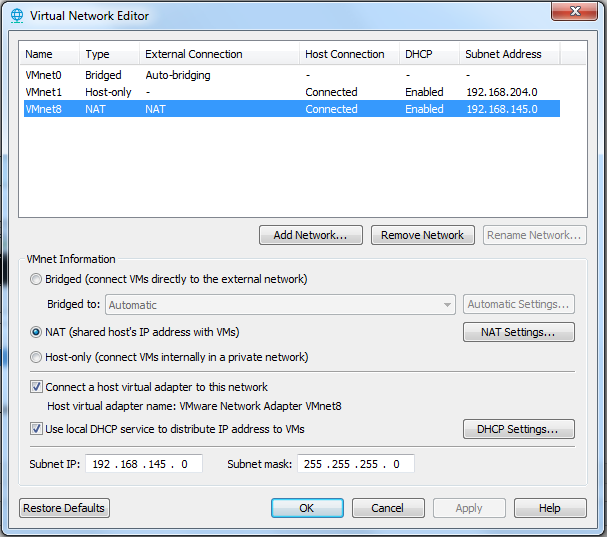
虚拟机VMnet8,Subnet IP:192.168.145.0
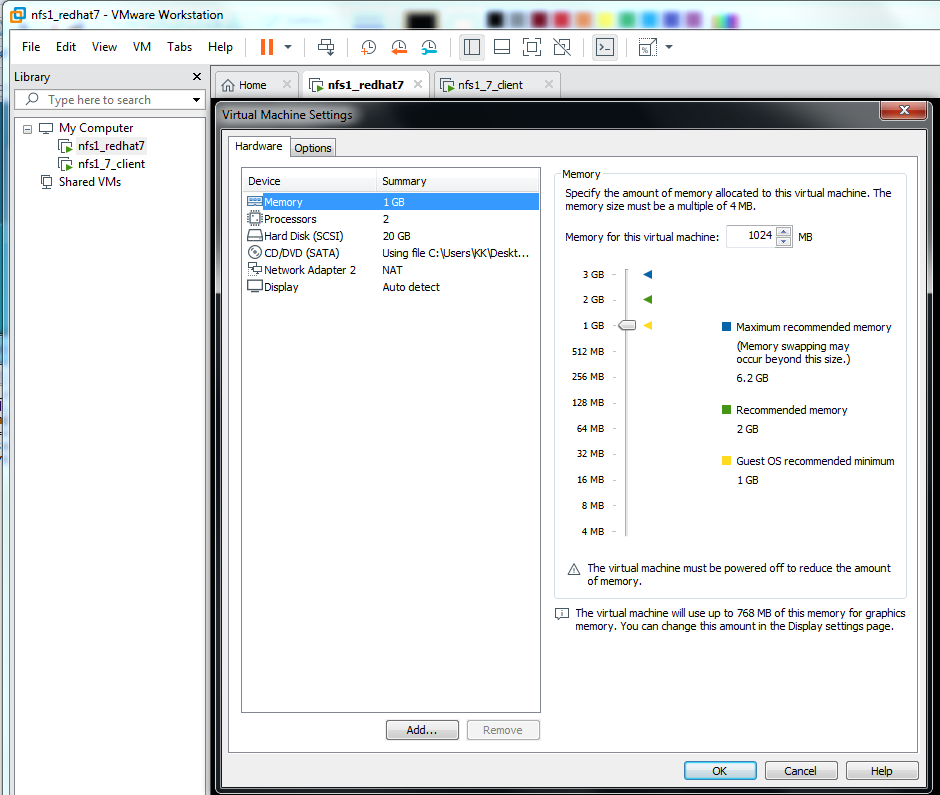
Redhat 7(Server With GUI),1-2G内存
网络配置如下:
服务端:ipa.nfs1.example.com 192.168.145.134
客户端:client.nfs1.example.com 192.168.145.138
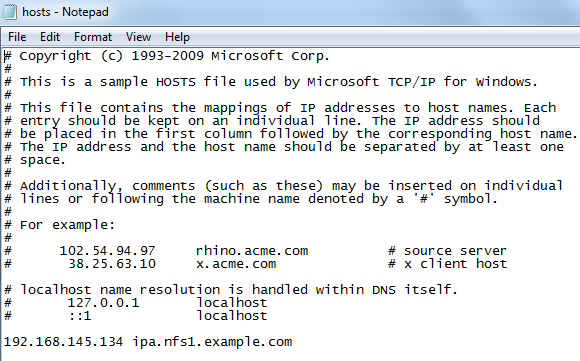
2:在Windows7的C:\Windows\System32\drivers\etc\hosts中加入:
192.168.145.134 ipa.nfs1.example.com
IPA成功配置后,可以在windows浏览器下操作。
========================================================================================
服务端 客户端都要做的步骤:
[确定iso已经挂载到VMware],*****将没有注册的redhat 7中将repo 指向DVD*****
#mount #检查
#umount /dev/sr0 #卸载iso
#mount /dev/sr0 /mnt #挂载iso到mnt
#cd /mnt
#rpm --import RPM-GPG-KEY-redhat-release
#cd Packages/
#rpm -ivh createrepo-0.9.9-23.el7.noarch.rpm
#vi /etc/yum.repos.d/file.repo #编辑repo
[DVDRepo]
name=DVD Repository
baseurl=file:///mnt/
enabled=1
gpgcheck=0
:wq
#cd
#yum clean all
#yum list all
====================================================================
服务端安装
#yum install ipa-server bind dns-ldap bind-dyndb-ldap
#nmtui #依次设置网络
Addresses 192.168.145.134
Gateway 192.168.145.2
DNS servers 192.168.145.2
Search domains nfs1.example.com
hostname ipa.nfs1.example.com
exit #退出
#vi /etc/resolv.conf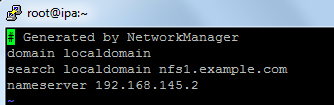
#vi /etc/hosts

#systemctl stop chronyd.service
#systemctl disable chronyd.service
#systemctl restart network
ipa-server-install --setup-dns #开始配置IPA(下面是过程主要内容)
**********************************************************************************
Existing BIND configuration detected, overwrite? [no]:yes
Server host name [ipa.nfs1.example.com]: ipa.nfs1.example.com
Please confirm the domain name [nfs1.example.com]:
Please provide a realm name [NFS1.EXAMPLE.COM]:
Directory Manager password:
IPA admin password:
The IPA Master Server will be configured with:
Hostname: ipa.nfs1.example.com
IP address: 192.168.145.134
Domain name: nfs1.example.com
Realm name: NFS1.EXAMPLE.COM
BIND DNS server will be configured to serve IPA domain with:
Forwarders: 8.8.8.8
Reverse zone: 145.168.192.in-addr.arpa.
Global DNS configuration in LDAP server is empty
You can use 'dnsconfig-mod' command to set global DNS options that
would override settings in local named.conf files
Restarting the web server
Setup complete
Next steps:
1. You must make sure these network ports are open:
TCP Ports:
* 80, 443: HTTP/HTTPS
* 389, 636: LDAP/LDAPS
* 88, 464: kerberos
* 53: bind
UDP Ports:
* 88, 464: kerberos
* 53: bind
* 123: ntp
2. You can now obtain a kerberos ticket using the command: 'kinit admin'
This ticket will allow you to use the IPA tools (e.g., ipa user-add)
and the web user interface.
Be sure to back up the CA certificate stored in /root/cacert.p12
This file is required to create replicas. The password for this
file is the Directory Manager password
*****************************************************************************
DM_password 是kerberos的管理员密码
admin_password 是389-ds的管理员密码
按结束语中的要求修改防火墙:
#firewall-cmd --permanent --add-service=http
#firewall-cmd --permanent --add-service=https
#firewall-cmd --permanent --add-service=ldap
#firewall-cmd --permanent --add-service=ldaps
#firewall-cmd --permanent --add-service=kerberos
#firewall-cmd --permanent --add-port=53/tcp
#firewall-cmd --permanent --add-port=53/udp
#firewall-cmd --permanent --add-port=88/udp
#firewall-cmd --permanent --add-port=123/udp
#firewall-cmd --reload
#firewall-cmd --list
#firewall-cmd --list-all
这时可以在Windows下浏览器打开https://ipa.nfs1.example.com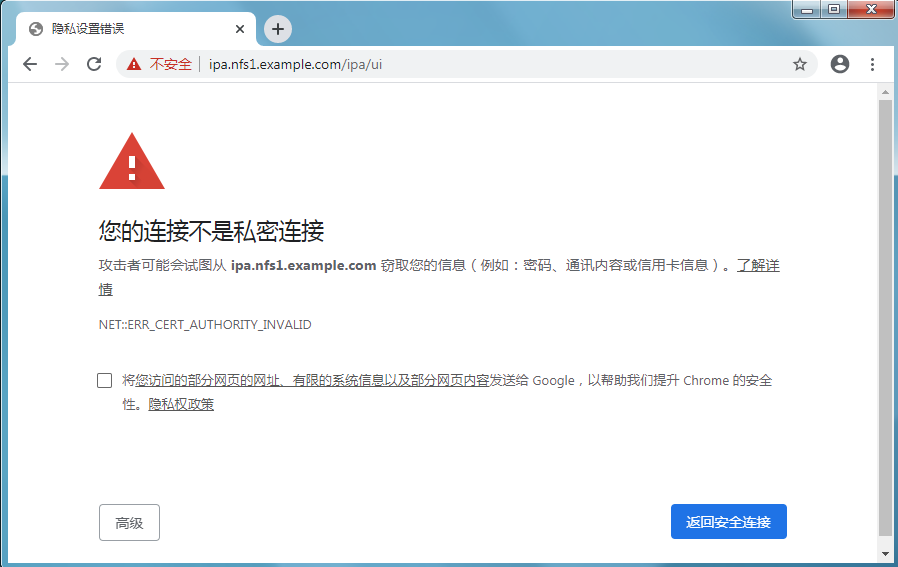

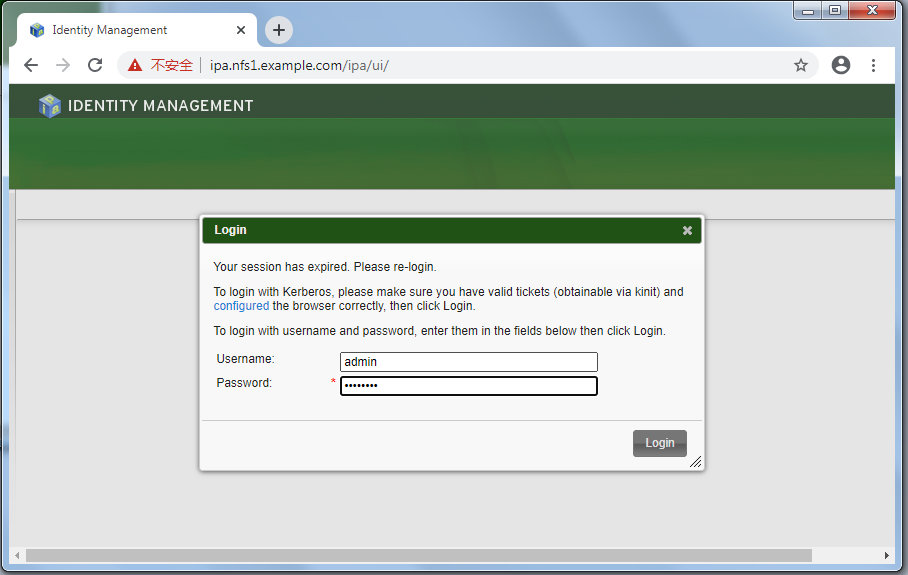
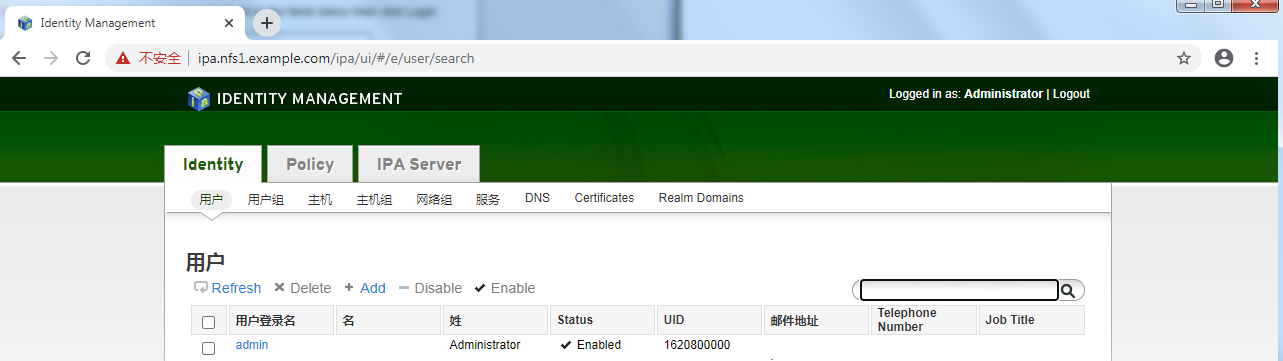
不同浏览器可能略有不同
****************************************************************************************************************************************************************************************************************************
客户端安装
#nmtui
ip:192.168.145.138
gateway:192.168.145.134 (请特别留意此项)
search domain:nfs1.example.com
hostname: client.nfs1.example.com
#vi /etc/resolv.conf
nameserver 192.168.145.134 (请特别留意此项)
#vi /etc/hosts
192.168.145.138 client.nfs1.example.com (请特别留意此项)
#systemctl restart network
#yum install nss-pam-ldapd pam_krg5 ipa-client
#ipa-client-install #开始配置IPA客户端(下面是过程主要内容)
=======================================================================
WARNING: ntpd time&date synchronization service will not be configured as
conflicting service (chronyd) is enabled
Use --force-ntpd option to disable it and force configuration of ntpd
Discovery was successful!
Hostname: client.nfs1.example.com
Realm: NFS1.EXAMPLE.COM
DNS Domain: nfs1.example.com
IPA Server: ipa.nfs1.example.com
BaseDN: dc=nfs1,dc=example,dc=com
Continue to configure the system with these values? [no]: yes
User authorized to enroll computers: admin
Synchronizing time with KDC...
Password for admin@NFS1.EXAMPLE.COM:
Successfully retrieved CA cert
Subject: CN=Certificate Authority,O=NFS1.EXAMPLE.COM
Issuer: CN=Certificate Authority,O=NFS1.EXAMPLE.COM
Valid From: Wed Jun 24 03:23:40 2020 UTC
Valid Until: Sun Jun 24 03:23:40 2040 UTC
Enrolled in IPA realm NFS1.EXAMPLE.COM
Created /etc/ipa/default.conf
New SSSD config will be created
Configured /etc/sssd/sssd.conf
Configured /etc/krb5.conf for IPA realm NFS1.EXAMPLE.COM
trying https://ipa.nfs1.example.com/ipa/xml
Forwarding 'ping' to server 'https://ipa.nfs1.example.com/ipa/xml'
Forwarding 'env' to server 'https://ipa.nfs1.example.com/ipa/xml'
Hostname (client.nfs1.example.com) not found in DNS
DNS server record set to: client.nfs1.example.com -> 192.168.145.138
Adding SSH public key from /etc/ssh/ssh_host_rsa_key.pub
Adding SSH public key from /etc/ssh/ssh_host_ecdsa_key.pub
Forwarding 'host_mod' to server 'https://ipa.nfs1.example.com/ipa/xml'
SSSD enabled
Configured /etc/openldap/ldap.conf
Configured /etc/ssh/ssh_config
Configured /etc/ssh/sshd_config
Client configuration complete.
==========================================================================
systemctl stop chronyd.service
systemctl disable chronyd.service
这时client.nfs1.example.com 成功加入IPA的管理中。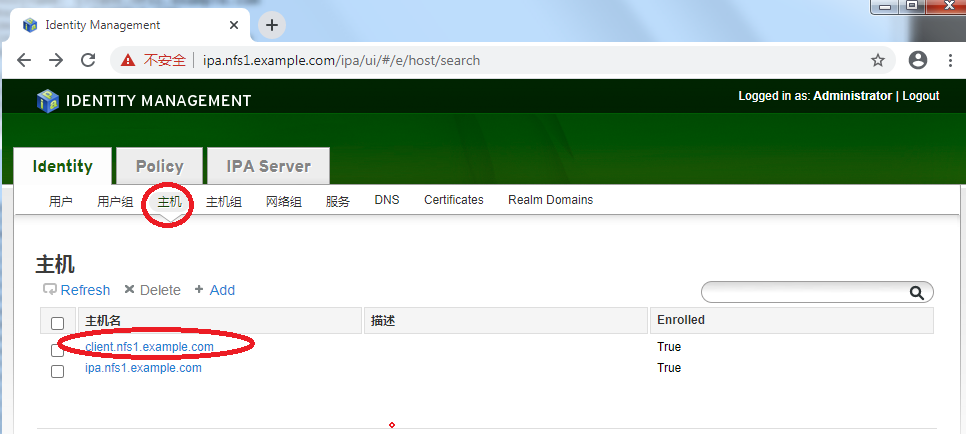
如果在管理器中添加用户,相当于添加了一个域用户。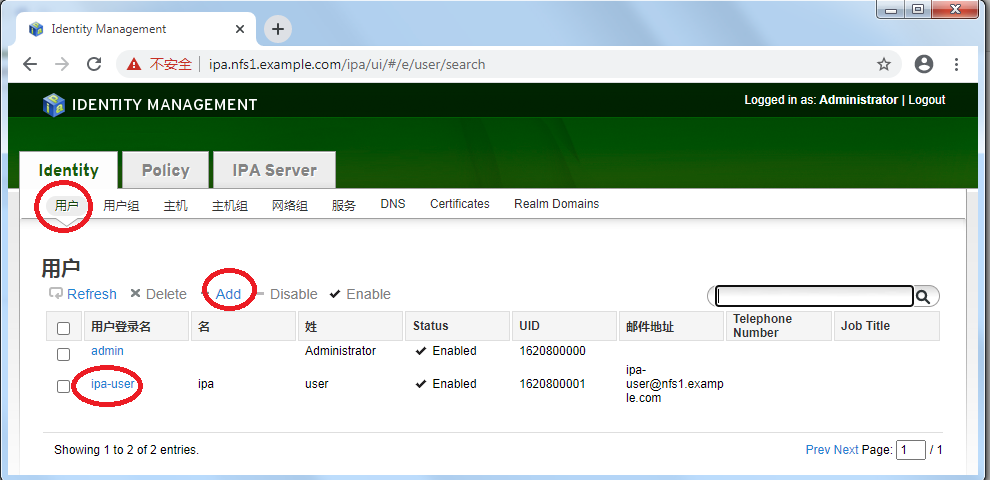
账户ipa-user可以登入nfs.example.com中所有登记的主机
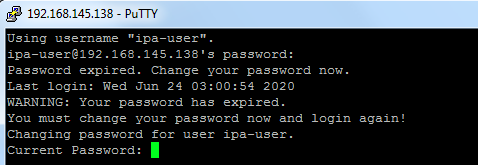
(终)
Redhat FreeIPA Server 安装服务端和客户端 (实验:VMware环境下)的更多相关文章
- [企业化NET]Window Server 2008 R2[2]-SVN 服务端 和 客户端 安装
1. 服务器基本安装即问题解决记录 √ 2. SVN环境搭建和客户端使用 2.1 服务端 和 客户端 安装 √ 2.2 项目建立与基本使用 √ 2.3 基本冲突解决, ...
- (转)SVN 服务端、客户端安装及配置、导入导出项目
SVN服务器搭建和使用(一) Subversion是优秀的版本控制工具,其具体的的优点和详细介绍,这里就不再多说. 首先来下载和搭建SVN服务器. 现在Subversion已经迁移到apache网站上 ...
- SVN服务端和客户端的安装与搭建
版权声明:本文为博主原创文章,转载请注明原文出处. https://blog.csdn.net/zzfenglin/article/details/50931462 SVN简介 SVN全名Subver ...
- linux(centos 6.4)下安装php memcache服务端及其客户端(详细教程)
前言 在搭建个人博客时,由于没有使用任何框架,纯手工code前台和后台,导致遇到许多问题,其中一个问题就是mysql连接导致的页面相应速度异常低.在查询各种途径后,只能考虑使用memcache缓存.在 ...
- suse安装svn服务端和客户端的使用
suse安装svn服务端 一. 安装服务端 配置网络安装源(suse11sp1为例) 新建11.1.repo11.1为软件源名称,可自定义文件并添加如下内容后保存 linux-e0xg:/etc/zy ...
- [企业化NET]Window Server 2008 R2[3]-SVN 服务端 和 客户端 基本使用
1. 服务器基本安装即问题解决记录 √ 2. SVN环境搭建和客户端使用 2.1 服务端 和 客户端 安装 √ 2.2 项目建立与基本使用 √ 2.3 基本冲突解决, ...
- SVN1.6服务端和客户端安装配置指导
本节向大家描述SVN1.6服务端和客户端安装配置步骤,随着SVN的快速发展,版本也进行了升级更新,本节就和大家一起学习一下SVN1.6服务端和客户端安装配置步骤,欢迎大家一起来学习.下面是具体介绍.1 ...
- 安装lanproxy服务端、客户端以及小问题解决
准备 我们这里使用java客户端与服务端连接 1.一台公网服务器(运行proxy-server).2.一台内网客户端(运行proxy-client). 下载地址:https://seafile.cdj ...
- Windows10配置NFS服务端和客户端
环境:Windows10企业版x64 安装服务端 安装hane win nfs server,版本1169(官方最新版1223经试验不成功). 设置如下: 以管理员身份重启服务(注:软件界面上&quo ...
随机推荐
- parrot os vm镜像failed to fetch cdrom apt-get update的问题
vi /etc/apt/sources.list 注释掉第一行 cdrom x保存就可以了
- DFA最小化
1.将DFA最小化:教材P65 第9题 2.构造以下文法相应的最小的DFA S→ 0A|1B A→ 1S|1 B→0S|0 3.自上而下语法分析,回溯产生的原因是什么? 文法中,对于某个非终结符号的规 ...
- Spring boot Sample 009之spring-boot-web-thymeleaf
一.环境 1.1.Idea 2020.1 1.2.JDK 1.8 二.目的 spring boot 整合thymeleaf模板开发web项目 三.步骤 3.1.点击File -> New Pro ...
- Spring Cloud 系列之 Apollo 配置中心(一)
背景 随着程序功能的日益复杂,程序的配置日益增多:各种功能的开关.参数的配置.服务器的地址等等. 对程序配置的期望值也越来越高:配置修改后实时生效,灰度发布,分环境.分集群管理配置,完善的权限.审核机 ...
- Rocket - diplomacy - IdRange
https://mp.weixin.qq.com/s/qqL2XWqAhVcnGSxs6kxhLg 介绍IdRange的实现. 1. 基本定义 A non-empty half- ...
- jchdl - GSL实例 - Mux4(使用WireVec简化输入线声明)
https://mp.weixin.qq.com/s/yJx_dV6ScUStJtPWVuD38w 原理图 参考链接 https://github.com/wjcdx/jchdl/blob/ma ...
- Java实现 LeetCode 377 组合总和 Ⅳ
377. 组合总和 Ⅳ 给定一个由正整数组成且不存在重复数字的数组,找出和为给定目标正整数的组合的个数. 示例: nums = [1, 2, 3] target = 4 所有可能的组合为: (1, 1 ...
- Java实现 蓝桥杯VIP 算法训练 筛选号码
算法训练 筛选号码 Description 有n个人围成一圈,顺序排号(编号为1到n).从第1个人开始报数(从1到3报数),凡报到3的人退出圈子.从下一个人开始继续报数,直到剩下最后一个人,游戏结束. ...
- Java实现莱布尼兹问题
历史上有许多计算圆周率pai的公式,其中,格雷戈里和莱布尼茨发现了下面的公式: pai = 4*(1-1/3+1/5-1/7 -) 参见[图1.png] 这个公式简单而优美,但美中不足,它收敛的太慢了 ...
- java实现孪生素数
** 孪生素数** 孪生素数 所谓孪生素数指的就是间隔为 2 的相邻素数,它们之间的距离已经近得不能再近了,就象孪生兄弟一样.最小的孪生素数是 (3, 5),在 100 以内的孪生素数还有 (5, 7 ...