
UIImageView 动画
1、UIImageView 动画
1.1 播放图片集
@property (nonatomic, strong) UIImageView *playImageView;

self.playImageView = [[UIImageView alloc] initWithFrame:self.view.bounds];

[self.view addSubview:self.playImageView];

// 创建图片集

NSMutableArray *imageArray = [NSMutableArray arrayWithCapacity:0];

for (int i = 1; i < 30; i++) {

	// 添加图片

	[imageArray addObject:[UIImage imageNamed:[NSString stringWithFormat:@"%d.jpg", i]]];

}

// 播放图片集

self.playImageView.animationImages = imageArray;    // 设置播放的图片集(需将图片添加到数组 imageArray 中)

self.playImageView.animationDuration = 29;          // 设置播放整个图片集的时间

self.playImageView.animationRepeatCount = 0;        // 设置循环播放次数,默认为 0 一直循环

[self.playImageView startAnimating];                // 开始播放

// [self.playImageView stopAnimating];              // 停止播放动画
- 效果

- 效果
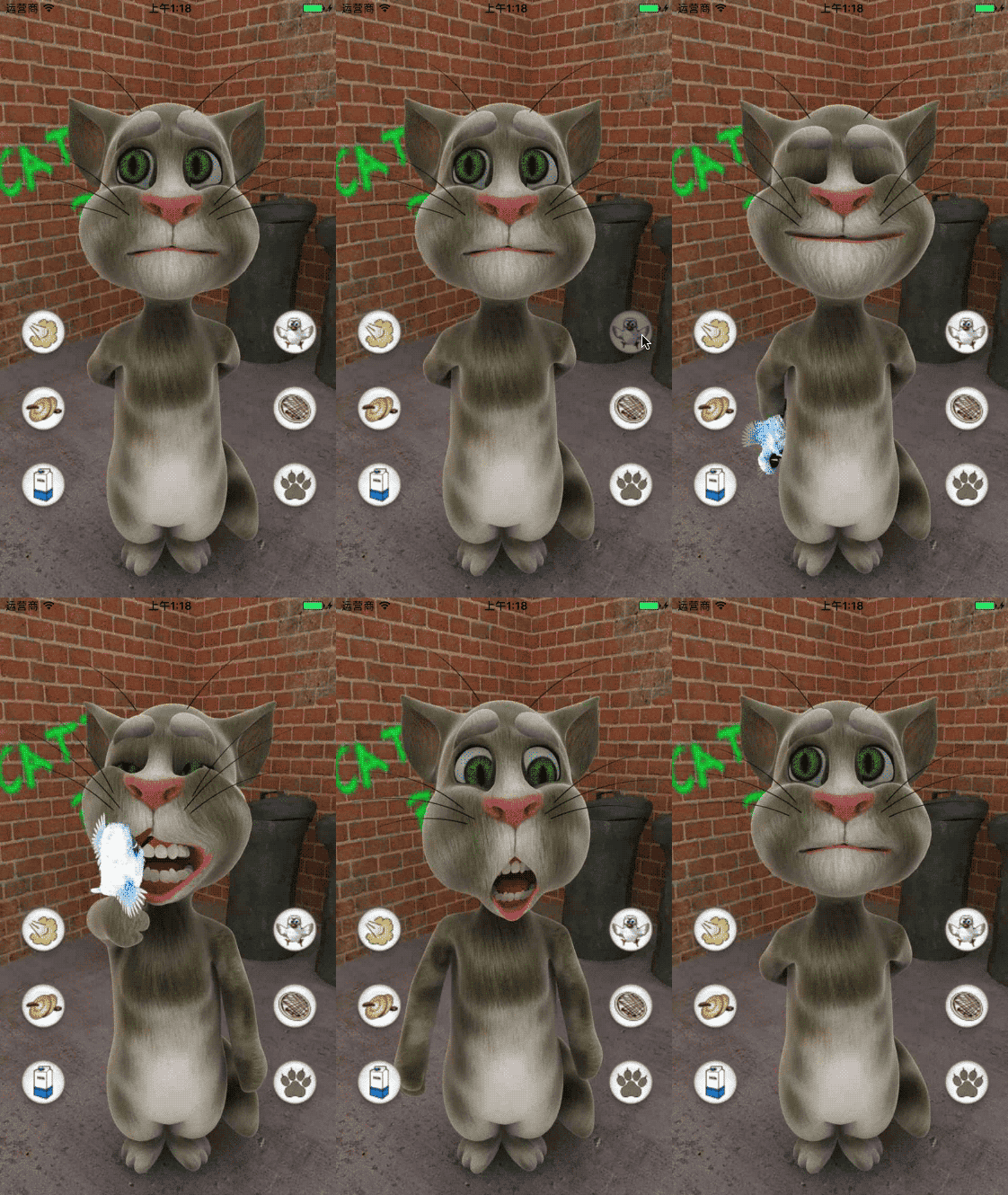
1.2 汤姆猫
#import <AudioToolbox/AudioToolbox.h>

@property (nonatomic, strong) UIImageView *playImageView;

// 创建播放视图

self.playImageView = [[UIImageView alloc] initWithFrame:self.view.bounds];

self.playImageView.image = [UIImage imageNamed:@"background.jpg"];

[self.view addSubview:self.playImageView];

// 创建功能按钮

const CGFloat viewWith = self.view.bounds.size.width;

const CGFloat viewHeight = self.view.bounds.size.height;

const CGFloat gap = 10;

const CGFloat buttonWith = self.view.bounds.size.width / 5;

const CGFloat buttonHeight = buttonWith;

// 功能按钮图片集

NSArray *buttonImageNameArray = @[@"fart.png", @"cymbal.png", @"drink.png", @"eat.png", @"pie.png", @"scratch.png"];

for (int i = 0; i < 11; i++) {

	UIButton *button = [UIButton buttonWithType:UIButtonTypeCustom];

	[self.playImageView addSubview:button];

	self.playImageView.userInteractionEnabled = YES;

	if (i < 6) {

			// 两边功能按钮的布局

		if (i < 3) {

			button.frame = CGRectMake(gap, viewHeight / 2 + (buttonHeight + gap ) * (i % 3), buttonWith, buttonHeight);

		}

		else {

			button.frame = CGRectMake(viewWith - buttonWith - gap, viewHeight / 2 + (buttonHeight + gap) * (i % 3), buttonWith, buttonHeight);

		}

		[button setBackgroundImage:[UIImage imageNamed:buttonImageNameArray[i]] forState:UIControlStateNormal];

	} else {

		// 隐藏按钮的布局

		if (i == 6){            // 头

			button.frame = CGRectMake(viewWith/4, viewHeight/5, viewWith/2, viewHeight/4);

		}

		else if (i == 7){       // 肚子

			button.frame = CGRectMake(viewWith/3, viewHeight/3*2, viewWith/3, viewHeight/7);

		}

		else if (i == 8){       // 左脚

			button.frame = CGRectMake(viewWith/4*2, viewHeight/6*5, viewWith/6, viewHeight/7);

		}

		else if (i == 9){       // 右脚

			button.frame = CGRectMake(viewWith/4, viewHeight/6*5, viewWith/5, viewHeight/7);

		}

		else{                   // 尾巴

			button.frame = CGRectMake(viewWith/9*6, viewHeight/7*5, viewWith/7, viewHeight/5);

		}

		// button.backgroundColor = [UIColor yellowColor];

	}

	button.tag = 100 + i;

	// 设置按钮事件

	[button addTarget:self action:@selector(buttonClick:) forControlEvents:UIControlEventTouchUpInside];

}

/********************** 点击按钮事件处理 ************************************/

- (void)buttonClick:(UIButton *)button {

	switch (button.tag - 100) {

		case 0:     // fart     放屁

			[self playAnimation:@"fart"];

			[self performSelector:@selector(playVoice:) withObject:@"fart" afterDelay:0.5];

			break;

		case 1:     // cymbal   敲锣

			[self playAnimation:@"cymbal"];

			[self performSelector:@selector(playVoice:) withObject:@"cymbal" afterDelay:0.5];

			break;

		case 2:     // drink    喝牛奶

			[self playAnimation:@"drink"];

			[self performSelector:@selector(playVoice:) withObject:@"drink" afterDelay:0.5];

			break;

		case 3:     // eat      吃小鸟

			[self playAnimation:@"eat"];

			[self performSelector:@selector(playVoice:) withObject:@"eat" afterDelay:0.5];

			break;

		case 4:     // pie      撇东西

			[self playAnimation:@"pie"];

			[self performSelector:@selector(playVoice:) withObject:@"pie" afterDelay:0.5];

			break;

		case 5:     // scratch  抓屏幕

			[self playAnimation:@"scratch"];

			[self performSelector:@selector(playVoice:) withObject:@"scratch" afterDelay:1.5];

			break;

		case 6:     // knockout  头

			[self playAnimation:@"knockout"];

			[self performSelector:@selector(playVoice:) withObject:@"knockout" afterDelay:0.5];

			break;

		case 7:     // stomach  肚子

			[self playAnimation:@"stomach"];

			[self performSelector:@selector(playVoice:) withObject:@"stomach" afterDelay:0.5];

			break;

		case 8:     // foot_left  左脚

			[self playAnimation:@"foot_left"];

			[self performSelector:@selector(playVoice:) withObject:@"foot_left" afterDelay:0.5];

			break;

		case 9:     // foot_right  右脚

			[self playAnimation:@"foot_right"];

			[self performSelector:@selector(playVoice:) withObject:@"foot_right" afterDelay:0.5];

			break;

		case 10:    // angry    尾巴

			[self playAnimation:@"angry"];

			[self performSelector:@selector(playVoice:) withObject:@"angry" afterDelay:0.8];

			break;

		default:

		break;

	}

}

/********************** 播放动画 ************************************/

- (void)playAnimation:(NSString *)key {

	// 读取 plist 文件获取图片数量

	NSDictionary *imageNumDictionary = [NSDictionary dictionaryWithContentsOfFile:[[NSBundle mainBundle] pathForResource:@"TomCat" ofType:@"plist"]];

	int imageNum = [[imageNumDictionary objectForKey:key] intValue];

	NSMutableArray *imageArray = [NSMutableArray arrayWithCapacity:0];

	for (int i = 0; i < imageNum; i++) {

		[imageArray addObject:[UIImage imageNamed:[NSString stringWithFormat:@"%@_%.2d.jpg", key, i]]];

	}

	self.playImageView.animationImages = imageArray;

	self.playImageView.animationDuration = imageNum/13;

	self.playImageView.animationRepeatCount = 1;

	[self.playImageView startAnimating];                                     // 播放动画

}

/********************** 播放声音 ************************************/

- (void)playVoice:(NSString *)key {

	// 添加声音

	SystemSoundID soundID;

	AudioServicesCreateSystemSoundID((__bridge CFURLRef)([NSURL fileURLWithPath:[[NSBundle mainBundle] pathForResource:key ofType:@"wav"]]), &soundID);

	AudioServicesPlayAlertSound(soundID);                                   // 播放声音

}
- 效果
 ------
- 效果
UIImageView 动画的更多相关文章
- iOS - UIImageView 动画
1.UIImageView 动画 1.1 播放图片集 播放图片集 @property (nonatomic, strong) UIImageView *playImageView; self.play ...
- UIImageView 动画 / UIImage 方向
UIImage 方向 UIImage imageOrientation是相对当前屏幕的横竖屏来判断方向 如果本身是横屏, 照片也是横屏的话, 方向是正方向 BOOL b1 = (originalIma ...
- UIImageView动画制作
1.先初始化一个UIImageView的视图窗口 如:anima UIImageView *anima = [UIImageView alloc]initWithFrame(0,0,100,100); ...
- 通过cagradientLayer类封装uiimageview动画色度差
#import <UIKit/UIKit.h> typedef NS_ENUM(NSInteger, EcolorDirectionType) { EcolorDirectionUp, / ...
- UIImageView~动画播放的内存优化
我目前学到的知识,播放动画的步骤就是下面的几个步骤,把照片资源放到数组里面,通过动画animationImage加载数组,设置动画播放的 时间和次数完成播放. 后来通过看一些视频了解到:当需要播放多个 ...
- UIImageView动画
NSMutableArray *arrM = [NSMutableArray array]; // 2.加载所有图片 ; i <= ; i++) { NSString *imageName = ...
- iOS - Core Animation 核心动画
1.UIView 动画 具体讲解见 iOS - UIView 动画 2.UIImageView 动画 具体讲解见 iOS - UIImageView 动画 3.CADisplayLink 定时器 具体 ...
- 【IOS 开发】基本 UI 控件详解 (UISegmentedControl | UIImageView | UIProgressView | UISlider | UIAlertView )
转载请注明出处 : http://blog.csdn.net/shulianghan/article/details/50163725 一. 分段控件 (UISegmentedControl) 控件展 ...
- iOS常用技术
1.判断系统 #define UMSYSTEM_VERSION_GREATER_THAN_OR_EQUAL_TO(v) ([[[UIDevice currentDevice] systemVersi ...
随机推荐
- 记一次oralce 11g r2 rac安装问题
环境:虚拟机[root@rac1 ~]# lsb_release -aLSB Version: :base-4.0-amd64:base-4.0-noarch:core-4.0-amd6 ...
- (转) 读懂IL
引言 转自园子里的一片关于IL的好文,分享的同时,方便自己今后查阅. 原文链接:http://www.cnblogs.com/brookshi/p/5225801.html ------ 略过作者调侃 ...
- Docker - Upgrade from 1.12 to 1.13
引言 历经半年,docker的更新终于来了,看着新版本中各种诱人的新特性,我们也第一时间来尝试一下. 升级 之前一直使用的是1.12,所以这次尝试的是从原来的版本升级到新版本. 1. 更新 yum p ...
- DFT的补0运算
在实际的DFT中,如果需要增加采样的密度.这里的采样是频域的采样.可以等到更加密集的谱. 如对于信号 x = [1, 1, 1, 1]做DFT如下图: 不零后的DFT, N = 8, N= 16, N ...
- jQuery中获取相对文档的坐标的方法是什么?
offset(),获取匹配元素在当前视口的相对偏移.返回的对象包含两个整型属性:top 和 left,以像素计.此方法只对可见元素有效. position()获取匹配元素相对定位父级的偏移.没有定位父 ...
- AUC ROC PR曲线
ROC曲线: 横轴:假阳性率 代表将负例错分为正例的概率 纵轴:真阳性率 代表能将正例分对的概率 AUC是ROC曲线下面区域得面积. 与召回率对比: AUC意义: 任取一对(正.负)样本,把正样本预测 ...
- java使用POST发送soap报文请求webservice返回500错误解析
本文使用JAX-WS2.2编译webservice,并使用HttpUrlConnection的POST方式对wsdl发送soap报文进行请求返回数据, 对错误Server returned HTTP ...
- oracle语言基础
一.语言分类 1.DML(Data Manipulation Language,数据操作语言):用于对数据的操作. DML包括:(1)SELECT:查询数据 select * from temp; ...
- java基础之JDBC九:DbUtils的简介及使用
DbUtils是Apache组织提供的一个对JDBC进行简单封装的开源工具类库,使用它能够简化JDBC应用程序的开发,同时也不会影响程序的性能. 使用步骤: A: 获取可以执行SQL语句的对象. pu ...
- 【bzoj1565】[NOI2009]植物大战僵尸
1565: [NOI2009]植物大战僵尸 Time Limit: 10 Sec Memory Limit: 64 MBSubmit: 2164 Solved: 1001[Submit][Stat ...