
C# Winform 自定义控件——竖着的Navbar
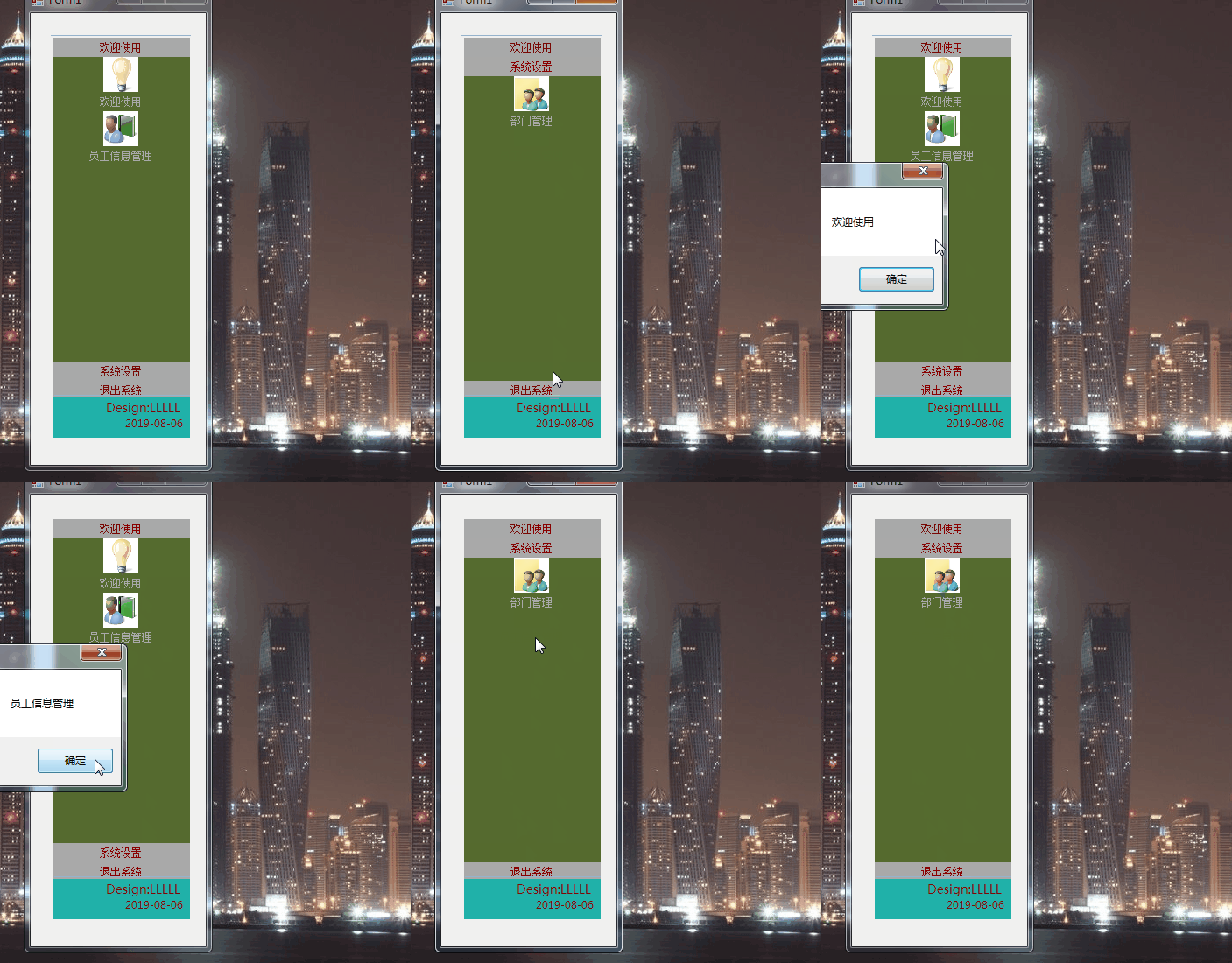
效果:
描述:

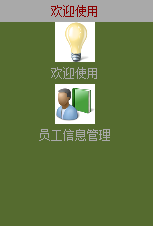
代码:
public partial class CustomNavBar : UserControl

    {

        public CustomNavBar()

        {

            InitializeComponent();

            InitializeButtonGroup();

            pnlMain.BackColor = Color.DarkOliveGreen;

            ResetMenu();

        }

        private string _jsonString;

        /// <summary>

        ///暴露接口,可从外部(数据库)获得菜单的信息

        /// </summary>

        public string JsonString

        {

            get { return _jsonString; }

            set { _jsonString = value; }

        }

        private List<ButtonGroup> listGroup;

        private int currentItemIndex;

        public delegate  void ImageButtonClick(object o,string moduleName);

        public event ImageButtonClick NavButtonClick;

        public void InitializeButtonGroup()

        {

            listGroup = new List<ButtonGroup>() {

                new ButtonGroup("欢迎使用",

                new List<ImageButton>()

                {

                    new ImageButton("欢迎使用",Resources.LogoMain),

                    new ImageButton("员工信息管理",Resources.LogoManageEmployee)

                }),

                new ButtonGroup("系统设置",

              new List<ImageButton>(){

                  new ImageButton("部门管理", Resources.LogoManageDepartment)}),

               new ButtonGroup("退出系统",null)

                };

            ButtonGroup bgPre=null;

            int sum = ;

            for (int i = ; i < listGroup.Count; i++)

            {

                int height = bgPre == null ?  : bgPre.Height;

                sum += height;

                var buttonGroup = listGroup[i];

                buttonGroup.Tag = i;

                buttonGroup.SetButtonLocation();

                buttonGroup.ImageButtonClick += new ImageButtonClick(NavClick);

                buttonGroup.Left = ;

                buttonGroup.Top = sum;

                buttonGroup.ItemMeunClick += ButtonGroup_ItemMeunClick;

                this.pnlMain.Controls.Add(buttonGroup);

                bgPre = buttonGroup;

            }

        }

        private void NavClick(object sender,string moduleName)

        {

            NavButtonClick?.Invoke(sender, moduleName);

        }

        private void ButtonGroup_ItemMeunClick(object sender, EventArgs e)

        {

            Label lblItem = sender as Label;

             currentItemIndex = ;

            if (lblItem != null)

            {

                ButtonGroup bg = lblItem.Parent as ButtonGroup;

                if (bg != null)

                {

                    currentItemIndex = Convert.ToInt32(bg.Tag);

                }

            }

            ResetMenu();

        }

        private void ResetMenu()

        {

            if (listGroup != null && listGroup.Count > )

            {

                int barHeight = ;

                int totalHeight = pnlMain.Height;

                for (int n = ; n < listGroup.Count; n++)

                {

                    ButtonGroup buttonGroup = listGroup[n];

                    int thisIndex = Convert.ToInt32(buttonGroup.Tag);

                    if (thisIndex <= currentItemIndex)

                    {

                        buttonGroup.Top =n * barHeight;

                    }

                    else

                    {

                        buttonGroup.Top = totalHeight - (listGroup.Count-n) * barHeight;

                    }

                    if (thisIndex == currentItemIndex)

                    {

                        buttonGroup.Height = totalHeight - (listGroup.Count - ) * barHeight;

                    }

                    else

                    {

                        buttonGroup.Height = barHeight;

                    }

                }

            }

        }

        #region ButtonGroup

        public class ButtonGroup : UserControl

        {

            private Label lblItem = new Label();

            private string text;

            private Panel ButtonArea = new Panel();

            public event EventHandler ItemMeunClick;

            public event ImageButtonClick ImageButtonClick;

            public ButtonGroup(string txt,List<ImageButton> listImageButton)

            {

                this.text = txt;

                this._listImageButton = listImageButton;

                this.Initialize();

            }

            private List<ImageButton> _listImageButton;

            public List<ImageButton> ListImageButton

            {

                get { return _listImageButton; }

                set { _listImageButton = value; }

            }

            public void Initialize()

            {

                lblItem.Text = this.text;

                lblItem.Height = ;

                lblItem.Width = ;

                lblItem.TextAlign = ContentAlignment.MiddleCenter;

                lblItem.BackColor = Color.DarkGray;

                lblItem.ForeColor = Color.DarkRed;

                lblItem.Cursor = Cursors.Hand;

                lblItem.Click += LblItem_Click;

                this.Width = ;

                this.BackColor = Color.DarkOliveGreen;

                this.Controls.Add(lblItem);

                this.Controls.Add(ButtonArea);

            }

            private void LblItem_Click(object sender, EventArgs e)

            {

                ItemMeunClick?.Invoke(sender, e);

            }

            public void SetButtonLocation()

            {

                ButtonArea.Location = new Point(, );

                int buttonCount = _listImageButton == null ?  : _listImageButton.Count;

                int Height = ;

                //ButtonArea.BackColor = Color.Red;

                ButtonArea.Size = new Size(, buttonCount * Height);

                if (_listImageButton != null && _listImageButton.Count > )

                {

                    for (int i = ; i < _listImageButton.Count; i++)

                    {

                        var imgButton = _listImageButton[i];

                        imgButton.Top = i * imgButton.Height;

                        imgButton.Left = ;

                        imgButton.PictureBoxClick += ImgButton_PictureBoxClick;

                        ButtonArea.Controls.Add(imgButton);

                    }

                }

                this.Height = lblItem.Height + ButtonArea.Height;

            }

            private void ImgButton_PictureBoxClick(object o, string moduleName)

            {

                ImageButtonClick?.Invoke(o, moduleName);

            }

        }

        #endregion

        #region ImageButton

        public class ImageButton : UserControl

        {

            private string text;

            private Image img;

            private PictureBox picBox=new PictureBox();

            private Label lblText = new Label();

            public event ImageButtonClick PictureBoxClick;

            public ImageButton(string txt, Image image)

            {

                this.text = txt;

                this.img = image;

                this.InitialImageButtonControl();

            }

            public void InitialImageButtonControl()

            {

                picBox.Size = new Size(, );

                picBox.Left = ;

                picBox.Top = ;

                picBox.Image = this.img;

                picBox.Anchor = AnchorStyles.Top;

                picBox.SizeMode = PictureBoxSizeMode.StretchImage;

                picBox.Cursor = Cursors.Hand;

                picBox.Click += new EventHandler(PicBoxClick);

                lblText.Width = ;

                lblText.Height = ;

                lblText.Location = new Point(, );

                lblText.Text = this.text;

                lblText.TextAlign = ContentAlignment.MiddleCenter;

                lblText.BackColor = Color.DarkOliveGreen;

                lblText.ForeColor = Color.DarkGray;

                lblText.Cursor = Cursors.Hand;

                this.Height = picBox.Height + lblText.Height;

                this.Controls.Add(picBox);

                this.Controls.Add(lblText);

            }

            private void PicBoxClick(object sender,EventArgs args)

            {

                PictureBoxClick?.Invoke(sender, this.text);

            }

        }

        #endregion

    }
C# Winform 自定义控件——竖着的Navbar的更多相关文章
- C# winform 自定义控件
近来因为项目的问题,开始研究winform自定义控件,这篇主要是将自定义控件的属性在属性编辑器中可编辑,如果你对自定义控件比较了解的,就不用继续往下看了 首先,我创建了一个类UserButton,继承 ...
- C#winform自定义控件模拟设计时界面鼠标移动和调节大小、选中效果
要想玩转Winform自定义控件需要对GDI+非常熟悉,对常用的控件有一些了解,好选择合适的基类控件来简化. 要点说明及代码 1)定义接口: using System; using System.Wi ...
- Winform自定义控件实例
本文转自http://www.cnblogs.com/hahacjh/archive/2010/04/29/1724125.html 写在前面: .Net已经成为许多软件公司的选择,而.Net自定义W ...
- winform 自定义控件:半透明Loading控件
winform 自定义控件:半透明Loading控件 by wgscd date:2015-05-05 效果: using System;using System.Drawing;using Sys ...
- c#Winform自定义控件-目录
前提 入行已经7,8年了,一直想做一套漂亮点的自定义控件,于是就有了本系列文章. 开源地址:https://gitee.com/kwwwvagaa/net_winform_custom_control ...
- (二)c#Winform自定义控件-按钮
前提 入行已经7,8年了,一直想做一套漂亮点的自定义控件,于是就有了本系列文章. 开源地址:https://gitee.com/kwwwvagaa/net_winform_custom_control ...
- (三)c#Winform自定义控件-有图标的按钮
前提 入行已经7,8年了,一直想做一套漂亮点的自定义控件,于是就有了本系列文章. 开源地址:https://gitee.com/kwwwvagaa/net_winform_custom_control ...
- (四)c#Winform自定义控件-选择按钮组
前提 入行已经7,8年了,一直想做一套漂亮点的自定义控件,于是就有了本系列文章. 开源地址:https://gitee.com/kwwwvagaa/net_winform_custom_control ...
- (七)c#Winform自定义控件-进度条
前提 入行已经7,8年了,一直想做一套漂亮点的自定义控件,于是就有了本系列文章. 开源地址:https://gitee.com/kwwwvagaa/net_winform_custom_control ...
随机推荐
- 高并发架构系列:Redis缓存和MySQL数据一致性方案详解
一.需求起因 在高并发的业务场景下,数据库大多数情况都是用户并发访问最薄弱的环节.所以,就需要使用redis做一个缓冲操作,让请求先访问到redis,而不是直接访问MySQL等数据库. 这个业务场景, ...
- 2018.9.26 2018NOIP冲刺之栈
最小字典序(stack) 输入序列中有 n 个正整数,栈 S 开始为空. 你每次只可以进行下面两种操作之一:① 将输入序列头端的数据移至 S 栈顶(进 S 栈): ② 将 S 栈顶元素输出并删除(退 ...
- Codeforces 755A:PolandBall and Hypothesis(暴力)
http://codeforces.com/problemset/problem/755/A 题意:给出一个n,让你找一个m使得n*m+1不是素数. 思路:暴力枚举m判断即可. #include &l ...
- top命令输出详解
前言 Linux下的top命令我相信大家都用过,自从我接触Linux以来就一直用top查看进程的CPU和MEM排行榜.但是top命令的其他输出结果我都没有了解,这些指标都代表什么呢,什么情况下需要关注 ...
- 什么是Task
什么是Task Task是.Net4.0新增用来处理异步编程的,叫做基于“任务编程模型”,任务其实是架构在线程之上的,具体操作的时候还是由线程去执行的,任务的管控有点类似于线程池,程序中开10个Tas ...
- MVC模式的介绍(C#)
MVC模式的介绍(C#) Benefits在开发项目中使用“模型-视图-控制器(MVC)”模式的好处在于可以完全消除商业流程和应用表达层之间的相互影响.此外,还可以获得一个完全独立的对象来控制表达 ...
- IDEA永久使用
IDEA永久使用 一.在https://www.cnblogs.com/zyx110/p/10799387.html中下载下面图片中箭头所指的部分 下载完成后双击打开,除了以下图片提示内容,一路下一步 ...
- Java学习笔记之---单例模型
Java学习笔记之---单例模型 单例模型分为:饿汉式,懒汉式 (一)要点 1.某个类只能有一个实例 2.必须自行创建实例 3.必须自行向整个系统提供这个实例 (二)实现 1.只提供私有的构造方法 2 ...
- idea中向pom.xml添加依赖时显示”not found dependency“
总结: 起因:再输入hibernate-core的version时,开始写的是对的,就是 5.0.11.Final(这个也是跟着教程来的),直接就报错了,左等右等没用,也点过maven的reimpor ...
- BI之路学习笔记2--SSIS/ETL设计练习三:《DB->定期生成excel表》
上次笔记记到,用sql任务给参数赋值,映射到变量,然后把数据流任务放到序列容器中进行执行,可以定期生成excel, 现在的问题是: 在EXCEL目标编辑过程中,必须选定某一个特定的excel目标,这样 ...