
【Flutter学习】基本组件之基本按钮组件
一,概述
- 由于Flutter是跨平台的,所以有适用于Android和iOS的两种风格的组件。一套是Google极力推崇的Material,一套是iOS的Cupertino风格的组件。无论哪种风格,都是通用的。
- 概述Flutter 里有很多的 Button 组件很多,常见的按钮组件有:RaisedButton、FlatButton、IconButton、OutlineButton、ButtonBar、FloatingActionButton 等。
- RaisedButton :凸起的按钮,其实就是 Material Design 风格的 Button
- FlatButton : 扁平化的按钮
- OutlineButton:线框按钮
- IconButton : 图标按钮
- ButtonBar: 按钮组
- FloatingActionButton:浮动按钮
二,常用属性
在flutter中,按钮组件有以下常用属性:
- onPressed :
必填参数,按下按钮时触发的回调,接收一个方法,传 null 表示按钮禁用,会显示禁用相关样式
- child :文本控件
- textColor :文本颜色
- color :文本颜色
- disabledColor :按钮禁用时的颜色
- disabledTextColor :按钮禁用时的文本颜色
- splashColor :点击按钮时水波纹的颜色
- highlightColor :点击(长按)按钮后按钮的颜色
- elevation :阴影的范围,值越大阴影范围越大
- padding :内边距
- shape :设置按钮的形状
三,基本使用
- RaisedButton :凸起的按钮,其实就是 Material Design 风格的 Button
- 构造函数
RaisedButton({

    Key key,

  //点击按钮的回调出发事件

    @required VoidCallback onPressed,

  //水波纹高亮变化回调

    ValueChanged<bool> onHighlightChanged,

  //按钮的样式(文字颜色、按钮的最小大小,内边距以及shape)[ Used with [ButtonTheme] and [ButtonThemeData] to define a button's base

//colors, and the defaults for the button's minimum size, internal padding,and shape.]

    ButtonTextTheme textTheme,

    //文字颜色

    Color textColor,

    //按钮被禁用时的文字颜色

    Color disabledTextColor,

    //按钮的颜色

    Color color,

    //按钮被禁用时的颜色

    Color disabledColor,

    //按钮的水波纹亮起的颜色

    Color highlightColor,

    //水波纹的颜色

    Color splashColor,

    //按钮主题高亮

    Brightness colorBrightness,

    //按钮下面的阴影长度

    double elevation,

    //按钮高亮时的下面的阴影长度

    double highlightElevation,

    double disabledElevation,

    EdgeInsetsGeometry padding,

    ShapeBorder shape,

    Clip clipBehavior = Clip.none,

    MaterialTapTargetSize materialTapTargetSize,

    Duration animationDuration,

    Widget child,

} - code
RaisedButton(

            textTheme: ButtonTextTheme.accent,

            color: Colors.teal,

            highlightColor: Colors.deepPurpleAccent,

            splashColor: Colors.deepOrangeAccent,

            colorBrightness: Brightness.dark,

            elevation: 50.0,

            highlightElevation: 100.0,

            disabledElevation: 20.0,

            onPressed: () {

              //TODO

            },

            child: Text(

              'RaisedButton',

              style: TextStyle(color: Colors.white, fontSize: ),

            ),

) - 效果

- 构造函数
- FlatButton : 扁平化的Material按钮
- 构造函数
FlatButton({

    Key key,

    @required VoidCallback onPressed,

    ValueChanged<bool> onHighlightChanged,

    ButtonTextTheme textTheme,

    Color textColor,

    Color disabledTextColor,

    Color color,

    Color disabledColor,

    Color highlightColor,

    Color splashColor,

    Brightness colorBrightness,

    EdgeInsetsGeometry padding,

    ShapeBorder shape,

    Clip clipBehavior = Clip.none,

    MaterialTapTargetSize materialTapTargetSize,

    @required Widget child,

}) - code
FlatButton(

        onPressed: () {},

        child: Text(

          "FlatBtn",

          style: TextStyle(fontSize: , color: Colors.deepPurple),

)); - 效果

- 构造函数
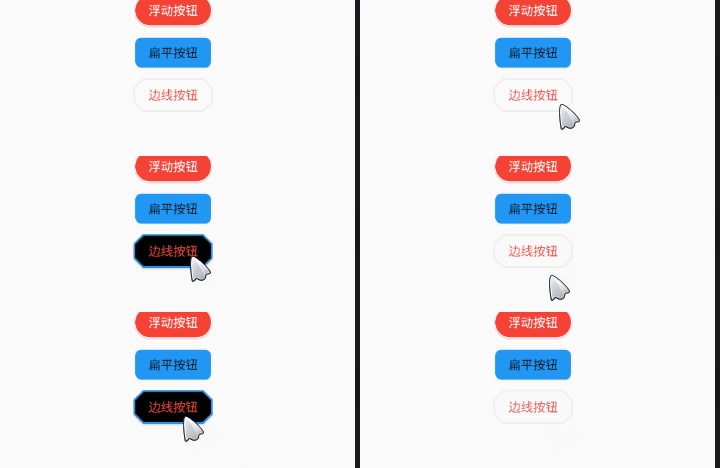
- OutlineButton:线框按钮(OutlineButton是一个有默认边线且背景透明的按钮,也就是说我们设置其边线和颜色是无效的,其他属性跟MaterialButton中属性基本一致)
- 构造函数
const OutlineButton({

    Key key,

    @required VoidCallback onPressed,

    ButtonTextTheme textTheme,

    Color textColor,

    Color disabledTextColor,

    Color color,

    Color focusColor,

    Color hoverColor,

    Color highlightColor,

    Color splashColor,

    double highlightElevation,

    this.borderSide,

    this.disabledBorderColor,

    this.highlightedBorderColor,

    EdgeInsetsGeometry padding,

    ShapeBorder shape,

    Clip clipBehavior,

    FocusNode focusNode,

    Widget child,

  }) : assert(highlightElevation == null || highlightElevation >= 0.0),

       super(

         key: key,

         onPressed: onPressed,

         textTheme: textTheme,

         textColor: textColor,

         disabledTextColor: disabledTextColor,

         color: color,

         focusColor: focusColor,

         hoverColor: hoverColor,

         highlightColor: highlightColor,

         splashColor: splashColor,

         highlightElevation: highlightElevation,

         padding: padding,

         shape: shape,

         clipBehavior: clipBehavior,

         focusNode: focusNode,

         child: child,

); - code
/*带边线的按钮*/

class outlineBtn extends StatelessWidget {

  _log() {

    print("点击了边线按钮");

  }

  @override

  Widget build(BuildContext context) {

    // TODO: implement build

    return OutlineButton(

      onPressed: _log,

      child: Text("边线按钮"),

      textColor: Colors.red,

      splashColor: Colors.green,

      highlightColor: Colors.black,

      shape: BeveledRectangleBorder(

        side: BorderSide(

          color: Colors.red,

          width: ,

        ),

        borderRadius: BorderRadius.circular(),

      ),

    );

  }

} - 效果
- 构造函数
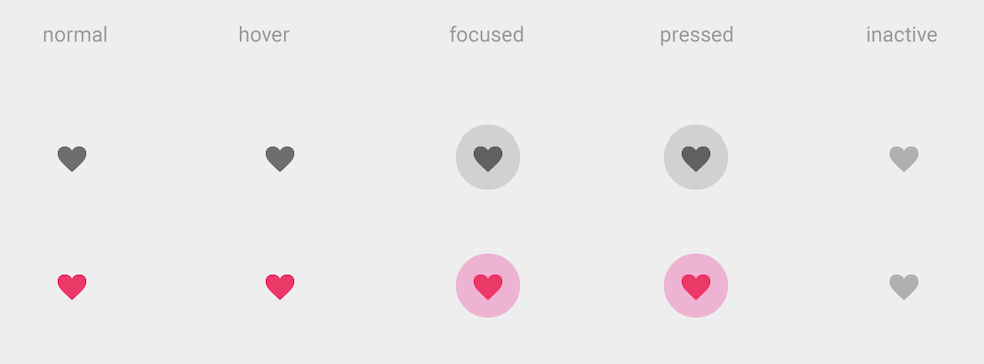
- IconButton : 图标按钮(图标按钮,按下时会产生水波纹效果)
- 构造函数
IconButton({

//这几个属性跟前面讲的几个差不多,这里就不再讲了。如有疑问,请留言。

    Key key,

    this.iconSize = 24.0,

    this.padding = const EdgeInsets.all(8.0),

    this.alignment = Alignment.center,

    @required this.icon,

    this.color,

    this.highlightColor,

    this.splashColor,

    this.disabledColor,

    @required this.onPressed,

    this.tooltip

}) - 示例图
- 效果

- 构造函数
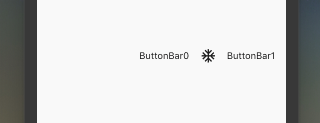
- ButtonBar: 按钮组(水平排列的按钮组)
- 构造函数
const ButtonBar({

    Key key,

//子组件的间隔样式

    this.alignment = MainAxisAlignment.end,

    this.mainAxisSize = MainAxisSize.max,

//子children

    this.children = const <Widget>[],

  })
code
class FlutterButtonBar extends StatelessWidget {

  @override

  Widget build(BuildContext context) {

    return ButtonBar(children: <Widget>[

      Text("ButtonBar0"),

      Icon(Icons.ac_unit),

      Text("ButtonBar1")

    ], );

  }

}
效果
- 构造函数
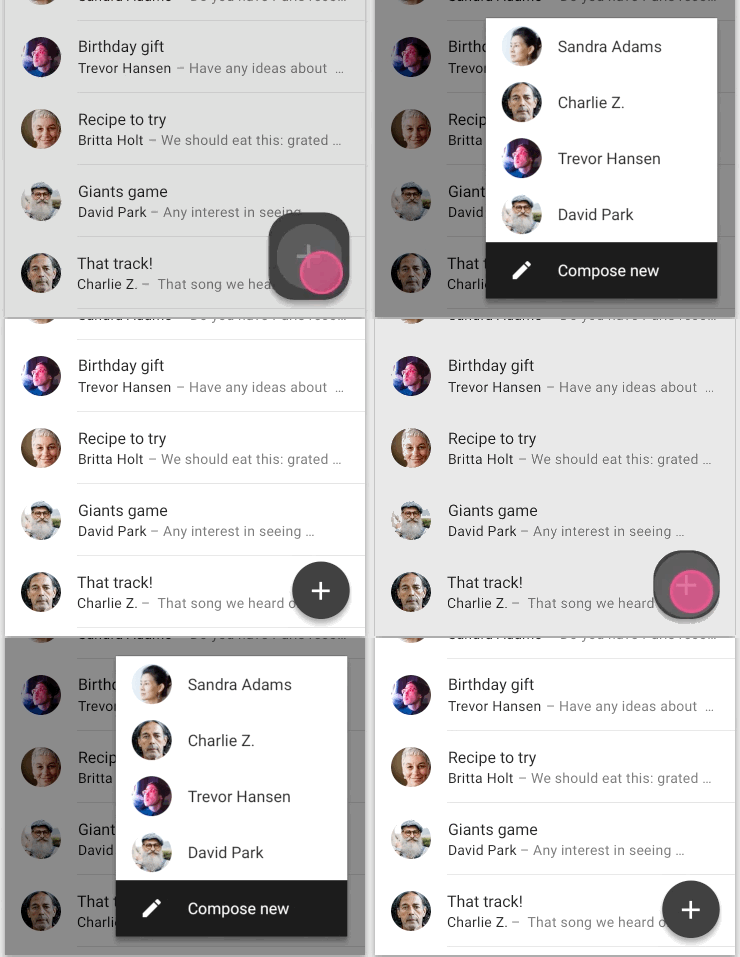
- FloatingActionButton:浮动按钮
- 构造函数
FloatingActionButton({

    Key key,

    //  按钮上的组件,可以是Text、icon, etc.

    this.child,

    //长按提示

    this.tooltip,

    // child的颜色(尽在child没有设置颜色时生效)

    this.foregroundColor,

    //背景色,也就是悬浮按键的颜色

    this.backgroundColor,

    this.heroTag = const _DefaultHeroTag(),

    //阴影长度

    this.elevation = 6.0,

    //高亮时阴影长度

    this.highlightElevation = 12.0,

    //按下事件回调

    @required this.onPressed,

    //是小图标还是大图标

    this.mini = false,

    //按钮的形状(例如:矩形Border,圆形图标CircleBorder)

    this.shape = const CircleBorder(),

    this.clipBehavior = Clip.none,

    this.materialTapTargetSize,

    this.isExtended = false,

}) - code
FloatingActionButton(

      child: Icon(Icons.access_alarm),

      tooltip: "ToolTip",

      foregroundColor: Colors.white,

      backgroundColor: Colors.deepPurple,

      shape: const Border(),

      onPressed: () {

        //click callback

      },

) - 效果
- 构造函数
【Flutter学习】基本组件之基本按钮组件的更多相关文章
- Flutter学习笔记(11)--文本组件、图标及按钮组件
如需转载,请注明出处:Flutter学习笔记(10)--容器组件.图片组件 文本组件 文本组件(text)负责显示文本和定义显示样式,下表为text常见属性 Text组件属性及描述 属性名 类型 默认 ...
- Flutter学习笔记(10)--容器组件、图片组件
如需转载,请注明出处:Flutter学习笔记(10)--容器组件.图片组件 上一篇Flutter学习笔记(9)--组件Widget我们说到了在Flutter中一个非常重要的理念"一切皆为组件 ...
- Flutter学习笔记(12)--列表组件
如需转载,请注明出处:Flutter学习笔记(12)--列表组件 在日常的产品项目需求中,经常会有列表展示类的需求,在Android中常用的做法是收集数据源,然后创建列表适配器Adapter,将数据源 ...
- 22Flutter中的常见的按钮组件 以及自定义按钮组件
/* Flutter中的常见的按钮组件 以及自定义按钮组件 一.Flutter中的按钮组件介绍 Flutter里有很多的Button组件,常见的按钮组件有:RaisedButton/FlatButto ...
- Flutter 中的常见的按钮组件 以及自定义按钮组件
Flutter 里有很多的 Button 组件很多,常见的按钮组件有:RaisedButton.FlatButton. IconButton.OutlineButton.ButtonBar.Float ...
- Flutter学习(一)之MaterialApp和Scaffold组件使用详解
一,前言: MaterialApp和Scaffold是Flutter提供的两个Widget,其中: MaterialApp是一个方便的Widget,它封装了应用程序实现Material Design所 ...
- Flutter——FloatingActionButton组件(浮动按钮组件)
FloatingActionButton 简称 FAB ,可以实现浮动按钮,也可以实现类似闲鱼 app 的地步凸起导航. 属性名称 属性值 child 子视图,一般为 Icon,不推荐使用文字 ...
- Flutter学习笔记(9)--组件Widget
如需转载,请注明出处:Flutter学习笔记(9)--组件Widget 在Flutter中,所有的显示都是Widget,Widget是一切的基础,我们可以通过修改数据,再用setState设置数据(调 ...
- 第二百零七节,jQuery EasyUI,MenuButton(菜单按钮)组件
jQuery EasyUI,MenuButton(菜单按钮)组件 学习要点: 1.加载方式 2.属性列表 3.方法列表 本节课重点了解 EasyUI 中 MenuButton(菜单按钮)组件的使用方法 ...
随机推荐
- Ceph介绍及原理架构分享
https://www.jianshu.com/p/cc3ece850433 1. Ceph架构简介及使用场景介绍 1.1 Ceph简介 Ceph是一个统一的分布式存储系统,设计初衷是提供较好的性能. ...
- webpack 兼容低版本浏览器,转换ES6 ES7语法
ES6,ES7真的太棒了,async +await+Promise,让我阅读代码的时候不用再从左拉到右了(异步太多,一层套一层真的太头痛) 但是有个问题,打包后低版本浏览器运行不了,还有我用了一些混淆 ...
- 前端每日实战:57# 视频演示如何用纯 CSS 创作一双黑暗中的眼睛
效果预览 按下右侧的"点击预览"按钮可以在当前页面预览,点击链接可以全屏预览. https://codepen.io/comehope/pen/xzYVzO 可交互视频 此视频是可 ...
- raid 10
首先先创建五个新的硬盘,步骤参照 raid 5 建好硬盘以后开启虚拟机 打开终端,更改好主机名以后,重新打开终端 输入命令:fdisk -l 查看有没有加入进来 我们发现已经加入进来 然后开始分 ...
- 以您熟悉的编程语言为例完成一个hello/hi的简单的网络聊天程序
Socket通常也称作"套接字",用于描述IP地址和端口,是一个通信链的句柄,可以用来实现不同虚拟机或不同计算机之间的通信,应用程序通常通过"套接字"向网络发出 ...
- Django框架(二十三)—— Django rest_framework-解析器
解析器 一.解析器的作用 根据请求头 content-type 选择对应的解析器对请求体内容进行处理,将传过来的数据解析成字典 二.使用解析器 1.局部使用 在视图类中重定义parser_classe ...
- leetcode python翻转字符串里的单词
# Leetcode 151 翻转字符串里的单词### 题目描述给定一个字符串,逐个翻转字符串中的每个单词. **示例1:** 输入: "the sky is blue" 输出: ...
- Spring Boot控制上传文件大小
spring: http: multipart: max-file-size: 5MB max-request-size: 20MB
- JPA 派生标识符的两种实现方式
方法一:@Entity@IdClass(ModuleId.class)public class Module { @Id private Integer index; @Id @ManyToOne p ...
- C# winform 文件管理
1.FolderBrowserDialog 打开文件夹中默认路径下的excl文件 private void button7_Click(object sender, EventArgs e) { Fo ...