
LiveCharts文档-3开始-8自定义工具提示
LiveCharts文档-3开始-8自定义工具提示
默认每个需要tooltip或者legend的chart都会初始化一个DefaultLengend和DefaultTooltip对象。
自定义默认
你可以用下面的类来自定义一小部分,比如背景颜色,指示块尺寸方向。
cartesianChart1.Datatooltip.Bulletize = 20;

cartesianChart1.DataTooltip.Background = Brushes.Red;
你也可以设置你的tooltip的选择模式,比如,用下面的代码我们可以强制让tooltip只在鼠标悬停的时候显示。
cartesianChart1.DataTooltip.SelectionMode = LiveCharts.TooltipSelectionMode.OnlySender;从头开始
当你需要自定义图表控件外观的时候,直接使用前面的代码就可以了,但是怎么来修改提示中的数据显示方式呢,或者在工具提示中显示额外的属性呢?
很可惜,在WinForms中没有原生的方式来显示,但鉴于LiveCharts.Winforms其实是LiveCharts.Wpf的包装器,你必须自定义一个Wpf控件来使它起作用,很简单,你不需要知道太多wpf的东西就可以让它工作。
DefaultTooltip和DefaultLengen类对所有例子都适用,如果你需要一个特定的控件,你可以很容易的自定义一个,当你创建一个自定义用户控件的时候,LiveCharts能够将用户需要的数据显示在tooltip当中,你需要根据你的需要来处理数据如何显示,如果你懂wpf,那么你可以做任何设定。
下一个例子,我们将配置图表来绘制CustomeVm类,我们将创建一个自定义的tooltip来显示更多的客户属性。
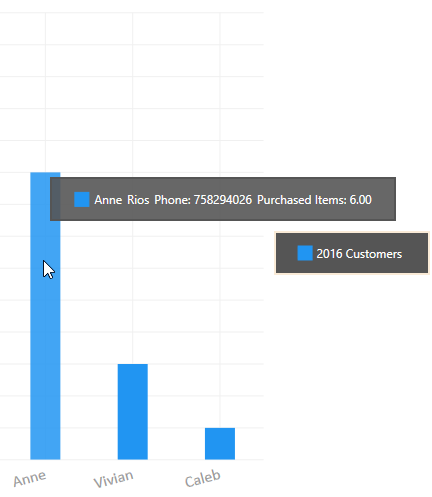
右击解决方案管理器,添加一个类,如下:
namespace Wpf.CartesianChart.CustomTooltipAndLegend

{

    public class CustomerVm

    {

        public string Name { get; set; }

        public string LastName { get; set; }

        public int Phone { get; set; }

        public int PurchasedItems { get; set; }

    }

}现在我们就要构造自己的数据工具提示,工具提示会显示所有CustomVm属性,右键添加新的WPF用户控件,命名它为CustomerTooltip,内容如下:
<UserControl x:Class="Wpf.CartesianChart.CustomTooltipAndLegend.CustomersTooltip"

             xmlns="http://schemas.microsoft.com/winfx/2006/xaml/presentation"

             xmlns:x="http://schemas.microsoft.com/winfx/2006/xaml"

             xmlns:mc="http://schemas.openxmlformats.org/markup-compatibility/2006"

             xmlns:d="http://schemas.microsoft.com/expression/blend/2008"

             xmlns:wpf="clr-namespace:LiveCharts.Wpf;assembly=LiveCharts.Wpf"

             xmlns:local="clr-namespace:Wpf.CartesianChart.CustomTooltipAndLegend"

             mc:Ignorable="d"

             d:DesignHeight="300" d:DesignWidth="300"

             d:DataContext="{d:DesignInstance local:CustomersTooltip}"

             Background="#E4555555" Padding="20 10" BorderThickness="2" BorderBrush="#555555">

    <ItemsControl ItemsSource="{Binding Data.Points}" Grid.IsSharedSizeScope="True">

        <ItemsControl.ItemTemplate>

            <DataTemplate DataType="{x:Type wpf:DataPointViewModel}">

                <Grid Margin="2">

                    <Grid.ColumnDefinitions>

                        <ColumnDefinition Width="Auto"/>

                        <ColumnDefinition Width="Auto" SharedSizeGroup="Title"/>

                        <ColumnDefinition Width="Auto" SharedSizeGroup="LastName"/>

                        <ColumnDefinition Width="Auto" SharedSizeGroup="Phone"/>

                        <ColumnDefinition Width="Auto" SharedSizeGroup="PurchasedItems"/>

                    </Grid.ColumnDefinitions>

                    <Rectangle Grid.Column="0" Stroke="{Binding Series.Stroke}" Fill="{Binding Series.Fill}"

                               Height="15" Width="15"></Rectangle>

                    <TextBlock Grid.Column="1" Text="{Binding ChartPoint.Instance.(local:CustomerVm.Name)}"

                               Margin="5 0 0 0" VerticalAlignment="Center" Foreground="White"/>

                    <TextBlock Grid.Column="2" Text="{Binding ChartPoint.Instance.(local:CustomerVm.LastName)}"

                               Margin="5 0 0 0" VerticalAlignment="Center" Foreground="White"/>

                    <TextBlock Grid.Column="3" Text="{Binding ChartPoint.Instance.(local:CustomerVm.Phone),

                                                        StringFormat=Phone: {0}}"

                               Margin="5 0 0 0" VerticalAlignment="Center" Foreground="White"/>

                    <TextBlock Grid.Column="4" Text="{Binding ChartPoint.Instance.(local:CustomerVm.PurchasedItems),

                                                                StringFormat=Purchased Items: {0:N}}"

                               Margin="5 0 0 0" VerticalAlignment="Center" Foreground="White"/>

                </Grid>

            </DataTemplate>

        </ItemsControl.ItemTemplate>

    </ItemsControl>

</UserControl>
后台代码如下:
using System.ComponentModel;

using LiveCharts;

using LiveCharts.Wpf;

namespace Wpf.CartesianChart.CustomTooltipAndLegend

{

    public partial class CustomersTooltip : IChartTooltip

    {

        private TooltipData _data;

        public CustomersTooltip()

        {

            InitializeComponent();

            //LiveCharts will inject the tooltip data in the Data property

            //your job is only to display this data as required

            DataContext = this;

        }

        public event PropertyChangedEventHandler PropertyChanged;

        public TooltipData Data

        {

            get { return _data; }

            set

            {

                _data = value;

                OnPropertyChanged("Data");

            }

        }

        public TooltipSelectionMode? SelectionMode { get; set; }

        protected virtual void OnPropertyChanged(string propertyName = null)

        {

            if (PropertyChanged != null)

                PropertyChanged.Invoke(this, new PropertyChangedEventArgs(propertyName));

        }

    }

}最重要的是,自定义的CustomersTooltip实现了IChartTooltip接口,这个接口需要我们的用户控件实现INotifyPropertyChanged以及一个新的属性数据类型TooltipData,
LiveCharts将会注入所有它知道的当前点并显示在tooltip中,你的任务就是显示你需要的数据。
注意到我们在用户控件中使用了一个DataContext属性,并绑定Data.Points属性到我们的项目控件中来显示当前我们需要的点。添加一个自定义用户控件,命名为CustomersLegend,道理是一样的,你需要实现IChartLegend接口来处理被Livecharts注入的数据。
我们再来创建一个自定义的Legend,用自定义样式,
<UserControl x:Class="Wpf.CartesianChart.CustomTooltipAndLegend.CustomersLegend"

             xmlns="http://schemas.microsoft.com/winfx/2006/xaml/presentation"

             xmlns:x="http://schemas.microsoft.com/winfx/2006/xaml"

             xmlns:mc="http://schemas.openxmlformats.org/markup-compatibility/2006"

             xmlns:d="http://schemas.microsoft.com/expression/blend/2008"

             xmlns:local="clr-namespace:Wpf.CartesianChart.CustomTooltipAndLegend"

             xmlns:lvc="clr-namespace:LiveCharts.Wpf;assembly=LiveCharts.Wpf"

             mc:Ignorable="d"

             Background="#555555" BorderThickness="2" Padding="20 10" BorderBrush="AntiqueWhite"

             d:DataContext="{d:DesignInstance local:CustomersLegend}">

    <ItemsControl ItemsSource="{Binding Series}" Grid.IsSharedSizeScope="True">

        <ItemsControl.ItemTemplate>

            <DataTemplate DataType="{x:Type lvc:SeriesViewModel}">

                <Grid Margin="2">

                    <Grid.ColumnDefinitions>

                        <ColumnDefinition Width="Auto"/>

                        <ColumnDefinition Width="Auto" SharedSizeGroup="Title"/>

                    </Grid.ColumnDefinitions>

                    <Rectangle Grid.Column="0" Stroke="{Binding Stroke}" Fill="{Binding Fill}"

                               Width="15" Height="15"/>

                    <TextBlock Grid.Column="1" Margin="4 0" Text="{Binding Title}" Foreground="White" VerticalAlignment="Center" />

                </Grid>

            </DataTemplate>

        </ItemsControl.ItemTemplate>

    </ItemsControl>

</UserControl>
using System.Collections.Generic;
using System.ComponentModel;
using System.Windows.Controls;
using LiveCharts.Wpf;
namespace Wpf.CartesianChart.CustomTooltipAndLegend
{
public partial class CustomersLegend : UserControl, IChartLegend
{
private List<SeriesViewModel> _series;
public CustomersLegend()
{
InitializeComponent();
DataContext = this;
}
public List<SeriesViewModel> Series
{
get { return _series; }
set
{
_series = value;
OnPropertyChanged("Series");
}
}
public event PropertyChangedEventHandler PropertyChanged;
protected virtual void OnPropertyChanged(string propertyName = null)
{
if (PropertyChanged != null)
PropertyChanged.Invoke(this, new PropertyChangedEventArgs(propertyName));
}
}
}最后把自定的控件设定到我们的图表上就可以了。
cartesianChart1.ChartLegend = new CustomersLegend();

cartesianChart1.DataTooltip = new CustomersTooltip();
LiveCharts文档-3开始-8自定义工具提示的更多相关文章
- LiveCharts文档-3开始-7标签
原文:LiveCharts文档-3开始-7标签 LiveCharts文档-3开始-7标签 Label就是Chart中表示数值的字符串,通常被放置在轴的位置和提示当中. 下图中的这些字符串显示的都是标签 ...
- LiveCharts文档-3开始-6轴Axes
原文:LiveCharts文档-3开始-6轴Axes LiveCharts文档-3开始-6轴Axes 通常来说,你可以自定义LiveChart里的任何东西,Axes也不例外.下面这幅图展示了Axes. ...
- LiveCharts文档-3开始-4可用的图表
原文:LiveCharts文档-3开始-4可用的图表 LiveCharts文档-3开始-4可用的图表 LiveCharts共有5类图表,你将会在后面的章节当中看到这些图表的使用方法. Cartesia ...
- LiveCharts文档-3开始-2基础
原文:LiveCharts文档-3开始-2基础 LiveCharts文档-3开始-2基础 基本使用 LiveCharts设计的很容易使用,所有的东西都可以自动的实现更新和动画,库会在它觉得有必要更新的 ...
- LiveCharts文档-3开始-3类型和设置
原文:LiveCharts文档-3开始-3类型和设置 LiveCharts文档-3开始-3类型和设置 类型和设置 这一部分非常的重要,涉及到LiveCharts的基本构成单元的介绍 LiveChart ...
- LiveCharts文档-4基本绘图-3其他
原文:LiveCharts文档-4基本绘图-3其他 4基本绘图-3其他 因为每个图表的使用方法大同小异,所以不再啰嗦重复,具体直接看这个链接里的介绍.原文链接 其他的图表类型有 基本堆叠图 基本条形图 ...
- LiveCharts文档-4基本绘图-1基本线条图
原文:LiveCharts文档-4基本绘图-1基本线条图 4基本绘图-1基本线条图 using System; using System.Windows.Forms; using System.Win ...
- LiveCharts文档-4基本绘图-2基本柱形图
原文:LiveCharts文档-4基本绘图-2基本柱形图 4基本绘图-2基本柱形图 using System.Windows.Forms; using LiveCharts; using LiveCh ...
- LiveCharts文档-3开始-5序列Series
原文:LiveCharts文档-3开始-5序列Series LiveCharts文档-3开始-5序列Series Strokes和Fills 笔触和填充 所有的Series都有笔触和填充属来处理颜色, ...
随机推荐
- NopCommerce 根据手机浏览器和桌面浏览器切换 Theme
自从 NopCommerce 升级到 3.x 以来,默认的 ViewName.Mobile.cshtml 方式就被响应式的默认 Theme 取代了. 但是在今天各种手机专用前端库大行其道的情况下,响应 ...
- MySQL MySql连接数与线程池
MySql连接数与线程池 by:授客 QQ:1033553122 连接数 1. 查看允许的最大并发连接数 SHOW VARIABLES LIKE 'max_connections'; 2. 修改最 ...
- wap2app(六)-- wap2app的原生标题头无法隐藏
大概有一个星期没有用HBuilder打包,今天更新了HBuilder版本再继续打包,就出现了一系列问题.其中有一个就是打包之后,除首页外,其他页面多出了原生标题,如下图: 查阅资料,打开 sitema ...
- (后端)java回调机制
转自强哥: 所谓回调,就是客户程序C调用服务程序S中的某个函数A,然后S又在某个时候反过来调用C中的某个函数B,对于C来说,这个B便叫做回调函数.例如Win32下的窗口过程函数就是一个典型的回调函数. ...
- django —— MVT模型
转载----
- 转载------------C函数之memcpy()函数用法
转载于http://blog.csdn.net/tigerjibo/article/details/6841531 函数原型 void *memcpy(void*dest, const void *s ...
- javascript中获取元素尺寸
Javascript获取获取屏幕.浏览器窗口 ,浏览器,网页高度.宽度的大小 屏幕可用工作区宽度:window.screen.availHeight,和浏览器无关,屏幕相关屏幕可用工作区高度:wind ...
- 【Beta Scrum】冲刺! 1/5
0. Alpha阶段遗留问题 项目 功能/页面 功能/页面 WEB端 图片在线编辑 文件上传跨域问题 app端 作业展示页面 1. Beta计划表 功能 说明 web端 登录 完成web端登录页面及功 ...
- 这不是我想要的ABAP开发者
原文在此: These Aren’t the Developers You’re Looking for 在吃饼干的过程中偶然看到这篇文章,立刻被UC化的标题吸引到了. 全文读完,感觉作者还是有点刻薄 ...
- vue框架简介
MVVM框架概述 什么是vue 是一套构建用户界面的渐进式(用到哪一块就用哪一块,不需要全部用上)前端框架,Vue 的核心库只关注视图层 vue的兼容性 Vue.js 不支持 IE8 及其以下版本,因 ...