
vsftpd for Anonymous Downloads on Ubuntu 16.04
Introduction
FTP, short for File Transfer Protocol, is a network protocol that was once widely used for moving files between a client and server. It has since been replaced by faster, more secure, and more convenient ways of delivering files. Many casual Internet users expect to download directly from their web browser with https and command-line users are more likely to use secure protocols such as the scp or sFTP.
FTP is often used to support legacy applications and workflows with very specific needs. If you have a choice of what protocol to use, consider exploring the more modern options. When you do need FTP, though, vsftpd is an excellent choice. Optimized for security, performance and stability, vsftpd offers strong protection against many security problems found in other FTP servers and is the default for many Linux distributions.
In this tutorial, we'll show you how to set up vsftpd for an anonymous FTP download site intended to widely distribute public files. Rather than using FTP to manage the files, local users with sudo privileges are expected to use scp, sFTP, or any other secure protocol of their choice to transfer and maintain files.
Prerequisites
To follow along with this tutorial you will need:
- An Ubuntu 16.04 server with a non-root user with
sudoprivileges: You can learn more about how to set up a user with these privileges in our Initial Server Setup with Ubuntu 16.04 guide.
Once you have the server in place, you're ready to begin.
Step 1 — Installing vsftpd
We'll start by updating our package list and installing the vsftpd daemon:
- sudo apt-get update
- sudo apt-get install vsftpd
When the installation is complete, we'll copy the configuration file so we can start with a blank configuration, saving the original as a backup.
- sudo cp /etc/vsftpd.conf /etc/vsftpd.conf.orig
With a backup of the configuration in place, we're ready to configure the firewall.
Step 2 — Opening the Firewall
First, let’s check the firewall status to see if it’s enabled and if so, to see what's currently permitted so that when it comes time to test the configuration, you won’t run into firewall rules blocking you.
- sudo ufw status
In our case, we see the following:
Output

Output

Status: active

To Action  From

-- ------  ----

OpenSSH ALLOW   Anywhere

OpenSSH (v6)   ALLOW   Anywhere (v6)
You may have other rules in place or no firewall rules at all. In this example, only ssh traffic is permitted, so we’ll need to add rules for FTP traffic.
With many applications, you can use sudo ufw app list and enable them by name, but FTP is not one of those. Because ufw also checks /etc/services for the port and protocol of a service, we can still add FTP by name. We need both ftp-data on port 20 and ftp (for commands) on port 21:
- sudo ufw allow ftp-data
- sudo ufw allow ftp
- sudo ufw status
Now our firewall rules looks like:
Output

Status: active

To Action  From

-- ------  ----

OpenSSH  ALLOW   Anywhere

21/tcp ALLOW   Anywhere

20/tcp ALLOW   Anywhere

OpenSSH (v6)   ALLOW   Anywhere (v6)

21/tcp (v6)ALLOW   Anywhere (v6)

20/tcp (v6)ALLOW   Anywhere (v6)
With vsftpd installed and the necessary ports open, we're ready to proceed.
Step 3 — Preparing Space for Files
First, we'll create the directory where we plan to host the files, using the -p flag to create the intermediate directory. The directory structure will allow you to keep all the FTP directories together and later add other folders that require authentication:
- sudo mkdir -p /var/ftp/pub
Next, we'll set the directory permissions to nobody:nogroup. Later, we'll configure the FTP server to show all files as being owned by the ftp user and group.
- sudo chown nobody:nogroup /var/ftp/pub
Finally, we'll make a file in the directory for testing later.
- echo "vsftpd test file" | sudo tee /var/ftp/pub/test.txt
With this sample file in place, we're ready to configure the vsftpd daemon.
Step 4 — Configuring Anonymous Access
We're setting up for users with sudo privileges to maintain files for wide distribution to the public. To do this, we'll configure vsftpd to allow anonymous downloading. We'll expect the file administrators to use scp, sftp or any other secure method to maintain files, so we will not enable uploading files via FTP.
The configuration file contains some of the many configuration options for vsftpd.
We'll start by changing ones that are already set:
- sudo nano /etc/vsftpd.conf
Find the following values and edit them so they match the values below:
. . .

# Allow anonymous FTP? (Disabled by default).

anonymous_enable=YES

#

We’ll set the local_enable setting to “NO” because we’re not going to allow users with local accounts to upload files via FTP. The comment in the configuration file can be a little confusing, too, because the line is uncommented by default.

# Uncomment this to allow local users to log in.

local_enable=NO

. . .
In addition to changing existing settings, we're going to add some additional configuration.
Note: You can learn about the full range of options with the man vsftpd.conf command.
Add these settings to the configuration file. They are not dependent on the order, so you can place them anywhere in the file.
#

# Point users at the directory we created earlier.

anon_root=/var/ftp/

#

# Stop prompting for a password on the command line.

no_anon_password=YES

#

# Show the user and group as ftp:ftp, regardless of the owner.

hide_ids=YES

#

# Limit the range of ports that can be used for passive FTP

pasv_min_port=40000

pasv_max_port=50000
Note: If you are using UFW, these settings work as-is. If you're using Iptables, you may need to add rules to open the ports you specify between pasv_min_port and pasv_max_port.
Once those are added, save and close the file. Then, restart the daemon with the following command:
- sudo systemctl restart vsftpd
systemctl doesn't display the outcome of all service management commands, so if you want to be sure you've succeeded, use the following command:
- sudo systemctl status vsftpd
If the final line says look like the following, you've succeeded:
Output

Aug 17 17:49:10 vsftpd systemd[1]: Starting vsftpd FTP server...

Aug 17 17:49:10 vsftpd systemd[1]: Started vsftpd FTP server.
Now we're ready to test our work.
Step 5 — Testing Anonymous Access
From a web browser enter ftp:// followed by the IP address of your server.
ftp://203.0.113.0
If everything is working as expected, you should see the pub directory:

You should also be able to click into pub, see test.txt, then right-click to save the file.
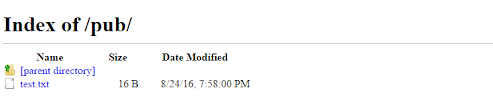
You can also test from the command-line, which will give much more feedback about your configuration. We’ll ftp to the server in passive mode, which is the -p flag on many command-line clients. Passive mode allows users to avoid changing local firewall configurations to permit the server and client to connect.
Note: The native Windows command-line FTP client, ftp.exe, does not support passive mode at all. Windows users may want to look into another Windows FTP client such as WinSCP.
- ftp -p 203.0.113.0
When prompted for a username, you can enter either "ftp" or "anonymous". They’re equivalent, so we’ll use the shorter "ftp":
Connected to 203.0.113.0.

220 (vsftpd 3.0.3)

Name (203.0.113.0:21:sammy): ftp
After pressing enter, you should receive the following:
Output

230 Login successful.

Remote system type is UNIX.

Using binary mode to transfer files.

ftp>
Ensure that passive mode is working as expected:
- ls
Output

227 Entering Passive Mode (45,55,187,171,156,74).

150 Here comes the directory listing.

drwxr-xr-x    2 ftp      ftp          4096 Aug 17 19:30 pub

226 Directory send OK.
As the anonymous user, you should be able to transfer the file to your local machine with the getcommand:
- cd pub
- get test.txt
Output

ftp> get test.txt

227 Entering Passive Mode (45,55,187,171,156,73).

150 Opening BINARY mode data connection for test.txt (14 bytes).

226 Transfer complete.

16 bytes received in 0.0121 seconds (1325 bytes/s)
This output tells you that you've succeeded at downloading the file, and you can take a peek to see that it’s on your local file system if you like.
We also want to be sure anonymous users won’t be filling our file system, so to test, we will turn right around and try to put the same file back on the server, but with a new name.:
- put test.txt upload.txt
Output

227 Entering Passive Mode (104,236,10,192,168,254).

550 Permission denied.
Now that we’ve confirmed this, we’ll exit the monitor in preparation for the next step:
- bye
Now that we've confirmed the anonymous connection is working as expected, we'll turn our attention to what happens when user tries to connect.
Step 6 — Trying to Connect as a User
You might also want to be sure that you cannot connect as a user with a local account since this set up does not encrypt their login credentials. Instead of entering "ftp" or "anonymous" when you're prompted to log in, try using your sudo user:
- ftp -p 203.0.113.0
Output

Connected to 203.0.113.0:21.

220 (vsFTPd 3.0.3)

Name (203.0.113.0:21:your_user)

530 This FTP server is anonymous only.

ftp: Login failed.

ftp>
These tests confirm that you set up the system for anonymous downloading only.
Conclusion
In this tutorial we covered how to configure vsftpd for anonymous downloads only. This allows us to support legacy applications unable to use more modern protocols or widely-published FTP urls that would be difficult to update. To learn more about maintaining the files, How To Use SFTP to Securely Transfer Files with a Remote Server can guide you.
other than upload and create directory, such as deletion and renaming. This
is generally not recommended but included for completeness.
vsftpd for Anonymous Downloads on Ubuntu 16.04的更多相关文章
- 在 Ubuntu 16.04上安装 vsFTPd
在 Ubuntu 16.04上安装 vsFTPd Ubuntu vsFTPd 关于 vsFTPd vsFTPd 代表 Very Secure File Transfer Protocol Daemon ...
- Ubuntu 16.04 LAMP server 指南 - 配置 Apache2.4,PHP7,和MariaDB(而不是MySQL)
翻译自:https://www.howtoforge.com/tutorial/install-apache-with-php-and-mysql-on-ubuntu-16-04-lamp/ 昨天在虚 ...
- Ubuntu 16.04应用布署小记
本系列文章记录了升级Ubuntu 16.04的布署过程 回到目录 10. Dokuwiki 将虚拟目录配置文件链接到Apache2的可用的配置文件库中 sudo ln -s /opt/dokuwiki ...
- Ubuntu 16.04 LTS 安装 Nginx/PHP 5.6/MySQL 5.7 (LNMP) 与Laravel
Ubuntu 16.04 LTS 安装 Nginx/PHP 5.6/MySQL 5.7 (LNMP) 与Laravel 1.MySQL安装[安装 MariaDB]MariaDB是MySQL的一个分支首 ...
- Ubuntu 16.04安装搜狗输入法
转载: http://www.it610.com/article/5319575.htm 打开firefox浏览器,输入网址www.baidu.com,打开后搜索搜狗拼音 linux进入到搜狗拼音li ...
- Ubuntu 16.04配置OpenCV 3.1.0 for Java
我们都知道,OpenCV是基于C++的开源计算机视觉库,但是从2.4.4版本开始提供了Java绑定,也就是说,我们也可以使用Java来开发基于OpenCV的计算机视觉应用.目前,最新的版本是3.1.0 ...
- Ubuntu 16.04: How to resolve libqt5x11extras5 (>= 5.1.0) but it is not going to be installed
Issue: When you install Virtualbox 5.1 on Ubuntu 16.04, you may encounter following error: root@XIAY ...
- Linux/Ubuntu 16.04 安装编辑器 Sublime Text 3
在ubuntu 16.04 系统上使用Sublime Text 3 编辑文本还是不错的, 先到官网下载安装包,链接:http://www.sublimetext.com/3 ,下载对应的版本,64位或 ...
- [解决方案] Ubuntu 16.04 下 Qt 5.6 无法输入中文的问题
0. 环境 系统:ubuntu 16.04 LTS 机子:dell xps13 1. 步骤 1.1 编译 fcitx-qt5 源码 编译fcitx-qt需要cmake,安装cmake命令,如果已经安装 ...
随机推荐
- kao shi
1 #include "date.h" #include "utils.h" #include <iostream> using std::cout ...
- HAL库PWM
1.占空比控制 a.在CUBMX的TIM下选择时钟源,选择通道为模式PWM Generation ch1 ,设置分频系数,初始值,不需要自动重装载,选择PWM模式1或2,设置比较值pulse,设置初始 ...
- RocketMQ消息发送的队列选择与容错策略
一个topic有多个队列,分散在不同的broker.producer在发送消息的时候,需要选择一个队列 producer发送消息全局时序图: 队列选择与容错策略结论: 在不开启容错的情况下,轮询队列进 ...
- 《LeetBook》leetcode题解(5):Longest Palindromic [M]——回文串判断
我现在在做一个叫<leetbook>的免费开源书项目,力求提供最易懂的中文思路,目前把解题思路都同步更新到gitbook上了,需要的同学可以去看看 书的地址:https://hk029.g ...
- django notes 七:Using Forms
form 也没什么可说的,我只给一个例子大家就懂了 form model from django import forms class UserForm(forms.Form): username = ...
- python-多进程类封装
#!/usr/bin/python import multiprocessing,time class ClockProcess(multiprocessing.Process): def __ini ...
- WPF INotifyPropertyChanged
public class OrderModel:INotifyPropertyChanged { public string _oderID; public string OrderID; { get ...
- *2_3_5_加入reference model
摘自:http://book.2cto.com/201408/46009.html 在2.1节中讲述验证平台的框图时曾经说过,reference model用于完成和DUT相同的功能. referen ...
- [PY3]——合并多个字典或映射(collections模块中的ChainMap 类)
问题 现在有多个字典或者映射,你想将它们从逻辑上合并为一个单一的映射后执行某些操作, 比如查找值或者检查某些键是否存在. 解决方案 使用 collections 模块中的 ChainMap 类 Cha ...
- android studio的jni和so
1. android studio自己添加代码生成so 代码地址:https://github.com/maogefff/Android-Test-Sample/tree/master/MyJni 参 ...