
Entity Framework Tutorial Basics(5):Create Entity Data Model
Create Entity Data Model:
Here, we are going to create an Entity Data Model (EDM) for SchoolDB database and understand the basic building blocks.
Entity Data Model is a model that describes entities and the relationships between them. Let's create first simple EDM for SchoolDB database using Visual Studio 2012 and Entity Framework 6.
1. Open Visual Studio 2012 and create a console project.
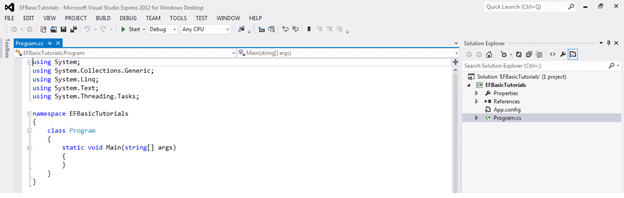
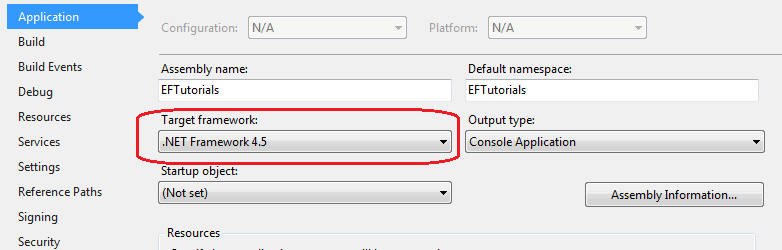
Go to PROJECT menu of visual studio -> {project name} properties - and make sure that the project's target framework is .NET Framework 4.5, as shown below.
2. Now, add Entity Data Model by right clicking on the project in the solution explorer -> Add -> click New Item and select ADO.NET Entity Data Model from popup, Give the new item the name 'School' and click Add button.

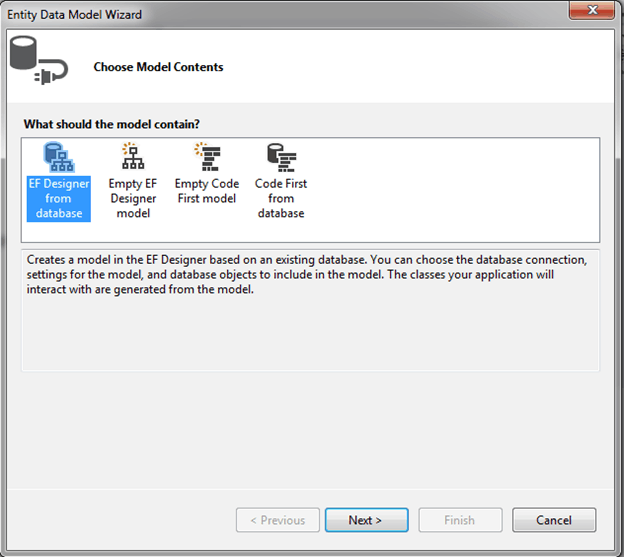
3. Entity Data Model Wizard in VS2012 opens with four options to select from: EF Designer from database for database first approach, Empty EF Designer model for model first approach, Empty Code First model and Code First from database for Code-First approach. We will focus on the database-first approach in the basic tutorials so select EF Designer from database option and clickNext.
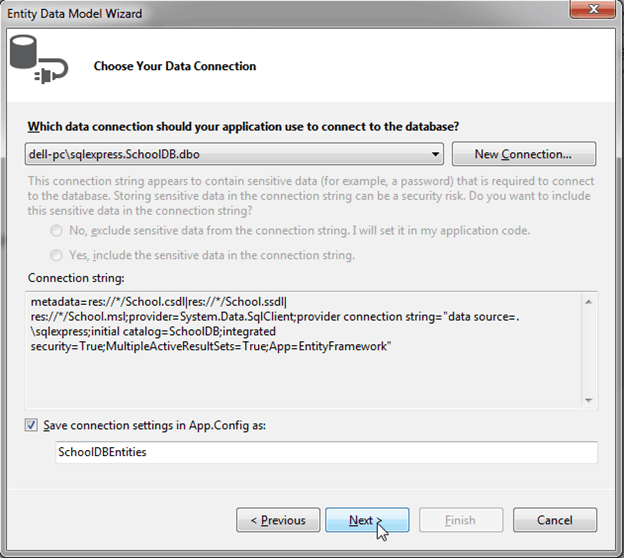
4. You can choose from your existing DB Connections or create a new connection by clicking on the 'New Connection' button. We will use the existing DB connection to the SchoolDB Database. This will also add a connection string to your app.config file with the default suffix with DB name. You can change this if you want. Click 'Next' after you set up your DB connection.
5. In this step, you need to choose the version of Entity Framework. We will use Entity Framework 6.0 in the basic tutorials so select Entity Framework 6.0 and click Next.
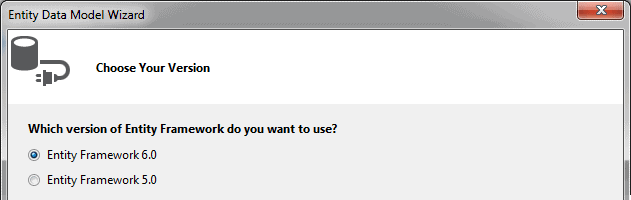
Note: If you have already installed the latest version of Entity Framework using NuGet manager as shown in the Setup Environment section then this step of the wizard will no longer appear since you have already installed Entity Framework.
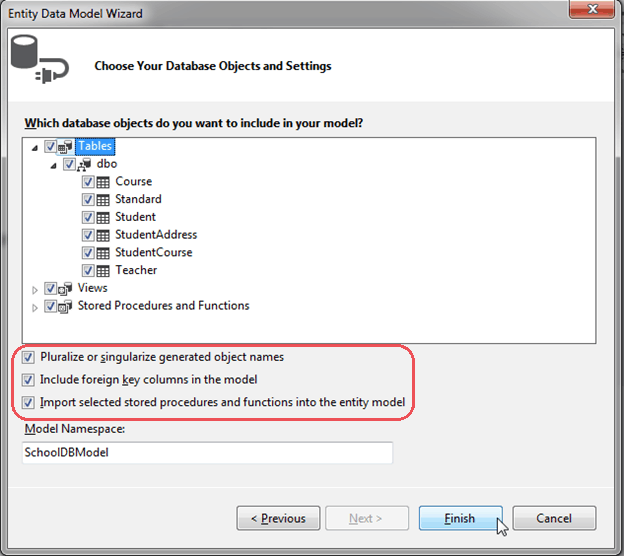
6. This step will display all the Tables, Views and Stored Procedures (SP) in the database. Select the Tables, Views and SPs you want, keep the default checkboxes selected and click Finish. You can change Model Namespace if you want.
 Note:
Note:
Pluralize or singularize generated object names checkbox singularizes an entityset name, if the table name in the database is plural. For example, if SchoolDB has Students table name then entityset would be singular Student. Similarly, relationships between the models will be pluralized if the table has one-to-many or many-to-many relationship with other tables. For example, Student has many-to-many relationship with Course table so Student entity set will have plural property name 'Courses' for the collection of courses.
The second checkbox, Include foreign key columns in the model, includes foreign key property explicitly to represent the foreign key. For example, Student table has one-to-many relationship with Standard table. So every student is associated with only one standard. To represent this in the model, Student entityset includes StandardId property with Standard navigation property. If this checkbox is unchecked then it will only include the Standard property, but not the StandardId in the Student entityset.
The third checkbox, Import selected stored procedures and functions into entity model, automatically creates Function Imports for the stored procedures and functions. You don't need to manually import this, as was necessary prior to Entity Framework 5.0.
7. After clicking on 'Finish', a School.edmx file will be added into your project.
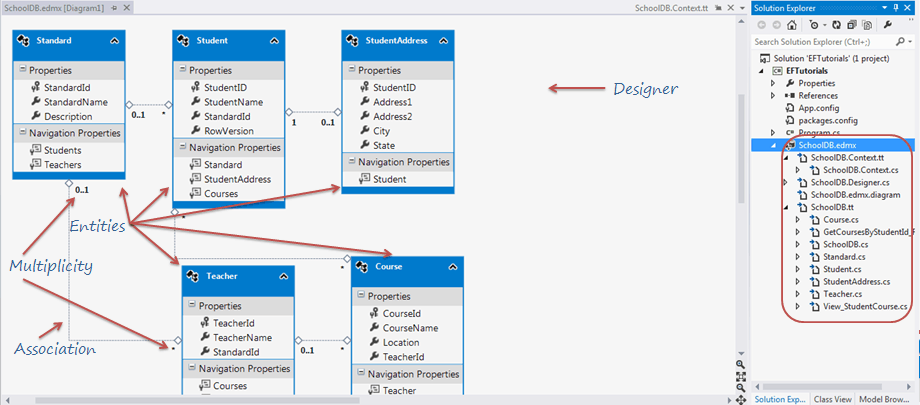
Open EDM designer by double clicking on School.edmx. This displays all the entities for selected tables and the relationships between them as shown below:
EDM also adds a connection string in the config file as shown below.
<?xml version="1.0"?>
<configuration>
<configSections>
<!-- For more information on Entity Framework configuration, visit http://go.microsoft.com/fwlink/?LinkID=237468 -->
<section name="entityFramework" type="System.Data.Entity.Internal.ConfigFile.EntityFrameworkSection, EntityFramework, Version=6.0.0.0, Culture=neutral, PublicKeyToken=b77a5c561934e089" requirePermission="false"/>
</configSections>
<startup>
<supportedRuntime version="v4.0" sku=".NETFramework,Version=v4.5"/>
</startup>
<entityFramework>
<defaultConnectionFactory type="System.Data.Entity.Infrastructure.SqlConnectionFactory, EntityFramework"/>
<providers>
<provider invariantName="System.Data.SqlClient" type="System.Data.Entity.SqlServer.SqlProviderServices, EntityFramework.SqlServer"/>
</providers>
</entityFramework>
<connectionStrings>
<add name="SchoolDBEntities" connectionString="metadata=res://*/SchoolDB.csdl|res://*/SchoolDB.ssdl|res://*/SchoolDB.msl;provider=System.Data.SqlClient;provider connection string="data source=.\sqlexpress;initial catalog=SchoolDB;integrated security=True;multipleactiveresultsets=True;application name=EntityFramework"" providerName="System.Data.EntityClient"/>
</connectionStrings>
</configuration>
In this way, you can create a simple EDM from your existing database.
Now, let's examine all the building blocks of generated EDM (School.edmx) as shown in the above figure.
Entity-Table Mapping:
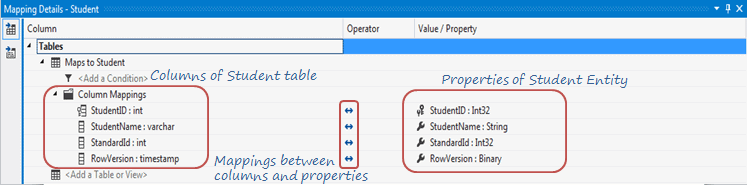
Each entity in EDM is mapped with the database table. You can check the entity-table mapping by right clicking on any entity in the EDM designer -> select Table Mapping. Also, if you change any property name of the entity from designer then the table mapping would reflect that change automatically.
Context & Entity Classes:
Every Entity Data Model generates one context class and entity class for each DB table included in the EDM. Expand School.edmx and see two important files, {EDM Name}.Context.tt and {EDM Name}.tt:
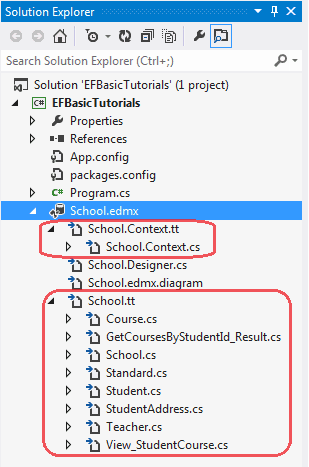
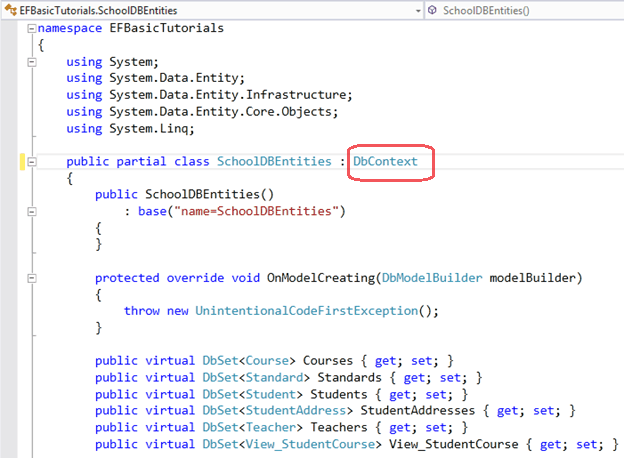
School.Context.tt: This T4 template file generates a context class whenever you change Entity Data Model (.edmx file). You can see the context class file by expanding School.Context.tt. The context class resides in {EDM Name}.context.cs file. The default context class name is {DB Name} + Entities. For example, the context class name for SchoolDB is SchoolDBEntities, then the context class is derived from DBContext class in Entity Framework. (Prior to EF 5.0 it had been derived from ObjectContext.)
School.tt: School.tt is a T4 template file that generates entity classes for each DB table. Entity classes are POCO (Plain Old CLR Object) classes. The following code snippet shows the Student entity.
public partial class Student

{

    public Student()

    {

        this.Courses = new HashSet<Course>();

    }

    public int StudentID { get; set; }

    public string StudentName { get; set; }

    public Nullable<int> StandardId { get; set; }

    public byte[] RowVersion { get; set; }

    public virtual Standard Standard { get; set; }

    public virtual StudentAddress StudentAddress { get; set; }

    public virtual ICollection<Course> Courses { get; set; }

}
EDM Designer: EDM designer represents your conceptual model. It consists of Entities, and associations & multiplicity between the entities. Initially, it will look exactly like your database table structure but you can add, merge or remove columns, which are not required by your application from this designer. You can even add a new object in this model, which can have columns from different database tables from context menu, as shown in the figure above. Remember, whatever changes done here should be mapped with the storage model. So you have to be careful, while making any changes in the designer.
You can open this EDM designer in XML view where you can see all the three parts of the EDM - Conceptual schema (CSDL), Storage schema (SSDL) and mapping schema (MSL), together in XML view.
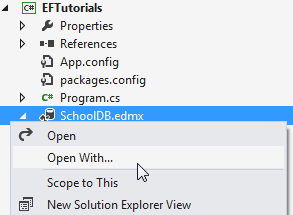
Right click on School.edmx -> click 'Open with..', this will open a popup window.
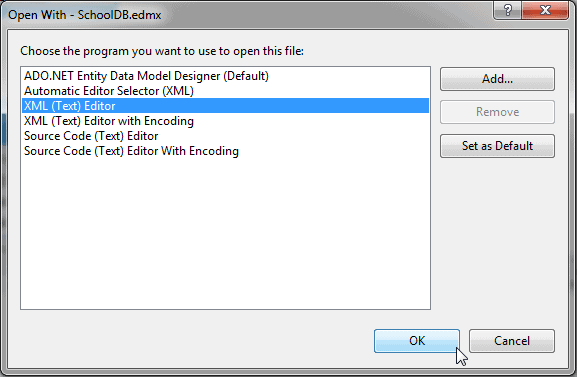
Select 'XML (text) Editor' in the popup window.
Visual Studio cannot display the model in Design view and in XML format at the same time, so you will see a message asking whether it’s OK to close the Design view of the model. Click Yes. This will open the XML format view. You can see the following XML view by toggling all outlining as shown below.
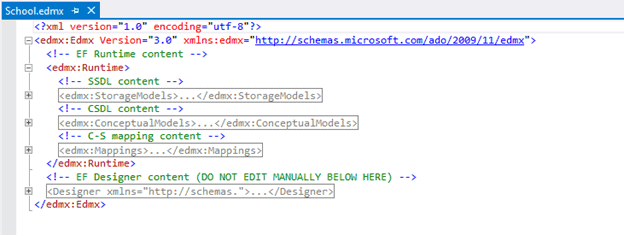
You can see SSDL content, CSDL content and C-S mapping content here. If you expand SSDL and CSDL, each one has some common XML node under each schema node. You don't need to edit the xml data because this can be accomplished easier in the Model Browser.
Learn about Model Browser in the next section.
Entity Framework Tutorial Basics(5):Create Entity Data Model的更多相关文章
- Entity Framework Tutorial Basics(4):Setup Entity Framework Environment
Setup Entity Framework Environment: Entity Framework 5.0 API was distributed in two places, in NuGet ...
- Entity Framework Tutorial Basics(42):Colored Entity
Colored Entity in Entity Framework 5.0 You can change the color of an entity in the designer so that ...
- Entity Framework Tutorial Basics(27):Update Entity Graph
Update Entity Graph using DbContext: Updating an entity graph in disconnected scenario is a complex ...
- Entity Framework Tutorial Basics(40):Validate Entity
Validate Entity You can write custom server side validation for any entity. To accomplish this, over ...
- Entity Framework Tutorial Basics(26):Add Entity Graph
Add Entity Graph using DbContext: Adding entity graph with all new entities is a simple task. We can ...
- Entity Framework Tutorial Basics(13):Database First
Database First development with Entity Framework: We have seen this approach in Create Entity Data M ...
- Entity Framework Tutorial Basics(1):Introduction
以下系列文章为Entity Framework Turial Basics系列 http://www.entityframeworktutorial.net/EntityFramework5/enti ...
- Entity Framework Tutorial Basics(32):Enum Support
Enum in Entity Framework: You can now have an Enum in Entity Framework 5.0 onwards. EF 5 should targ ...
- Entity Framework Tutorial Basics(31):Migration from EF 4.X
Migration from Entity Framework 4.1/4.3 to Entity Framework 5.0/6.0 To migrate your existing Entity ...
随机推荐
- uva120 Stacks of Flapjacks (构造法)
这个题没什么算法,就是想出怎么把答案构造出来就行. 思路:越大的越放在底端,那么每次就找出还没搞定的最大的,把它移到当前还没定好的那些位置的最底端,定好的就不用管了. 这道题要处理好输入,每次输入的一 ...
- 自定义php(NON-CORE WORDPRESS FILE) 引用 wordpress
在文件头头添加下面代码,实现此页面可以调用wordpress的内置方法 <?php $parse_uri = explode ( 'wp-content', $_SERVER ['SCRIPT_ ...
- PHP数据结构之实现单链表
学习PHP中,学习完语法,开始尝试实现数据结构,今天实现单链表 <?php class node //节点的数据结构 { public $id; public $name; public $ne ...
- 洛谷【P2024】[NOI2001]食物链
浅谈并查集:https://www.cnblogs.com/AKMer/p/10360090.html 题目传送门:https://www.luogu.org/problemnew/show/P202 ...
- jQuery中 :first、:first-child 和 :first-of-type 之间的不同
<!DOCTYPE html><html><head><meta charset="utf-8"><script src=&q ...
- c++11之二: 类成员变量初始化
在C++11中, 1.允许非静态成员变量的初始化有多种形式:初始化列表; 使用等号=或花括号{}进行就地的初始化. 可以为同一成员变量既声明就地的列表初始化,又在初始化列表中进行初始化,只不过初始化列 ...
- 判断唯一约束是否是唯一的Unique
//检查 唯一约束Name //检查 唯一约束Name int count = new BLL.Funcs().GetRecordCount(string.Format("Name={0}& ...
- AJAX,jQuery Ajax和Deferred
AJAX全称为“Asynchronous JavaScript And XML”(异步JavaScript和XML),是指一种创建交互式网页应用,改善用户体验,实现无刷新效果的技术. 使用AJAX的优 ...
- mariaDB 安装/卸载+启动/关闭 服务
1.设置环境变量 无论是用户环境变量还是系统环境变量 2.启动服务 进入根目录 名字根据 --install 后的 参数来决定 叫MariaDB,MySQL 都可以 mysqld.exe --inst ...
- 卸载驱动时,没有/lib/modules目录
卸载驱动时,没有/lib/modules目录,怎么办? 答:没有这个目录,就创建这个目录! #rmmod spi_oled_drv #rmmod: chdir (/lib/modules): no ...