
Xamarin.Forms 现已开启对 UWP 的支持
Xamarin.Forms 现已升级到 2.0.0.6482 , 正式开启了对 UWP 的支持.
要创建 UWP 项目, 必须是 VS2015, WIN8.1 下也可以, 但是只有 Windows 10 Mobile 的模拟器可用, Windows 10 的模拟器, 必须在 WIN 10 下.
以下简称
Xamarin.Forms 为 XF,
Caliburn.Micro 为 CM
创建 XF支持的 UWP 项目
XF的项目模板, 当前没有加入 UWP , 需要手动创建 UWP 项目.
过程如下:
1, 添加一个 UWP 项目

2,添加 Xamarin.Forms 2.0.0.6482 的 Nuget 引用
3, 设置 UWP 项目的部署属性

4, 将 XF PCL 或 Shared 项目引用到 UWP 项目中.
5, 编辑 UWP 项目的 App.xmal.cs , 在 OnLanched 方法中加入 (红色部分):
 rootFrame.NavigationFailed += OnNavigationFailed;
2 Xamarin.Forms.Forms.Init (e);
6, 修改 MainPage.xaml, 红色部分为变更
 <forms:WindowsPage
     x:Class="Notification.UWP.MainPage"
     xmlns="http://schemas.microsoft.com/winfx/2006/xaml/presentation"
     xmlns:x="http://schemas.microsoft.com/winfx/2006/xaml"
     xmlns:local="using:Notification.UWP"
     xmlns:d="http://schemas.microsoft.com/expression/blend/2008"
     xmlns:mc="http://schemas.openxmlformats.org/markup-compatibility/2006"
     xmlns:forms="using:Xamarin.Forms.Platform.UWP"
     mc:Ignorable="d">

     <Grid Background="{ThemeResource ApplicationPageBackgroundThemeBrush}">

     </Grid>
 </forms:WindowsPage>
7, 修改 MainPage.xaml.cs, 加入红色部分, Notification.App 是 XF 项目的 App
     public sealed partial class MainPage {
         public MainPage() {
             this.InitializeComponent();
             this.LoadApplication(new Notification.App());
         }
     }
OK, 一个 XF 支持的 UWP 就建好了.
添加 Caliburn.Micro 的支持
CM 3.0 版以经集成了对 XF 项目的支持, 具体可参考:
Xamarin 的 MVVM 之 Caliburn.Micro
CM 3.0 中也加入了对 UWP 的支持, 具体可参考示例:
这里要讲一下, 如何把 UWP / XF / CM 这三个东西加起来.
1, 修改 UWP 项目下的 App.xaml, 红色部分为变更部分
1 <cm:CaliburnApplication
     x:Class="Notification.UWP.App"
     xmlns="http://schemas.microsoft.com/winfx/2006/xaml/presentation"
     xmlns:x="http://schemas.microsoft.com/winfx/2006/xaml"
5     xmlns:local="using:Notification.UWP"
6     xmlns:cm="using:Caliburn.Micro"
     RequestedTheme="Dark">

9 </cm:CaliburnApplication>
2, 修改 UWP 项目下的 App.xaml.cs , 红色部分为变更
     public sealed partial class App {
         private WinRTContainer _container;
         private IEventAggregator _eventAggregator;

         public App() {
             InitializeComponent();
         }

         protected override void Configure() {
             _container = new WinRTContainer();
             _container.RegisterWinRTServices();

             _eventAggregator = _container.GetInstance<IEventAggregator>();
         }

         protected override IEnumerable<Assembly> SelectAssemblies() {
20             return new[]
21             {
22                 GetType().GetTypeInfo().Assembly,
23                 typeof (Notification.App).GetTypeInfo().Assembly
24             };
25         }

         protected override void OnLaunched(LaunchActivatedEventArgs args) {

             this.DisplayRootView<MainPage>();
             if (args.PreviousExecutionState == ApplicationExecutionState.Terminated) {
                 //_eventAggregator.PublishOnUIThread(new ResumeStateMessage());
             }
         }

         protected override void OnSuspending(object sender, SuspendingEventArgs e) {
             //_eventAggregator.PublishOnUIThread(new SuspendStateMessage(e.SuspendingOperation));
         }

         protected override object GetInstance(Type service, string key) {
             return _container.GetInstance(service, key);
         }

         protected override IEnumerable<object> GetAllInstances(Type service) {
             return _container.GetAllInstances(service);
         }

         protected override void BuildUp(object instance) {
             _container.BuildUp(instance);
         }
     }
A, 这个 App 只是一个 partial 的, 不在是从 Application 继承过来的.
B, OnLaunched 方法中 需要 Xamarin.Forms.Init
C, 然后 DisplayRootView MainPage, 这个 MainPage 不是按 CM 的 MVVM 处理的, 只是 XF 页面展示的一个容器.

D, 重写 SelectAssemblies 方法, 返回 UWP 项目的 Assembly 和 XF 项目的 Assembly .
这里返回 XF 项目的 Assembly, 是因为 View / Model 在 XF 项目中定义, 如果不返回它 , 就无法和将 XF 中的 View 和 Model 关联起来.

3, 修改 MainPage.xaml.cs , 红色部分为变更
         public MainPage() {
             this.InitializeComponent();
             this.LoadApplication(new Notification.App(IoC.Get<WinRTContainer>()));
         }
Notication.App 的构造函数接收一个 SimpleContainer 的参数, WinRTContainer 是 UWP 下的 SimpleContainer 的实现.
4, 看一下 Notification.App (XF PCL / Shared 项目) 的定义:
    public class App : FormsApplication {

        private SimpleContainer Container = null;

        public App(SimpleContainer container) {

            this.Container = container;

            this.Container
                .Singleton<HomeViewModel>()
                .Singleton<MasterViewModel>();

            this.DisplayRootView<HomeView>();
        }

        protected override void PrepareViewFirst(NavigationPage navigationPage) {
            this.Container.Instance<INavigationService>(new NavigationPageAdapter(navigationPage));
        }
    }
SimpleContainer 为 CM 自带的 IoC .
OK, 做完这一步, XF / UWP / CM 这三个东西就揉进一起了.
应用 Caliburn.Micro 的多视图功能
CM 支技多个 View 使用同一个 Model, 官方档只对这个功能只是用了一小段进行描述, 具体参见:
http://caliburnmicro.com/documentation/composition
搜索 : Multiple Views over the Same ViewModel
也可参考:
简单来说, 就是利用 AttachedProperty : View.Context 来传递一个标识符, 跟据这个标识符加载对应的视图, 如果找不到, 则使用默认的视图.
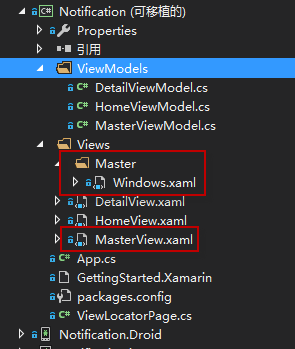
比如这个 MasterView.xaml 即默认的视图.
如果 View.Context 设为 Windows , 就会去加载 Master/Windows.xaml.
如果 View.Context 为 IOS, 但是不存在 Master/IOS.xaml , 就会默认使用 MasterView.xaml
这是 CM 的一个约定.
XF 项目的目标就是一次编写, 同时生成支持 IOS / Android / WP (SL) / UWP 的 APP.
各个平台的最终表现出什么样的用户界面 , 是由封装在不同 Xamarin.Forms.Platform 中的 Renderer 来负责呈现的.
IOS / Android 有先天的优势, 即使不怎么改, 也不会太丑, 但是 WP , 甚至新的 UWP 项目, 都需要后天的费工费时的一点一点的润色.
在给 WP / UWP 润色的同时, 又不想对 IOS / Android 有影响, CM 的多视图支持是不一个不错的选择.
嗯, 费话了一堆, 看看处理办法吧, 修改 XF 项目的 App.cs
         public App(SimpleContainer container) {

             this.Container = container;

             this.Container
                 .Singleton<HomeViewModel>()
                 .Singleton<MasterViewModel>();

 9             var f = ViewLocator.LocateTypeForModelType;
10             ViewLocator.LocateTypeForModelType = (type, bindable, context) => {
11                 return f(type, bindable, context ?? Device.OS) ?? f(type, bindable, context);
12             };

             this.DisplayRootView<HomeView>();
         }
在 App 的构造函数, DisplayRootView 之前, 先保存 ViewLocator.LocateTypeForModelType 到一个变量, 它是一个 Func ,
然后重写这个 Func
如果 context 为 null, 就取 Device.OS 的值.
如果跟据 指定的 conetxt 找不到视图, 就取默认的视图.
OK, 多视图的功能也完成了!
当前 XF 对 UWP 的支持还有 BUG........期待完善...
题外, 如何使用 Caliburn.Micro 对 MasterDetailPage / TabbedPage 进行 MVVM 绑定
首先, 添加一个 ViewLocatorPage, 继承自 ContentPage, 使用 CM 进行绑定
     public class ViewLocatorPage : ContentPage {

         public static readonly BindableProperty VMProperty = BindableProperty.Create<ViewLocatorPage, Screen>(p => p.VM, null, propertyChanged: VMChanged);

         public Screen VM {
             get {
                 return (Screen)this.GetValue(VMProperty);
             }
             set {
                 this.SetValue(VMProperty, value);
             }
         }

         private static void VMChanged(BindableObject bindable, object oldValue, object newValue) {
             if (newValue == null)
                 return;

             var vm = (Screen)newValue;
             //var view = vm.GetView();
             var vmView = ViewLocator.LocateForModel(vm, null, null);
             if (vmView == null)
                 throw new Exception("没有找到视图");
             ViewModelBinder.Bind(vm, vmView, null);

             var activator = vm as IActivate;
             if (activator != null)
                 activator.Activate();

             var page = (ViewLocatorPage)bindable;
             if (null != (ContentPage)vmView) {
                 var vp = (ContentPage)vmView;
                 page.Content = vp.Content;
                 if (vp.ToolbarItems != null)
                     foreach (var t in vp.ToolbarItems)
                         page.ToolbarItems.Add(t);
             } else if (null != (Xamarin.Forms.View)vmView) {
                 page.Content = (Xamarin.Forms.View)vmView;
             }
         }

     }
对 MasterDetailPage 绑定:
 <?xml version="1.0" encoding="utf-8" ?>
 <MasterDetailPage xmlns="http://xamarin.com/schemas/2014/forms"
              xmlns:x="http://schemas.microsoft.com/winfx/2009/xaml"
              xmlns:cal="clr-namespace:Caliburn.Micro.Xamarin.Forms;assembly=Caliburn.Micro.Platform.Xamarin.Forms"
              x:Class="Notification.Views.HomeView"
              xmlns:local="clr-namespace:Notification;assembly=Notification"
                   Title="Notification Test"
             >

   <MasterDetailPage.Master>
     <local:ViewLocatorPage Title="TTT" VM="{Binding}" BindingContext="{Binding MasterPage}" />
   </MasterDetailPage.Master>

   <MasterDetailPage.Detail Title="AAA">
     <ContentPage Title="BBB"></ContentPage>
   </MasterDetailPage.Detail>
 </MasterDetailPage>
注意, 一定要使用 BindingContext, MasterPager 为 Model 中的一个属性.
对 TabbedPage 绑定:
 <?xml version="1.0" encoding="utf-8" ?>
 <TabbedPage xmlns="http://xamarin.com/schemas/2014/forms"
             xmlns:x="http://schemas.microsoft.com/winfx/2009/xaml"
             x:Class="Discuz.Views.TabView"
             xmlns:cal="clr-namespace:Caliburn.Micro.Xamarin.Forms;assembly=Caliburn.Micro.Platform.Xamarin.Forms"
             xmlns:local="clr-namespace:Discuz;assembly=Discuz"
             ItemsSource="{Binding Datas}"
             Title="蓝色理想"
             BackgroundColor="#1e5263"
             Padding="0"
             >

   <TabbedPage.ItemTemplate>
     <DataTemplate>
       <local:ViewLocatorPage Title="{Binding DisplayName}" VM="{Binding}" />
     </DataTemplate>
   </TabbedPage.ItemTemplate>

 </TabbedPage>
---------------------------
完, 源码:
https://github.com/gruan01/Xamarin-Example/tree/master/Notification.UWP
Xamarin.Forms 现已开启对 UWP 的支持的更多相关文章
- 使用MvvmCross框架实现Xamarin.Forms的汉堡菜单布局
注:本文是英文写的,偷懒自动翻译过来了,原文地址:Implementing MasterDetail layout in Xamarin.Forms by MvvmCross 欢迎大家关注我的公众号: ...
- Xamarin.Forms第三方XAML预览工具-LiveXAML简单体验
截至目前,Xamarin官方的Xaml Previewer工具仍然处于测试阶段,使用中也发现了各种不便,例如各种莫名其妙的渲染失败,或者提示需要编译项目才能渲染等等,复杂项目基本不可用, 完全没有体现 ...
- 张高兴的 Xamarin.Forms 开发笔记:为 Android 与 iOS 引入 UWP 风格的汉堡菜单 ( MasterDetailPage )
所谓 UWP 样式的汉堡菜单,我曾在"张高兴的 UWP 开发笔记:汉堡菜单进阶"里说过,也就是使用 Segoe MDL2 Assets 字体作为左侧 Icon,并且左侧使用填充颜色 ...
- Xamarin.Forms支持的地图显示类型
Xamarin.Forms支持的地图显示类型 在Xamarin.Forms中,专门提供了一个Map视图,用来显示地图.根据用户的需求不同,该视图支持三种地图显示类型,用户可以通过Map视图提供的M ...
- Xamarin.Forms 3.0的新特性
近期因为工作关系开始使用Xamarin,翻译了两篇国外的介绍3.0新特性的文章,供大家参考. 第一篇文章来自Xamarin官网,原文地址:https://blog.xamarin.com/xamari ...
- Xamarin.Forms介绍
On May 28, 2014, Xamarin introduced Xamarin.Forms, which allows you to write user-interface code tha ...
- 演练:使用Xamarin.Forms开发产品介绍性质的应用(VB版)
概述 Xamarin这个使用mono和.net core的跨平台开发框架这几年在不断发展.被微软收购后的Xamarin为个人开发者提供了免费版的Xamarin for Visual Studio,吸引 ...
- Xamarin.Forms入门学习路线
Xamarin 介绍 Xamarin是一套跨平台解决方案,目的是使用C#语言创造原生的iOS,Android,Mac和Windows应用. Xamarin的三个优势: Xamarin App拥有原生A ...
- Prism for Xamarin.Forms
一.使用环境 OS:Win 10 16273 VS:VS2017- 15.3.4 Xamarin:4.6.3.4,nuget:2.4 Android Emulator:Visual Studio fo ...
随机推荐
- linux 查看系统版本
博客分类: linux LinuxRedHatDebianSuSE 几种查看linux版本信息的方法: uname -a cat /proc/version cat /etc/issue lsb_r ...
- Hive安装(三)之奇怪的错误
启动hive命令报错 “Metastore contains multiple versions” 解决方案: 因为hive metastore存储在mysql中,所以登录mysql,use hive ...
- Oracle-创建服务器参数文件
允许使用传统的init.ora或SPFILE作为配置文件.但是建议所有数据库创建和使用一个SPFILE.可以从init.ora创建SPFILE SQL> CREATE spfile FROM p ...
- 详解xml文件描述,读取方法以及将对象存放到xml文档中,并按照指定的特征寻找的方案
主要的几个功能: 1.完成多条Emp信息的XML描述2.读取XML文档解析Emp信息3.将Emp(存放在List中)对象转换为XML文档4.在XML文档中查找指定特征的Emp信息 dom4j,jaxe ...
- 如何切入 Linux 内核源代码
Makefile不是Make Love 从前在学校,混了四年,没有学到任何东西,每天就是逃课,上网,玩游戏,睡觉.毕业的时候,人家跟我说Makefile我完全不知,但是一说Make Love我就来劲了 ...
- Plus One
Plus One https://leetcode.com/problems/plus-one/ Given a non-negative number represented as an array ...
- Excel中利用IF和TIME函数计算出上下班状态!
大家都知道现在上下班实行打卡制,制作考勤的人员需要对你上下班的时间,计算出上下班的状态,比如:迟到.早退.加班.正常等.下面为您介绍一个“帮手”. 1.打开Excel文档.如下图 ...
- Storm之spout,bolt编写
Storm,核心代码使用clojure书写,实用程序使用python开发,使用java开发拓扑. Nimbus节点接收到请求,对提交的拓扑进行分片,分成一个个的task,并将task和supervis ...
- Hadoop 分布式文件系统 - HDFS
当数据集超过一个单独的物理计算机的存储能力时,便有必要将它分不到多个独立的计算机上.管理着跨计算机网络存储的文件系统称为分布式文件系统.Hadoop 的分布式文件系统称为 HDFS,它 是为 以流式数 ...
- JVM 类加载过程
类从加载到虚拟机到卸载,它的整个生命周期包括:加载(Loading),验证(Validation),准备(Preparation),解析(Resolution),初始化(Initialization) ...