
WPF (DataGridRowHeaderStyle)实现自义定行样式 并绑定数据
原文:WPF (DataGridRowHeaderStyle)实现自义定行样式 并绑定数据
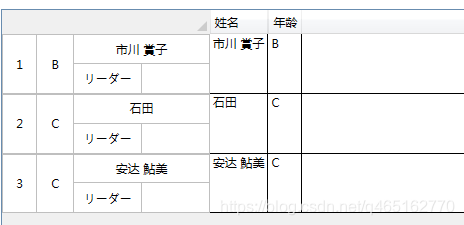
功能阐述
就上面那图片
刚开始 考虑使用 RowHeaderTemplate 来实现 发现总绑定不上数据 上官网查了一下

 不支持上下文绑定 fffffffffffff
只能考虑样式了 经验不足 经验不足~
直接上前后台源码了
XAML
-
<Window
-
xmlns="http://schemas.microsoft.com/winfx/2006/xaml/presentation"
-
xmlns:x="http://schemas.microsoft.com/winfx/2006/xaml"
-
xmlns:Themes="clr-namespace:Microsoft.Windows.Themes;assembly=PresentationFramework.Aero" x:Class="WpfApplication31.MainWindow"
-
Title="MainWindow" Height="350" Width="525">
-
<Window.Resources>
-
-
<Style x:Key="DataGridRowHeaderStyle1" TargetType="{x:Type DataGridRowHeader}">
-
<Setter Property="Template">
-
<Setter.Value>
-
<ControlTemplate TargetType="{x:Type DataGridRowHeader}">
-
<Grid Height="59.834" Width="207.908">
-
<Grid.ColumnDefinitions>
-
<ColumnDefinition Width="20*"/>
-
<ColumnDefinition Width="21*"/>
-
<ColumnDefinition Width="77*"/>
-
</Grid.ColumnDefinitions>
-
<Grid Grid.Column="2" HorizontalAlignment="Stretch" Height="Auto" Margin="0" VerticalAlignment="Stretch">
-
<Grid.RowDefinitions>
-
<RowDefinition/>
-
<RowDefinition/>
-
</Grid.RowDefinitions>
-
<Grid HorizontalAlignment="Stretch" Height="Auto" Margin="0" Grid.Row="1" VerticalAlignment="Stretch">
-
<Grid.ColumnDefinitions>
-
<ColumnDefinition/>
-
<ColumnDefinition/>
-
</Grid.ColumnDefinitions>
-
<Border BorderBrush="#FFBFBFBF" BorderThickness="0,0,1,1" Grid.ColumnSpan="1" HorizontalAlignment="Stretch" Height="Auto" VerticalAlignment="Stretch" Width="Auto" Background="White" Grid.Column="0" Margin="0">
-
<Label Content="リーダー" HorizontalAlignment="Center" Height="Auto" Background="White" VerticalAlignment="Center" Margin="0"/>
-
</Border>
-
<Border BorderBrush="#FFBFBFBF" BorderThickness="0,0,1,1" Grid.ColumnSpan="1" HorizontalAlignment="Stretch" Height="Auto" VerticalAlignment="Stretch" Width="Auto" Background="White" Grid.Column="1">
-
<Label Content="" HorizontalAlignment="Center" Height="Auto" Background="White" VerticalAlignment="Center" Margin="0"/>
-
</Border>
-
</Grid>
-
<Border BorderBrush="#FFBFBFBF" BorderThickness="0,1,1,1" Grid.ColumnSpan="1" HorizontalAlignment="Stretch" Height="Auto" VerticalAlignment="Stretch" Width="Auto" Background="White" Grid.Column="0" Margin="0">
-
<Label Content="{Binding Name}" HorizontalAlignment="Center" Height="Auto" Background="White" VerticalAlignment="Center" Margin="0"/>
-
</Border>
-
</Grid>
-
<Border BorderBrush="#FFBFBFBF" BorderThickness="1" Grid.ColumnSpan="1" HorizontalAlignment="Stretch" Height="Auto" Margin="0" VerticalAlignment="Stretch" Width="Auto" Background="White">
-
<Label Content="{Binding Num}" HorizontalAlignment="Center" Height="Auto" Background="White" VerticalAlignment="Center" Margin="0"/>
-
</Border>
-
<Border BorderBrush="#FFBFBFBF" BorderThickness="0,1,1,1" Grid.ColumnSpan="1" HorizontalAlignment="Stretch" Height="Auto" VerticalAlignment="Stretch" Width="Auto" Background="White" Grid.Column="1">
-
<Label Content="{Binding Class_}" HorizontalAlignment="Center" Height="Auto" Background="White" VerticalAlignment="Center" Margin="0"/>
-
</Border>
-
</Grid>
-
</ControlTemplate>
-
</Setter.Value>
-
</Setter>
-
</Style>
-
-
</Window.Resources>
-
<Grid>
-
<DataGrid x:Name="dataGrid" CanUserAddRows = "false" AutoGenerateColumns="False" Margin="10,10,0,0" RowHeaderStyle="{DynamicResource DataGridRowHeaderStyle1}" >
-
<DataGrid.Columns>
-
<DataGridTextColumn Header="姓名" Binding="{Binding Name}"/>
-
<DataGridTextColumn Header="年龄" Binding="{Binding Class_}"/>
-
</DataGrid.Columns>
-
-
</DataGrid>
-
-
</Grid>
-
</Window>
后台代码
-
using System;
-
using System.Collections.Generic;
-
using System.Collections.ObjectModel;
-
using System.ComponentModel;
-
using System.Data;
-
using System.Linq;
-
using System.Text;
-
using System.Windows;
-
using System.Windows.Controls;
-
using System.Windows.Data;
-
using System.Windows.Documents;
-
using System.Windows.Input;
-
using System.Windows.Media;
-
using System.Windows.Media.Imaging;
-
using System.Windows.Navigation;
-
using System.Windows.Shapes;
-
-
namespace WpfApplication31
-
{
-
/// <summary>
-
/// MainWindow.xaml 的交互逻辑
-
/// </summary>
-
public partial class MainWindow : Window
-
{
-
public MainWindow()
-
{
-
InitializeComponent();
-
dataGrid.ItemsSource = GetNameData();
-
}
-
ObservableCollection<NameList> listName = new ObservableCollection<NameList>();
-
private ObservableCollection<NameList> GetNameData()
-
{
-
-
-
listName.Add(new NameList("市川 賞子", "リーダー", "B", 1));
-
listName.Add(new NameList("石田", "リーダー", "C", 2));
-
listName.Add(new NameList("安达 鮎美", "リーダー", "C", 3));
-
-
return listName;
-
-
}
-
-
}
-
public class NameList : INotifyPropertyChanged
-
{
-
public event PropertyChangedEventHandler PropertyChanged;
-
-
-
public NameList(string name, string jOb, string class_, int num) { Name = name; Class_ = class_; JOb = jOb; Num = num; }
-
private string name;
-
-
public string Name
-
{
-
get { return name; }
-
set
-
{
-
name = value;
-
if (PropertyChanged != null)
-
{
-
PropertyChanged(this, new PropertyChangedEventArgs("Name"));
-
}
-
-
}
-
}
-
private int num;
-
-
public int Num
-
{
-
get { return num; }
-
set
-
{
-
num = value;
-
if (PropertyChanged != null)
-
{
-
PropertyChanged(this, new PropertyChangedEventArgs("Num"));
-
}
-
}
-
}
-
private string class_;
-
-
public string Class_
-
{
-
get { return class_; }
-
set
-
{
-
class_ = value;
-
if (PropertyChanged != null)
-
{
-
PropertyChanged(this, new PropertyChangedEventArgs("Class_"));
-
}
-
}
-
}
-
-
-
-
private string jOb;
-
-
public string JOb
-
{
-
get { return jOb; }
-
set
-
{
-
jOb = value;
-
if (PropertyChanged != null)
-
{
-
PropertyChanged(this, new PropertyChangedEventArgs("JOb"));
-
}
-
}
-
}
-
-
-
}
-
-
}
WPF (DataGridRowHeaderStyle)实现自义定行样式 并绑定数据的更多相关文章
- WPF DataGrid row background converter datagrid 行背景随绑定数据变化,转换器
<DataGrid Grid.Row=" ItemsSource="{Binding SalesList,UpdateSourceTrigger=PropertyChange ...
- WPF (DataGridColumnHeader)实现自义定列头样式 并绑定数据
原文:WPF (DataGridColumnHeader)实现自义定列头样式 并绑定数据 实现功能是这样的 自定义列头 样式 样式里的 数据来源于后台绑定 这篇就说头样式 和头样式数据绑定 思路 1) ...
- WPF ListView点击删除某一行并获取绑定数据
最近在开发WPF程序时遇到一个问题,在gridview中希望实现在每一行最后添加一个删除的按钮,但是发现点击每行的button时只会触发button的点击事件,并没有选中这一行,此时调用list.Se ...
- WPF Datagrid 动态生成列 并绑定数据
原文:WPF Datagrid 动态生成列 并绑定数据 说的是这里 因为列头是动态加载的 (后台for循环 一会能看到代码) 数据来源于左侧列 左侧列数据源 当然num1 属于临时的dome使用 可 ...
- WPF 4 DataGrid 控件(自定义样式篇)
原文:WPF 4 DataGrid 控件(自定义样式篇) 在<WPF 4 DataGrid 控件(基本功能篇)>中我们已经学习了DataGrid 的基本功能及使用方法.本篇将继续 ...
- 打造自定Select样式
打造自定Select样式 我们为什么要自定义select样式? 1.select最大的一个缺陷就是不能自定义下拉按钮的样式. 效果图: 在线演示地址: http://www.smallui.com/j ...
- WPF后台设置xaml控件的样式System.Windows.Style
WPF后台设置xaml控件的样式System.Windows.Style 摘-自 :感谢 作者: IT小兵 http://3w.suchso.com/projecteac-tual/wpf-zhi ...
- C# DevExpress_gridControl 行号行样式
#region 行号 /// <summary> /// 行号 /// </summary> /// <param name="sender"> ...
- WPF界面设计技巧(10)-样式的继承
原文:WPF界面设计技巧(10)-样式的继承 PS:现在我的MailMail完工了,进入内测阶段了,终于可以腾出手来写写教程了哈,关于MailMail的介绍及内测程序索取:http://www.cnb ...
随机推荐
- Dynamics 365中的公告(Post)分析
我是微软Dynamics 365 & Power Platform方面的工程师罗勇,也是2015年7月到2018年6月连续三年Dynamics CRM/Business Solutions方面 ...
- iPhone 启动页尺寸
iPhone 启动页尺寸 4 640*960 5 640*1136 6 750*1334 6p 1242*2208
- Python内置装饰器@property
在<Python装饰器(Decorators )>一文中介绍了python装饰器的概念,日常写代码时有一个装饰器很常见,他就是内置的@property. 我们一步步的来接近这个概念. 一个 ...
- Linux之恢复误删除文件
前言每当我们在生产环境服务器上执行rm命令时,总是提心吊胆的,因为一不小心执行了误删,然后就要准备跑路了,毕竟人不是机器,更何况机器也有 bug.那么如果真的删除了不该删除的文件,比如数据库.日志或执 ...
- PHP Loser 说说做前端需要如何进一步学习
PHP Loser 说说做前端需要如何进一步学习 做前端的,需要如何进一步学习?书籍这个事情贵精不在多,我这里推荐两本即可: <javascript教程 高级程序设计> <CSS权威 ...
- 使OrangePi Zero+支持U盘启动
以下步骤均在Armbian系统中完成 一.无内存卡启动 1.使用armbian-config启动SPI 输入sudo armbian-config→选中System并回车→选中Hardware并回车→ ...
- [译]Vulkan教程(16)图形管道基础之总结
[译]Vulkan教程(16)图形管道基础之总结 Conclusion 总结 We can now combine all of the structures and objects from the ...
- ASP.NET中的身份验证
身份验证方式windows passport form none授权allow 允许deny 拒绝特殊符号 *代表所有用户 ?代表匿名用户跳转配置<system.web><autho ...
- 父子间的通信,以及ref
<!DOCTYPE html> <html> <head> <meta charset="utf-8" /> <title&g ...
- Java - IO 内存流和打印流
IO 内存流和打印流操作 字符编码 计算机中所有的信息组成都是二进制数据,所有能够描述的中文文字都是经过处理后的结果:所有的语言文字都会使用编码来进行描述,例如:ASCII码 常见编码 GBK/GB2 ...