
【转】Setting up SDL Extension Libraries on Visual Studio 2010 Ultimate
Setting up SDL Extension Libraries on Visual Studio 2010 Ultimate
Last Updated 7/13/14
1)First thing you need to do is download SDL_image headers and binaries. You will find them on the SDL_image website, specifically on this page.
You'll want to download the visual c++ development libraries.

2)Open the zip archive and there should be a folder that contains folders called include and another one called lib. Copy the contents of the folder and put them where you want. I recommend putting them in the same directory where you put your SDL install. For these tutorials I'm putting them in a directory I created called C:\vs_dev_lib
3)Open your SDL project and go to project properties.

4)Now we have to tell Visual C++ to search for header files in the SDL extension include folder we just extracted. Under Configuration Properties in the VC++ Directories menu, select the Include Directories field, click the tiny down arrow button, and click edit.

5)Click the folder icon, and then click the button that pops up.

6)Now go find the SDL_image (or SDL_ttf/SDL_mixer) folders you extracted, and select the include folder and click OK.
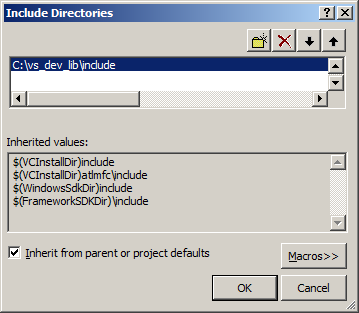
Now Visual Studio knows where to find the header files. If you get an error that the compiler can't find SDL_image.h (or SDL_ttf.h/SDL_mixer.h), it means you messed up this step.
You may have noticed that the directory added here is the same from the setting up SDL tutorial. This is because I over wrote the include directory so it has both the headers from SDL 2 and SDL_image/SDL_ttf/SDL_mixer headers are in the same directory. If you did this you can skip this step because our project already knew where to find the header files. Some prefer keep their SDL and SDL extension libaries in different directories, some prefer them in the same directory. Your choice.
7)Next we're going to tell Visual C++ to search for library files in the SDL_image/SDL_ttf/SDL_mixer library folder we just extracted. Select the Library Directories field, click the tiny down arrow button, and click edit.
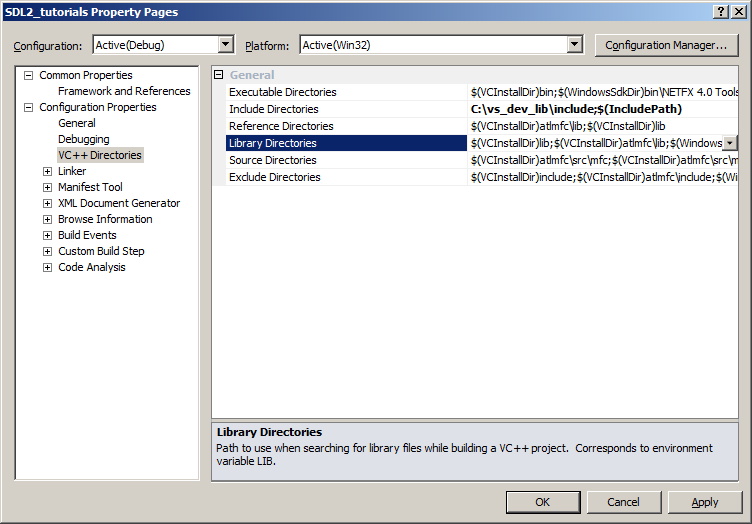
8)Click the folder icon, and then click the button that pops up.

9)Now go find the lib folder you extracted, and select the lib folder where you find two folders. There's one for 32bit x86 architecture and for 64bit x64 architecture.
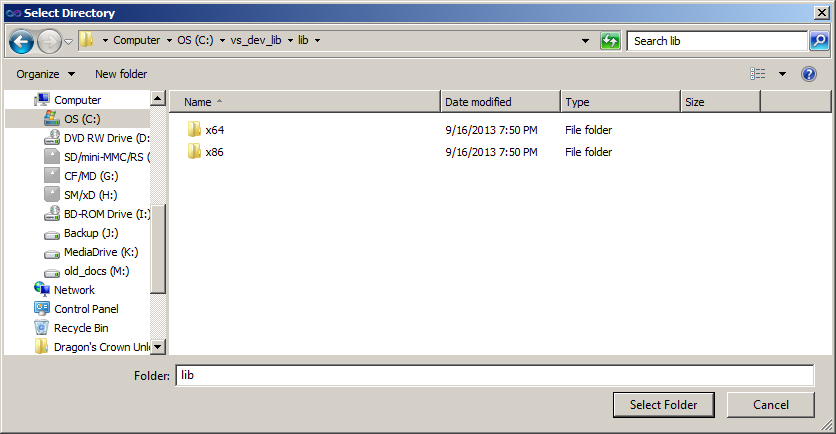
This is important: most compilers still compile 32bit binaries by default to maximize compatibility. We will be using the 32bit binaries for this tutorial set. It doesn't matter if you have a 64bit operating system, since we are compiling 32bit binaries we will be using the 32bit library. This means you need to select the x86 folder and click ok. Now Visual Studio knows where to find the library files. If you get an error how the linker can't find SDL2_image.lib/SDL2_ttf.lib/SDL2_mixer.lib, it means you missed this step.
Like before, you might notice that the lib directory is the same from tutorial 01. Again, this is because I personally like to put the library files for SDL, SDL_image, SDL_ttf, and SDL_mixer in the same directory. If you do this you can skip this step since visual studio is already looking for library files there. For you people you put them in a separate directory, you need to tell visual studio where to find the lib files.
10)In order to compile SDL code, we have to tell the Visual C++ to link against the libraries. Go under Linker in the Input menu, edit the additional dependencies.
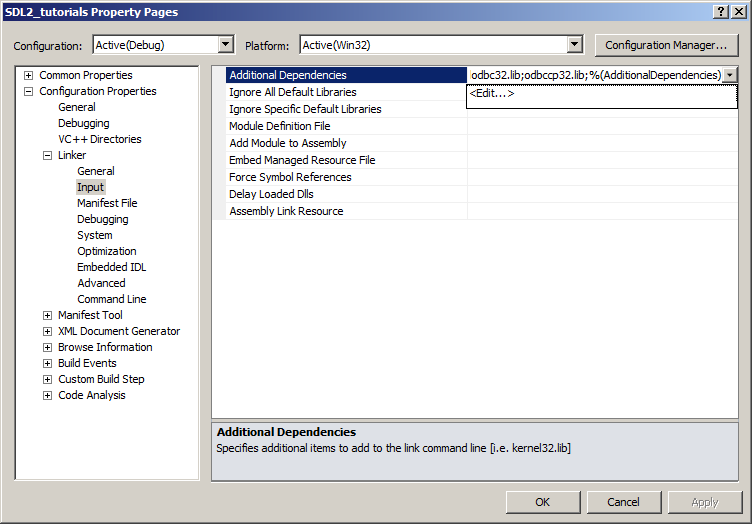
11)Now paste
SDL2_image.lib;
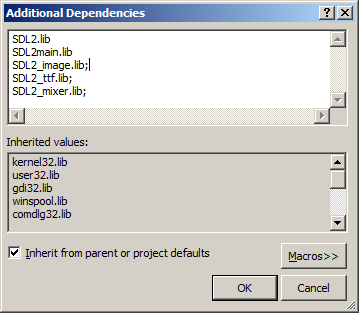
Now Visual Studio knows to link against the extension library. If you get a bunch of undefined reference error after compiling, it means you messed up this step.
12)Like with plain SDL, the operating system needs to be able to find the dll files for the extension library while running.
Go find the lib folder you extracted from the extension library and copy all of the dll files and put them either your project's working directory (where the vcxproj file is at), or inside of the system directory. C:\WINDOWS\SYSTEM32 is the 32bit windows system directory and C:\Windows\SysWOW64 is the 64bit system directory of 32bit applications. For these tutorials, I'm assuming we're making 32bit applications.
13)Now go download the source for lesson 06. Add the source file inside to your project.
Now build. If there are any errors, make sure you didn't skip a step.
Now that you have the extension library compiling, it's time to go onto part 2 of the tutorial.
【转】Setting up SDL Extension Libraries on Visual Studio 2010 Ultimate的更多相关文章
- 【转】Setting up SDL Extension Libraries on Visual Studio 2019 Community
FROM:http://lazyfoo.net/tutorials/SDL/06_extension_libraries_and_loading_other_image_formats/windows ...
- 【转】Setting up SDL Extension Libraries on Windows
FROM: http://lazyfoo.net/tutorials/SDL/06_extension_libraries_and_loading_other_image_formats/window ...
- 【转】Setting up SDL Extension Libraries on MinGW
FROM:http://lazyfoo.net/tutorials/SDL/06_extension_libraries_and_loading_other_image_formats/windows ...
- 【转】Setting up SDL Extension Libraries on Code::Blocks 12.11
FROM: http://lazyfoo.net/tutorials/SDL/06_extension_libraries_and_loading_other_image_formats/window ...
- 【转】Setting up SDL 2 on Visual Studio 2010 Ultimate
from: Lazy Foo'Productions - Setting up SDL 2 on Visual Studio 2010 Ultimate 1)First thing you need ...
- Visual Studio 2010 更新NuGet Package Manager出错解决办法
在Visual Studio 2010的扩展管理器中发现NuGet Package Manger有最新版本更新提示,选择更新安装提示以下错误信息: 2013/4/25 1:11:48 - Micros ...
- Visual Studio 2010 简体中文旗舰、专业版(MSDN原版下载)
Visual Studio 2010 简体中文旗舰.专业版(MSDN原版下载)(Visual Studio 2010 ultimate professional x86 dvd)2010[光盘镜像]- ...
- visual studio 2010 破解版 破解方法
1.Microsoft Visual Studio 2010下载(均来自微软官网) 高级版(Premium) [建议下载] http://download.microsoft.com/do ...
- 《转》Visual Studio 2010 终极定制安装精简方法
打开VS2010安装目录下的 Setup 文件夹,找到 baseline.dat 文件和 vs_setup.pdi 文件还有一个 locdata.ini 文件,是对应的. 这些都是文本文件,用记事本就 ...
随机推荐
- 刷题[SUCTF 2019]CheckIn
解题思路 打开网页发现只是简单做了一个上传界面,朴实无华 上传一个php文件,发现非法后缀. 上传一个.htaccess文件,发现,爆出很重要的信息 exif_imagetype函数通过检测文件头来检 ...
- 3、JVM中的对象
1.对象的创建 A a = new A() A:引用的类型 a::引用的名称 new A():创建一个A类对象 当创建一个对象时,具体创建过程是什么呢? (1)JVM遇到new的字节码指令后,检查类 ...
- centos7 下 docker 安装
前提: 目前,CentOS 仅发行版本中的内核支持 Docker. Docker 运行在 CentOS 7 上,要求系统为64位.系统内核版本为 3.10 以上. Docker 运行在 CentOS- ...
- # js权威指南之对象篇
对象是js中的关键 属性查找 in,Object.hasOwnProperty(),Object.propertyIsEnumerable()都能检测出对象内是否存在某个属性 in关键字 自有属性/继 ...
- IDEA文本编辑区的护眼绿豆沙色配置
第一步:打开IDEA -> File -> settings -> Editor -> Color Scheme -> General 第二步:找到右方Text -> ...
- 006 01 Android 零基础入门 01 Java基础语法 01 Java初识 06 使用Eclipse开发Java程序
006 01 Android 零基础入门 01 Java基础语法 01 Java初识 06 使用Eclipse开发Java程序 Eclipse下创建程序 创建程序分为以下几个步骤: 1.首先是创建一个 ...
- Arduino读取写入电压值
读取写入方式分为数字和模拟 读取方式:(注意接地) 数字:digitalRead(pin); 模拟:analogRead(A1);float val=value*(5.0/1023.0); ...
- ansible-playbook模板化(jinja2)
1. ansible-playbook模板化(jinja2)条件与循环 1.1) jinja使用结构图 2. 编写jinja2的循环 2.1) 编写jinja2模板 1 [root@test-1 ...
- 搭建ipse隧道
我没有太多的物理服务器,实验环境只能用四台装了linux的虚拟机来模拟,用户层工具是openswan.大致拓扑如下(我有点懒,公网地址我用的194.168.10.0/24,别和192.168.xx.x ...
- 多测师讲解接口测试 _接口测试思路_高级讲师肖sir