
Android 之 TableLayout 布局详解
TableLayout简介
•简介
Tablelayout 类以行和列的形式对控件进行管理,每一行为一个 TableRow 对象,或一个 View 控件。
当为 TableRow 对象时,可在 TableRow 下添加子控件,默认情况下,每个子控件占据一列。
当为View时,该 View 将独占一行。
•TableLayout行列数的确定
如果我们直接往TableLayout中添加组件的话,那么这个组件将占满一行;
如果我们想一行上有多个组件的话,就要添加一个 TableRow 的容器,把组件都丢到里面;
TableRow 中的组件个数就决定了该行有多少列,而列的宽度由含有最多子控件的 TableRow 决定;
TableRow 的 layout_width 属性,默认是 martch_parent 的,我们自己设置成其他的值也不会生效;
但是 layout_height 默认是 wrap_content 的,我们可以自己设置大小;
整个表格布局的宽度取决于父容器的宽度(占满父容器本身)
有多少行就要自己数啦,一个 TableRow 占一行,一个单独的 View 也占一行;
多少列则是看 TableRow 中的组件个数,组件最多的就是 TableLayout 的列数;
比如第一TableRow含2个子控件,第二个TableRow含3个,第三个TableRow含4个,那么该TableLayout的列数为4;
<?xml version="1.0" encoding="utf-8"?>

<LinearLayout xmlns:android="http://schemas.android.com/apk/res/android"

    android:layout_width="match_parent"

    android:layout_height="match_parent"

    android:orientation="vertical"

    android:padding="10dp"

    android:background="@color/teal_700">

    <TextView

        android:layout_width="match_parent"

        android:layout_height="wrap_content"

        android:gravity="center"

        android:text="测试行数,列数"

        android:textSize="26sp"/>

    <TableLayout

        android:layout_width="match_parent"

        android:layout_height="wrap_content">

        <TableRow

            android:layout_height="match_parent">

            <Button

                android:text="(1,1)"/>

            <Button

                android:text="(1,2)"/>

        </TableRow>

        <TableRow

            android:layout_height="match_parent">

            <Button

                android:text="(2,1)"/>

            <Button

                android:text="(2,2)"/>

            <Button

                android:text="(2,3)"/>

        </TableRow>

        <TableRow

            android:layout_height="match_parent">

            <Button

                android:text="(3,1)"/>

            <Button

                android:text="(3,2)"/>

            <Button

                android:text="(3,3)"/>

            <Button

                android:text="(3,4)"/>

        </TableRow>

        <TextView

            android:layout_marginLeft="5dp"

            android:text="我单独占一行"

            android:textSize="20sp"/>

    </TableLayout>

</LinearLayout>
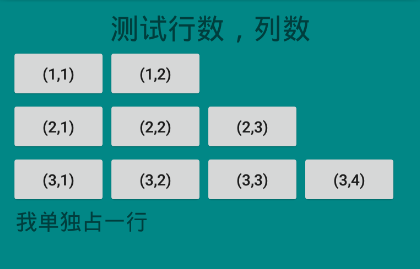
运行效果:
行数 = 三个<TableRow> + 一个<TextView> = 4行
列数 = max{2,3,4} = 4列;
TableLayout属性详解
•简介
- android:stretchColumns : 设置运行被拉伸的列的列序号
- android:shrinkColumns : 设置允许被收缩的列的列序号
- android:collapseColumns : 设置需要被隐藏的列的序号
以上这三个属性的列号都是从 0 开始算的,比如 stretchColunmns = "2",对应的是第 3 列;
可以设置多个,用逗号隔开比如 stretchColunmns = "0,2";
如果是所有列都生效,则用"*"号即可;
•stretchColumns
android:stretchColumns : 设置可伸展的列,该列可以向行方向伸展,最多可占据一整行。
先写出一个基础布局,在此基础上测试 strechColumns:
<?xml version="1.0" encoding="utf-8"?>

<LinearLayout xmlns:android="http://schemas.android.com/apk/res/android"

    android:layout_width="match_parent"

    android:layout_height="match_parent"

    android:orientation="vertical"

    android:padding="10dp"

    android:background="@color/teal_700">

    <TextView

        android:layout_width="match_parent"

        android:layout_height="wrap_content"

        android:gravity="center"

        android:text="测试 stretchColumns 属性"

        android:textSize="26sp"/>

    <TableLayout

        android:layout_width="match_parent"

        android:layout_height="wrap_content">

        <TableRow

            android:layout_height="match_parent">

            <Button

                android:layout_width="wrap_content"

                android:text="(1,1)"/>

            <Button

                android:layout_width="wrap_content"

                android:text="(1,2)"/>

        </TableRow>

    </TableLayout>

</LinearLayout>
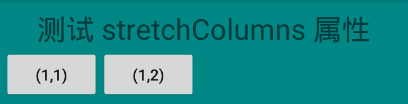
运行效果:
如图可知,这两个 Button 并没有占满整行,如何通过设置将这两个控件均匀占满整行呢?
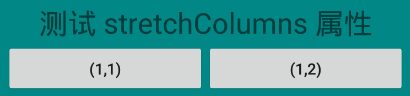
添加语句 android:stretchColumns="0,1" :
<?xml version="1.0" encoding="utf-8"?>

<LinearLayout xmlns:android="http://schemas.android.com/apk/res/android"

    android:layout_width="match_parent"

    android:layout_height="match_parent"

    android:orientation="vertical"

    android:padding="10dp"

    android:background="@color/teal_700">

    <TextView

        android:layout_width="match_parent"

        android:layout_height="wrap_content"

        android:gravity="center"

        android:text="测试 stretchColumns 属性"

        android:textSize="26sp"/>

    <TableLayout

        android:layout_width="match_parent"

        android:layout_height="wrap_content"

        android:stretchColumns="0,1">

        <TableRow

            android:layout_height="match_parent">

            <Button

                android:layout_width="wrap_content"

                android:text="(1,1)"/>

            <Button

                android:layout_width="wrap_content"

                android:text="(1,2)"/>

        </TableRow>

    </TableLayout>

</LinearLayout>
运行效果:
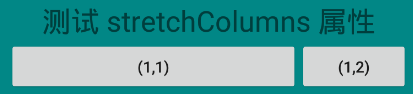
当然,你也可以单独拉伸 (1,1);
修改语句: android:stretchColumns="0" ;
运行效果:
•shrinkColumns
同样先写出一个基础布局,在此基础上测试 shrinkColumns:
<?xml version="1.0" encoding="utf-8"?>

<LinearLayout xmlns:android="http://schemas.android.com/apk/res/android"

    android:layout_width="match_parent"

    android:layout_height="match_parent"

    android:orientation="vertical"

    android:padding="10dp"

    android:background="@color/teal_700">

    <TextView

        android:layout_width="match_parent"

        android:layout_height="wrap_content"

        android:gravity="center"

        android:text="测试 shrinkColumns 属性"

        android:textSize="26sp"/>

    <TableLayout

        android:layout_width="match_parent"

        android:layout_height="wrap_content"

        android:stretchColumns="0"

        android:shrinkColumns="2">

        <TableRow

            android:layout_height="match_parent">

            <Button

                android:id="@+id/btn_0"

                android:layout_width="wrap_content"

                android:text="(1,1)"/>

            <Button

                android:id="@+id/btn_1"

                android:layout_width="wrap_content"

                android:text="(1,2)"/>

            <Button

                android:id="@+id/btn_2"

                android:layout_width="wrap_content"

                android:text="(1,3)"/>

            <Button

                android:id="@+id/btn_3"

                android:layout_width="wrap_content"

                android:text="(1,4)"/>

        </TableRow>

    </TableLayout>

</LinearLayout>
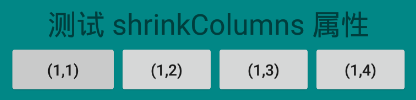
可以看到,通过 android:stretchColumns="0" 将 btn_0 设置成 stretchColumns;
通过 android:shrinkColumns="2" 将 btn_2 设置成 shrinkColumns;
运行效果:
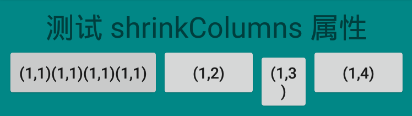
现在,我将 btn_0 设置的 Text 改为 (1,1)(1,1)(1,1)(1,1):
<?xml version="1.0" encoding="utf-8"?>

<LinearLayout xmlns:android="http://schemas.android.com/apk/res/android"

    android:layout_width="match_parent"

    android:layout_height="match_parent"

    android:orientation="vertical"

    android:padding="10dp"

    android:background="@color/teal_700">

    <TextView

        android:layout_width="match_parent"

        android:layout_height="wrap_content"

        android:gravity="center"

        android:text="测试 shrinkColumns 属性"

        android:textSize="26sp"/>

    <TableLayout

        android:layout_width="match_parent"

        android:layout_height="wrap_content"

        android:stretchColumns="0"

        android:shrinkColumns="2">

        <TableRow

            android:layout_height="match_parent">

            <Button

                android:id="@+id/btn_0"

                android:layout_width="wrap_content"

                android:text="(1,1)(1,1)(1,1)(1,1)"/>

            <Button

                android:id="@+id/btn_1"

                android:layout_width="wrap_content"

                android:text="(1,2)"/>

            <Button

                android:id="@+id/btn_2"

                android:layout_width="wrap_content"

                android:text="(1,3)"/>

            <Button

                android:id="@+id/btn_3"

                android:layout_width="wrap_content"

                android:text="(1,4)"/>

        </TableRow>

    </TableLayout>

</LinearLayout>
运行效果:
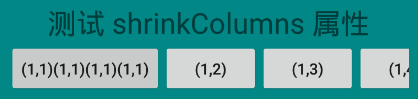
如果将 android:shrinkColumns="2" 这个语句去掉呢?
运行效果:
对比一下,是不是很容易得知 shrinkColunms 的作用?
如果不给 btn_2 设置这个属性,那么在 btn_0 拉伸的时候,将优先占用 btn_3 的空间;
如果给 btn_2 设置这个属性,那么优先占用 btn_2 的空间。
•collapseColumns
同样,还是先写出一个基础布局:
<?xml version="1.0" encoding="utf-8"?>

<LinearLayout xmlns:android="http://schemas.android.com/apk/res/android"

    android:layout_width="match_parent"

    android:layout_height="match_parent"

    android:orientation="vertical"

    android:padding="10dp"

    android:background="@color/teal_700">

    <TextView

        android:layout_width="match_parent"

        android:layout_height="wrap_content"

        android:gravity="center"

        android:text="测试 collapseColumns 属性"

        android:textSize="26sp"/>

    <TableLayout

        android:layout_width="match_parent"

        android:layout_height="wrap_content"

        android:stretchColumns="*">

        <TableRow

            android:layout_height="match_parent">

            <Button

                android:id="@+id/btn_0"

                android:layout_width="wrap_content"

                android:text="(1,1)"/>

            <Button

                android:id="@+id/btn_1"

                android:layout_width="wrap_content"

                android:text="(1,2)"/>

            <Button

                android:id="@+id/btn_2"

                android:layout_width="wrap_content"

                android:text="(1,3)"/>

            <Button

                android:id="@+id/btn_3"

                android:layout_width="wrap_content"

                android:text="(1,4)"/>

        </TableRow>

    </TableLayout>

</LinearLayout>
运行效果:
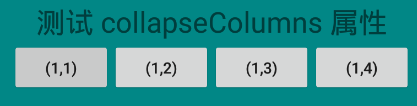
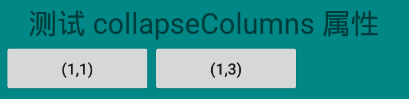
在上述代码中添加语句: android:collapseColumns="1,3" ,也即是隐藏 btn_1,btn_3:
<?xml version="1.0" encoding="utf-8"?>

<LinearLayout xmlns:android="http://schemas.android.com/apk/res/android"

    android:layout_width="match_parent"

    android:layout_height="match_parent"

    android:orientation="vertical"

    android:padding="10dp"

    android:background="@color/teal_700">

    <TextView

        android:layout_width="match_parent"

        android:layout_height="wrap_content"

        android:gravity="center"

        android:text="测试 collapseColumns 属性"

        android:textSize="26sp"/>

    <TableLayout

        android:layout_width="match_parent"

        android:layout_height="wrap_content"

        android:stretchColumns="*"

        android:collapseColumns="1,3">

        <TableRow

            android:layout_height="match_parent">

            <Button

                android:id="@+id/btn_1"

                android:layout_width="wrap_content"

                android:text="(1,1)"/>

            <Button

                android:id="@+id/btn_2"

                android:layout_width="wrap_content"

                android:text="(1,2)"/>

            <Button

                android:id="@+id/btn_3"

                android:layout_width="wrap_content"

                android:text="(1,3)"/>

            <Button

                android:id="@+id/btn_4"

                android:layout_width="wrap_content"

                android:text="(1,4)"/>

        </TableRow>

    </TableLayout>

</LinearLayout>
运行效果:
由图可知,虽然设置了 android:stretchColumns="*" 属性,但是btn_0,btn_2 并没有占据整个空间;
这就充分说明了 android:collapseColumns="1,3" 仅仅是让 btn_1,btn_3 隐藏了,并没有销毁;
单元格属性
•简介
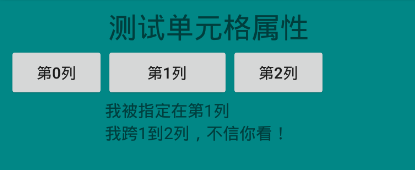
- android:layout_column : 指定该单元格在第几列显示
- android:layout_span : 指定该单元格占据的列数(未指定时,为1)
•布局代码
<LinearLayout xmlns:android="http://schemas.android.com/apk/res/android"

    android:layout_width="match_parent"

    android:layout_height="match_parent"

    android:orientation="vertical"

    android:padding="10dp"

    android:background="@color/teal_700">

    <TextView

        android:layout_width="match_parent"

        android:layout_height="wrap_content"

        android:gravity="center"

        android:text="测试单元格属性"

        android:textSize="26sp"/>

    <TableLayout

        android:layout_width="match_parent"

        android:layout_height="wrap_content">

        <TableRow>

            <Button android:text="第0列"/>

            <Button android:text="第1列"/>

            <Button android:text="第2列"/>

        </TableRow>

        <TableRow>

            <TextView

                android:layout_column="1"

                android:text="我被指定在第1列"

                android:textSize="15sp"

                />

        </TableRow>

        <TableRow>

            <TextView

                android:layout_column="1"

                android:layout_span="2"

                android:text="我跨1到2列,不信你看!"

                android:textSize="15sp"

                />

        </TableRow>

    </TableLayout>

</LinearLayout>
•运行效果
Android 之 TableLayout 布局详解的更多相关文章
- [置顶] Android系统五大布局详解Layout
我们知道Android系统应用程序一般是由多个Activity组成,而这些Activity以视图的形式展现在我们面前,视图都是由一个一个的组件构成的.组件就是我们常见的Button.TextEdit等 ...
- Android系统五大布局详解Layout
我们知道Android系统应用程序一般是由多个Activity组成,而这些Activity以视图的形式展现在我们面前, 视图都是由一个一个的组件构成的.组件就是我们常见的Button.TextEdit ...
- Android LinearLayout线性布局详解
为了更好地管理Android应用的用户界面里的各组件,Android提供了布局管理器.通过使用布局管理器,Android应用图形用户界面具有良好的平台无关性.推荐使用布局管理器来管理组件的分布.大小, ...
- Android学习之基础知识六—Android四种布局详解
一.Android基本布局 布局是一种可以放置多个控件的容器,它可以按照一定规律调整内部控件的位置,而且布局内部除了可以放置控件外,还可以放置布局,实现多层布局嵌套.布局和控件.布局和布局之间的关系如 ...
- android:TableLayout表格布局详解
http://blog.csdn.net/justoneroad/article/details/6835915 这篇博文包括的内容:1.TableLayout简介2.TableLayout行列数的确 ...
- Android开发重点难点1:RelativeLayout(相对布局)详解
前言 啦啦啦~博主又推出了一个新的系列啦~ 之前的Android开发系列主要以完成实验的过程为主,经常会综合许多知识来写,所以难免会有知识点的交杂,给人一种混乱的感觉. 所以博主推出“重点难点”系列, ...
- Android布局详解之一:FrameLayout
原创文章,如有转载,请注明出处:http://blog.csdn.net/yihui823/article/details/6702273 FrameLayout是最简单的布局了.所有放在布局里的 ...
- Android 布局详解
Android 布局详解 1.重用布局 当一个布局文件被多处使用时,最好<include>标签来重用布局. 例如:workspace_screen.xml的布局文件,在另一个布局文件中被重 ...
- Android 布局学习之——Layout(布局)详解二(常见布局和布局参数)
[Android布局学习系列] 1.Android 布局学习之——Layout(布局)详解一 2.Android 布局学习之——Layout(布局)详解二(常见布局和布局参数) 3.And ...
随机推荐
- jest ignore
jest ignore modulePathIgnorePatterns https://jestjs.io/docs/en/configuration modulePathIgnorePattern ...
- WiFi 测速
WiFi 测速 shit 联通 20M => 电信 20M ? https://zhuanlan.zhihu.com/p/86140645 shit 房东 中国电信网络测速 50M http:/ ...
- WebAssembly in Action
WebAssembly in Action 数据加密,反爬虫,防盗链,版权保护,数据追踪,埋点 blogs 加密,js 禁用检测,权限控制 WebAssembly 防盗链 wasm online id ...
- js 触发长按事件
为网站添加触摸功能 <button id="btn1">长按触发</button> <button id="btn2">长按 ...
- vue常用方法封装-一键安装使用(赠送免费工具)
相信大家在使用vue开发过程中一定遇到了各种方法的整理收集,每次遇到新的问题都需要找到合适的方法 这里我给大家封装了一些vue项目中常用到的方法合集,免费提供费大家 因此,jsoften横空出世,不为 ...
- 千万不要错过VAST,NGK算力的下一个财富机会!
我们把目光投向NGK市场,近来,NGK接连新币,推出了SPC后,又有VAST.在目前市场上债券收益率已经趋近于零的情况下,世界上的大多数央行都在试图让本国货币贬值,所以在此时寻找其他保值资产是合理的. ...
- 知道这两个 DOM 属性区别的,头发应该不多了吧?
你可能知道,获取和设置 DOM 元素内部文本可以用这两个属性:Node.textContent 和 Element.innerText. 乍一看,它们似乎做着完全相同的事情,但它们之间有一些微妙但重要 ...
- 微信小程序登录流程解析
小程序可以通过微信官方提供的登录能力方便地获取微信提供的用户身份标识openid,快速建立小程序内的用户体系. 登录流程时序: 1.首先,调用 wx.login获取code ,判断用户是否授权读取用户 ...
- Java基本概念:面向对象
一.简介 面向过程的思维模式是简单的线性思维,思考问题首先陷入第一步做什么.第二步做什么的细节中. 面向对象的思维模式说白了就是分类思维模式.思考问题首先会解决问题需要哪些分类,然后对这些分类进行单独 ...
- vivo 官网资源包适配多场景的应用
本文介绍了资源包的概念及使用场景,同时对资源包的几种使用方案进行对比.通过本文,大家可以快速掌握资源包的使用方法,解决单一配置满足多场景.多样式的问题. 一.业务背景 随着官网项目的业务深入发展,单纯 ...