
WPF CheckBox 样式
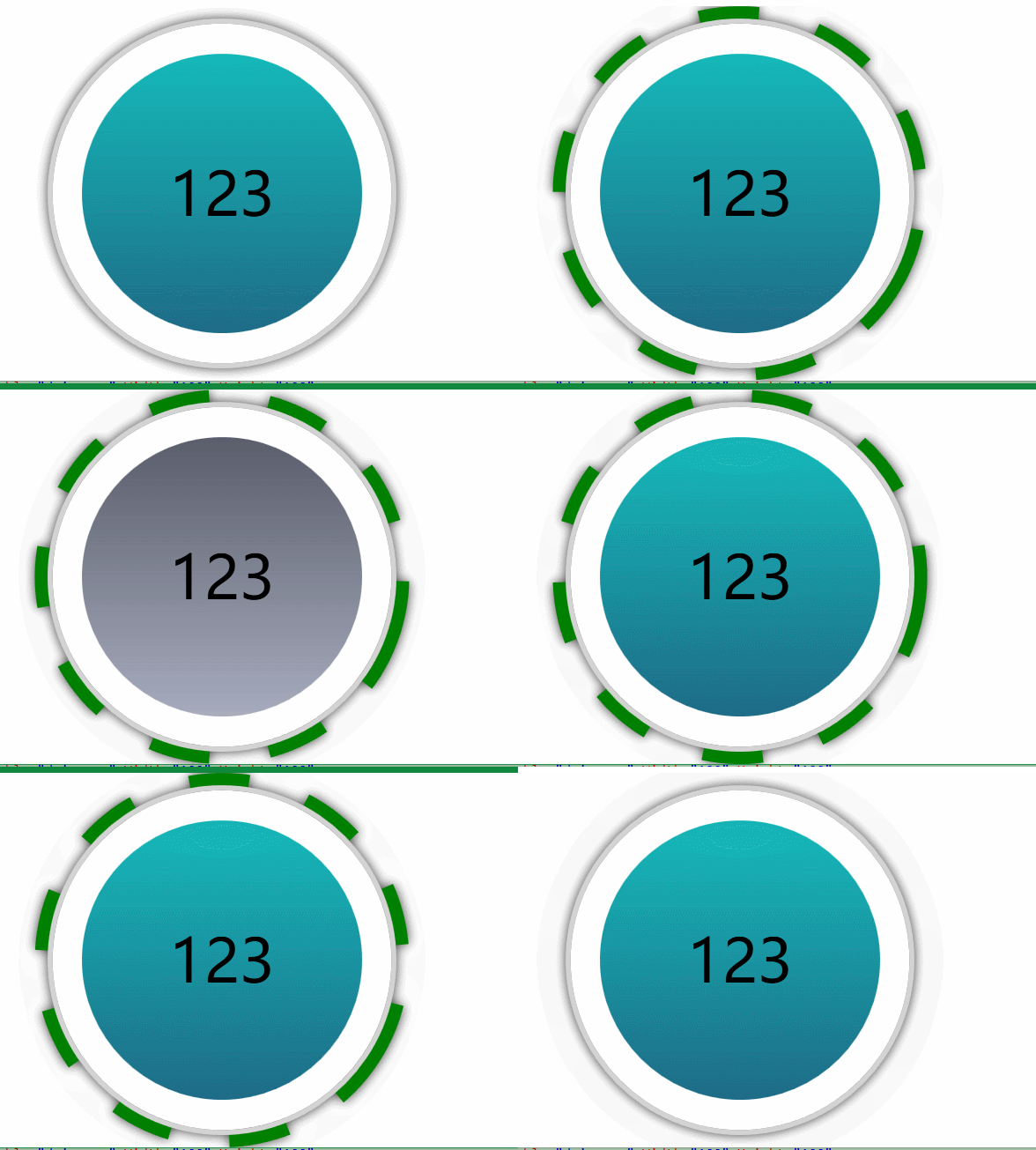
<Style x:Key="FocusVisual">

        <Setter Property="Control.Template">

            <Setter.Value>

                <ControlTemplate>

                    <Rectangle Margin="2" SnapsToDevicePixels="true" Stroke="{DynamicResource {x:Static SystemColors.ControlTextBrushKey}}" StrokeThickness="1" StrokeDashArray="1 2"/>

                </ControlTemplate>

            </Setter.Value>

        </Setter>

    </Style>

    <SolidColorBrush x:Key="OptionMark.Static.Background" Color="#FFFFFFFF"/>

    <SolidColorBrush x:Key="OptionMark.Static.Border" Color="#FF707070"/>

    <Style x:Key="OptionMarkFocusVisual">

        <Setter Property="Control.Template">

            <Setter.Value>

                <ControlTemplate>

                    <Rectangle Margin="14,0,0,0" SnapsToDevicePixels="true" Stroke="{DynamicResource {x:Static SystemColors.ControlTextBrushKey}}" StrokeThickness="1" StrokeDashArray="1 2"/>

                </ControlTemplate>

            </Setter.Value>

        </Setter>

    </Style>

    <SolidColorBrush x:Key="OptionMark.MouseOver.Background" Color="#FFF3F9FF"/>

    <SolidColorBrush x:Key="OptionMark.MouseOver.Border" Color="#FF5593FF"/>

    <SolidColorBrush x:Key="OptionMark.MouseOver.Glyph" Color="#FF212121"/>

    <SolidColorBrush x:Key="OptionMark.Disabled.Background" Color="#FFE6E6E6"/>

    <SolidColorBrush x:Key="OptionMark.Disabled.Border" Color="#FFBCBCBC"/>

    <SolidColorBrush x:Key="OptionMark.Disabled.Glyph" Color="#FF707070"/>

    <SolidColorBrush x:Key="OptionMark.Pressed.Background" Color="#FFD9ECFF"/>

    <SolidColorBrush x:Key="OptionMark.Pressed.Border" Color="#FF3C77DD"/>

    <SolidColorBrush x:Key="OptionMark.Pressed.Glyph" Color="#FF212121"/>

    <SolidColorBrush x:Key="OptionMark.Static.Glyph" Color="#FF212121"/>

    <Style x:Key="myCheckStyle" TargetType="{x:Type CheckBox}">

        <Setter Property="Effect">

            <Setter.Value>

                <DropShadowEffect ShadowDepth="0"

    				Color="Gray"

    				Opacity="1"

    				BlurRadius="20"/>

            </Setter.Value>

        </Setter>

        <Setter Property="FocusVisualStyle" Value="{StaticResource FocusVisual}"/>

        <Setter Property="Background" Value="{StaticResource OptionMark.Static.Background}"/>

        <Setter Property="BorderBrush" Value="{StaticResource OptionMark.Static.Border}"/>

        <Setter Property="Foreground" Value="{DynamicResource {x:Static SystemColors.ControlTextBrushKey}}"/>

        <Setter Property="BorderThickness" Value="1"/>

        <Setter Property="Template">

            <Setter.Value>

                <ControlTemplate TargetType="{x:Type CheckBox}">

                    <Viewbox x:Name="viewbox" Stretch="Uniform">

                        <VisualStateManager.VisualStateGroups>

                            <VisualStateGroup x:Name="CheckStates">

                                <VisualState x:Name="Indeterminate"/>

                            </VisualStateGroup>

                            <VisualStateGroup x:Name="CommonStates">

                                <VisualState x:Name="Normal"/>

                                <VisualState x:Name="MouseOver">

                                    <Storyboard RepeatBehavior="Forever" AutoReverse="True">

                                        <DoubleAnimationUsingKeyFrames Storyboard.TargetProperty="(UIElement.RenderTransform).(TransformGroup.Children)[2].(RotateTransform.Angle)" Storyboard.TargetName="ellipse">

                                            <EasingDoubleKeyFrame KeyTime="0" Value="0"/>

                                            <EasingDoubleKeyFrame KeyTime="0:0:5" Value="180"/>

                                        </DoubleAnimationUsingKeyFrames>

                                        <ObjectAnimationUsingKeyFrames Storyboard.TargetProperty="(UIElement.Visibility)" Storyboard.TargetName="ellipse">

                                            <DiscreteObjectKeyFrame KeyTime="0" Value="{x:Static Visibility.Visible}"/>

                                            <DiscreteObjectKeyFrame KeyTime="0:0:5" Value="{x:Static Visibility.Visible}"/>

                                        </ObjectAnimationUsingKeyFrames>

                                    </Storyboard>

                                </VisualState>

                                <VisualState x:Name="Pressed"/>

                                <VisualState x:Name="Disabled"/>

                            </VisualStateGroup>

                        </VisualStateManager.VisualStateGroups>

                        <Grid Width="75" Height="75" x:Name="templateRoot" Background="Transparent" SnapsToDevicePixels="True">

                            <Ellipse x:Name="ellipse"   Visibility="Hidden"  Height="75" Width="75" Stroke="Green" StrokeDashArray="4 4" StrokeThickness="3" RenderTransformOrigin="0.5,0.5">

                                <Ellipse.RenderTransform>

                                    <TransformGroup>

                                        <ScaleTransform/>

                                        <SkewTransform/>

                                        <RotateTransform/>

                                        <TranslateTransform/>

                                    </TransformGroup>

                                </Ellipse.RenderTransform>

                            </Ellipse>

                            <Border x:Name="border1" Height="70" Width="70" CornerRadius="35" BorderThickness="1" Background="White" BorderBrush="LightGray" >

                                <Border x:Name="border" Height="56" Width="56" CornerRadius="28" BorderThickness="0" BorderBrush="{TemplateBinding BorderBrush}"  Background="{TemplateBinding Background}" SnapsToDevicePixels="true">

                                    <ContentPresenter Margin="6,5"  x:Name="contentPresenter"   Focusable="False" HorizontalAlignment="Center"  RecognizesAccessKey="True" SnapsToDevicePixels="{TemplateBinding SnapsToDevicePixels}" VerticalAlignment="Center"/>

                                </Border>

                            </Border>

                        </Grid>

                    </Viewbox>

                    <ControlTemplate.Triggers>

                        <Trigger Property="IsChecked" Value="True">

                            <Setter Property="Background" >

                                <Setter.Value>

                                    <LinearGradientBrush StartPoint="0.5,0" EndPoint="0.5,1">

                                        <GradientStop Color="#15b9b9" Offset="0"/>

                                        <GradientStop Color="#1e6b87" Offset="1"/>

                                    </LinearGradientBrush>

                                </Setter.Value>

                            </Setter>

                        </Trigger>

                        <Trigger Property="IsChecked" Value="False">

                            <Setter Property="Background" >

                                <Setter.Value>

                                    <LinearGradientBrush StartPoint="0.5,0" EndPoint="0.5,1">

                                        <GradientStop Color="#5a5e6b" Offset="0"/>

                                        <GradientStop Color="#a6abbd" Offset="1"/>

                                    </LinearGradientBrush>

                                </Setter.Value>

                            </Setter>

                        </Trigger>

                    </ControlTemplate.Triggers>

                </ControlTemplate>

            </Setter.Value>

        </Setter>

    </Style>
WPF CheckBox 样式的更多相关文章
- WPF CheckBox样式 ScrollViewer样式 WrapPanel、StackPanel、Grid布局
本节讲述布局,顺带加点样式给大家看看~单纯学布局,肯定是枯燥的~哈哈 那如上界面,该如何设计呢? 1.一些布局元素经常用到.Grid StackPanel Canvas WrapPanel等.如上这种 ...
- WPF CheckBox 自定义样式
WPF 自定义样式.CheckBox <Style x:Key="EmptyCheckBox" TargetType="CheckBox"> < ...
- WPF CheckBox 滑块 样式 开关
原文:WPF CheckBox 滑块 样式 开关 效果图 样式代码 <Style x:Key="CheckRadioFocusVisual"> <Setter P ...
- WPF 自定义CheckBox样式
自定义CheckBox样式,mark一下,方便以后参考复用 设计介绍: 1.一般CheckBox模板太难看了,肯定要重写其中的模板 2.模板状态为未选中状态和选中状态,设置为默认未选中就好了. 默认状 ...
- 记录一些WPF常用样式方便以后复用(二)(Button、CheckBox、输入账号密码框)(转)
Button (一) <Style x:Key="ButtonSaveStyle" TargetType="{x:Type Button}"> &l ...
- WPF Button 样式
WPF CheckBox 自定义样式 给Button设置ToolTip <Style TargetType="{x:Type Button}" x:Key="Def ...
- WPF自定义样式篇-DataGrid
WPF自定义样式篇-DataGrid 先上效果图: 样式: <!--DataGrid样式--> <Style TargetType="DataGrid"& ...
- 用css改变默认的checkbox样式
自己常用的改变checkbox样式的两个方法: 一.利用background用图片代替checkbox效果 缺点:你首先得有一张好看的图片 优点:浏览器兼容性好 <!doctype html&g ...
- 求助 WPF ListViewItem样式问题
求助 WPF ListViewItem样式问题 .NET 开发 > Windows Presentation Foundation Вопрос 0 Нужно войти <Style ...
随机推荐
- 详解树莓派Model B+控制蜂鸣器演奏乐曲
步进电机以及无源蜂鸣器这些都需要脉冲信号才能够驱动,这里将用GPIO的PWM接口驱动无源蜂鸣器弹奏乐曲,本文基于树莓派Mode B+,其他版本树莓派实现时需参照相关资料进行修改! 1 预备知识 1.1 ...
- "无法删除数据库,因为该数据库当前正在使用"问题解决
异常处理汇总-数据库系列 http://www.cnblogs.com/dunitian/p/4522990.html 以前刚学数据库的时候比较苦恼这个问题,今天删除的时候又看见了,正好一起记录一下 ...
- css3中perspective
perspective 属性定义 3D 元素距视图的距离,以像素计.该属性允许改变 3D 元素查看 3D 元素的视图.当为元素定义 perspective 属性时,其子元素会获得透视效果,而不是元素本 ...
- [C#] C# 知识回顾 - 异常介绍
异常介绍 我们平时在写程序时,无意中(或技术不够),而导致程序运行时出现意外(或异常),对于这个问题, C# 有专门的异常处理程序. 异常处理所涉及到的关键字有 try.catch 和 finally ...
- angular2系列教程(七)Injectable、Promise、Interface、使用服务
今天我们要讲的ng2的service这个概念,和ng1一样,service通常用于发送http请求,但其实你可以在里面封装任何你想封装的方法,有时候控制器之间的通讯也是依靠service来完成的,让我 ...
- mysql进阶之存储过程
往往看别人的代码会有这样的感慨: 看不懂 理还乱 是离愁 别是一番滋味在心头 为什么要使用存储过程? 在mysql开发中使用存储过程的理由: 当希望在不同的应用程序或平台上执行相同的函数,或者封装特定 ...
- 基于SignalR的消息推送与二维码描登录实现
1 概要说明 使用微信扫描登录相信大家都不会陌生吧,二维码与手机结合产生了不同应用场景,基于二维码的应用更是比较广泛.为了满足ios.android客户端与web短信平台的结合,特开发了基于Singl ...
- notepad++设置默认打开txt文件失效的解决方法
1.系统环境 win10企业版,64位系统 2.初步设置 设置txt默认为notepad++打开,菜单:设置->首选项->文件关联 选择对应的文件扩展,点击"关闭"按钮 ...
- php cryptr 加密函数
class CryptHelper { /** * 加密 * @param unknown $password * @param unknown $salt * @return string */ p ...
- Unable to create the selected property page. An error occurred while automatically activating bundle net.sourceforge.pmd
解决方案: 在命令行到eclipse目录下使用 eclipse.exe -clean