
张高兴的 UWP 开发笔记:汉堡菜单进阶
不同于Windows 8应用,Windows 10引入了“汉堡菜单”这一导航模式。说具体点,就拿官方的天气应用来说,左上角三条横杠的图标外加一个SplitView控件组成的这一导航模式就叫“汉堡菜单”。
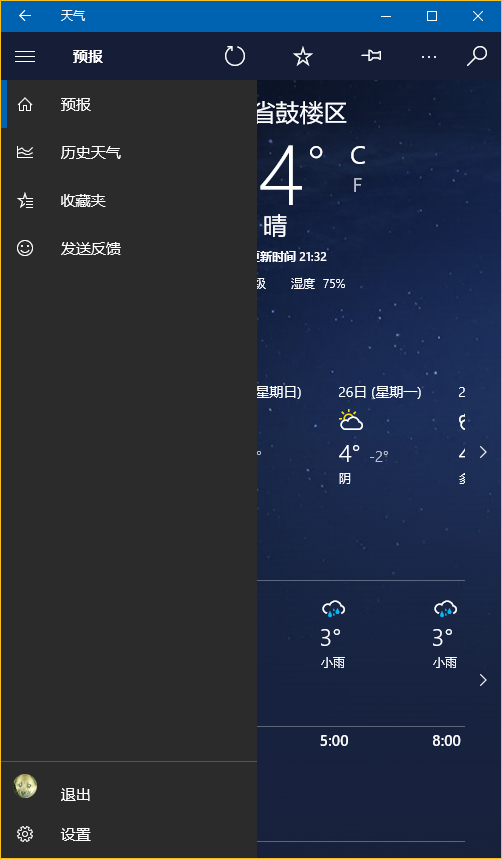
本文讨论的是如何实现官方的这一样式(点击后左侧出现一个填充矩形),普通实现网上到处都是,有需要的朋友自己百度下吧。
下面将介绍两种不同的实现方法,第一种最简单的方法是直接使用 Template 10 模板,第二种就是纯手写了。
若有什么不正确的地方望指正,大家共同讨论。
1. Template 10 模板
使用 Template 10 模板可以快速建立出应用的框架,简单快捷。(帮助文档 https://github.com/Windows-XAML/Template10/wiki )
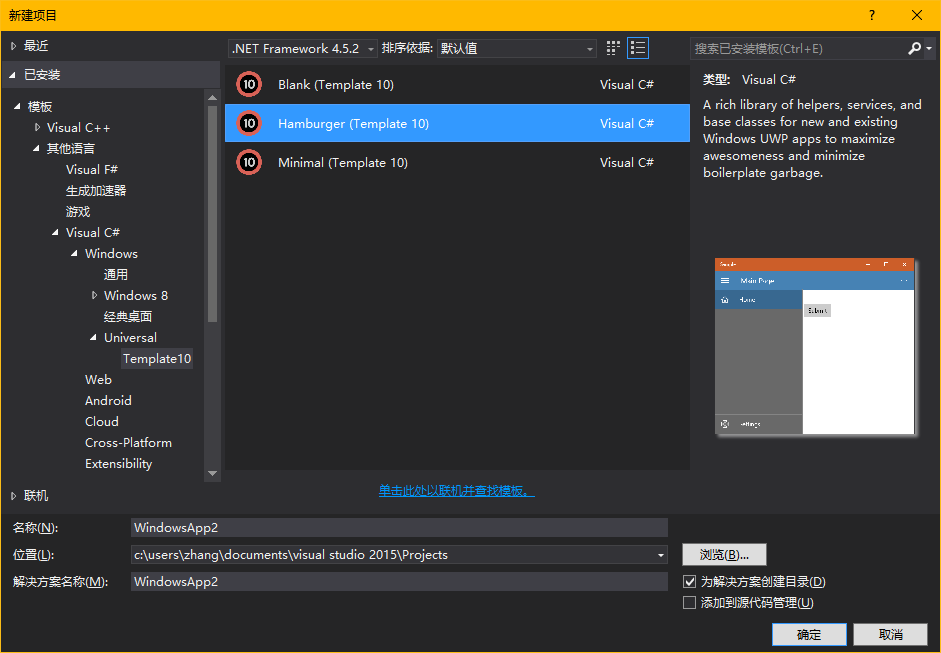
要使用 Template 10 首先点击 Visual Studio “工具”菜单中的“扩展与更新”,搜索并安装 Template 10(简化搜索可以直接输入t10)

安装完成需要重启,重启后按下图找到项目模板新建即可,使用很简单,帮助文档连接也在上方给出。
2. 手写
先分析一下界面的构成,暂时不看标题栏,由一个设置了 Canvas.ZIndex 的 Button 和一个 SplitView 构成。SplitView.Pane 中又包含了两个ListView(一级菜单和二级菜单)。ListView 里的每个 Item 又由 Rectangle,FontIcon,TextBlock 组成。见下图
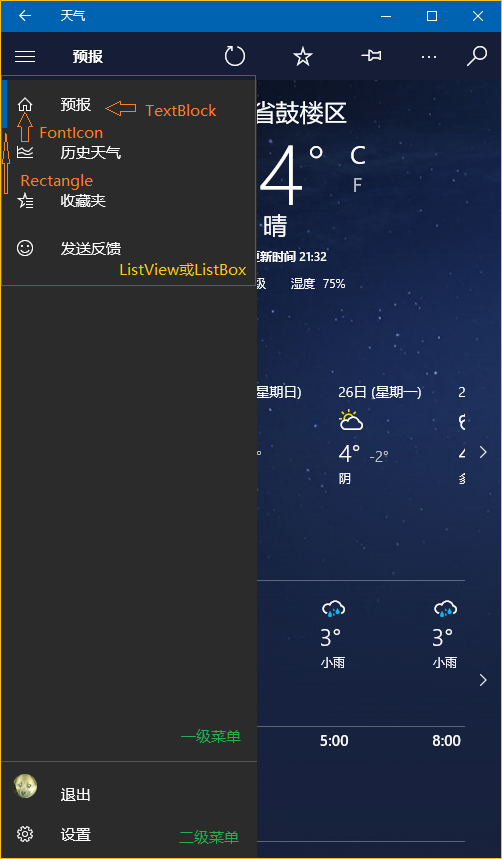
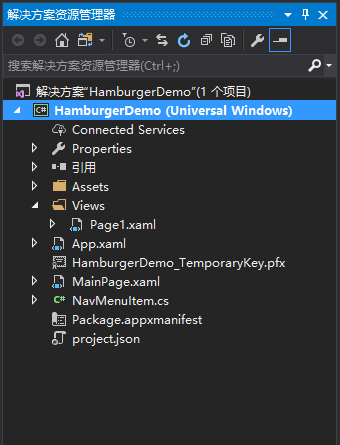
构成清晰之后实现的思路大概也就清晰了。下面给一个简单的Demo,解决方案结构如下。(GitHub https://github.com/ZhangGaoxing/uwp-demo/tree/master/HamburgerDemo)
先创建一个NavMenuItem类
using System;

using System.ComponentModel;

using Windows.UI.Xaml;

using Windows.UI.Xaml.Media;

namespace HamburgerDemo

{

    class NavMenuItem : INotifyPropertyChanged

    {

        // 记录图标字体

        public FontFamily FontFamily { get; set; }

        // 图标的C#转义代码

        public string Icon { get; set; }

        // 标题

        public string Label { get; set; }

        // 导航页

        public Type DestPage { get; set; }

        // 用于左侧矩形的显示

        private Visibility selected = Visibility.Collapsed;

        public Visibility Selected

        {

            get { return selected; }

            set

            {

                selected = value;

                this.OnPropertyChanged("Selected");

            }

        }

        // 双向绑定,用于更新矩形是否显示

        public event PropertyChangedEventHandler PropertyChanged;

        public void OnPropertyChanged(string propertyName)

        {

            PropertyChanged?.Invoke(this, new PropertyChangedEventArgs(propertyName));

        }

    }

}
主页面框架代码
<Page
x:Class="HamburgerDemo.MainPage"
xmlns="http://schemas.microsoft.com/winfx/2006/xaml/presentation"
xmlns:x="http://schemas.microsoft.com/winfx/2006/xaml"
xmlns:local="using:HamburgerDemo"
xmlns:d="http://schemas.microsoft.com/expression/blend/2008"
xmlns:mc="http://schemas.openxmlformats.org/markup-compatibility/2006"
mc:Ignorable="d"> <Page.Resources>
<!--菜单的数据模板-->
<DataTemplate x:Key="DataTemplate">
<Grid>
<Grid.ColumnDefinitions>
<ColumnDefinition Width="48" />
<ColumnDefinition Width="*" />
</Grid.ColumnDefinitions> <Rectangle Fill="{ThemeResource SystemControlBackgroundAccentBrush}"
Visibility="{Binding Selected, Mode=TwoWay}"
HorizontalAlignment="Left" Width="5" Height="48" /> <FontIcon FontFamily="{Binding FontFamily}" Glyph="{Binding Icon}" Foreground="White"
VerticalAlignment="Center"
Margin="-2,0,0,0" Width="48" Height="48" /> <TextBlock Grid.Column="1"
Text="{Binding Label}" Foreground="White"
Margin="12,0,0,0" VerticalAlignment="Center" />
</Grid>
</DataTemplate>
<!--ListViewItem样式定制-->
<Style x:Key="NavMenuItemContainerStyle" TargetType="ListViewItem">
<Setter Property="MinWidth" Value="{StaticResource SplitViewCompactPaneThemeLength}"/>
<Setter Property="Height" Value="48"/>
<Setter Property="Padding" Value="0"/>
<Setter Property="UseSystemFocusVisuals" Value="True" />
<Setter Property="Template">
<Setter.Value>
<ControlTemplate TargetType="ListViewItem">
<ListViewItemPresenter ContentTransitions="{TemplateBinding ContentTransitions}"
Control.IsTemplateFocusTarget="True"
SelectionCheckMarkVisualEnabled="False"
PointerOverBackground="{ThemeResource SystemControlHighlightListLowBrush}"
PointerOverForeground="{ThemeResource ListViewItemForegroundPointerOver}"
SelectedBackground="Transparent"
SelectedForeground="{ThemeResource SystemControlForegroundAccentBrush}"
SelectedPointerOverBackground="{ThemeResource SystemControlHighlightListLowBrush}"
PressedBackground="{ThemeResource SystemControlHighlightListMediumBrush}"
SelectedPressedBackground="{ThemeResource SystemControlHighlightListMediumBrush}"
DisabledOpacity="{ThemeResource ListViewItemDisabledThemeOpacity}"
HorizontalContentAlignment="{TemplateBinding HorizontalContentAlignment}"
VerticalContentAlignment="{TemplateBinding VerticalContentAlignment}"
ContentMargin="{TemplateBinding Padding}"/>
</ControlTemplate>
</Setter.Value>
</Setter>
</Style>
</Page.Resources> <Grid Background="{ThemeResource ApplicationPageBackgroundThemeBrush}">
<!--汉堡菜单开关-->
<Button Name="PaneOpenButton"
FontFamily="Segoe MDL2 Assets" Content="" Foreground="White"
Background="{Binding BackgroundColor}"
Width="48" Height="48"
VerticalAlignment="Top" Canvas.ZIndex="100" /> <SplitView Name="RootSplitView"
DisplayMode="CompactOverlay"
CompactPaneLength="48" OpenPaneLength="256"
IsPaneOpen="True"> <SplitView.Pane>
<Grid Background="#CC000000">
<Grid.RowDefinitions>
<!--空出Button的高度-->
<RowDefinition Height="48" />
<RowDefinition Height="*" />
<RowDefinition Height="Auto" />
</Grid.RowDefinitions>
<!--一级菜单-->
<ListView Name="NavMenuPrimaryListView"
Grid.Row="1" VerticalAlignment="Top"
SelectionMode="None" IsItemClickEnabled="True"
ItemTemplate="{StaticResource DataTemplate}"
ItemContainerStyle="{StaticResource NavMenuItemContainerStyle}"/>
<!--二级菜单-->
<ListView Name="NavMenuSecondaryListView"
Grid.Row="2" VerticalAlignment="Bottom"
SelectionMode="None" IsItemClickEnabled="True"
ItemTemplate="{StaticResource DataTemplate}"
ItemContainerStyle="{StaticResource NavMenuItemContainerStyle}"
BorderBrush="{ThemeResource SystemControlBackgroundAccentBrush}" BorderThickness="0,1,0,0" />
</Grid>
</SplitView.Pane> <SplitView.Content>
<Frame Name="RootFrame" />
</SplitView.Content> </SplitView> </Grid>
</Page>
主页面的后台代码
using HamburgerDemo.Views;

using System.Collections.Generic;

using Windows.UI.Xaml;

using Windows.UI.Xaml.Controls;

using Windows.UI.Xaml.Media;

namespace HamburgerDemo

{

    public sealed partial class MainPage : Page

    {

        // 为不同的菜单创建不同的List类型

        private List<NavMenuItem> navMenuPrimaryItem = new List<NavMenuItem>(

            new[]

            {

                new NavMenuItem()

                {

                    FontFamily = new FontFamily("Segoe MDL2 Assets"),

                    Icon = "\xE10F",

                    Label = "页面1",

                    Selected = Visibility.Visible,

                    DestPage = typeof(Page1)

                },

                new NavMenuItem()

                {

                    FontFamily = new FontFamily("Segoe MDL2 Assets"),

                    Icon = "\xE11A",

                    Label = "页面2",

                    Selected = Visibility.Collapsed,

                    DestPage = typeof(Page1)

                },

                new NavMenuItem()

                {

                    FontFamily = new FontFamily("Segoe MDL2 Assets"),

                    Icon = "\xE121",

                    Label = "页面3",

                    Selected = Visibility.Collapsed,

                    DestPage = typeof(Page1)

                },

                new NavMenuItem()

                {

                    FontFamily = new FontFamily("Segoe MDL2 Assets"),

                    Icon = "\xE122",

                    Label = "页面4",

                    Selected = Visibility.Collapsed,

                    DestPage = typeof(Page1)

                }

            });

        private List<NavMenuItem> navMenuSecondaryItem = new List<NavMenuItem>(

            new[]

            {

                new NavMenuItem()

                {

                    FontFamily = new FontFamily("Segoe MDL2 Assets"),

                    Icon = "\xE713",

                    Label = "设置",

                    Selected = Visibility.Collapsed,

                    DestPage = typeof(Page1)

                }

            });

        public MainPage()

        {

            this.InitializeComponent();

            // 绑定导航菜单

            NavMenuPrimaryListView.ItemsSource = navMenuPrimaryItem;

            NavMenuSecondaryListView.ItemsSource = navMenuSecondaryItem;

            // SplitView 开关

            PaneOpenButton.Click += (sender, args) =>

            {

                RootSplitView.IsPaneOpen = !RootSplitView.IsPaneOpen;

            };

            // 导航事件

            NavMenuPrimaryListView.ItemClick += NavMenuListView_ItemClick;

            NavMenuSecondaryListView.ItemClick += NavMenuListView_ItemClick;

            // 默认页

            RootFrame.SourcePageType = typeof(Page1);

        }

        private void NavMenuListView_ItemClick(object sender, ItemClickEventArgs e)

        {

            // 遍历,将选中Rectangle隐藏

            foreach (var np in navMenuPrimaryItem)

            {

                np.Selected = Visibility.Collapsed;

            }

            foreach (var ns in navMenuSecondaryItem)

            {

                ns.Selected = Visibility.Collapsed;

            }

            NavMenuItem item = e.ClickedItem as NavMenuItem;

            // Rectangle显示并导航

            item.Selected = Visibility.Visible;

            if (item.DestPage != null)

            {

                RootFrame.Navigate(item.DestPage);

            }

            RootSplitView.IsPaneOpen = false;

        }

    }

}
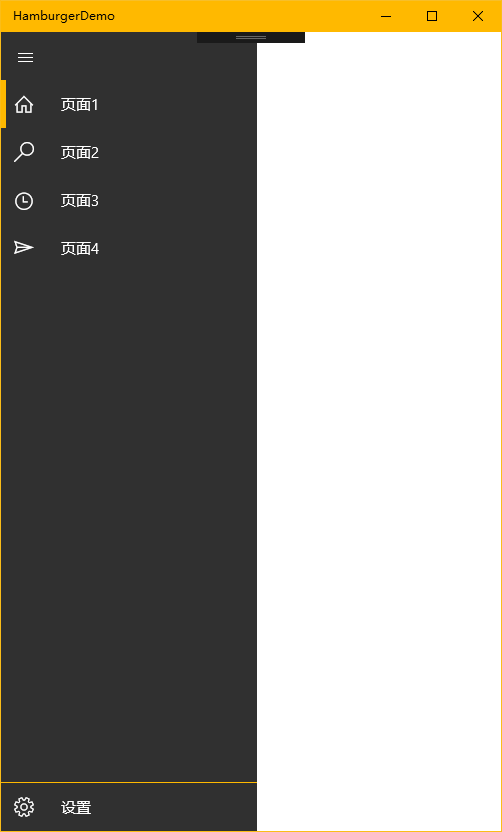
运行效果图如下
张高兴的 UWP 开发笔记:汉堡菜单进阶的更多相关文章
- 张高兴的 UWP 开发笔记:用 Thumb 控件仿制一个可拖动 Button
在 WPF 上可用的控件拖动方法在 UWP 上大多没用,那干脆用 Thumb 仿制一个吧. 关于 Thumb 控件的教程也不多,毕竟在 WPF 控件拖动有很多种方法, Thumb 就显得很鸡肋了.下面 ...
- 张高兴的 UWP 开发笔记:横向 ListView
ListView 默认的排列方向是纵向 ( Orientation="Vertical" ) ,但如果我们需要横向显示的 ListView 怎么办? Blend for Visua ...
- 张高兴的 UWP 开发笔记:应用内启动应用 (UWP Launch UWP)
需求:在 A 应用内启动 B 应用,如果 B 应用未安装则跳转应用商店搜索. 启动方式使用 Uri 启动,本文使用尽可能简单,并且能拿来直接用的代码.不涉及启动后的应用数据交互,如需深入了解,请戳 M ...
- 张高兴的 UWP 开发笔记:手机状态栏 StatusBar
UWP 有关应用标题栏 TitleBar 的文章比较多,但介绍 StatusBar 的却没几篇,在这里随便写写.状态栏 StatusBar 用法比较简单,花点心思稍微设计一下,对应用会是个很好的点缀. ...
- 张高兴的 UWP 开发笔记:定制 ContentDialog 样式
我需要一个背景透明的 ContentDialog,像下图一样.如何定制?写了一个简单的示例(https://github.com/ZhangGaoxing/uwp-demo/tree/master/C ...
- 张高兴的 Xamarin.Forms 开发笔记:为 Android 与 iOS 引入 UWP 风格的汉堡菜单 ( MasterDetailPage )
所谓 UWP 样式的汉堡菜单,我曾在"张高兴的 UWP 开发笔记:汉堡菜单进阶"里说过,也就是使用 Segoe MDL2 Assets 字体作为左侧 Icon,并且左侧使用填充颜色 ...
- UWP开发笔记——嵌套式页面的实现
绪论 UWP开发中,Page是最常用的Control之一,通常情况下,在开发的application中,每一个页面就是一个Page.有时候,为了开发整合度更高,UI表现更为一致的UI,开发者需要把UI ...
- 安卓开发笔记——Menu菜单组件(选项菜单,上下文菜单,子菜单)
菜单是用户界面中最常见的元素之一,使用非常频繁,在Android中,菜单被分为如下三种,选项菜单(OptionsMenu).上下文菜单(ContextMenu)和子菜单(SubMenu). 菜单的实现 ...
- uwp汉堡菜单的实现
---恢复内容开始--- 现在uwp上面的汉堡菜单(就是那个三道杠,点击之后会出现菜单)使用的越来越普遍,比如微软自己家的Cortana.现在我使用的实现方法是使用SplitView实现.首先Spli ...
随机推荐
- 【社工】NodeJS 应用仓库钓鱼
前言 城堡总是从内部攻破的.再强大的系统,也得通过人来控制.如果将入侵直接从人这个环节发起,那么再坚固的防线,也都成为摆设. 下面分享一个例子,利用应用仓库,渗透到开发人员的系统中. 应用仓库 应用仓 ...
- Webstorm+Webpack+echarts构建个性化定制的数据可视化图表&&两个echarts详细教程(柱状图,南丁格尔图)
Webstorm+Webpack+echarts ECharts 特性介绍 ECharts,一个纯 Javascript 的图表库,可以流畅的运行在 PC 和移动设备上,兼容当前绝大部分浏览器(I ...
- SQL Server-表表达式基础回顾(二十四)
前言 从这一节开始我们开始进入表表达式章节的学习,Microsoft SQL Server支持4种类型的表表达式:派生表.公用表表达式(CTE).视图.内嵌表值函数(TVF).简短的内容,深入的理解, ...
- 利用Node.js的Net模块实现一个命令行多人聊天室
1.net模块基本API 要使用Node.js的net模块实现一个命令行聊天室,就必须先了解NET模块的API使用.NET模块API分为两大类:Server和Socket类.工厂方法. Server类 ...
- angular2系列教程(八)In-memory web api、HTTP服务、依赖注入、Observable
大家好,今天我们要讲是angular2的http功能模块,这个功能模块的代码不在angular2里面,需要我们另外引入: index.html <script src="lib/htt ...
- 前端性能优化的另一种方式——HTTP2.0
最近在读一本书叫<web性能权威指南>谷歌公司高性能团队核心成员的权威之作. 一直听说HTTP2.0,对此也仅仅是耳闻,没有具体研读过,这次正好有两个篇章,分别讲HTTP1.1和HTTP2 ...
- C#创建、安装、卸载、调试Windows Service(Windows 服务)的简单教程
前言:Microsoft Windows 服务能够创建在它们自己的 Windows 会话中可长时间运行的可执行应用程序.这些服务可以在计算机启动时自动启动,可以暂停和重新启动而且不显示任何用户界面.这 ...
- 基于NPOI的Excel数据导入
从Excel导入数据最令人头疼的是数据格式的兼容性,特别是日期类型的兼容性.为了能够无脑导入日期,折腾了一天的NPOI.在经过测试确实可以导入任意格式的合法日期后,写下这篇小文,与大家共享.完整代码请 ...
- 【微信小程序开发•系列文章六】生命周期和路由
这篇文章理论的知识比较多一些,都是个人观点,描述有失妥当的地方希望读者指出. [微信小程序开发•系列文章一]入门 [微信小程序开发•系列文章二]视图层 [微信小程序开发•系列文章三]数据层 [微信小程 ...
- SharePoint 2016 入门视频教程
之前一直有朋友让自己录一些SharePoint的入门视频,之前没有太多时间,一个巧合的机会收到CSDN学院的邮件,可以在CSDN上发布视频教程,自己就录了一些.说起录视频也是蛮辛苦的,每天下班吃完饭要 ...