
【水滴石穿】ReactNativeDemo
这个博主他的功底算是特别棒的了,能够把一些基础的例子,通过精巧的方式布局在一个小的demo里面
很值得我学习
放上博主的链接:https://github.com/jianiuqi/ReactNativeDemo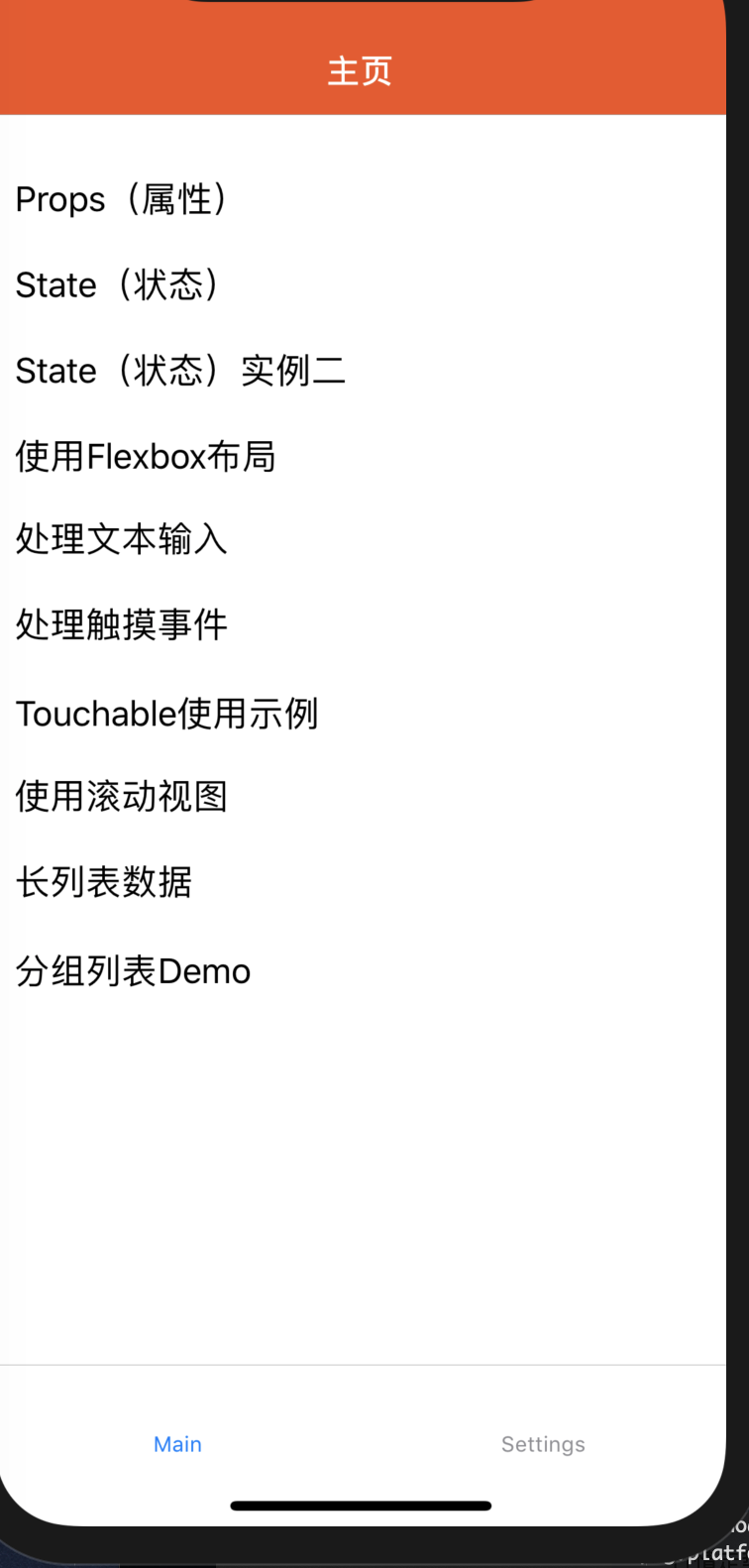
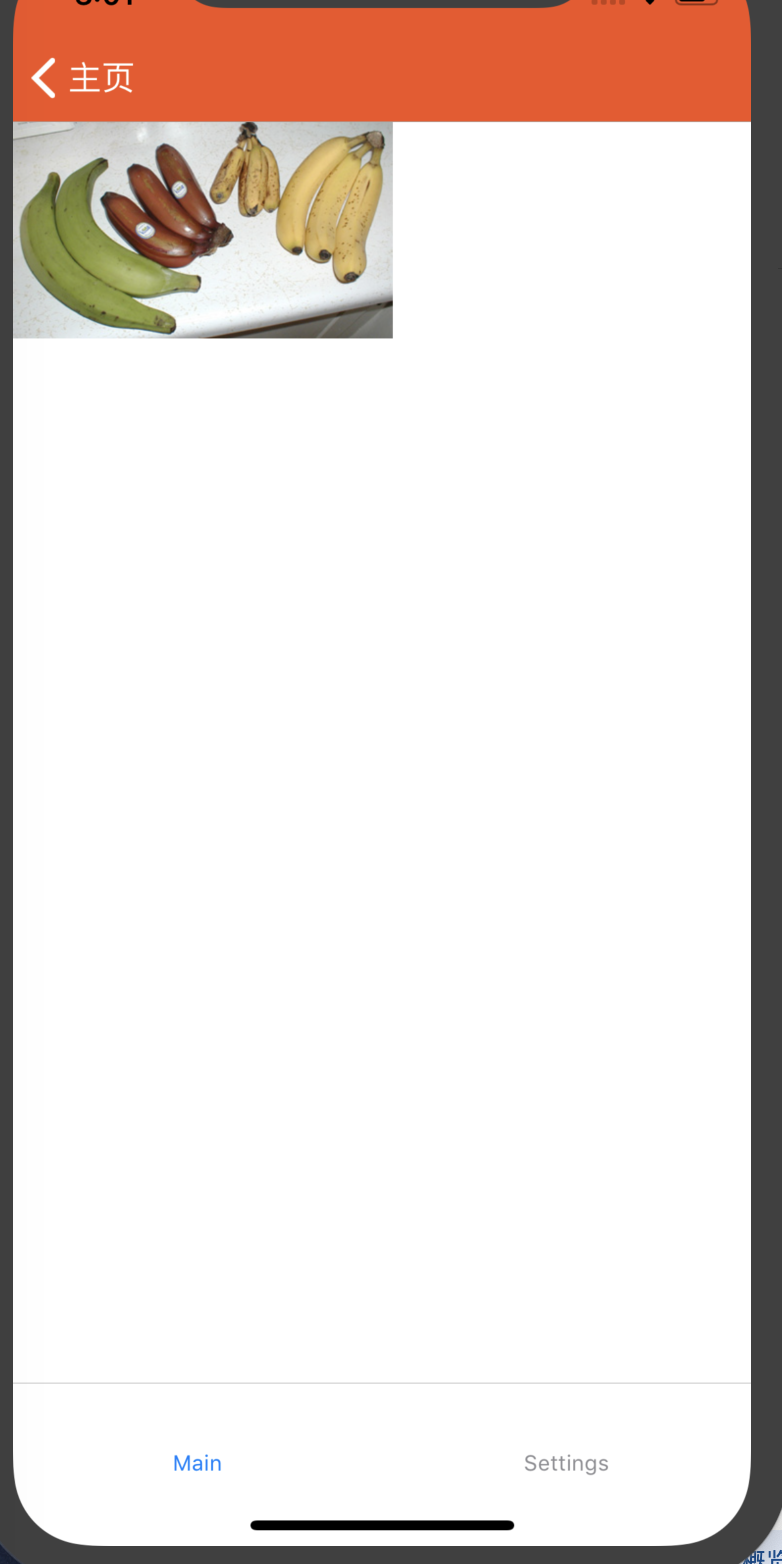
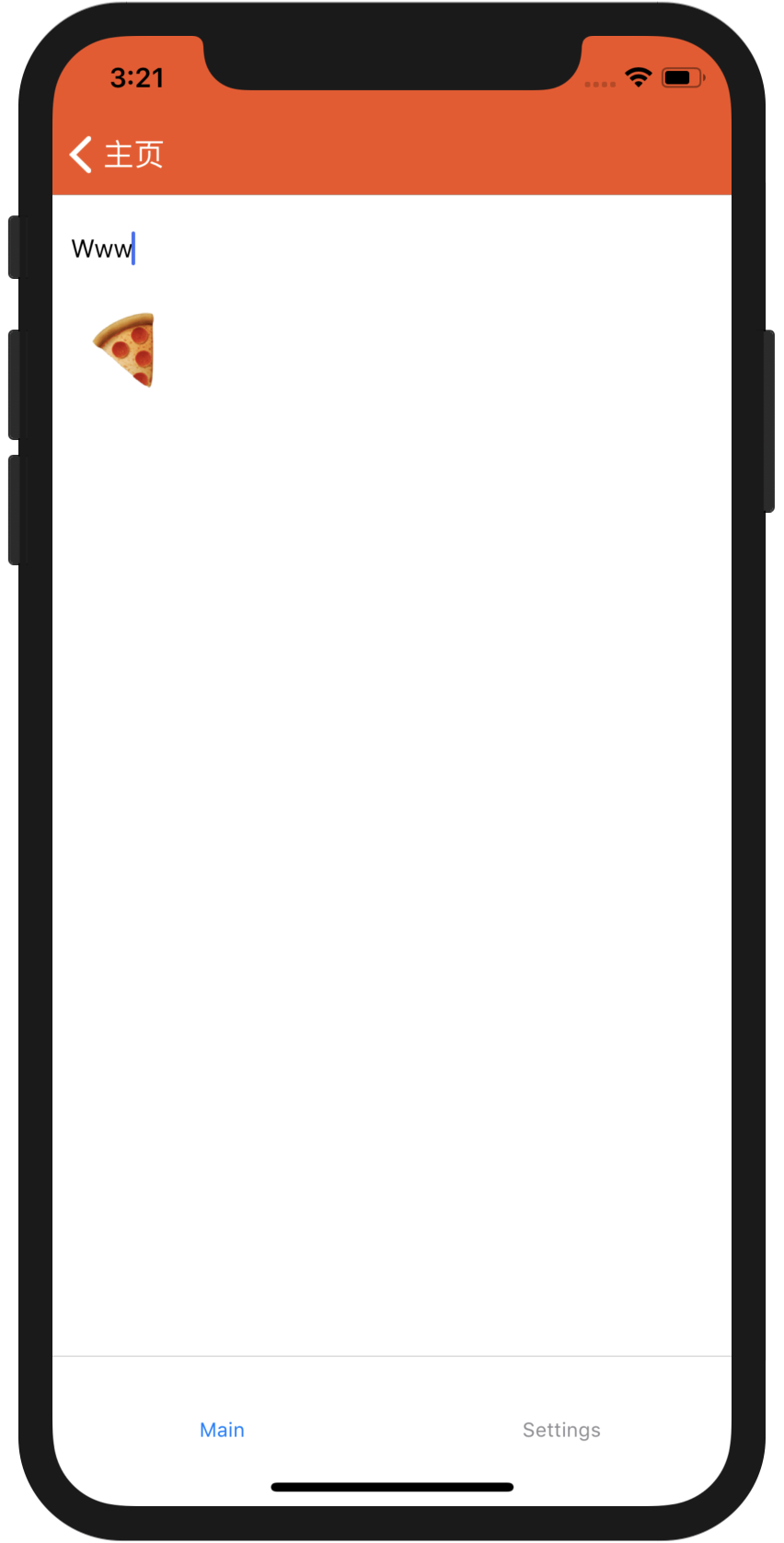
大概样式是这样
接下来我们来分析代码
//index.js

//根index.js引入的是src/app

/**

 * @format

 * @lint-ignore-every XPLATJSCOPYRIGHT1

 */

import {AppRegistry} from 'react-native';

import {name as appName} from './app.json';

import App from "./src/App";

AppRegistry.registerComponent(appName, () => App);
这个是main.js页面
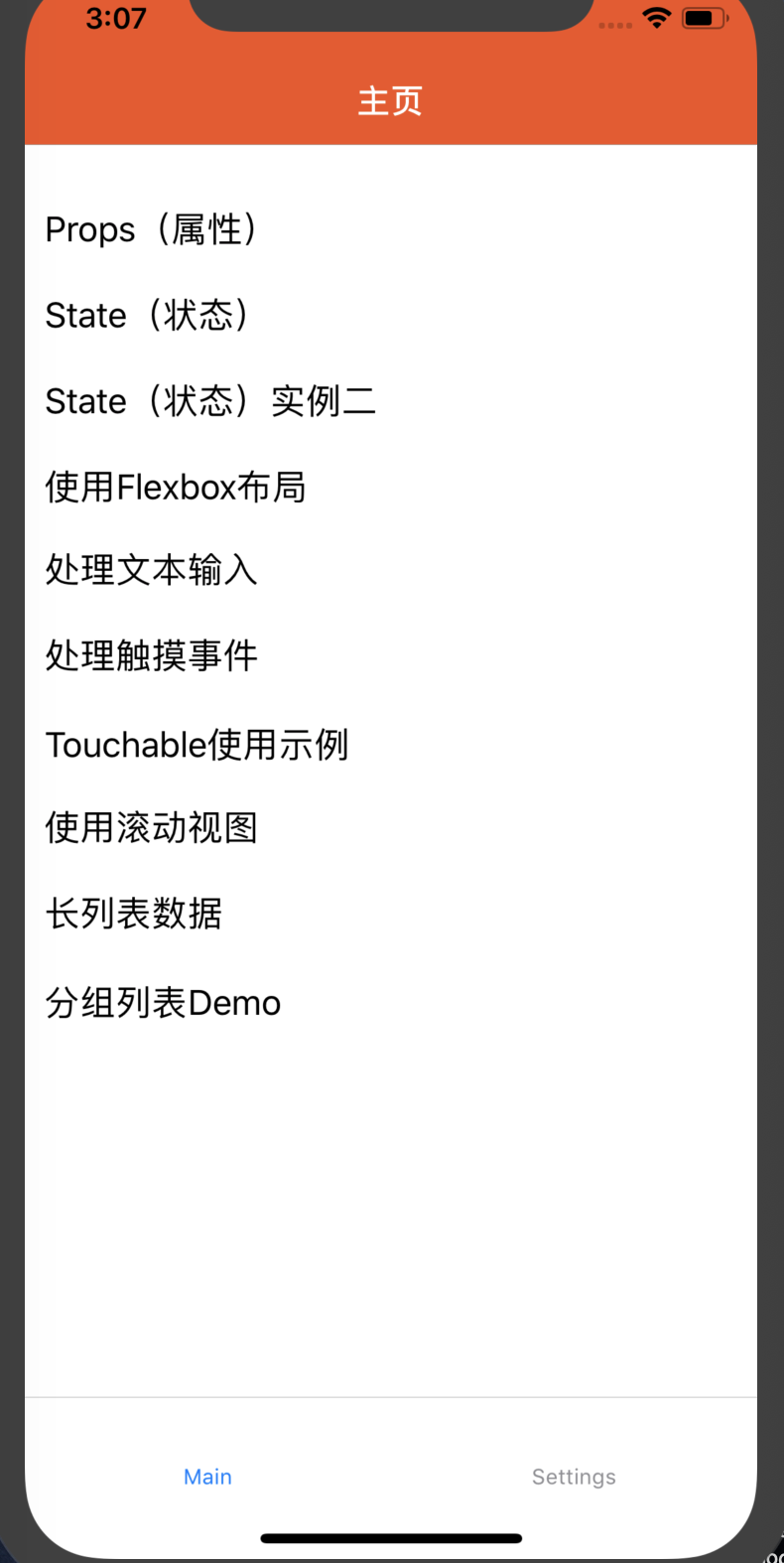
//src/navigator/Main.js

import React, {Component} from 'react';

import {Button, Platform, StyleSheet, Text, View, Alert, Image, FlatList} from 'react-native';

import PropsDemo from "../simple/PropsDemo";

import TextInputDemo from "../widget/TextInputDemo";

import ButtonDemo from "../widget/ButtonDemo";

import SectionListDemo from "../widget/SectionListDemo";

type Props = {};

class Main extends Component<Props> {

    static navigationOptions = (navigation) => {

        return {

            title: '主页',

            headerStyle: {

                backgroundColor: '#f4511e',

            },

            headerTintColor: '#fff',

            headerTitleStyle: {

                fontWeight: 'bold',

            }

        };

    };

    render() {

        return (

            <View style={styles.container}>

                <FlatList

                    data={[

                        {key: 'Props(属性)', value: 'PropsDemo'},

                        {key: 'State(状态)', value: 'PropsDemo2'},

                        {key: 'State(状态)实例二', value: 'StateDemo'},

                        {key: '使用Flexbox布局', value: 'FlexDemo'},

                        {key: '处理文本输入', value: 'TextInputDemo'},

                        {key: '处理触摸事件', value: 'ButtonDemo'},

                        {key: 'Touchable使用示例', value: 'TouchableDemo'},

                        {key: '使用滚动视图', value: 'ScrollViewDemo'},

                        {key: '长列表数据', value: 'FlatListDemo'},

                        {key: '分组列表Demo', value: 'SectionListDemo'},

                    ]}

                    renderItem={({item}) => <Text style={styles.item} onPress={() => {

                        this.props.navigation.navigate(item.value);

                    }}>{item.key}</Text>}

                />

            </View>

        );

    }

}

const styles = StyleSheet.create({

    container: {

        flex: 1,

        paddingTop: 22

    },

    item: {

        padding: 10,

        fontSize: 18,

        height: 44,

    },

})

module.exports = Main;
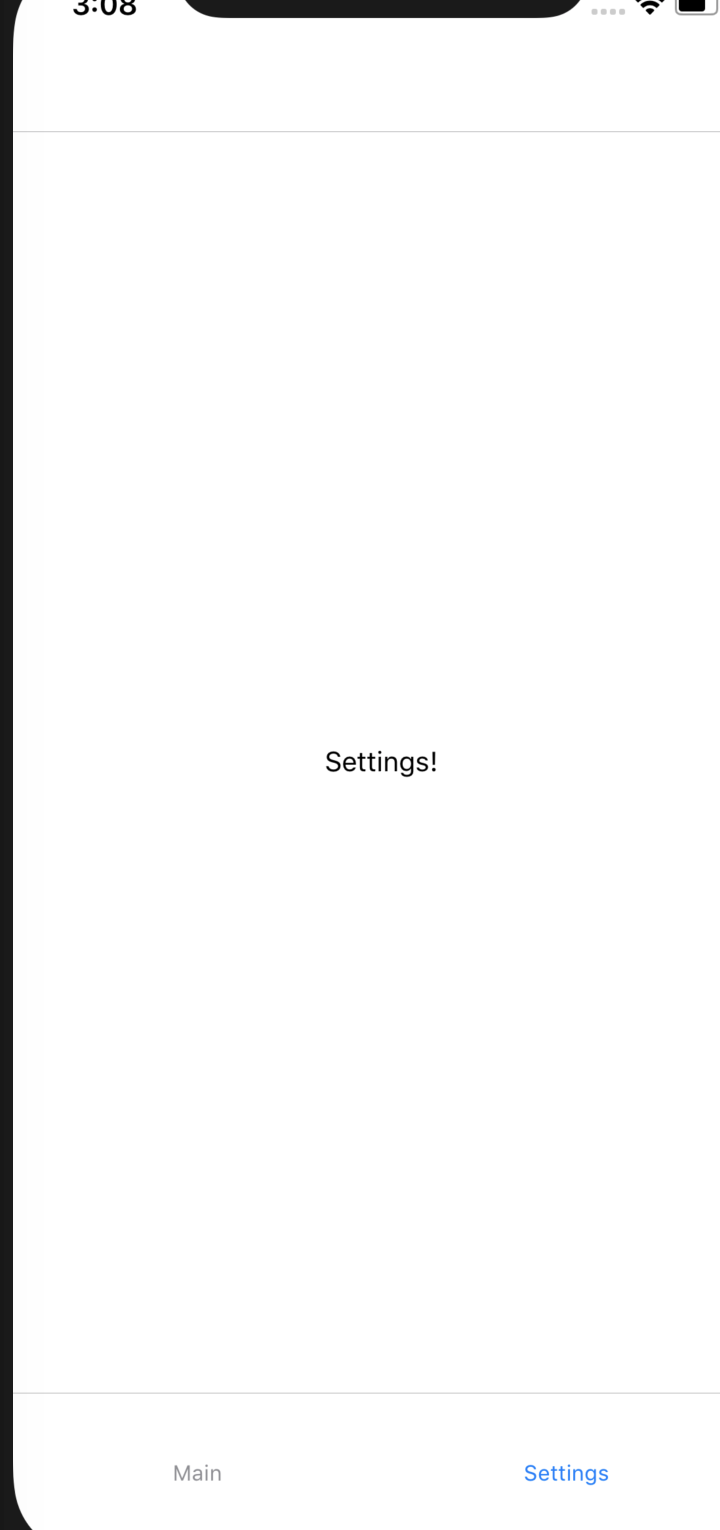
//src/navigator/Setting.js

import React, {Component} from 'react';

import {Text, View} from "react-native";

class SettingsScreen extends React.Component {

    render() {

        return (

            <View style={{ flex: 1, justifyContent: 'center', alignItems: 'center' }}>

                <Text>Settings!</Text>

            </View>

        );

    }

}

module.exports = SettingsScreen;
//src/navigator/Detail.js

//详情页在手机上面没有找到

import React, {Component} from 'react';

import {

    View,

    Text,

    StyleSheet,

    TouchableOpacity, Button,

} from 'react-native';

class Detail extends Component {

    static navigationOptions = ({navigation, screenProps}) => ({

            headerTitle: navigation.state.params.key,

            //设置滑动返回的距离

            gestureResponseDistance: {horizontal: 300},

            //是否开启手势滑动返回,android 默认关闭 ios打开

            // gesturesEnabled: true,

            //设置跳转页面左侧返回箭头后面的文字,默认是上一个页面的标题

            headerBackTitle: null,

            //导航栏的样式

            headerStyle: styles.headerStyle,

            //导航栏文字的样式

            headerTitleStyle: styles.headerTitleStyle,

            //返回按钮的颜色

            headerTintColor: 'white',

            //隐藏顶部导航栏

            // header: null,

            //设置顶部导航栏右边的视图  和 解决当有返回箭头时,文字不居中

            headerRight: (<View/>),

            //设置导航栏左边的视图

            // headerLeft: (<View/>),

        }

    );

    render() {

        return (

            <View style={styles.container}>

                <TouchableOpacity style={styles.button} activeOpacity={0.5}>

                    <Text style={{color: 'white'}}>跳转至带有菜单的导航栏页面</Text>

                </TouchableOpacity>

                <Text style={{marginTop: 10, color: 'black'}}>当前是Details页面</Text>

                <Button

                    title="Go to Details... again"

                    onPress={() => this.props.navigation.push('Detail', {key: 'push结果'})}

                />

            </View>

        );

    }

}

const styles = StyleSheet.create({

    container: {

        flex: 1,

        justifyContent: 'center',

        alignItems: 'center',

        backgroundColor: '#F5FCFF',

    },

    button: {

        width: 240,

        height: 45,

        borderRadius: 5,

        alignItems: 'center',

        justifyContent: 'center',

        backgroundColor: '#4398ff',

    },

    headerStyle: {

        backgroundColor: '#4398ff',

    },

    headerTitleStyle: {

        color: 'white',

        //设置标题的大小

        fontSize: 18,

        //居中显示

        alignSelf: 'center',

    },

});

module.exports = Detail;
//

 // 是这种方式直接渲染跳过去的

        return (

            <View style={styles.container}>

                <FlatList

                    data={[

                        {key: 'Props(属性)', value: 'PropsDemo'},

                        {key: 'State(状态)', value: 'PropsDemo2'},

                        {key: 'State(状态)实例二', value: 'StateDemo'},

                        {key: '使用Flexbox布局', value: 'FlexDemo'},

                        {key: '处理文本输入', value: 'TextInputDemo'},

                        {key: '处理触摸事件', value: 'ButtonDemo'},

                        {key: 'Touchable使用示例', value: 'TouchableDemo'},

                        {key: '使用滚动视图', value: 'ScrollViewDemo'},

                        {key: '长列表数据', value: 'FlatListDemo'},

                        {key: '分组列表Demo', value: 'SectionListDemo'},

                    ]}

                    renderItem={({item}) => <Text style={styles.item} onPress={() => {

                        this.props.navigation.navigate(item.value);

                    }}>{item.key}</Text>}

                />

            </View>
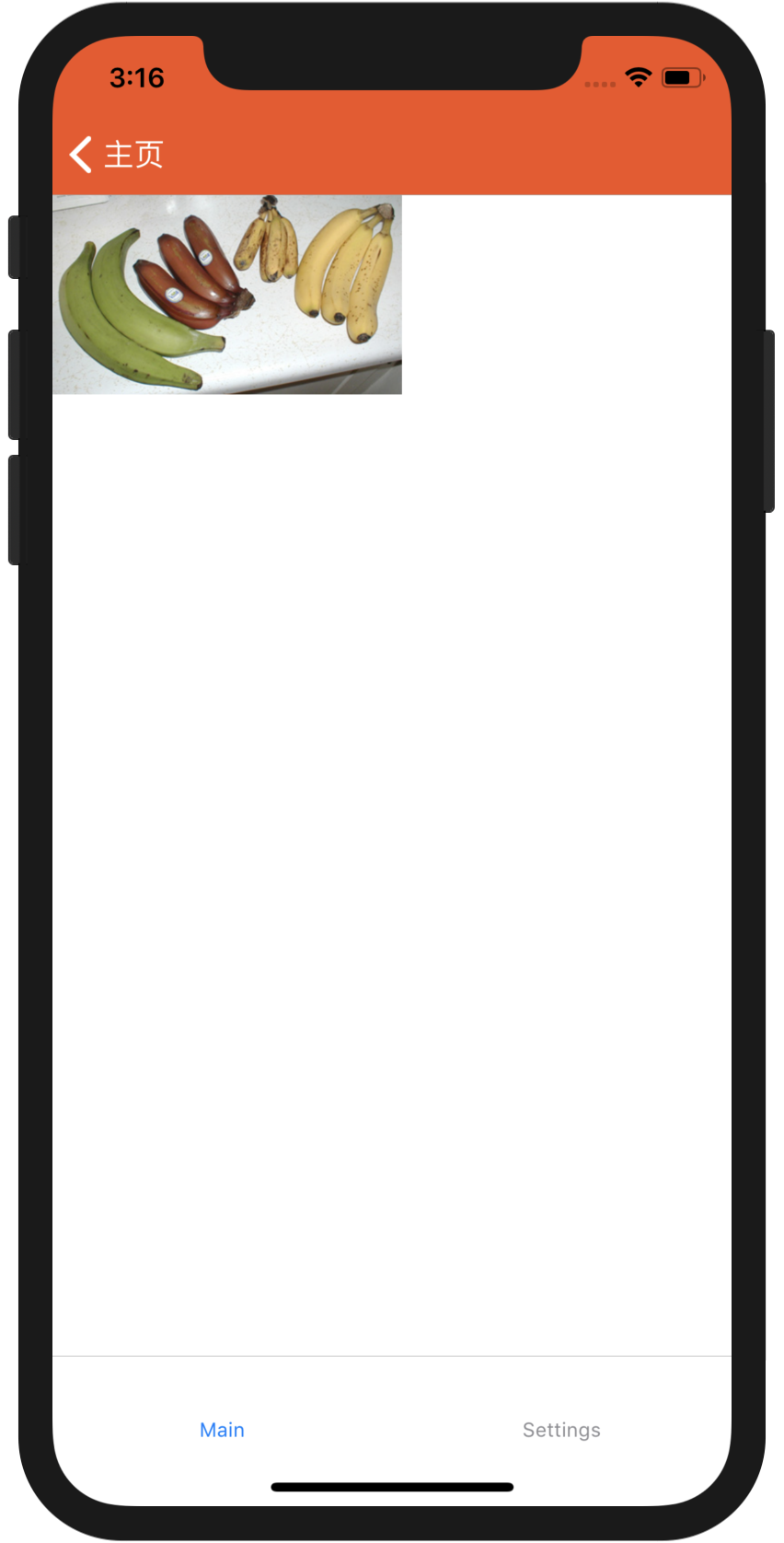
//src/simple/PropsDemo.js

import React, { Component } from 'react';

import { Image } from 'react-native';

export default class PropsDemo extends Component {

    render() {

        let pic = {

            uri: 'https://upload.wikimedia.org/wikipedia/commons/d/de/Bananavarieties.jpg'

        };

        return (

            <Image source={pic} style={{width: 193, height: 110}} />

        );

    }

}
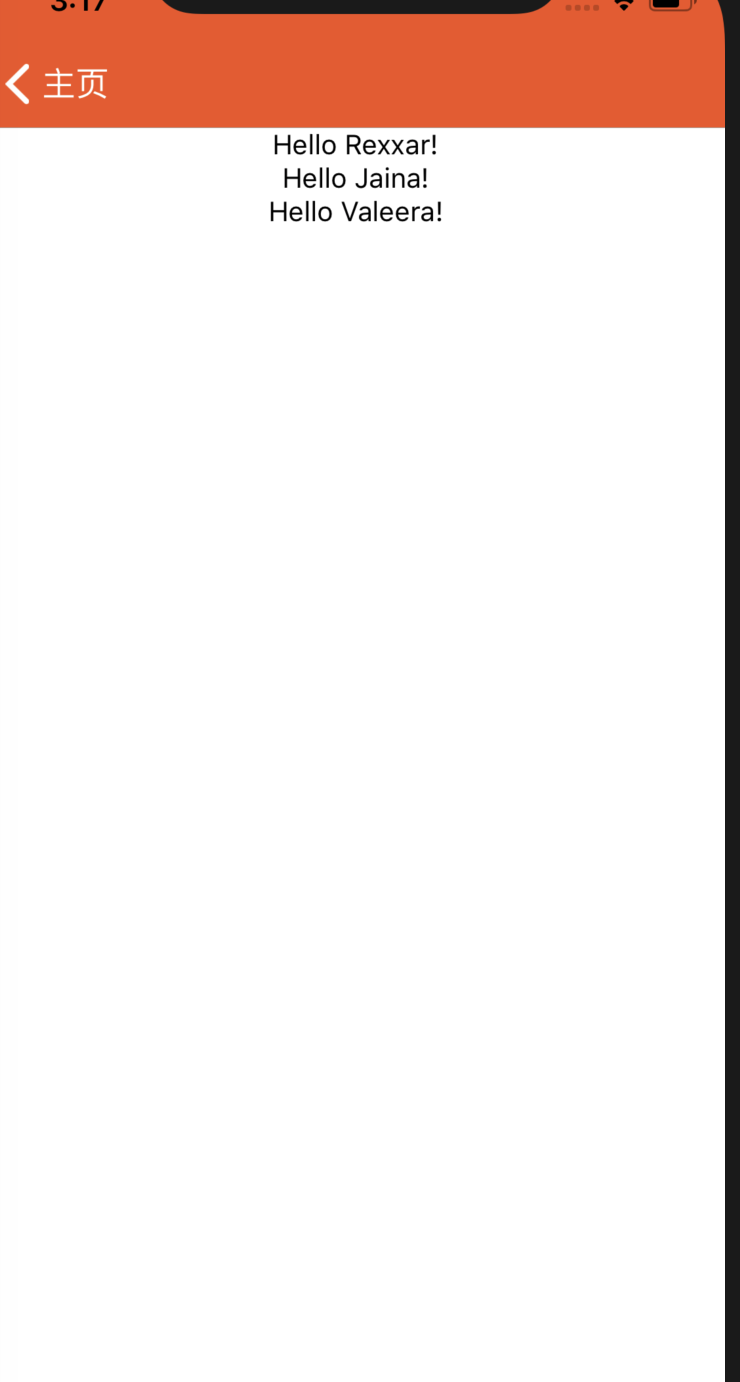
//src/simple/PropsDemo2.js

import React, { Component } from 'react';

import { Text, View } from 'react-native';

class Greeting extends Component {

    render() {

        return (

            <View style={{alignItems: 'center'}}>

                <Text>Hello {this.props.name}!</Text>

            </View>

        );

    }

}

export default class PropsDemo2 extends Component {

    render() {

        return (

            <View style={{alignItems: 'center'}}>

                <Greeting name='Rexxar' />

                <Greeting name='Jaina' />

                <Greeting name='Valeera' />

            </View>

        );

    }

}
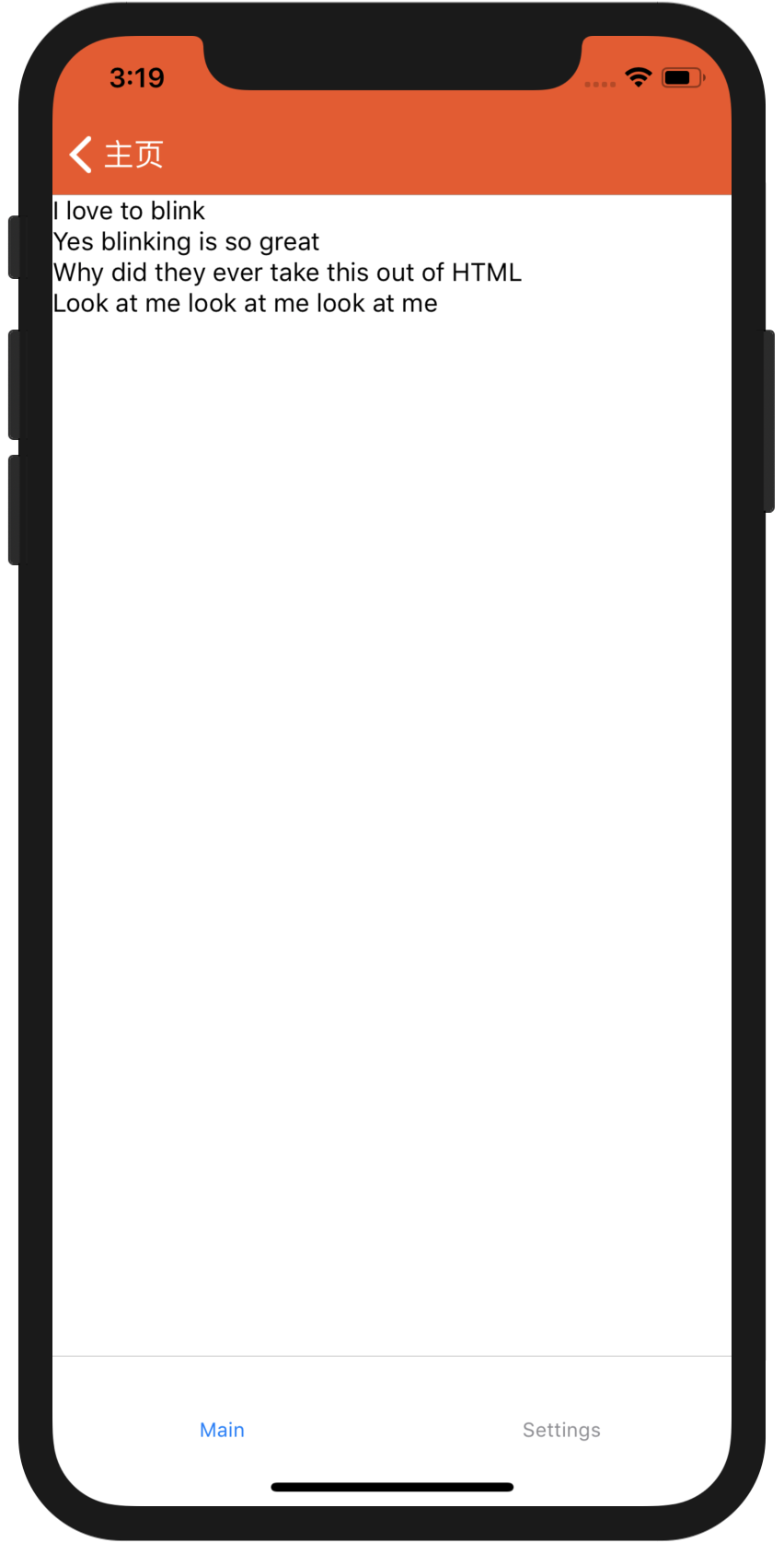
//src/simple/StateDemo.js

import React, { Component } from 'react';

import { Text, View } from 'react-native';

class Blink extends Component {

    constructor(props) {

        super(props);

        this.state = { isShowingText: true };

        // 每1000毫秒对showText状态做一次取反操作

        setInterval(() => {

            this.setState(previousState => {

                return { isShowingText: !previousState.isShowingText };

            });

        }, 2000);

    }

    render() {

        // 根据当前showText的值决定是否显示text内容

        if (!this.state.isShowingText) {

            return null;

        }

        return (

            <Text>{this.props.text}</Text>

        );

    }

}

export default class StateDemo extends Component {

    render() {

        return (

            <View>

                <Blink text='I love to blink' />

                <Blink text='Yes blinking is so great' />

                <Blink text='Why did they ever take this out of HTML' />

                <Blink text='Look at me look at me look at me' />

            </View>

        );

    }

}
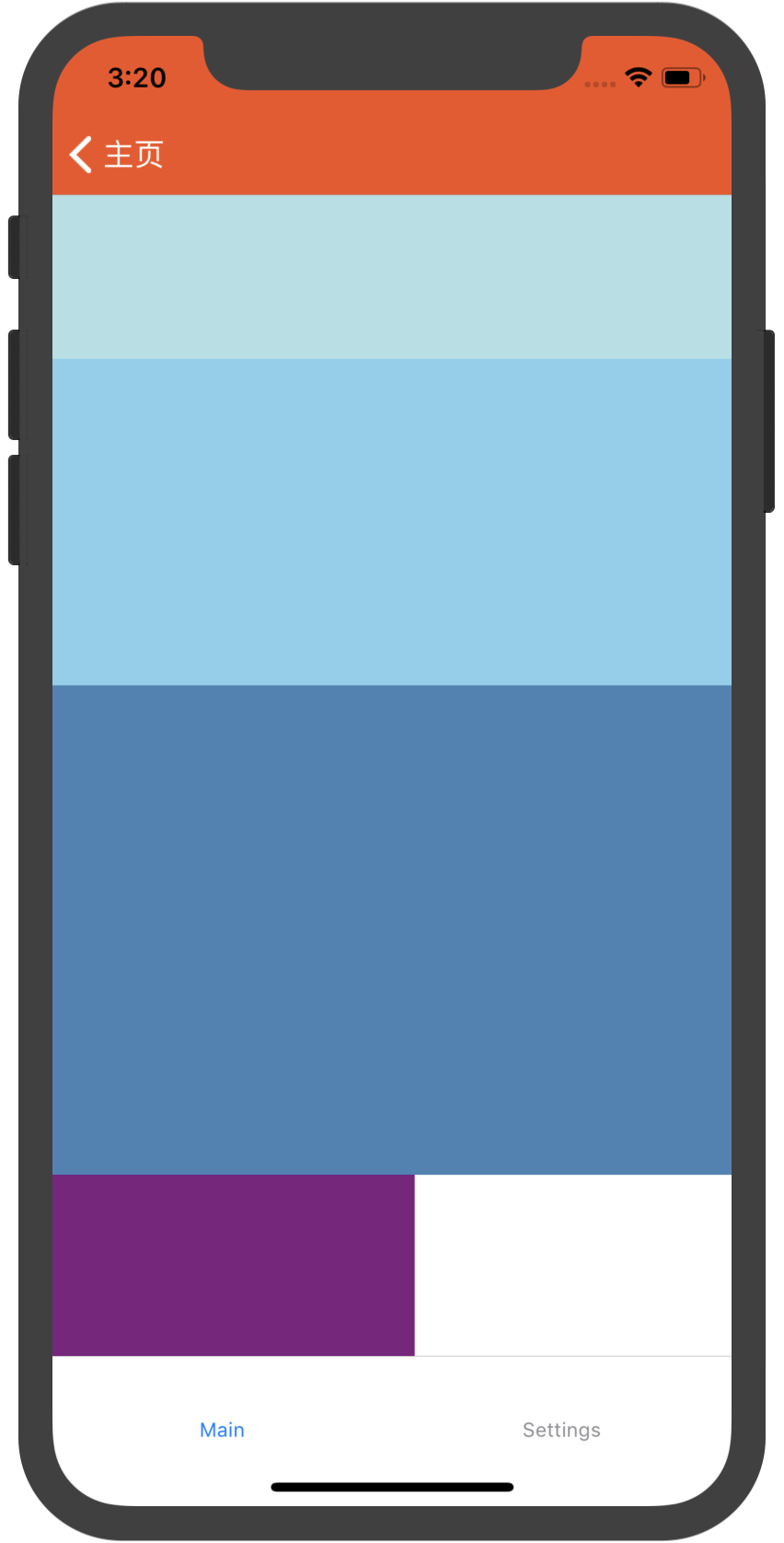
//src/simple/FlexDemo.js

import React, { Component } from 'react';

import { View } from 'react-native';

export default class FlexDemo extends Component {

    render() {

        return (

            // 试试去掉父View中的`flex: 1`。

            // 则父View不再具有尺寸,因此子组件也无法再撑开。

            // 然后再用`height: 300`来代替父View的`flex: 1`试试看?

            <View style={{flex: 1}}>

                <View style={{flex: 1, backgroundColor: 'powderblue'}} />

                <View style={{flex: 2, backgroundColor: 'skyblue'}} />

                <View style={{flex: 3, backgroundColor: 'steelblue'}} />

                <View style={{width:200, height:100, backgroundColor: 'purple'}}/>

            </View>

        );

    }

}
//src/widget/TextInputDemo.js
import React, {Component} from 'react';
import {Text, TextInput, View} from 'react-native';
export default class TextInputDemo extends Component {
constructor(props) {
super(props);
this.state = {text: ''};
}
render() {
return (
<View style={{padding: 10}}>
<TextInput
style={{height: 40}}
placeholder="Type here to translate"
onChangeText={(text) => this.setState({text})}
/>
<Text style={{padding:10, fontSize:42}}>
{this.state.text.split(' ').map((word) => word&&'
【水滴石穿】ReactNativeDemo的更多相关文章
- iOS 开发笔记 -- 各种细枝末节的知识(水滴石穿)
在此总结整理,遇到的各种的小问题: 1.通过从字典(数组)中取出的NSString的length==0 作为if的判断条件导致的carsh: 由于在字典中通过Key取出值之后直接做了length相关操 ...
- 【水滴石穿】react-native-book
先推荐一个学习的地址:https://ke.qq.com/webcourse/index.html#cid=203313&term_id=100240778&taid=12778558 ...
- 【水滴石穿】rnTest
其实就是一个小的demo,不过代码分的挺精巧的 先放地址:https://github.com/linchengzzz/rnTest 来看看效果 确实没有什么可以说的,不过代码部分还行 先入口文件 / ...
- 【水滴石穿】rn_statusbar
先放项目地址https://github.com/hezhii/rn_statusbar 来看一下效果 咩有感觉很怎么样,看代码 根入口文件 //index.js //看代码我们知道入口是app.js ...
- 【水滴石穿】react-native-ble-demo
项目的话,是想打开蓝牙,然后连接设备 点击已经连接的设备,我们会看到一些设备 不过我这边在开启蓝牙的时候报错了 先放作者的项目地址: https://github.com/hezhii/react-n ...
- 【水滴石穿】ReactNative-Redux-Thunk
老实说,运行出来的项目让人失望,毕竟我想看各种有趣的demo啊- 先放上源码地址:https://github.com/ludejun/ReactNative-Redux-Thunk 我们来一起看看代 ...
- 【水滴石穿】mobx-todos
我觉得代码在有些程序员手里,就好像是画笔,可以创造很多东西 不要觉得创意少就叫没有创意,每天进步一点点,世界更美好 首先源码地址为:https://github.com/byk04712/mobx-t ...
- 【水滴石穿】ReactNativeMobxFrame
项目地址如下:https://github.com/FTD-ZF/ReactNativeMobxFrame 应该可以说的是,项目也只是一个花架子,不过底部的tab稍微改变了 我们一起来看代码 //in ...
- 【水滴石穿】react-native-aze
说个题外话,早上打开电脑的时候,电脑变成彩色的了,锅是我曾经安装的一个chrome扩展,没有经过我的同意开启了 (也许是昨天迷迷糊糊开启了) 上午运行项目都不成功,还以为被黑客攻击了---然后下午就排 ...
随机推荐
- 2019-5-21-dotnet-core-使用-CoreRT-将程序编译为-Native-程序
title author date CreateTime categories dotnet core 使用 CoreRT 将程序编译为 Native 程序 lindexi 2019-05-21 11 ...
- linux下mysql导入导出sql文件
使用mysqldump导出数据库: # mysqldump -u root -p gzy > gzy.sql # mysqldump -u 数据库连接用户名 -p 目标数据库 > 存储的文 ...
- No context type was found in the assembly
如果解决方法中有多个项目存在,记住要在默认项目中选择你需要的项目进行 enable-migrations add-migration 以及updatebase
- LUOGU P1903 [国家集训队]数颜色 / 维护队列
传送门 解题思路 带修莫队,第一次写,其实和普通莫队差不多,就是多了个时间轴,块分n^(2/3)最优,时间复杂度O(n^(5/3)). #include<iostream> #includ ...
- Laravel报错:1071 Specified key was too long; max key length is 1000 bytes
Laravel安装,初始化数据库,运行下列命令时候出错 php artisan migrate 解决办法1,设置数据库引擎格式 //临时更改 SET GLOBAL default_storage_en ...
- git 命令行(一)-版本回退
1. 版本回退 在实际工作中,我们脑子里怎么可能记得一个几千行的文件每次都改了什么内容,不然要版本控制系统干什么.版本控制系统肯定有某个命令可以告诉我们历史记录,在Git中,我们用 git log 命 ...
- 19-10-18-Night-U
话说T3: 一句话题意……见过这个嘛…… 于是:$\sum \limits_{i!=j} \binom{a_i+b_i+a_j+b_j}{a_i+a_j}$ ------------前言结束----- ...
- PHP7中标量类型declare的用法详解
这篇文章主要介绍了PHP7标量类型declare用法,结合实例形式分析了PHP7中标量类型declare的功能.特性与相关使用技巧,需要的朋友可以参考下 本文实例讲述了PHP7标量类型declare用 ...
- PAT甲级——A1040 Longest Symmetric String
Given a string, you are supposed to output the length of the longest symmetric sub-string. For examp ...
- Multi-statement transaction required more than 'max_binlog_cache_size' bytes of storage; increase this mysqld variable and try again
WARN: SQL Error: , SQLState: HY000 八月 , :: 下午 org.hibernate.engine.jdbc.spi.SqlExceptionHelper logEx ...