
【转】Setting up SDL 2 on Visual Studio 2019 Community
FROM: http://lazyfoo.net/tutorials/SDL/01_hello_SDL/windows/msvc2019/index.php
Setting up SDL 2 on Visual Studio 2019 Community
Last Updated 7/20/20
You'll want to download the Visual C++ development libraries.
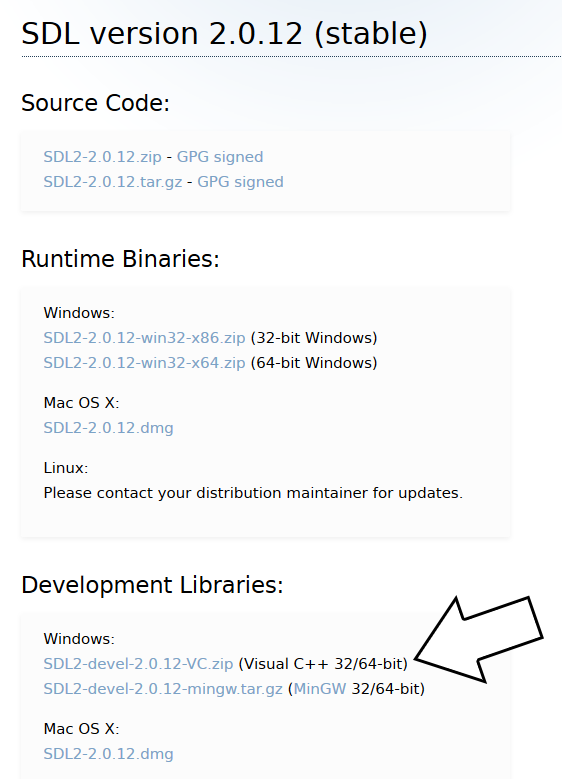
Open the zip archive and there should be a folder called SDL2-2.something.something. Copy the contents of the folder and put it anywhere you'd like. I recommend putting it in a folder that you dedicate to holding all your development libraries for Visual C++. For these tutorials I'm putting them in a directory I created called C:\vclib
2)Start up Visual Studio and create a new empty C++ project.
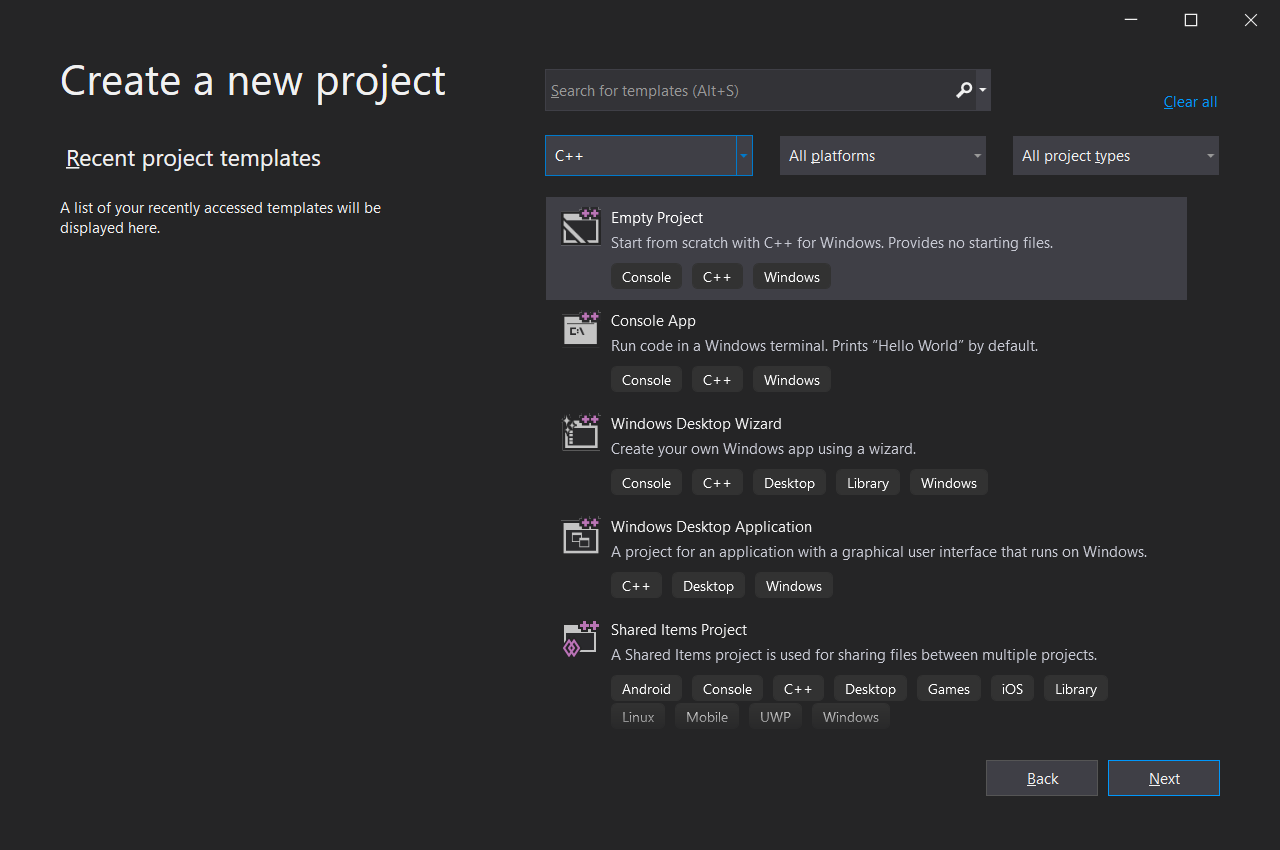
Give your project/solution whatever name you'd like and place it where ever you'd like.
3)Go download the source for lesson 01 and extract the source file. Right click on the source files folder in your solution, and then add the source file you downloaded.
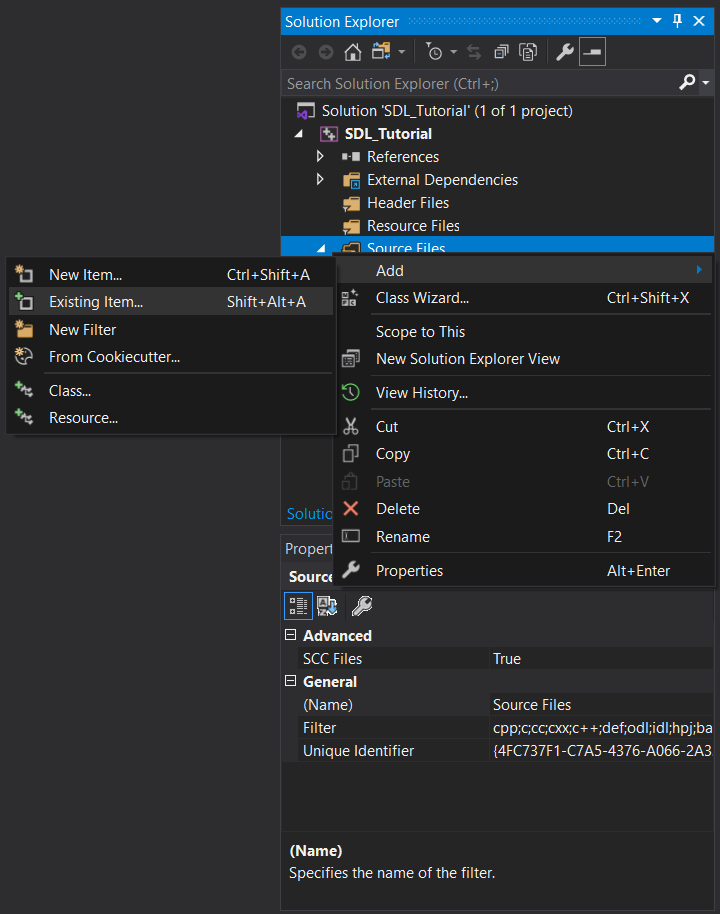
4)Now, if your default build setting is Debug x86, you may need to change it:
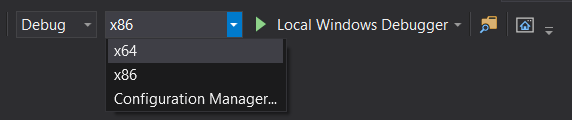
For the rest of this tutorial, we will be assuming you are building for Debug x64 so make sure your configuation is set to Debug x64. Because libraries are different per configuation, you will need to add SDL to every configuation you plan on using. So if you want to build for Release x64 or Debug x86, you will need to add SDL2 to each configuation.
5)Build your solution and you should get the following error:
Cannot open include file: 'SDL.h': No such file or directory
This means Visual C++ cannot find the SDL header files and you need to add the SDL include folder to the Visual C++ include directories.
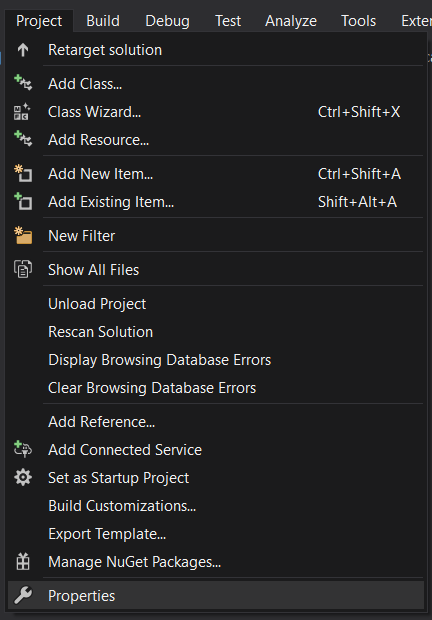
Go to project properties:
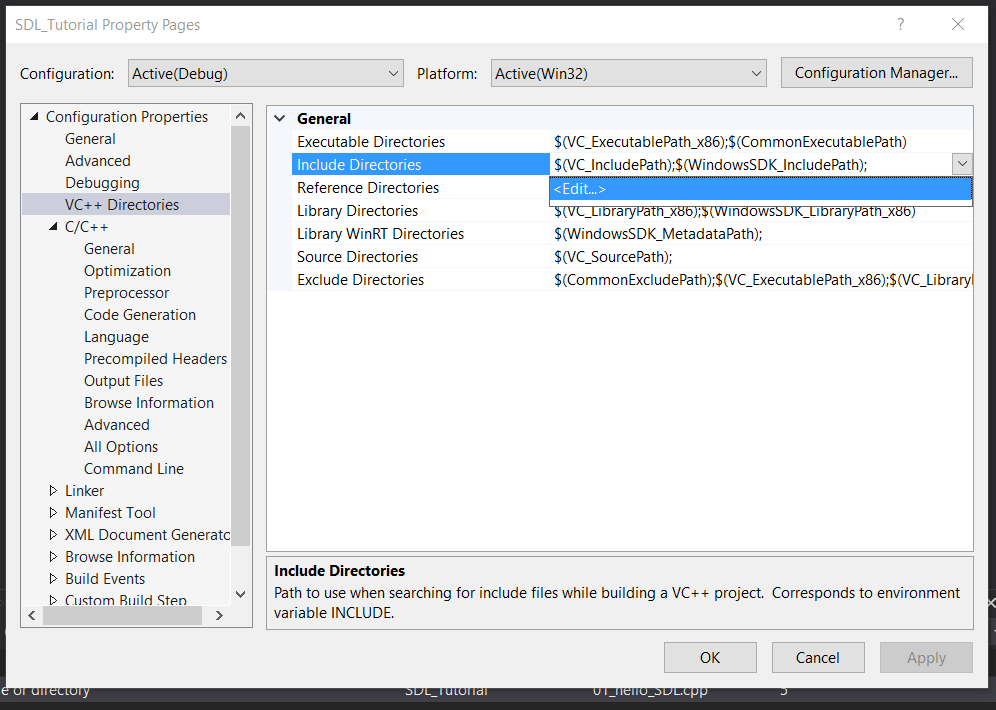
Go to Configuration Properties -> VC++ Directories -> Include Directories -> Edit.
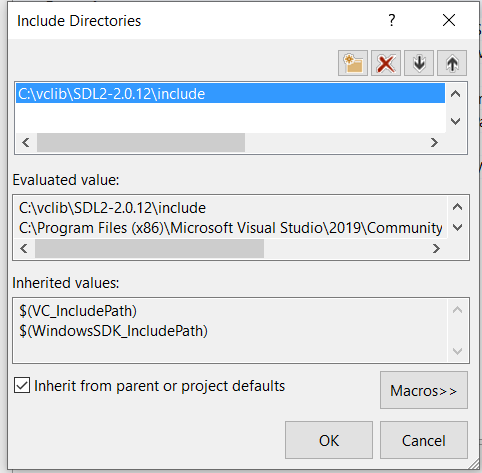
And then add the include directory from the SDL development folder we extracted.
6)Try to build your solution again and you should get a bunch of errors including:
unresolved external symbol SDL_GetError referenced in function SDL_main
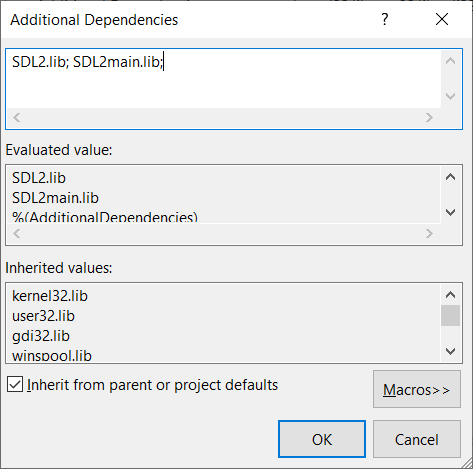
The header file tells the compiler what the SDL functions are, not where to find them. The library file tells the compiler where they are and we need to tell it to use the SDL library file. Go to Configuration Properties -> Linker -> Additional Dependencies -> Edit.
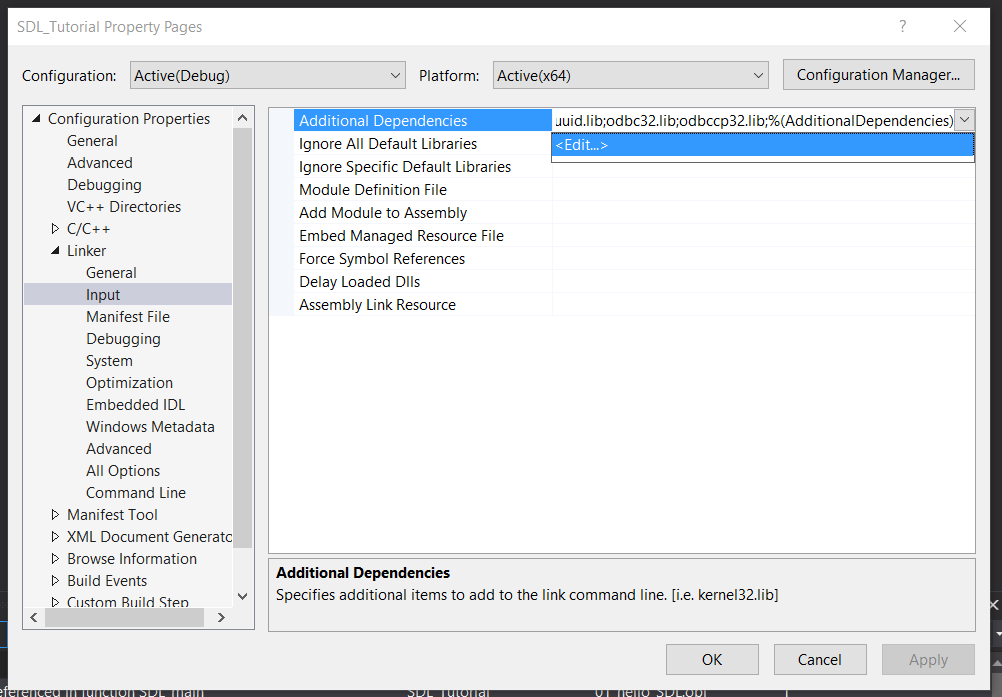
Now add
SDL2.lib; SDL2main.lib;
7)Try to build your solution again and you should get a new error:
cannot open file 'SDL2.lib'
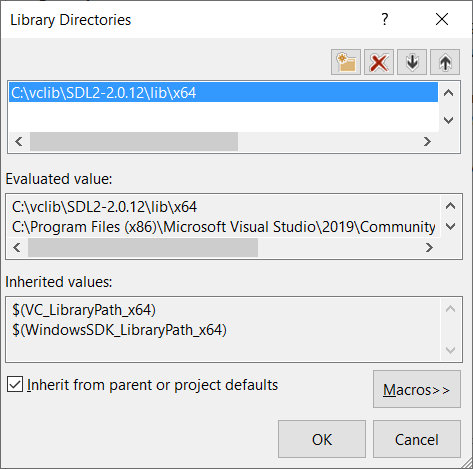
While we did tell Visual C++ to use the SDL library files, we didn't tell it where to find it. Add the library directory like you did the include directory
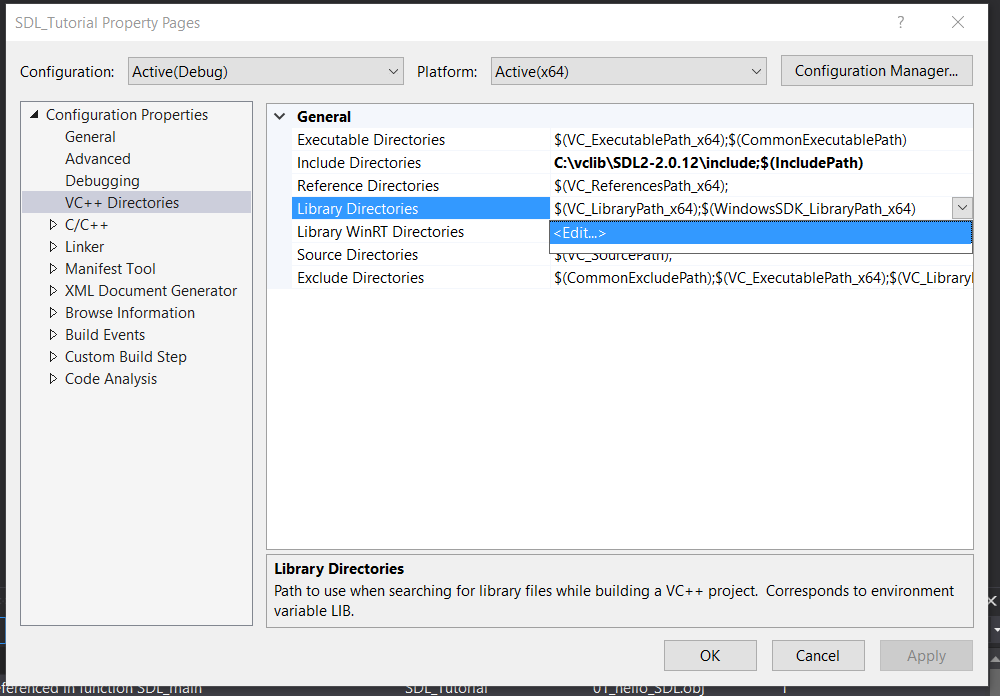
Make sure to add the library that matches your build configuation. If your building for x64, make sure to use the x64 library.
8)Build and your application should build, but try to run it and you'll get this error:
The code execution cannot proceed because SDL2.dll was not found.
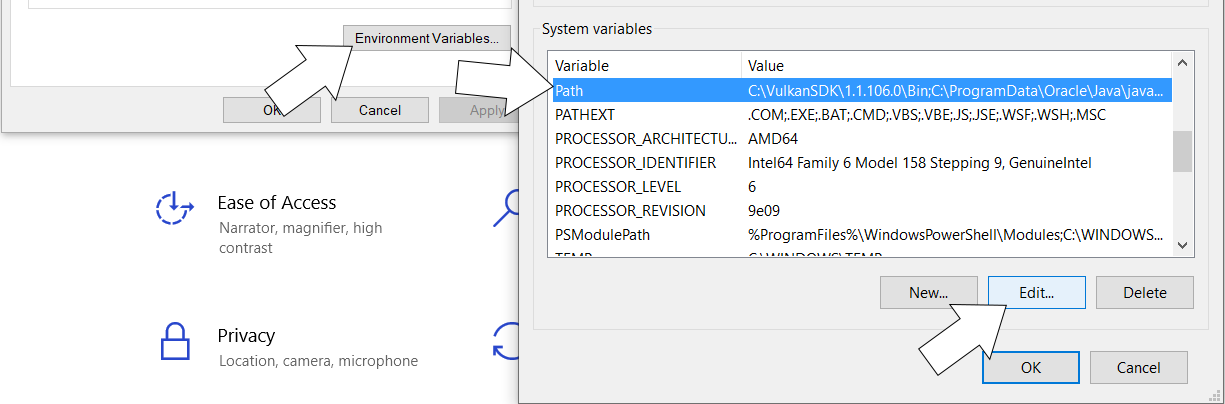
This is because your application needs SDL2.dll to run but can't find it. Windows uses environment variables to define where to look for dll files. To edit the PATH environment variable, go into Windows Settings and search for edit the system environment variables:
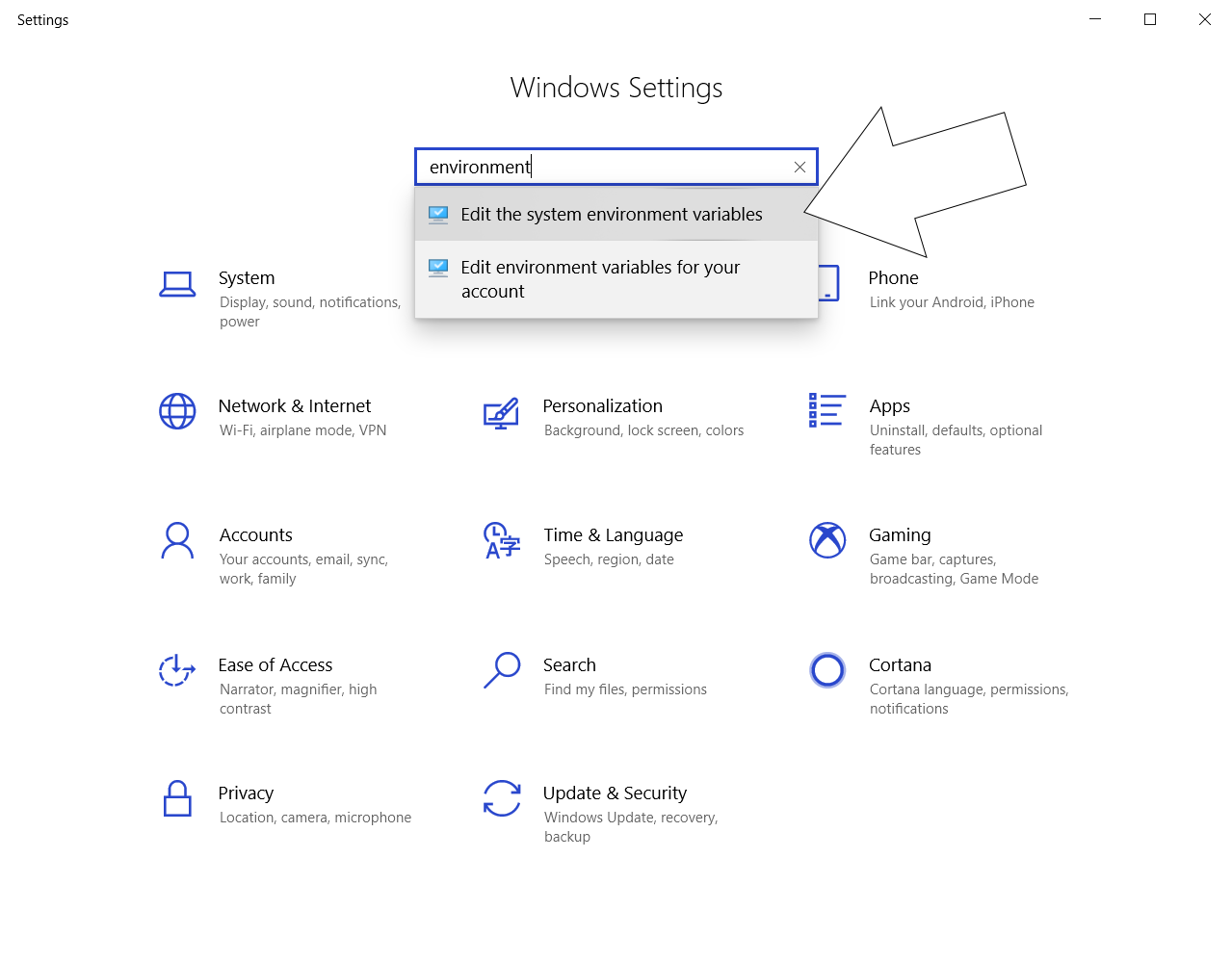
Click environment variables and under System Variables select Path and click Edit
Then click new, then browse to add the lib directory for your build configuation:
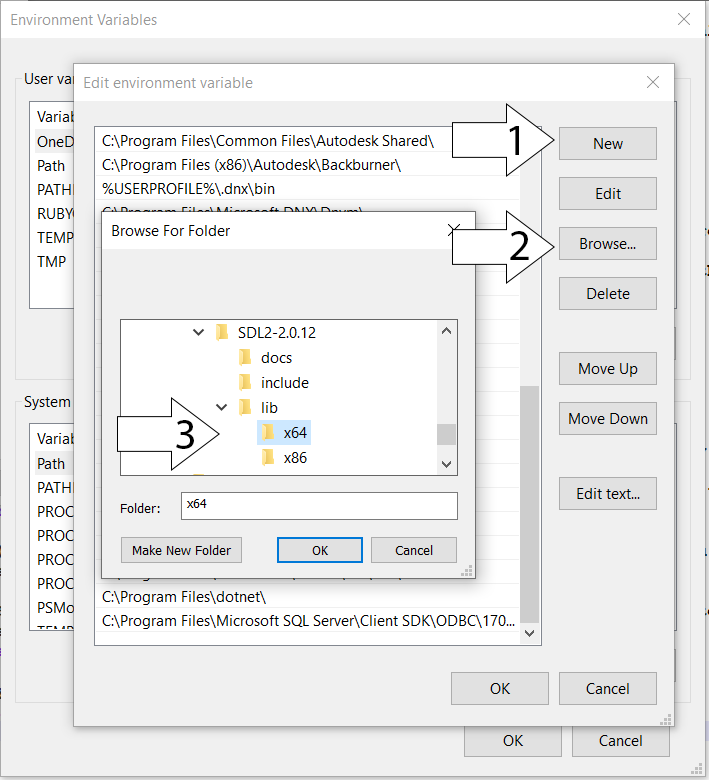
Restart Visual Studio so Visual C++ can get the updated path variable, start your program and it should run.
Now that you have SDL 2 compiling, it's time to go onto part 2 of the tutorial.
【转】Setting up SDL 2 on Visual Studio 2019 Community的更多相关文章
- 【转】Setting up SDL 2 on Visual Studio 2010 Ultimate
from: Lazy Foo'Productions - Setting up SDL 2 on Visual Studio 2010 Ultimate 1)First thing you need ...
- 【转】Setting up SDL Extension Libraries on Visual Studio 2019 Community
FROM:http://lazyfoo.net/tutorials/SDL/06_extension_libraries_and_loading_other_image_formats/windows ...
- 解决VS命令提示符 “Setting environment for using Microsoft Visual Studio. 此时不应有“系列错误
一.起因 近期在玩Boost库.当然首先是要进行Boost库的安装和配置.于是浅墨Google了一下boost库的安装配置攻略.下载了最新版1.55的boost库.就愉悦地開始进行配置了. 当进行到第 ...
- Visual Studio 2019 发布活动 - 2019 年 4 月 2 日
Visual Studio 2019 发布活动 2019 年 4 月 2 日,星期二 | 上午 9:00 (PT) 围观: https://visualstudio.microsoft.com/zh- ...
- Visual Studio 2019 正式发布,重磅更新,支持live share
如约而至,微软已于今天推出 Visual Studio 2019 正式版,一同发布的还有 Visual Studio 2019 for Mac. Visual Studio 2019 下载地址:htt ...
- “宇宙最强” IDE,Visual Studio 2019 正式发布
转载请注明出处:葡萄城官网,葡萄城为开发者提供专业的开发工具.解决方案和服务,赋能开发者. 本文由葡萄城翻译并发布 今天凌晨Visual Studio 2019已经正式发布,现在已经可以下载了.使用V ...
- Visual Studio 2019 使用 Live Share
一.前言 Visual Studio 2019 在今天发布(北京时间)了,这次带来了一个比较有趣的 Live Share 功能,使用它可以进行更好的协作开发.主要功能: 更多资料可看官方介绍: Vis ...
- Visual Studio 2019 正式版 更新内容
大早上更新了Visual Studio 2019, 试用一下 一.界面改变 1.项目创建界面 首先启动界面改变就不说了,创建项目的界面做了较大改变,感觉在向vs for mac 靠拢 ,而后者感觉像x ...
- Making every developer more productive with Visual Studio 2019
Today, in the Microsoft Connect(); 2018 keynote, Scott Guthrie announced the availability of Visual ...
随机推荐
- 关于人人开源renren-fast-vue 中npm install各种报错的解决方案
首先吐槽一下,因为这个问题我整了好几天,把报错信息复制百度,试遍了各种方法,node.js我是卸载了安装,安装了卸载,甚至renren-fast-vue我也删了再下,然后再删,无限循环.然而没有什么软 ...
- C++ format 函数
转载原文链接:https://blog.csdn.net/nowhaha/article/details/38710571 原博主很有心,文字标有颜色,奥利给! Thanks C++ format ...
- matlab中strcmpi比较字符串(不区分大小写)
来源:https://ww2.mathworks.cn/help/matlab/ref/strcmpi.html?searchHighlight=strcmpi&s_tid=doc_srcht ...
- JavaFX FileChooser文件选择器、DirectoryChooser目录选择器
参考:https://www.yiibai.com/javafx/javafx_filechooser.html 参考:https://blog.csdn.net/dorma_bin/article/ ...
- shell-批量修改文件名及扩展名多案例
1. 功能描述如下表: 批量文件改名案例实战: 问题1: 创建测试数据 [root@1-241 tmp]# for i in `seq 6`;do touch stu_161226_${i}_fin ...
- 多测师讲解python __for 循环___高级讲师肖sir
横向输出 1.遍历字符串 2.遍历列表 3.遍历元组 方法一: 方法二: 方法三: #循环字典:方法一# dict1={"name":"zhihao",&quo ...
- linux centos 04
1.python的虚拟环境 1.将当前机器上的解释器作为一个 本地,复制出的很多歌 虚拟解释器 物理机上的 本体解释器 ,什么事也不做 分身1: 解释器1:虚拟环境1 运行django 1 ...
- C语言和单片机C语言为什么会有差异?虽不同但理同!
许多小伙伴在学完C语言后想入门单片机,但学着学着发现明明都是C语言,为什么单片机C语言和我当初学的C语言有差异呢? 今天小编就来梳理我们平时所学的C语言与单片机C语言的有什么样的不同. 单片机c语言比 ...
- 【树形DP】BZOJ 3829 Farmcraft
题目内容 mhy住在一棵有n个点的树的1号结点上,每个结点上都有一个妹子i. mhy从自己家出发,去给每一个妹子都送一台电脑,每个妹子拿到电脑后就会开始安装zhx牌杀毒软件,第i个妹子安装时间为Ci. ...
- centos8平台用redis-cli对redis5监控和管理
一,监控redis-server上正在执行的命令 1,打开a终端: [root@yjweb log]# /usr/local/soft/redis5/bin/redis-cli -h 127.0.0. ...