
[js高手之路] html5 canvas系列教程 - 线形渐变,径向渐变与阴影设置
接着上文[js高手之路] html5 canvas系列教程 - 像素操作(反色,黑白,亮度,复古,蒙版,透明)继续.
一、线形渐变
线形渐变指的是一条直线上发生的渐变。
用法:
var linear = cxt.createLinearGradient( x1, y1, x2, y2 );
linear.addColorStop( value1, color1 );
linear.addColorStop( value2, color2 );
.....
oGc.fillStyle = linear
oGc.fill();
1) createLinearGradient创建一个线形渐变对象. x1, y1表示渐变的起点. x2, y2表示渐变的终点.
2)addColorStop在某处添加渐变颜色值
3)fillStyle:把渐变对象作为填充样式
4)调用fill及其他相关图形进行渐变填充
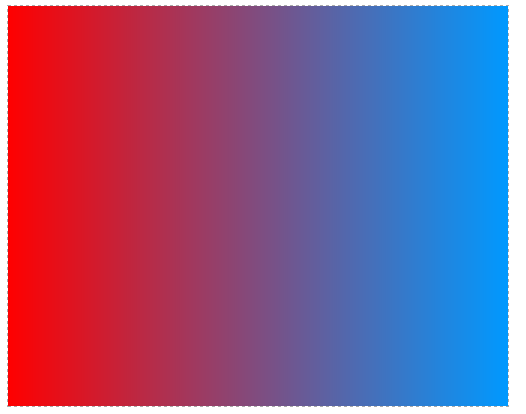
水平渐变
 <head>

 <meta charset='utf-8' />

 <style>

 #canvas{

     border:1px dashed #aaa;

 }

 </style>

 <script>

 window.onload = function(){

     var oCanvas = document.querySelector( "#canvas" ),

         oGc = oCanvas.getContext( '2d' );

     var linear = oGc.createLinearGradient( 0, 400, 500, 400 );

     linear.addColorStop( 0, 'red' );

     linear.addColorStop( 1, '#09f' );

     oGc.fillStyle = linear;

     oGc.fillRect( 0, 0, 500, 400 );

 }

 </script>

 </head>

 <body>

 <canvas id="canvas" width="500" height="400"></canvas>

 </body>
垂直渐变:
 <head>

     <meta charset='utf-8' />

     <style>

     #canvas{

         border:1px dashed #aaa;

     }

     </style>

     <script>

     window.onload = function(){

         var oCanvas = document.querySelector( "#canvas" ),

             oGc = oCanvas.getContext( '2d' );

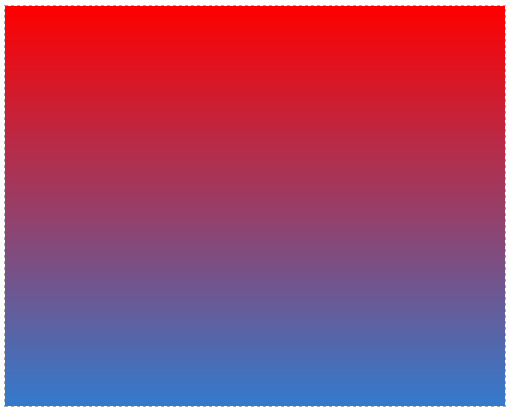
         var linear = oGc.createLinearGradient( 400, 0, 400, 500 );

         linear.addColorStop( 0, 'red' );

         linear.addColorStop( 1, '#09f' );

         oGc.fillStyle = linear;

         oGc.fillRect( 0, 0, 500, 400 );

     }

     </script>

 </head>

 <body>

     <canvas id="canvas" width="500" height="400"></canvas>

 </body>
对角线渐变:
 <head>

     <meta charset='utf-8' />

     <style>

     #canvas{

         border:1px dashed #aaa;

     }

     </style>

     <script>

     window.onload = function(){

         var oCanvas = document.querySelector( "#canvas" ),

             oGc = oCanvas.getContext( '2d' );

         var linear = oGc.createLinearGradient( 0, 0, 400, 500 );

         linear.addColorStop( 0, 'red' );

         linear.addColorStop( 1, '#09f' );

         oGc.fillStyle = linear;

         oGc.fillRect( 0, 0, 500, 400 );

     }

     </script>

 </head>

 <body>

     <canvas id="canvas" width="500" height="400"></canvas>

 </body>

为文字添加线形渐变效果
 <head>

     <meta charset='utf-8' />

     <style>

     #canvas{

         border:1px dashed #aaa;

     }

     </style>

     <script>

     window.onload = function(){

         var oCanvas = document.querySelector( "#canvas" ),

             oGc = oCanvas.getContext( '2d' ),

             text = '跟着ghostwu学习html5 canvas教程';

             oGc.font = '22px bold 微软雅黑';

         var linear = oGc.createLinearGradient( 20, 100, 400, 100 );

         linear.addColorStop( 0, 'red' );

         linear.addColorStop( 1, '#09f' );

         oGc.fillStyle = linear;

         oGc.fillText( text, 50, 100 );

     }

     </script>

 </head>

 <body>

     <canvas id="canvas" width="500" height="400"></canvas>

 </body>

二、径向渐变
颜色渐变从一个起点向各个方向渐变,用法跟线形渐变差不多,只不过创建渐变的时候用的是另一个函数
var radial = cxt.createRadialGradient( x1, y1, r1, x2, y2, r2 )
....下面的步骤跟线形渐变一样,不再重复了
x1, y1起始点的圆心坐标,r1: 起始点 圆的半径
x2,y2结束点的圆心坐标,r2:结束点 圆所在的半径
 <head>

     <meta charset='utf-8' />

     <style>

     #canvas{

         border:1px dashed #aaa;

     }

     </style>

     <script>

     window.onload = function(){

         var oCanvas = document.querySelector( "#canvas" ),

             oGc = oCanvas.getContext( '2d' ),

             width = oCanvas.width, height = oCanvas.height;

         oGc.beginPath();

         oGc.arc( 100, 100, 100, 0, 360 * Math.PI / 180, false );

         oGc.closePath();

         var radial = oGc.createRadialGradient( 150, 50, 10, 100, 100, 100 );

         radial.addColorStop( 0.1, 'white' );

         radial.addColorStop( 0.6, 'orange' );

         radial.addColorStop( 1, 'red' );

         oGc.fillStyle = radial;

         oGc.fill();

         oGc.beginPath();

         oGc.arc( 320, 100, 100, 0, 360 * Math.PI / 180, false );

         oGc.closePath();

         var radial2 = oGc.createRadialGradient( 280, 50, 10, 320, 100, 100 );

         radial2.addColorStop( 0.1, 'white' );

         radial2.addColorStop( 0.6, 'orange' );

         radial2.addColorStop( 1, 'rgba( 255, 0, 0, 0.5 )' );

         oGc.fillStyle = radial2;

         oGc.fill();

         oGc.beginPath();

         oGc.lineWidth = 1;

         oGc.strokeStyle = '#eee';

         for( var i = 0; i < width; i += 10 ){

             oGc.moveTo( i, 0 );

             oGc.lineTo( i, height );

         }

         for( var j = 0; j < height; j += 10 ){

             oGc.moveTo( 0, j );

             oGc.lineTo( width, j );

         }

         oGc.closePath();

         oGc.stroke();

         oGc.beginPath();

         oGc.fillStyle = 'red';

         oGc.strokeStyle = 'blue';

         oGc.moveTo( 150, 0 );

         oGc.lineTo( 150, height );

         oGc.moveTo( 0, 50 );

         oGc.lineTo( width, 50 );

         oGc.fillText( '(150,50)', 170, 30 );

         oGc.stroke();

         oGc.closePath();

         oGc.beginPath();

         oGc.strokeStyle = 'yellow';

         oGc.fillStyle = 'black';

         oGc.moveTo( 100, 0 );

         oGc.lineTo( 100, height );

         oGc.moveTo( 0, 100 );

         oGc.lineTo( width, 100 );

         oGc.fillText( '(100,100)', 30, 120 );

         oGc.stroke();

     }

     </script>

 </head>

 <body>

     <canvas id="canvas" width="500" height="400"></canvas>

 </body>
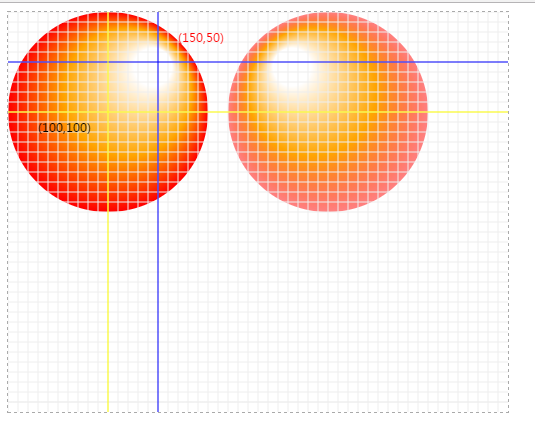
我在图中做出了第一个径向渐变的圆心坐标,便于观看
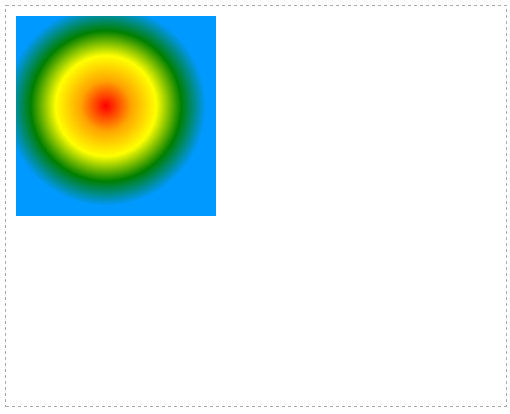
同心圆渐变:
 <head>

     <meta charset='utf-8' />

     <style>

     #canvas{

         border:1px dashed #aaa;

     }

     </style>

     <script>

     window.onload = function(){

         var oCanvas = document.querySelector( "#canvas" ),

             oGc = oCanvas.getContext( '2d' ),

             width = oCanvas.width, height = oCanvas.height;

         var radial = oGc.createRadialGradient( 100, 100, 0, 100, 100, 100 );

         radial.addColorStop( 0, 'red' );

         radial.addColorStop( 0.25, 'orange' );

         radial.addColorStop( 0.5, 'yellow' );

         radial.addColorStop( 0.75, 'green' );

         radial.addColorStop( 1, '#09f' );

         oGc.fillStyle = radial;

         oGc.fillRect( 10, 10, 200, 200 );

     }

     </script>

 </head>

 <body>

     <canvas id="canvas" width="500" height="400"></canvas>

 </body>
三、阴影设置
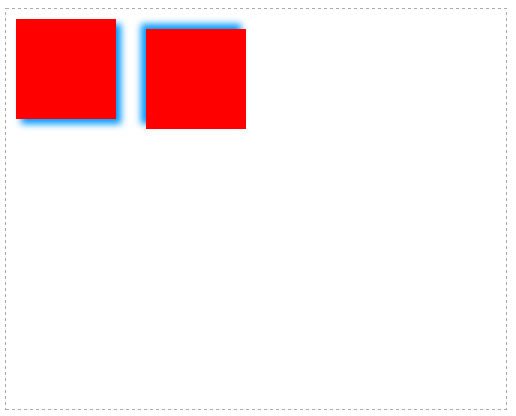
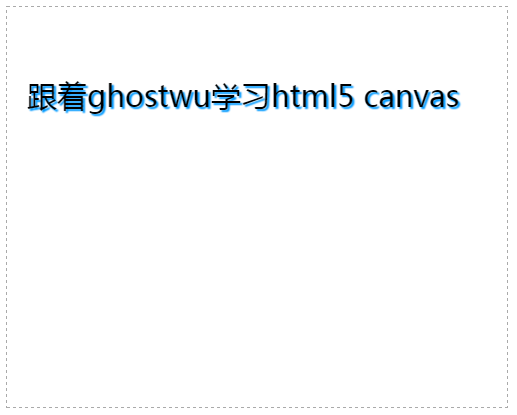
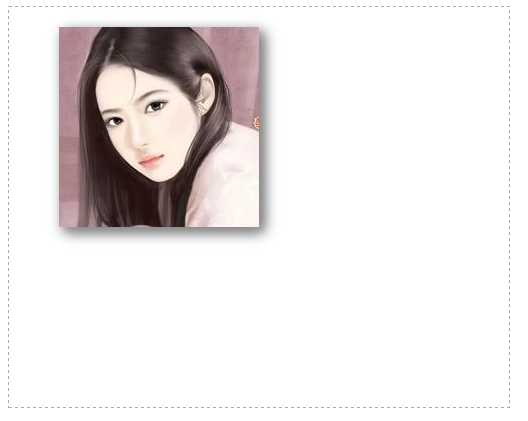
跟css3的边框阴影用法差不多.
cxt.shadowOffsetX: 水平阴影,可以设置正负数, 正数->向右偏移,负数->向左偏移
cxt.shadowOffsetY: 垂直阴影,可以设置正负数,正数->向下偏移,负数->向上偏移
cxt.shadowColor: 阴影的颜色
cxt.shadowBlur: 阴影的模糊范围
 <head>

     <meta charset='utf-8' />

     <style>

     #canvas{

         border:1px dashed #aaa;

     }

     </style>

     <script>

     window.onload = function(){

         var oCanvas = document.querySelector( "#canvas" ),

             oGc = oCanvas.getContext( '2d' ),

             width = oCanvas.width, height = oCanvas.height;

             oGc.shadowOffsetX = 5;

             oGc.shadowOffsetY = 5;

             oGc.shadowColor = '#09f';

             oGc.shadowBlur = 10;

             oGc.fillStyle = 'red';

             oGc.fillRect( 10, 10, 100, 100 );

             oGc.shadowOffsetX = -5;

             oGc.shadowOffsetY = -5;

             oGc.shadowColor = '#09f';

             oGc.shadowBlur = 10;

             oGc.fillStyle = 'red';

             oGc.fillRect( 140, 20, 100, 100 );

     }

     </script>

 </head>

 <body>

     <canvas id="canvas" width="500" height="400"></canvas>

 </body>
给文字设置阴影:
 <head>

     <meta charset='utf-8' />

     <style>

     #canvas{

         border:1px dashed #aaa;

     }

     </style>

     <script>

     window.onload = function(){

         var oCanvas = document.querySelector( "#canvas" ),

             oGc = oCanvas.getContext( '2d' ),

             width = oCanvas.width, height = oCanvas.height;

             oGc.shadowOffsetX = 2;

             oGc.shadowOffsetY = 2;

             oGc.shadowColor = '#09f';

             oGc.shadowBlur = 1;

             oGc.font = '30px bold 微软雅黑';

             oGc.fillText( '跟着ghostwu学习html5 canvas', 20, 100 );

     }

     </script>

 </head>

 <body>

     <canvas id="canvas" width="500" height="400"></canvas>

 </body>
给图片设置阴影
 <head>

     <meta charset='utf-8' />

     <style>

     #canvas{

         border:1px dashed #aaa;

     }

     </style>

     <script>

     window.onload = function(){

         var oCanvas = document.querySelector( "#canvas" ),

             oGc = oCanvas.getContext( '2d' ),

             width = oCanvas.width, height = oCanvas.height;

             var oImg = new Image();

             oImg.src = './img/mv.jpg';

             oImg.onload = function(){

                 oGc.shadowOffsetX = 5;

                 oGc.shadowOffsetY = 5;

                 // oGc.shadowOffsetX = 0;

                 // oGc.shadowOffsetY = 0;

                 oGc.shadowColor = '#888';

                 oGc.shadowBlur = 20;

                 oGc.fillRect( 50, 20, 200, 200 );

                 oGc.drawImage( oImg, 50, 20 );

             }

     }

     </script>

 </head>

 <body>

     <canvas id="canvas" width="500" height="400"></canvas>

 </body>
给图片的四周设置阴影:
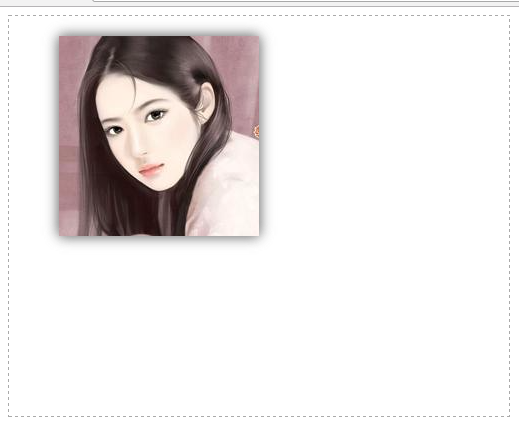
把shadowOffsetX和shadowOffsetY都设置为0,那么就会在四周产生阴影效果
 <head>

     <meta charset='utf-8' />

     <style>

     #canvas{

         border:1px dashed #aaa;

     }

     </style>

     <script>

     window.onload = function(){

         var oCanvas = document.querySelector( "#canvas" ),

             oGc = oCanvas.getContext( '2d' ),

             width = oCanvas.width, height = oCanvas.height;

             var oImg = new Image();

             oImg.src = './img/mv.jpg';

             oImg.onload = function(){

                 oGc.shadowOffsetX = 0;

                 oGc.shadowOffsetY = 0;

                 oGc.shadowColor = '#888';

                 oGc.shadowBlur = 20;

                 oGc.fillRect( 50, 20, 200, 200 );

                 oGc.drawImage( oImg, 50, 20 );

             }

     }

     </script>

 </head>

 <body>

     <canvas id="canvas" width="500" height="400"></canvas>

 </body>
[js高手之路] html5 canvas系列教程 - 线形渐变,径向渐变与阴影设置的更多相关文章
- [js高手之路] html5 canvas系列教程 - 掌握画直线图形的常用API
我们接着上文[js高手之路] html5 canvase系列教程 - 认识canvas以及基本使用方法继续. 一.直线的绘制 cxt.moveTo( x1, y1 ): 将画笔移动到x1, y1这个点 ...
- [js高手之路] html5 canvas系列教程 - arcTo(弧度与二次,三次贝塞尔曲线以及在线工具)
之前,我写了一个arc函数的用法:[js高手之路] html5 canvas系列教程 - arc绘制曲线图形(曲线,弧线,圆形). arcTo: cxt.arcTo( cx, cy, x2, y2, ...
- [js高手之路] html5 canvas系列教程 - arc绘制曲线图形(曲线,弧线,圆形)
绘制曲线,经常会用到路径的知识,如果你对路径有疑问,可以参考我的这篇文章[js高手之路] html5 canvas系列教程 - 开始路径beginPath与关闭路径closePath详解. arc:画 ...
- [js高手之路] html5 canvas系列教程 - 图片操作(drawImage,clip,createPattern)
接着上文[js高手之路] html5 canvas系列教程 - 文本样式(strokeText,fillText,measureText,textAlign,textBaseline)继续,本文介绍的 ...
- [js高手之路] html5 canvas系列教程 - 文本样式(strokeText,fillText,measureText,textAlign,textBaseline)
接着上文线条样式[js高手之路] html5 canvas系列教程 - 线条样式(lineWidth,lineCap,lineJoin,setLineDash)继续. canvas提供两种输出文本的方 ...
- [js高手之路] html5 canvas系列教程 - 线条样式(lineWidth,lineCap,lineJoin,setLineDash)
上文,写完弧度与贝塞尔曲线[js高手之路] html5 canvas系列教程 - arcTo(弧度与二次,三次贝塞尔曲线以及在线工具),本文主要是关于线条的样式设置 lineWidth: 设置线条的宽 ...
- [js高手之路] html5 canvas系列教程 - 像素操作(反色,黑白,亮度,复古,蒙版,透明)
接着上文[js高手之路] html5 canvas系列教程 - 状态详解(save与restore),相信大家都应该玩过美颜功能,而我们今天要讲的就是canvas强大的像素处理能力,通过像素处理,实现 ...
- [js高手之路] html5 canvas系列教程 - 状态详解(save与restore)
本文内容与路径([js高手之路] html5 canvas系列教程 - 开始路径beginPath与关闭路径closePath详解)是canvas中比较重要的概念.掌握理解他们是做出复杂canvas动 ...
- [js高手之路] html5 canvas系列教程 - 认识canvas以及基本使用方法
canvas是html5中引入的一个新元素,俗称画布,既然是画布,当然是用来画图的.canvas技术指的是利用javascript操作canvas元素绘制图形的技术,要使用canvas,一定要浏览器支 ...
随机推荐
- python基础教程(十)
魔法方法.属性 ------------------------ 准备工作 为了确保类是新型类,应该把 _metaclass_=type 入到你的模块的最开始. class NewType(Objec ...
- 为Ext添加下拉框和日期组件
Ext.onReady(function(){ var config = { fields:['module'], data:[['新建'],['删除'],['增加']}; var store = n ...
- live事件的替代方法on的使用注意事项
根据jQuery的官方描述,live方法在1.7中已经不建议使用,在1.9中删除了这个方法.并建议在以后的代码中使用on方法来替代. on方法可以接受三个参数:事件名.触发选择器.事件函数. 需要特别 ...
- selenium系列------元素定位套路
selenium定位分为上三门,平三门,下三门, id,name,linktext上三门, class ,css,js平三门, xpath,tag名,复数定位(定位一组然后选index元素).
- postman 第5节 Runner的使用(转)
1.首先在postman新建要批量运行的接口文件夹,新建一个接口,并设置好全局变量. 2.然后在Test里面设置好要断言的方法 如: tests["Status code is 200&qu ...
- MVC分页示例
分页说明 对于大多数非枚举数据,我们都需要进行分页管理.在WEBFORM时代,有GridView,也可以配合AspNetPager很方便的实现分页,到了MVC,也同样可以使用MVCPager,作者都是 ...
- LVS-NAT搭建HTTP及HTTPS
author:JevonWei 版权声明:原创作品 搭建NAT模式的HTTP环境 网络拓扑图如下 网络环境 RS1 192.168.198.138 RS2 192.168.198.120 LVS: D ...
- Windows下Docker承载ASP.NET Core 应用
基本配置: Win7 64系统,Docker Toolbox, 主要步骤: [1]发布ASP.NET Core MVC应用,CD到项目根目录,执行dontnet publish [2]新建一个Dock ...
- Docker 集群环境实现方式
Docker 集群环境实现的新方式 近几年来,Docker 作为一个开源的应用容器引擎,深受广大开发者的欢迎.随着 Docker 生态圈的不断建设,应用领域越来越广.云计算,大数据,移动技术的快速发展 ...
- Linq--一个集合中查找另一个集合,需熟悉这种写法
//获取科室与病区授权的护士信息 public List<SYS_ZGKSBQDYK> GetUserWardMapByWardCode(string wardCode) ...