
React Native商城项目实战04 - 封装TabNavigator.Item的创建
1.Main.js
/**

 * 主页面

 */

import React, { Component } from 'react';

import {

    StyleSheet,

    Text,

    View,

    Image,

    Platform,  //判断当前运行的系统

} from 'react-native';

/*=============导入外部组件类==============*/

import TabNavigator from 'react-native-tab-navigator';

import CustomerComponents, { Navigator } from 'react-native-deprecated-custom-components';

// 引入外部的组件(此处注意是相当于了项目根目录)

var Home = require('../Component/Home');

var Message = require('../Component/Message');

var Find = require('../Component/Find');

var Mine = require('../Component/Mine');

// ES5

var Main = React.createClass({

    // 初始化函数(变量是可以改变的,充当状态机的角色)

    getInitialState(){

        return{

            selectedTab:'home' // 默认选中的tabBar

        }

    },

    render() {

        return (

            <TabNavigator>

                {/*--首页--*/}

                {this.renderTabBarItem('首页','icon_tabbar_home','icon_tabbar_home_selected','home','首页',Home,1)}

                {/*--消息--*/}

                {this.renderTabBarItem('消息','icon_tabbar_message','icon_tabbar_message_selected','message','消息',Message,2)}

                {/*--发现--*/}

                {this.renderTabBarItem('发现','icon_tabbar_find','icon_tabbar_find_selected','find','发现',Find)}

                {/*--我的--*/}

                {this.renderTabBarItem('我的','icon_tabbar_mine','icon_tabbar_mine_selected','mine','我的',Mine)}

            </TabNavigator>

        );

    },

    // 封装tabBarItem

    renderTabBarItem(title,iconName,selectedIconName,selectedTab,componentName,component,badgeText){

        return(

            <TabNavigator.Item

                title={title}

                renderIcon={() => <Image source={{uri:iconName}} style={styles.iconStyle} />}

                renderSelectedIcon={() => <Image source={{uri:selectedIconName}} style={styles.iconStyle} />}

                selected={this.state.selectedTab === selectedTab}

                onPress={() => this.setState({ selectedTab: selectedTab })}

                selectedTitleStyle={styles.selectedTitleStyle} //tabBarItem选中的文字样式

                badgeText={badgeText}

            >

                <Navigator

                    initialRoute={{name: componentName, component:component}}

                    configureScene={()=>{

                        return Navigator.SceneConfigs.PushFromRight;

                    }}

                    renderScene={(route, navigator) =>{

                        let Component = route.component;

                        return <Component {...route.passProps} navigator={navigator} />

                    }}

                />

            </TabNavigator.Item>

        )

    }

});

const styles = StyleSheet.create({

    // icon默认样式

    iconStyle:{

        width: Platform.OS === 'ios' ? 30 : 25,

        height:Platform.OS === 'ios' ? 30 : 25,

    },

    // tabBarItem选中的文字样式

    selectedTitleStyle:{

        color: 'rgba(212,97,0,1)',

    }

});

// 输出

module.exports = Main;
简化代码
2.Home.js
/**

 * 首页

 */

import React, { Component } from 'react';

import {

    AppRegistry,

    StyleSheet,

    Text,

    View,

    Image,

    TouchableOpacity,

    Platform

} from 'react-native';

var Home = React.createClass({

    render() {

        return (

            <View style={styles.container}>

                {/*导航条*/}

                {this.renderNavBar()}

                <Text style={styles.welcome}>

                    首页

                </Text>

            </View>

        );

    },

    // 导航条

    renderNavBar(){

        return(

            <View style={styles.navOutViewStyle}>

                <Text style={{color:'white',fontSize:16,fontWeight:'bold'}}>首页</Text>

            </View>

        )

    }

});

const styles = StyleSheet.create({

    // 导航条视图

    navOutViewStyle:{

        height:Platform.OS === 'ios' ? 64 : 44,

        backgroundColor:'#468AFF',

        // 主轴方向

        flexDirection:'row',

        // 侧轴对齐方式 垂直居中

        alignItems:'center',

        // 主轴方向居中

        justifyContent:'center',

    },

    container: {

        flex: 1,

        backgroundColor: '#F5FCFF',

    },

    welcome: {

        fontSize: 20,

        textAlign: 'center',

        margin: 10,

    },

});

// 输出类

module.exports = Home;
3.Message.js
/**

 * 消息

 */

import React, { Component } from 'react';

import {

    AppRegistry,

    StyleSheet,

    Text,

    View,

    Image,

    TouchableOpacity,

    Platform

} from 'react-native';

var Message = React.createClass({

    render() {

        return (

            <View style={styles.container}>

                {/*导航条*/}

                {this.renderNavBar()}

                <Text style={styles.welcome}>

                    消息

                </Text>

            </View>

        );

    },

    // 导航条

    renderNavBar(){

        return(

            <View style={styles.navOutViewStyle}>

                <Text style={{color:'white',fontSize:16,fontWeight:'bold'}}>消息</Text>

            </View>

        )

    }

});

const styles = StyleSheet.create({

    // 导航条视图

    navOutViewStyle:{

        height:Platform.OS === 'ios' ? 64 : 44,

        backgroundColor:'#468AFF',

        // 主轴方向

        flexDirection:'row',

        // 侧轴对齐方式 垂直居中

        alignItems:'center',

        // 主轴方向居中

        justifyContent:'center',

    },

    container: {

        flex: 1,

        backgroundColor: '#F5FCFF',

    },

    welcome: {

        fontSize: 20,

        textAlign: 'center',

        margin: 10,

    },

});

// 输出类

module.exports = Message;
4.Find.js
/**

 * 发现

 */

import React, { Component } from 'react';

import {

    AppRegistry,

    StyleSheet,

    Text,

    View,

    Image,

    TouchableOpacity,

    Platform

} from 'react-native';

var Find = React.createClass({

    render() {

        return (

            <View style={styles.container}>

                {/*导航条*/}

                {this.renderNavBar()}

                <Text style={styles.welcome}>

                    发现

                </Text>

            </View>

        );

    },

    // 导航条

    renderNavBar(){

        return(

            <View style={styles.navOutViewStyle}>

                <Text style={{color:'white',fontSize:16,fontWeight:'bold'}}>发现</Text>

            </View>

        )

    }

});

const styles = StyleSheet.create({

    // 导航条视图

    navOutViewStyle:{

        height:Platform.OS === 'ios' ? 64 : 44,

        backgroundColor:'#468AFF',

        // 主轴方向

        flexDirection:'row',

        // 侧轴对齐方式 垂直居中

        alignItems:'center',

        // 主轴方向居中

        justifyContent:'center',

    },

    container: {

        flex: 1,

        backgroundColor: '#F5FCFF',

    },

    welcome: {

        fontSize: 20,

        textAlign: 'center',

        margin: 10,

    },

});

// 输出类

module.exports = Find;
5.Mine.js
/**

 * 我

 */

import React, { Component } from 'react';

import {

    AppRegistry,

    StyleSheet,

    Text,

    View,

    Image,

    TouchableOpacity,

    Platform

} from 'react-native';

var Mine = React.createClass({

    render() {

        return (

            <View style={styles.container}>

                {/*导航条*/}

                {this.renderNavBar()}

                <Text style={styles.welcome}>

                    我的

                </Text>

            </View>

        );

    },

    // 导航条

    renderNavBar(){

        return(

            <View style={styles.navOutViewStyle}>

                <Text style={{color:'white',fontSize:16,fontWeight:'bold'}}>我的</Text>

            </View>

        )

    }

});

const styles = StyleSheet.create({

    // 导航条视图

    navOutViewStyle:{

        height:Platform.OS === 'ios' ? 64 : 44,

        backgroundColor:'#468AFF',

        // 主轴方向

        flexDirection:'row',

        // 侧轴对齐方式 垂直居中

        alignItems:'center',

        // 主轴方向居中

        justifyContent:'center',

    },

    container: {

        flex: 1,

        backgroundColor: '#F5FCFF',

    },

    welcome: {

        fontSize: 20,

        textAlign: 'center',

        margin: 10,

    },

});

// 输出类

module.exports = Mine;
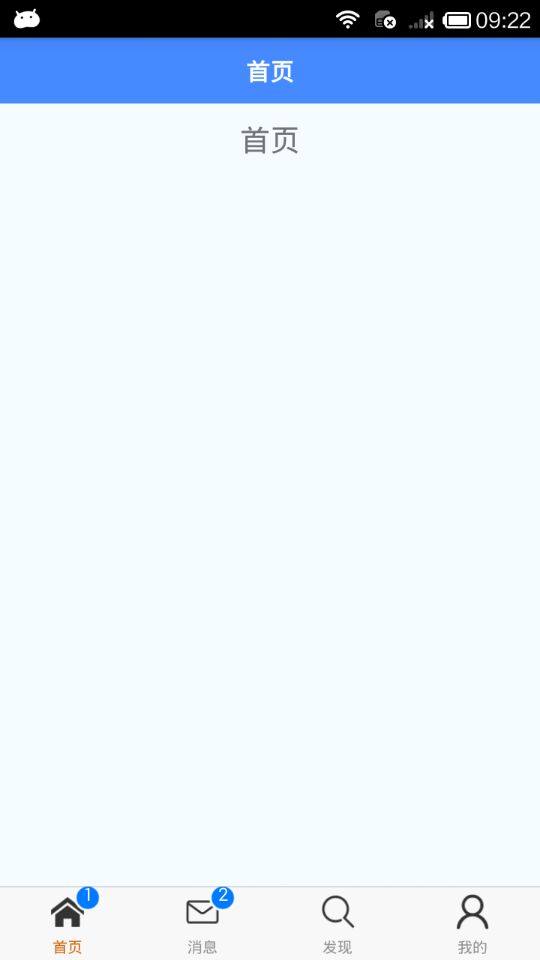
6.效果图
React Native商城项目实战04 - 封装TabNavigator.Item的创建的更多相关文章
- React Native商城项目实战02 - 主要框架部分(tabBar)
1.安装插件,cd到项目根目录下执行: $ npm i react-native-tab-navigator --save 2.主框架文件Main.js /** * 主页面 */ import Rea ...
- React Native商城项目实战03 - 包装Navigator
1.在Home目录下新建首页详细页HomeDetail.js /** * 首页详情页 */ import React, { Component } from 'react'; import { App ...
- React Native商城项目实战01 - 初始化设置
1.创建项目 $ react-native init BuyDemo 2.导入图片资源 安卓:把文件夹放到/android/app/src/main/res/目录下,如图: iOS: Xcode打开工 ...
- React Native商城项目实战11 - 个人中心头部内容
1.创建MineHeaderView.js /** * 个人中心头部内容 */ import React, { Component } from 'react'; import { AppRegist ...
- React Native商城项目实战10 - 个人中心中间内容设置
1.新建一个MineMiddleView.js,专门用于构建中间的内容 /** * 个人中心中间内容设置 */ import React, { Component } from 'react'; im ...
- React Native商城项目实战07 - 设置“More”界面导航条
1.More/More.js /** * 更多 */ import React, { Component } from 'react'; import { AppRegistry, StyleShee ...
- React Native商城项目实战05 - 设置首页的导航条
1.Home.js /** * 首页 */ import React, { Component } from 'react'; import { AppRegistry, StyleSheet, Te ...
- React Native商城项目实战06 - 设置安卓中的启动页
1.Main 目录下新建LaunchImage.js: /** * 启动页 */ import React, { Component } from 'react'; import { AppRegis ...
- React Native商城项目实战16 - 购物中心详细页
逻辑分析: 首页(Home)加载的购物中心组件(ShopCenter),传递url数据: ShopCenter里根据url加载购物中心详细页组件(ShopCenterDetail), ShopCent ...
随机推荐
- logstash7.3版本不支持从redis集群中拉取数据
filebeat可以把收集到的日志传输到redis集群中,但是logstash如何从从redis集群中拉取数据的呢? ogstash使用的是7.3版本 经过查看官网文档,发现logstash7.3版本 ...
- Vim插件YouCompleteMe安装记录(号称最难装的Vim插件?)
使用 PulginInstall 安装就不要想了,如果你没有梯子的话 自己的 ssr 被封,使用的同事的 ss,但是同事设置的加密方式在 linux 上的 ss 应用不支持... 好吧,直接上过程 1 ...
- 集群中Session共享解决方案分析
一.为什么要Session共享 Session存储在服务器的内存中,比如Java中,Session存放在JVM的中,Session也可以持久化到file,MySQL,redis等,SessionID存 ...
- Matlab 快速多通道积分图计算函数
所谓快速多通道积分图计算,其实就是 cumsum2D. 我写了一个比较快的版本(比 VLFeat 的快),用 mex 编译一下就能用了. 代码 #include <string.h> #i ...
- MATLAB中产生高斯白噪声的两个函数
MATLAB中产生高斯白噪声非常方便,可以直接应用两个函数,一个是WGN,另一个是AWGN.WGN用于产生高斯白噪声,AWGN则用于在某一信号中加入高斯白噪声.1.WGN:产生高斯白噪声 y = wg ...
- creat-react-app生成的项目默认端口号是3000,如何更改?
从项目的 package.json 文件中可以看到,npm start即scripts start.js,因此我们找到scripts/start.js ,部分代码如下: 找到 DEFAULT_PORT ...
- Angular7和PrimeNg集成
常规操作之后,随便加了一个控件发现报错了.错误信息看起来是不能识别PrimeNg的组件,经过一番折腾发现.因为用到了ngModel,需要导入FormsModule.因为新建的工程没有导入,导入之后就好 ...
- Java基本的程序结构设计 字符类型
char类型 char是2个字节,和short一样. char用单引号来表示. char可以通过数字来表示,也可以通过字母来表示,也可以通过unicode编码单元来表示,特殊字符还可以通过\+字符来表 ...
- mac安装测试myCat
参考博文https://www.cnblogs.com/chanshuyi/p/head_first_of_mycat.html 1.下载解压mycat的mac版(位置不限) 2.cd进bin文件 ...
- 【优化】SPA项目的基础优化
开启gzip压缩功能 引入CDN 路由懒加载 某些第三方组件按需加载而不是全部加载 较小的图片资源用base64嵌入src中,减少http请求