
Android物联网应用程序开发(智慧城市)—— 摄像头监控界面开发
效果:
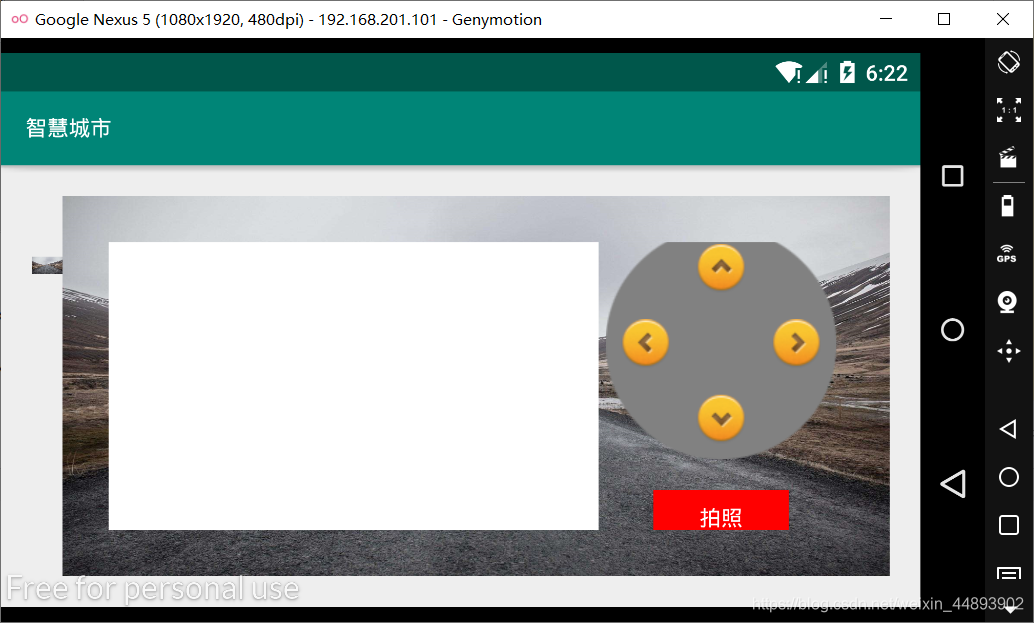
布局代码:
<?xml version="1.0" encoding="utf-8"?>

<RelativeLayout xmlns:android="http://schemas.android.com/apk/res/android"

    xmlns:app="http://schemas.android.com/apk/res-auto"

    xmlns:tools="http://schemas.android.com/tools"

    android:layout_width="fill_parent"

    android:layout_height="fill_parent"

    tools:context=".CameraMonitoring">

    <!--视频监视文字图片-->

    <ImageView

        android:id="@+id/imageView1"

        android:layout_width="20dp"

        android:layout_height="70dp"

        android:layout_marginLeft="20dp"

        android:layout_marginTop="30dp"

        android:src="@drawable/bg_environment"/>

    <!--总体布局-->

    <LinearLayout

        android:layout_width="match_parent"

        android:layout_height="match_parent"

        android:background="@drawable/bg_environment"

        android:padding="30dp"

        android:layout_marginTop="20dp"

        android:layout_marginRight="20dp"

        android:layout_marginBottom="20dp"

        android:layout_toRightOf="@+id/imageView1"

        android:orientation="horizontal">

        <!--两个线性布局管理器中的左边一个-->

        <LinearLayout

            android:layout_width="0.0dp"

            android:layout_height="fill_parent"

            android:layout_weight="2">

            <!--WebView控件-->

            <WebView

                android:id="@+id/webView1"

                android:layout_width="match_parent"

                android:layout_height="match_parent">

            </WebView>

        </LinearLayout>

        <!--两个线性布局管理器中的右边一个-->

        <LinearLayout

            android:layout_width="0.0dp"

            android:layout_height="fill_parent"

            android:layout_weight="1"

            android:orientation="vertical"

            android:gravity="center">

            <!--相对布局管理器,添加4个ImageView控制上下左右-->

            <RelativeLayout

                android:layout_width="150dp"

                android:layout_height="150dp"

                android:background="@drawable/btn__presss_bg">

                <!--右-->

                <ImageView

                    android:layout_width="32dp"

                    android:layout_height="32dp"

                    android:layout_alignParentLeft="true"

                    android:layout_centerVertical="true"

                    android:layout_marginLeft="10dp"

                    android:src="@drawable/btn_left_direction"/>

                <!--下-->

                <ImageView

                    android:layout_width="32dp"

                    android:layout_height="32dp"

                    android:layout_alignParentBottom="true"

                    android:layout_centerHorizontal="true"

                    android:layout_marginBottom="10dp"

                    android:src="@drawable/btn_down_presss"/>

                <!--上-->

                <ImageView

                    android:layout_width="32dp"

                    android:layout_height="32dp"

                    android:layout_alignParentTop="true"

                    android:layout_centerHorizontal="true"

                    android:layout_marginTop="10dp"

                    android:src="@drawable/btn_up_press"/>

                <!--左-->

                <ImageView

                    android:layout_width="32dp"

                    android:layout_height="32dp"

                    android:layout_alignParentRight="true"

                    android:layout_centerVertical="true"

                    android:layout_marginRight="10dp"

                    android:src="@drawable/btn_right_presss"/>

            </RelativeLayout>

            <!--拍照按钮-->

            <Button

                android:layout_width="wrap_content"

                android:layout_height="35dp"

                android:background="@color/red"

                android:textColor="@color/white"

                android:layout_marginTop="20dp"

                android:text="拍照"/>

        </LinearLayout>

    </LinearLayout>

</RelativeLayout>
Android物联网应用程序开发(智慧城市)—— 摄像头监控界面开发的更多相关文章
- Android物联网应用程序开发(智慧城市)—— 用户注册界面开发
效果: 布局代码: <?xml version="1.0" encoding="utf-8"?> <RelativeLayout xmlns: ...
- 【可视化大屏教程】用Python开发智慧城市数据分析大屏!
目录 一.开发背景 二.讲解代码 2.1 大标题+背景图 2.2 各区县交通事故统计图-系列柱形图 2.3 图书馆建设率-水球图 2.4 当年城市空气质量aqi指数-面积图 2.5 近7年人均生产总值 ...
- Android物联网应用程序开发(智慧城市)—— 查询购物信息界面开发
效果: 布局代码: <RelativeLayout xmlns:android="http://schemas.android.com/apk/res/android" xm ...
- Android物联网应用程序开发(智慧城市)—— 火焰监控界面开发
效果: 布局代码: <?xml version="1.0" encoding="utf-8"?> <RelativeLayout xmlns: ...
- Android物联网应用程序开发(智慧城市)—— 购物信息的存储界面开发
效果: 布局代码: <?xml version="1.0" encoding="utf-8"?> <LinearLayout xmlns:an ...
- Android物联网应用程序开发(智慧城市)—— 环境状态值范围设置界面开发
效果图: 代码: 布局: <?xml version="1.0" encoding="utf-8"?> <LinearLayout xmlns ...
- Android物联网应用程序开发(智慧园区)—— 图片预览界面
效果图: 实现步骤: 1.首先在 build.gradle 文件中引入 RecycleView implementation 'com.android.support:recyclerview-v7: ...
- Android物联网应用程序开发(智慧园区)—— 设置传感器阈值对话框界面
效果图: 自定义对话框布局: <?xml version="1.0" encoding="utf-8"?> <LinearLayout xml ...
- Android物联网应用程序开发(智慧园区)—— 园区监控系统界面
效果图: 布局代码: <?xml version="1.0" encoding="utf-8"?> <LinearLayout xmlns:a ...
随机推荐
- Output of C++ Program | Set 8
Predict the output of following C++ programs. Question 1 1 #include<iostream> 2 using namespac ...
- spring注解-自动装配
Spring利用依赖注入(DI)完成对IOC容器中中各个组件的依赖关系赋值 一.@Autowired 默认优先按照类型去容器中找对应的组件(applicationContext.getBean(Boo ...
- ActiveRecord教程
(一.ActiveRecord基础) ActiveRecord是Rails提供的一个对象关系映射(ORM)层,从这篇开始,我们来了解Active Record的一些基础内容,连接数据库,映射表,访问数 ...
- 【Linux】【Services】【MessageQueue】搭建高可用rabbitMQ
1. 简介 1.1. 官方网站: https://www.rabbitmq.com/ 1.2. 配置文档:https://docs.openstack.org/ha-guide/shared-mess ...
- ssm+mysql+jsp打造在线考试系统WeKnow-学生端
一.登陆模块 前台提交账号和密码传到后台处理控制层 1.1 首先是控制器 @RequestMapping(value="/studentLogin", method=Request ...
- 关于python中的随机种子——random_state
random_state是一个随机种子,是在任意带有随机性的类或函数里作为参数来控制随机模式.当random_state取某一个值时,也就确定了一种规则. random_state可以用于很多函数,我 ...
- 【C/C++】习题3-1 得分/算法竞赛入门经典
[题目]一个由O和X组成的串,O的得分为目前连续出现的O的个数,X的得分为0.要求统计得分. 我一开始以为要输出表达式,结果好像不需要? [代码] #include <stdio.h> # ...
- Groovy获取Bean两种方式(奇淫技巧操作)
前言:请各大网友尊重本人原创知识分享,谨记本人博客:南国以南i 背景: 在Java代码中当我们需要一个Bean对象,通常会使用spring中@Autowired注解,用来自动装配对象. 在Groovy ...
- Nginx编译添加新模块
目录 一.简介与思路 一.简介与思路 当前适用于nginx已经在安装过了,如果没安装过,直接在编译时候添加模块即可. Nginx主要程序就是nginx这个二进制脚本,只要在编译一个nginx脚本替换掉 ...
- InnoDB学习(五)之MVCC多版本并发控制
MVCC多版本并发控制,是一种数据库管理系统并发控制的方法.MVCC多版本并发控制下,数据库中的数据会有多个版本,分别对应不同的事务,从而达到事务之间并发数据的隔离.MVCC最大的优势是读不加锁,读写 ...