
Android物联网应用程序开发(智慧城市)—— 查询购物信息界面开发
效果:
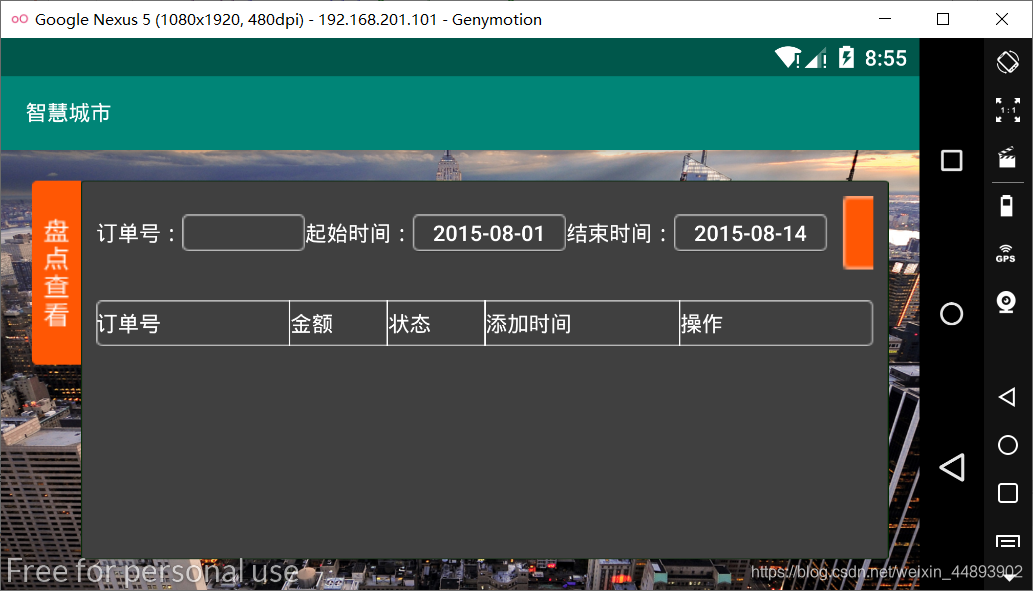
布局代码:
<RelativeLayout xmlns:android="http://schemas.android.com/apk/res/android"

    xmlns:tools="http://schemas.android.com/tools"

    android:layout_width="fill_parent"

    android:layout_height="fill_parent"

    android:background="@drawable/bg_environment"

    tools:context=".QueryShopping">

    <ImageView

        android:id="@+id/imageView1"

        android:layout_width="wrap_content"

        android:layout_height="wrap_content"

        android:layout_alignParentLeft="true"

        android:layout_alignParentTop="true"

        android:layout_marginLeft="20dp"

        android:layout_marginTop="20dp"

        android:src="@drawable/btn_inventory_select" />

    <LinearLayout

        android:layout_width="match_parent"

        android:layout_height="match_parent"

        android:layout_alignTop="@id/imageView1"

        android:layout_marginBottom="20dp"

        android:layout_marginRight="20dp"

        android:layout_toRightOf="@id/imageView1"

        android:background="@drawable/bg_frame_descend_setting"

        android:gravity="center_horizontal"

        android:orientation="vertical"

        android:padding="10dip" >

        <LinearLayout

            android:layout_width="match_parent"

            android:layout_height="wrap_content"

            android:gravity="center_vertical" >

            <TextView

                android:id="@+id/textView1"

                android:layout_width="wrap_content"

                android:layout_height="wrap_content"

                android:text="订单号:"

                android:textColor="@color/white" />

            <EditText

                android:id="@+id/editText1"

                android:layout_width="80dp"

                android:layout_height="24dip"

                android:background="@drawable/input"

                android:padding="2dp"

                android:singleLine="false"

                android:textColor="@color/white" >

                <requestFocus />

            </EditText>

            <TextView

                android:layout_width="wrap_content"

                android:layout_height="wrap_content"

                android:text="起始时间:"

                android:textColor="#ffffff" />

            <Button

                android:id="@+id/btnStartTime"

                android:layout_width="100dip"

                android:layout_height="24dip"

                android:background="@drawable/input"

                android:gravity="center"

                android:text="2015-08-01"

                android:textColor="#ffffff" />

            <TextView

                android:layout_width="wrap_content"

                android:layout_height="wrap_content"

                android:text="结束时间:"

                android:textColor="#ffffff" />

            <Button

                android:id="@+id/btnEndTime"

                android:layout_width="100dip"

                android:layout_height="24dip"

                android:background="@drawable/input"

                android:gravity="center"

                android:text="2015-08-14"

                android:textColor="#ffffff" />

            <Button

                android:id="@+id/btnSearch"

                android:layout_width="142dp"

                android:layout_height="wrap_content"

                android:layout_marginLeft="10dp"

                android:background="@drawable/btn_search" />

        </LinearLayout>

        <LinearLayout

            android:layout_width="match_parent"

            android:layout_height="30dp"

            android:layout_marginTop="20dp"

            android:background="@drawable/input"

            android:gravity="center_vertical"

            android:orientation="horizontal" >

            <TextView

                android:id="@+id/tvNo"

                android:layout_width="0.0dp"

                android:layout_height="wrap_content"

                android:layout_weight="2"

                android:text="订单号"

                android:textColor="@color/white" />

            <View

                android:layout_width="1dp"

                android:layout_height="match_parent"

                android:background="#ffffff" />

            <TextView

                android:id="@+id/tvAmount"

                android:layout_width="0.0dp"

                android:layout_height="wrap_content"

                android:layout_weight="1"

                android:text="金额"

                android:textColor="@color/white" />

            <View

                android:layout_width="1dp"

                android:layout_height="match_parent"

                android:background="#ffffff" />

            <TextView

                android:id="@+id/tvState"

                android:layout_width="0.0dp"

                android:layout_height="wrap_content"

                android:layout_weight="1"

                android:text="状态"

                android:textColor="@color/white" />

            <View

                android:layout_width="1dp"

                android:layout_height="match_parent"

                android:background="#ffffff" />

            <TextView

                android:id="@+id/tvTime"

                android:layout_width="0.0dp"

                android:layout_height="wrap_content"

                android:layout_weight="2"

                android:text="添加时间"

                android:textColor="@color/white" />

            <View

                android:layout_width="1dp"

                android:layout_height="match_parent"

                android:background="#ffffff" />

            <TextView

                android:id="@+id/tvOperate"

                android:layout_width="0.0dp"

                android:layout_height="wrap_content"

                android:layout_weight="2"

                android:text="操作"

                android:textColor="@color/white" />

        </LinearLayout>

        <ListView

            android:id="@+id/listView1"

            android:layout_width="match_parent"

            android:layout_height="wrap_content"

            android:cacheColorHint="#00000000"

            android:fadingEdgeLength="0dp" >

        </ListView>

    </LinearLayout>

</RelativeLayout>
引用布局:items.xml
<?xml version="1.0" encoding="utf-8"?>

<LinearLayout xmlns:android="http://schemas.android.com/apk/res/android"

    android:layout_width="match_parent"

    android:layout_height="match_parent"

    android:orientation="vertical" >

    <LinearLayout

        android:layout_width="match_parent"

        android:layout_height="30dp"

        android:gravity="center_vertical"

        android:background="@drawable/input"

        android:orientation="horizontal" >

        <TextView

            android:id="@+id/tvNo"

            android:layout_width="0.0dp"

            android:layout_height="wrap_content"

            android:layout_weight="2"

            android:textColor="@color/white"

            android:text="订单号" />

        <View

            android:layout_width="1dp"

            android:layout_height="match_parent"

            android:background="#ffffff"

            />

        <TextView

            android:id="@+id/tvAmount"

            android:layout_width="0.0dp"

            android:layout_height="wrap_content"

            android:layout_weight="1"

            android:textColor="@color/white"

            android:text="金额" />

        <View

            android:layout_width="1dp"

            android:layout_height="match_parent"

            android:background="#ffffff"

            />

        <TextView

            android:id="@+id/tvState"

            android:layout_width="0.0dp"

            android:layout_height="wrap_content"

            android:layout_weight="1"

            android:textColor="@color/white"

            android:text="状态" />

        <View

            android:layout_width="1dp"

            android:layout_height="match_parent"

            android:background="#ffffff"

            />

        <TextView

            android:id="@+id/tvTime"

            android:layout_width="0.0dp"

            android:layout_height="wrap_content"

            android:layout_weight="2"

            android:textColor="@color/white"

            android:text="添加时间" />

        <View

            android:layout_width="1dp"

            android:layout_height="match_parent"

            android:background="#ffffff"

            />

        <TextView

            android:id="@+id/tvOperate"

            android:layout_width="0.0dp"

            android:layout_height="wrap_content"

            android:layout_weight="2"

            android:textColor="@color/white"

            android:text="操作" />

    </LinearLayout>

</LinearLayout>
Java类进行列表项内容的添加
import android.content.Context;

import android.view.LayoutInflater;

import android.view.View;

import android.view.ViewGroup;

import android.widget.BaseAdapter;

import android.widget.TextView;

public abstract class MyAdapter extends BaseAdapter {

    private Context context;

    public MyAdapter(Context context){

        this.context = context;

    }

    @Override

    public View getView(int position, View convertView, ViewGroup parent) {

        ViewHoller v;

        if(convertView==null){

            v = new ViewHoller();

            convertView = LayoutInflater.from(context).inflate(R.layout.items, null);

            v.mTvNo = (TextView) convertView.findViewById(R.id.tvNo);

            v.mTvAmount = (TextView) convertView.findViewById(R.id.tvAmount);

            v.mTvState = (TextView)convertView.findViewById(R.id.tvState);

            v.mTvTime = (TextView)convertView.findViewById(R.id.tvTime);

            v.mTvOperate = (TextView)convertView.findViewById(R.id.tvOperate);

            convertView.setTag(v);

        }else{

            v = (ViewHoller) convertView.getTag();

        }

        v.mTvNo.setText("201508281043");

        v.mTvAmount.setText("168");

        v.mTvState.setText("已发货");

        v.mTvTime.setText("2015-08-28 10:43");

        v.mTvOperate.setText("");

        return convertView;

    }

    class ViewHoller{

        TextView mTvNo,mTvAmount,mTvState,mTvTime,mTvOperate;

    }

}
加载列表项
import android.support.v7.app.AppCompatActivity;

import android.os.Bundle;

import android.widget.ListView;

public class QueryShopping extends AppCompatActivity {

private ListView mlistView;

private MyAdapter myAdapter;

    @Override

    protected void onCreate(Bundle savedInstanceState) {

        super.onCreate(savedInstanceState);

        setContentView(R.layout.activity_query_shopping);

        mlistView = (ListView)findViewById(R.id.listView1);

    }

}
Android物联网应用程序开发(智慧城市)—— 查询购物信息界面开发的更多相关文章
- Android物联网应用程序开发(智慧城市)—— 摄像头监控界面开发
效果: 布局代码: <?xml version="1.0" encoding="utf-8"?> <RelativeLayout xmlns: ...
- Android物联网应用程序开发(智慧城市)—— 火焰监控界面开发
效果: 布局代码: <?xml version="1.0" encoding="utf-8"?> <RelativeLayout xmlns: ...
- Android物联网应用程序开发(智慧城市)—— 购物信息的存储界面开发
效果: 布局代码: <?xml version="1.0" encoding="utf-8"?> <LinearLayout xmlns:an ...
- 【可视化大屏教程】用Python开发智慧城市数据分析大屏!
目录 一.开发背景 二.讲解代码 2.1 大标题+背景图 2.2 各区县交通事故统计图-系列柱形图 2.3 图书馆建设率-水球图 2.4 当年城市空气质量aqi指数-面积图 2.5 近7年人均生产总值 ...
- JAVA 图形开发中组件对齐方法及界面开发
/*文章中用到的代码只是一部分,需要源码的可通过邮箱联系我 1978702969@qq.com*/ 在上篇博客中提到了JAVA图形界面开发时的两种布局,流式布局和边框布局. 在实际使用中可能会发现,往 ...
- Android物联网应用程序开发(智慧城市)—— 用户注册界面开发
效果: 布局代码: <?xml version="1.0" encoding="utf-8"?> <RelativeLayout xmlns: ...
- Android物联网应用程序开发(智慧城市)—— 环境状态值范围设置界面开发
效果图: 代码: 布局: <?xml version="1.0" encoding="utf-8"?> <LinearLayout xmlns ...
- Android物联网应用程序开发(智慧园区)—— 图片预览界面
效果图: 实现步骤: 1.首先在 build.gradle 文件中引入 RecycleView implementation 'com.android.support:recyclerview-v7: ...
- Android物联网应用程序开发(智慧园区)—— 设置传感器阈值对话框界面
效果图: 自定义对话框布局: <?xml version="1.0" encoding="utf-8"?> <LinearLayout xml ...
随机推荐
- Shell学习(十)——du、df命令
一.du 命令 1.命令格式: du [选项][文件] 2.命令功能: 显示每个文件和目录的磁盘使用空间. 3.命令参数: -a或-all 显示目录中个别文件的大小. -b或-bytes 显示目录或文 ...
- SpringBoot的定时任务
springBoot定时任务可分为多线程和单线程,而单线程又分为注解形式,接口形式 1.基于注解形式 基于注解@Scheduled默认为单线程,开启多个任务时,任务的执行时机会受上一个任务执行时间的影 ...
- 关于finally中的语句和try中的return之间的执行顺序
首先是第一种情况: 我们这里由于程序只是单一的,所以后面的代码只有主题部分: Public class test{ Public static void main(String[] args){ Sy ...
- 【超详细】安全测试===sqlmap使用心得(零)
零.前言 这篇文章是学习Sqlmap的用法时做的笔记,记录了Sqlmap的常见.基础用法. 一.Sqlmap是什么 Sqlmap是开源的自动化SQL注入工具,由Python写成,具有如下特点: 完全支 ...
- maven 常用编译
mvn -B clean package -Dspecific -DskipTests -P test
- sqlalchemy-orm学生签到 成绩记录查询系统
#!/usr/bin/env python # Author:zhangmingda '''''' from sqlalchemy import create_engine,ForeignKey,DA ...
- Linux蓝牙库blueZ
1.blueZ 官网 2.zigbee 网络库zigbee(可用在smart home devices)
- 【LeetCode】1418. 点菜展示表 Display Table of Food Orders in a Restaurant
作者: 负雪明烛 id: fuxuemingzhu 个人博客:http://fuxuemingzhu.cn/ 目录 题目描述 题目大意 解题方法 字典统计边的次数 日期 题目地址:https://le ...
- java源码——计算不同图形的周长和面积
计算任意三角形,正方形,正五边形,圆形的周长和面积. 利用类的继承实现. 将计算结果进行输出. 不多说,贴码. Contants.java 常量存储类 <pre name="code& ...
- 【LeetCode】934. Shortest Bridge 解题报告(Python)
作者: 负雪明烛 id: fuxuemingzhu 个人博客: http://fuxuemingzhu.cn/ 目录 题目描述 题目大意 解题方法 DFS + BFS 相似题目 参考资料 日期 题目地 ...