
【转】Setting up SDL 2 on MinGW
FROM: http://lazyfoo.net/tutorials/SDL/01_hello_SDL/windows/mingw/index.php
Setting up SDL 2 on MinGW
Last Updated 6/21/14
1)First thing you need to do is download SDL headers, libary and binaries. You will find them on the SDL website, specifically on this page.
You'll want to download the MinGW development libraries.
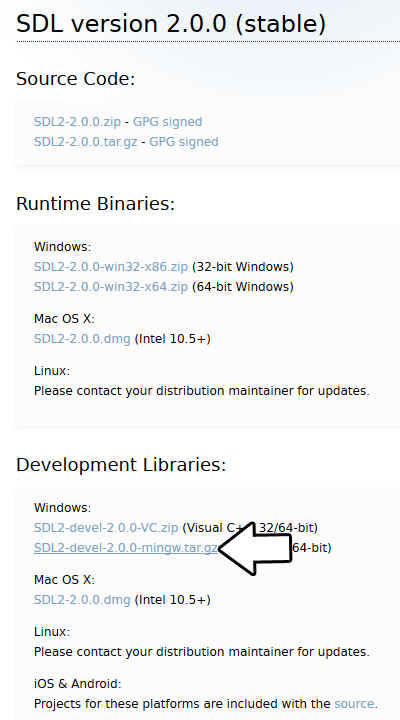
Open the gzip archive and there should be a tar archive. Open up the tar archive and the should be a folder called SDL2-2.something.something. Inside of that folder there should be a bunch of folders and files, most importantly i686-w64-mingw32 which contains the 32bit library and x86_64-w64-mingw32 which contains the 64bit library.
This is important: most compilers still compile 32bit binaries by default to maximize compatibility. We will be using the 32bit binaries for this tutorial set. It doesn't matter if you have a 64bit operating system, since we are compiling 32bit binaries we will be using the 32bit library.
Inside of i686-w64-mingw32 are the include, lib, and bin folders which contain everything we need compile and run SDL applications. Copy the contents of i686-w64-mingw32 to any directory you want. I recommend putting it in a folder that you dedicate to holding all your development libraries for MinGW. For these tutorials I'm putting it in a directory I created C:\mingw_dev_lib
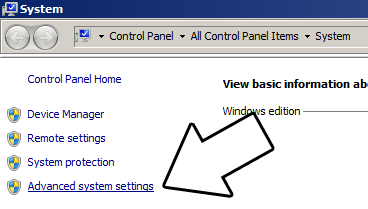
2)Next you're going to want to get up the path for mingw so you can run mingw commands in any directory. Open up the system menu either by A) right clicking My Computer and selecting Properties or B) going to the Control Panel and selecting the system menu. Once your in the system menu, click advanced system settings.
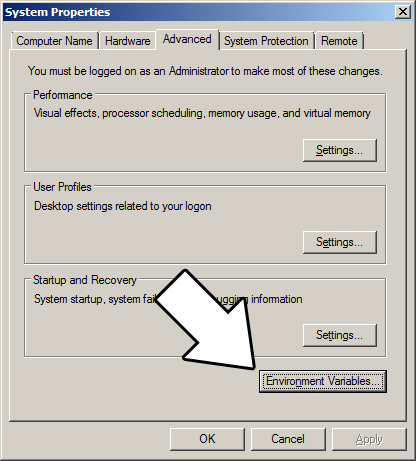
and then click environment variables
Under system variables, select the "Path" variable and click edit.

What the path variable does is tell the OS where to look when running an executable. What we want to do is whenever we run the g++ command, the OS should look in the MinGW bin directory where g++.exe is located. If you installed MinGW by itself, the MinGW bin directory should be
C:\MinGW\bin
Append it to the long list of paths with a semi-colon after it and click ok.
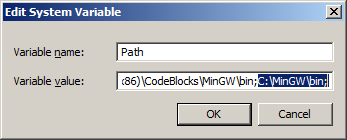
If you're using an IDE like Code::Blocks which uses MinGW, you can also set its MinGW bin directory which should be at
C:\Program Files (x86)\CodeBlocks\MinGW\bin
Now when ever you run a command that uses a MinGW executable, the OS will know to look in the MinGW bin directory.
If you run your program and it complains that it can't find SDL2.dll, it means you did not set the path correctly.
3)Now go download the source for lesson 01. Extract the source somewhere. Open up a command window in the directory by holding shift and right clicking.

Now compile by entering this big old command (This command assumed you have SDL 2 extracted at C:\mingw_dev_lib):
g++ 01_hello_SDL.cpp -IC:\mingw_dev_lib\include\SDL2 -LC:\mingw_dev_lib\lib -w -Wl,-subsystem,windows -lmingw32 -lSDL2main -lSDL2 -o 01_hello_SDL
Having to manually punch in this compilation command gets very tedious very quickly. This is why I recommend using Make.
4) MingGW Make allows you to make build scripts that'll automate the compilation process.
#OBJS specifies which files to compile as part of the project

OBJS = 01_hello_SDL.cpp

#OBJ_NAME specifies the name of our exectuable

OBJ_NAME = 01_hello_SDL

#This is the target that compiles our executable

all : $(OBJS)

    g++ $(OBJS) -IC:\mingw_dev_lib\include\SDL2 -LC:\mingw_dev_lib\lib -w -Wl,-subsystem,windows -lmingw32 -lSDL2main -lSDL2 -o $(OBJ_NAME)
Here we have a basic Makefile. At the top we declare and set the "OBJS" macro which specifies which files we're compiling. Then we set the "OBJ_NAME" macro that specifies the name of our executable.
After setting these two macros, we have the "all" target which compiles the program. It's followed by the dependencies which as you can see is the OBJS macro, because obviously you need the source files to compile the program.
After specifying the name of the target and its dependencies, the command to create the target is on the next line. The command to create the target must begin with a tab or Make will reject it.
As you would expect, the command to compile the program is largely the same as the command we would compile it off the command line. A key difference is that we have macros that we insert into the command which makes things like adding new files to the project must easier since you only have to change the macro as opposed to changing the whole command.
In future tutorials, we will be using more libraries. We should probably use more macros to make the process of adding them easier.
From Makefile
#OBJS specifies which files to compile as part of the project

OBJS = 01_hello_SDL.cpp

#CC specifies which compiler we're using

CC = g++

#INCLUDE_PATHS specifies the additional include paths we'll need

INCLUDE_PATHS = -IC:\mingw_dev_lib\include\SDL2

#LIBRARY_PATHS specifies the additional library paths we'll need

LIBRARY_PATHS = -LC:\mingw_dev_lib\lib

#COMPILER_FLAGS specifies the additional compilation options we're using

# -w suppresses all warnings

# -Wl,-subsystem,windows gets rid of the console window

COMPILER_FLAGS = -w -Wl,-subsystem,windows

#LINKER_FLAGS specifies the libraries we're linking against

LINKER_FLAGS = -lmingw32 -lSDL2main -lSDL2

#OBJ_NAME specifies the name of our exectuable

OBJ_NAME = 01_hello_SDL

#This is the target that compiles our executable

all : $(OBJS)

    $(CC) $(OBJS) $(INCLUDE_PATHS) $(LIBRARY_PATHS) $(COMPILER_FLAGS) $(LINKER_FLAGS) -o $(OBJ_NAME)
Now our compilation command is much more flexible.
Near the top we have the macros that define the files we're compiling and the compiler we're using.
Next we have the "INCLUDE_PATHS" macro which specifies the additional directories we're getting header files from. As you can see, we're using the include directory from the SDL2 folder we extacted earlier. The "LIBRARY_PATHS" sets the additional library file paths. Notice how there's a -I before every include directory and a -L before every library directory.
The "COMPILER_FLAGS" macro are the additional options we use when compiling. In this case we're disabling all warnings and disabling the console window. The "LINKER_FLAGS" macro specifies which libraries we're linking against. Here we're compiling against 32bit mingw, SDL2, and SDL2main. Notice how there's a -l flag before every library.
Finally at the bottom we have our target compiling using all of our macros. Thanks to macros we can very easily change the macros to add more files and libraries as we need them.
Save this Makefile code to a file named "Makefile" (case sensitive with no file extension) or you can use the one I premade here. Open a command line in the directory with the source files and run the command mingw32-make.exe. Make will search for a file named "Makefile" in the directory Make was called in and run the Makefile that will compile your code.
Now that you have SDL 2 compiling, it time to go onto part 2 of the tutorial.
【转】Setting up SDL 2 on MinGW的更多相关文章
- 【转】Setting up SDL Extension Libraries on MinGW
FROM:http://lazyfoo.net/tutorials/SDL/06_extension_libraries_and_loading_other_image_formats/windows ...
- 【转】Setting up SDL Extension Libraries on Code::Blocks 12.11
FROM: http://lazyfoo.net/tutorials/SDL/06_extension_libraries_and_loading_other_image_formats/window ...
- 【转】Setting up SDL Extension Libraries on Windows
FROM: http://lazyfoo.net/tutorials/SDL/06_extension_libraries_and_loading_other_image_formats/window ...
- 【转】Setting up SDL 2 on Code::Blocks 12.11
FROM: http://lazyfoo.net/tutorials/SDL/01_hello_SDL/windows/codeblocks/index.php Setting up SDL 2 on ...
- 【转】Setting up SDL on Windows
FROM: http://lazyfoo.net/tutorials/SDL/01_hello_SDL/windows/index.php Setting up SDL on Windows Last ...
- 【转】Setting up SDL 2 on Visual Studio 2010 Ultimate
from: Lazy Foo'Productions - Setting up SDL 2 on Visual Studio 2010 Ultimate 1)First thing you need ...
- 【转】Setting up SDL Extension Libraries on Visual Studio 2010 Ultimate
FROM:http://lazyfoo.net/tutorials/SDL/06_extension_libraries_and_loading_other_image_formats/windows ...
- 【转】Setting up SDL Extension Libraries on Visual Studio 2019 Community
FROM:http://lazyfoo.net/tutorials/SDL/06_extension_libraries_and_loading_other_image_formats/windows ...
- 【转】Setting up SDL 2 on Visual Studio 2019 Community
FROM: http://lazyfoo.net/tutorials/SDL/01_hello_SDL/windows/msvc2019/index.php Setting up SDL 2 on V ...
随机推荐
- 什么是 Opcache,如何使用 Opcache
Opcode 是啥? 我们先看一下 PHP 的执行过程: PHP 初始化执行环节,启动 Zend 引擎,加载注册的扩展模块. 初始化后读取 PHP 脚本文件,Zend 引擎对 PHP 文件进行词法分析 ...
- 【保姆级教程】手把手教你进行Go语言环境安装及相关VSCode配置
[Go语言入门系列]前面的文章: [Go语言入门系列](七)如何使用Go的方法? [Go语言入门系列](八)Go语言是不是面向对象语言? [Go语言入门系列](九)写这些就是为了搞懂怎么用接口 本篇文 ...
- 073 01 Android 零基础入门 01 Java基础语法 09 综合案例-数组移位 05 综合案例-数组移位-主方法功能1和2的实现
073 01 Android 零基础入门 01 Java基础语法 09 综合案例-数组移位 05 综合案例-数组移位-主方法功能1和2的实现 本文知识点:综合案例-数组移位-主方法功能1和2的实现 说 ...
- 012 01 Android 零基础入门 01 Java基础语法 02 Java常量与变量 06 浮点型“字面值”
012 01 Android 零基础入门 01 Java基础语法 02 Java常量与变量 06 浮点型"字面值" 浮点型字面值 首先要知道一点:在整型部分中,默认情况下,即整型数 ...
- Thinkphp中D方法和M方法的区别
两者共同点都是实例化模型的,而两者不同点呢?一起来看一下: $User = D('User');括号中的参数User,对应的模型类文件的 \Home\Model\UserModel.class.php ...
- 洛谷 P3413 【萌数】
敲完这篇题解,我就,我就,我就,嗯,好,就这样吧... 思路分析: 首先我们要知道一个回文串的性质--假如说一个[l-1,r+1]的串是回文的,那么[l,r]一定也是回文的. 所以我们只要记录前一个数 ...
- 2016年 实验二、C2C模拟实验
实验二.C2C模拟实验 [实验目的] 掌握网上购物的基本流程和C2C平台的运营 [实验条件] ⑴.个人计算机一台 ⑵.计算机通过局域网形式接入互联网. (3).奥派电子商务应用软件 [知识准备] 本实 ...
- Spring Boot 系列:最新版优雅停机详解
爱生活,爱编码,本文已收录架构技术专栏关注这个喜欢分享的地方. 开源项目: 分布式监控(Gitee GVP最有价值开源项目 ):https://gitee.com/sanjiankethree/cub ...
- JVM 第六篇:极致优化 IDEA 启动速度
本文内容过于硬核,建议有 Java 相关经验人士阅读. 1. 引言 相信做 Java 开发的同学,对 IDEA 这个工具应该都不陌生,即使不使用 IDEA 做开发,那么对 Eclipse 这个工具应该 ...
- centos7搭建docker环境
Docker简介 Docker是一种虚拟化技术,用来将你的应用程序及其依赖的环境一起打包成一个镜像发布,使得在任何地方都能获得相同的运行环境. Docker 是一个开源项目,诞生于 2013 年初,最 ...